Capturing the essence of sports photography is a thrilling pursuit, an endeavor that immerses photographers in the raw emotion and peak action of athletes. The adrenaline rush of freezing that game-winning play or the sheer determination on an athlete's face is an unparalleled feeling. However, this excitement often gives way to a daunting reality: a memory card brimming with thousands of images, all demanding meticulous culling, editing, and timely delivery. This is where the editing bottleneck emerges, transforming exhilaration into a significant headache. For years, the photography community has sought a singular solution: Lightroom presets for sports photography. The allure of a "one-click" editing magic button has been a persistent chase, a quest for efficiency that this guide aims to explore, dissecting the limitations of traditional presets and illuminating more advanced, intelligent approaches.
The Unique Challenges of Sports Photography Editing
Sports photography presents a distinct set of challenges that differentiate it significantly from genres like studio portraits or landscapes. The sheer volume of images generated is often the most immediately apparent hurdle. While a wedding photographer might shoot 5,000 photos and deliver around 800, a sports photographer can easily capture 3,000 images from a single game. Covering a weekend tournament can result in an overwhelming influx of over 10,000 photos, transforming image management into a full-time job in itself.
Beyond volume, the dynamic nature of sports itself poses considerable technical difficulties. To freeze fast-paced action, photographers rely on high shutter speeds, often exceeding 1/1000th of a second. Achieving these speeds, especially in challenging lighting conditions like indoor arenas or nighttime games, necessitates a significant increase in ISO. It's not uncommon for entire games to be shot at ISO 3200, 6400, or even higher, leading to a substantial amount of digital noise.
The lighting conditions encountered in sports are notoriously inconsistent and often problematic. Day games can present harsh overhead sun, creating deep shadows and the unflattering "raccoon eyes" effect from helmets. Night games are at the mercy of stadium lighting, which can be inconsistent and cast peculiar color casts. Indoor gymnasiums are often cited as the most challenging environments, featuring dim, flickering, and intensely colored artificial lights, frequently a harsh orange-yellow from fluorescent or sodium-vapor lamps. Consequently, a single gallery might contain images shot in bright sunlight, deep shadow, and a mixture of artificial lighting, each requiring nuanced adjustments.
Finally, the temporal demands of sports photography are immense. News outlets, schools, and fans expect to see game photos almost immediately, often within hours of the event's conclusion. This pressure to cull, edit, and deliver thousands of images in a very short timeframe is a primary driver behind the search for shortcuts.
The Allure and Limitations of Traditional Lightroom Presets
The demand for speed in sports photography editing naturally led to the widespread adoption of Lightroom presets. The concept of a preset, essentially a saved "recipe" of slider positions within Lightroom, promised a streamlined workflow. By applying a preset, users could instantaneously replicate a desired look across multiple images with a single click. The dream was to import a batch of photos, select them all, apply a "Gritty Football" preset, and then export, achieving both speed and a consistent signature style across an entire gallery.
However, the inherent flaw in traditional presets lies in their static and inflexible nature. A preset applies the exact same settings regardless of the image's content. It cannot "see" or interpret the nuances of a photograph. This rigidity often leads to the frustrating "fixing the fix" scenario. For instance, a preset might be applied, but the white balance could be completely off due to the specific lighting conditions of that particular shot, rendering skin tones unnaturally orange in a gym environment. Consequently, the photographer ends up manually adjusting the white balance and exposure for each individual photo, negating any time savings the preset was intended to provide. This manual correction process, repeated for hundreds or thousands of images, can lead to inconsistency as the gallery's overall look drifts.
Building a Smarter "Base" Preset: A Foundation for Efficiency
While the "one-click" dream of a perfect preset remains elusive, the concept isn't entirely without merit. A more intelligent approach involves building a "base" preset that focuses on stylistic elements and technical fixes, deliberately excluding settings that are highly dependent on individual image conditions.
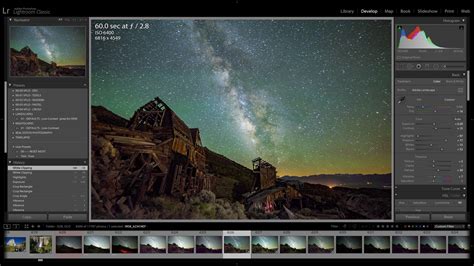
When creating such a preset in Lightroom Classic's Develop module, begin by enabling Profile Corrections and removing Chromatic Aberration. These are generally beneficial global adjustments. Crucially, do not include White Balance or Exposure in your base preset. These settings are highly variable and depend entirely on the specific lighting of each photograph. Instead, leave them at "As Shot" to be adjusted manually later.
For stylistic and technical enhancements, consider the following:
- Contrast: A slight bump, perhaps to +15, can add punch.
- Highlights and Shadows: Adjust these to manage bright areas like skies or jerseys and to recover detail in shadowed regions where athletes' faces might be.
- Whites & Blacks: Carefully drag the Whites slider to the right until just a few specks of white appear, and the Blacks slider to the left until a few specks of black emerge. This helps define the image's dynamic range.
- Texture: Typically, this can be left at 0 for sports.
- Clarity: Use this slider judiciously, as it can quickly lead to an unnatural "gritty" look if overdone.
- Dehaze: Apply sparingly, as it significantly impacts contrast and saturation.
Moving to the Tone Curve offers more stylistic control. For example, to address an undesirable yellow-green cast in stadium grass, navigate to the HSL/Color panel, select the Saturation tab, and reduce the Green slider. To achieve a deeper sky, go to the Luminance tab and pull down the Blue slider. For skin tones, be cautious with the Oranges and Yellows sliders.
A powerful pro-tip involves using the Masking slider. Holding the Alt/Option key while dragging this slider will turn your screen black, revealing the areas that will be sharpened as white. Aim to apply sharpening primarily to the edges of your subjects, perhaps setting the slider around +70. Adjusting Luminance to around +25 can also enhance detail.
The resulting flexible preset can be applied as a starting point, avoiding the pitfalls of incorrect White Balance and Exposure. However, it's essential to acknowledge that this approach still requires manual adjustments for Exposure, White Balance, and straightening horizons on a per-image basis, meaning the "one-click" dream remains unfulfilled, and the bottleneck persists.
The Dawn of AI Editing: A Paradigm Shift
The persistent editing bottleneck, especially after challenging shoots like a swim meet under harsh gym lights, can be a breaking point. It becomes clear that a better preset isn't the ultimate solution; what's truly needed is an intelligent assistant. This is where Artificial Intelligence (AI) editing enters the arena, offering a transformative approach that moves beyond the static limitations of traditional presets.
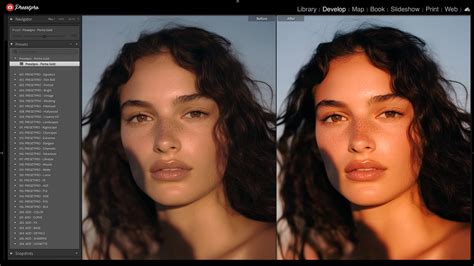
AI editing tools, such as Imagen, represent the evolution of the preset. These desktop applications integrate with Lightroom Classic and leverage cloud-based processing for speed. Instead of applying a fixed set of instructions, AI analyzes each individual photo, understanding its unique characteristics. For example, it can identify that a photo is underexposed by 1.2 stops and that its white balance is too warm by 500 points, making precise, context-aware adjustments.
Your Style, Your AI: Personal AI Profiles
The true power of AI editing lies in its ability to learn and adapt to your personal editing style. Imagen's Personal AI Profile allows you to train an AI model on your past edits. This "homework" involves providing the AI with a substantial library of your consistently edited Lightroom Classic catalogs â ideally 2,000 or more edited photos. By analyzing how you handle high ISO noise, correct challenging lighting, and crop for action, the AI builds a profile that emulates your unique aesthetic.
The training process is straightforward:
- Gather Training Data: Collect your consistently edited Lightroom Classic catalogs. For sports, feeding the AI data from multiple seasons of shooting football and track can yield excellent results. The key is that you must be satisfied with the edits in these training catalogs.
- Point Imagen to Your Catalogs: Open the Imagen desktop app and initiate the creation of a new Personal AI Profile.
- Upload and Train: Imagen scans your catalogs, extracting only the edit data (slider positions) and uploading it to the cloud for AI processing. The AI then analyzes your editing decisions to build a profile that "thinks" like you.
Once trained, your Personal AI Profile is ready to apply your signature style to new images, intelligently adapting to each one.
Bridging the Gap: Lite Personal AI Profiles and Talent AI Profiles
For those new to editing or without an extensive back catalog, AI solutions offer accessible entry points.
- Lite Personal AI Profile: This option provides a perfect bridge from the "Base Preset" concept. You can feed Imagen a pre-existing preset (like the .xmp file created earlier). The AI then takes over the most time-consuming tasks: perfectly adjusting White Balance and Exposure for each image while applying your preset's stylistic settings on top.
- Talent AI Profiles: These are AI editing profiles developed in collaboration with world-class photographers. You can select a "Talent AI Profile" that matches a desired look, such as a clean and vibrant style, and use it immediately. Crucially, even these profiles are adaptive AI, meaning they will still tailor their adjustments to each individual photo.
A Full Workflow, Not Just a Filter: Beyond Color Grading
The true revolution of AI editing extends far beyond stylistic color grading. It encompasses the entire post-production workflow, automating tedious and time-consuming tasks that have long plagued sports photographers.
AI Culling: Reclaiming Hours
Culling thousands of images is a significant time drain. Imagen's AI Culling feature scans your entire photo library, identifying blurry, out-of-focus, or otherwise undesirable shots. It can also intelligently group duplicate images from rapid bursts of action, drastically reducing the time spent on selection. What once took hours can now be accomplished in minutes.
AI Straighten: Perfect Horizons, Effortlessly
When tracking fast-moving athletes, achieving perfectly straight horizons is often an afterthought. Imagen's AI Straighten tool automatically detects and corrects horizons in every photo, ensuring a professional and polished look without manual intervention.
AI Subject Masking: Precision Without the Pain
One of the most impressive AI features is Subject Masking. Presets are incapable of identifying subjects within an image. Imagen's AI, however, can detect the person or people in a shot and automatically generate a precise mask for them. This mask is then passed back into Lightroom, allowing for targeted adjustments to the subject without the laborious manual masking process.
Imagine the power of instructing Imagen: "Cull my 3,000 photos, find the player in each, straighten the horizon, crop appropriately, correct the white balance and exposure, apply my signature gritty style, sharpen the player, and reduce noise." This comprehensive automation streamlines the entire process.

The Iterative Improvement Loop: Fine-Tuning Your AI
The AI editing process doesn't end with the initial automated edit. A crucial element of Imagen's workflow is the feedback loop that allows for continuous improvement. After Imagen processes your photos, you can make final, nuanced tweaks within Lightroom. Once you are completely satisfied with the edits, you can then "Fine-Tune" your Personal AI Profile by uploading these final adjustments back to Imagen. The AI learns from these tweaks, refining its understanding of your style. If it consistently observes that you tend to brighten images slightly, it will incorporate this learning into future edits, making your AI assistant progressively smarter and more attuned to your preferences.
This iterative process ensures that the AI doesn't just mimic your past edits but evolves alongside your developing style, offering a dynamic and continuously improving editing experience.
The Future of Editing: Intelligence Over Automation
The pursuit of "sports presets for Lightroom" was a noble attempt to solve a significant problem â the overwhelming editing workload in sports photography. While presets offered a semblance of speed and consistency, their inherent limitations ultimately created more work than they saved. The true goal was never about finding the perfect preset; it was about reclaiming time, allowing photographers to spend more moments behind the lens and less time tethered to a computer.
AI editing, exemplified by tools like Imagen's Personal AI Profile, represents the realization of that goal. It delivers the consistency and stylistic signature of a preset but imbues it with the intelligence and adaptability of a human editor. By automating the often mundane, repetitive, and technical 90% of the editing process â culling, straightening, white balance correction, exposure adjustments, and noise reduction â AI frees up photographers to focus on the crucial 10% that truly matters: the creative aspects. This allows for more attention to be dedicated to crafting that one "hero" shot or, perhaps more importantly, simply closing the laptop and enjoying a well-deserved break. The era of static, one-size-fits-all solutions is giving way to intelligent, adaptive workflows that empower photographers to achieve both speed and artistic integrity.