Adobe Illustrator's Generative Shape Fill is a revolutionary tool that empowers designers to imbue their creations with unprecedented levels of detail, color, and texture. This feature unlocks a new dimension of creative expression, allowing for the generation of intricate and unique fills that can significantly enhance any project. The true significance of Generative Shape Fill lies in its potent ability to foster creativity and encourage deep exploration of design possibilities.
Understanding the Core Functionality of Generative Shape Fill
At its heart, Generative Shape Fill operates by analyzing existing shapes and applying a generated fill that can be customized to a remarkable degree. This process begins with the selection of a shape, which can be a fundamental element such as an open or closed path, a basic geometric form, a grouped object, or even a compound path. Once a shape is selected, the user can influence the fill's adherence to the shape's boundaries through the "Shape Strength" slider. When "Shape Strength" is set to "High," the generated fill will meticulously follow and perfectly match the outline of the selected shape, ensuring a clean and precise result.
The "Style reference" setting offers further control. By default, "Auto" is enabled, which instructs Illustrator to intelligently match the style of the fill to the surrounding objects, whether they are vector elements or raster images. This ensures a seamless integration of the generated fill into the existing design. For more granular control over the color palette, users can access "View all settings" to "Specify Colors." This advanced option allows for the designation of up to 12 distinct colors, which Illustrator then uses as a foundation to generate variations of the fill. These variations are conveniently presented in the Properties panel, with the first automatically appearing on the canvas as a "Generative Object." This object is clearly indicated by a specific icon on its bounding box, signifying that it is dynamically filling the selected shape. It's important to note that if a partner model is utilized, only a single output variation will be provided. Crucially, the original shape remains on the canvas, independent of the generated fill, allowing for further manipulation and refinement.
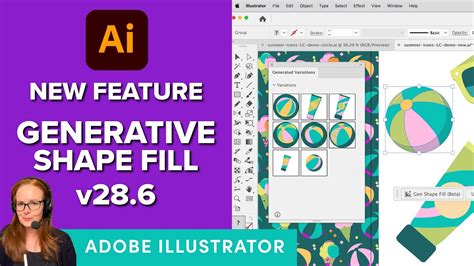
Unlocking Creative Potential with Generative Shape Fill
The Generative Shape Fill tool is not merely an automated coloring function; it is a gateway to a multitude of creative applications. Designers are no longer limited by manual fills and predefined patterns.
1. Combining Multiple Filled Shapes:One of the most exciting aspects of using Generative Shape Fill is the inherent ability to combine multiple filled shapes. This allows for the creation of complex layered designs where each element can possess its own unique, generated fill. Imagine creating a mosaic effect where each tile is a distinct shape with a generative fill, or building intricate patterns by overlapping and blending various generated forms. This capability significantly broadens the scope for creating visually rich and dynamic compositions.
2. Incorporating Patterns and Textures:Generative Shape Fill also empowers users to seamlessly incorporate sophisticated patterns and textures into their designs. Textures, in particular, can add a crucial tactile quality to digital artwork, making designs more engaging and immersive for the viewer. Adobe Illustrator offers a selection of built-in patterns that can be readily applied and customized. Furthermore, designers have the flexibility to create and import their own custom patterns, ensuring a perfect fit for specific project requirements. Whether aiming for a grunge aesthetic, a subtle linen effect, or a vibrant geometric pattern, Generative Shape Fill provides the means to achieve it.
3. Harmonizing with Other Design Elements:The Generative Shape Fill feature is designed to work harmoniously with other essential design elements. Designers should not hesitate to incorporate typography, images, and other graphic assets alongside their generated filled shapes. The tool facilitates the creation of cohesive designs that effectively tell a story or convey a specific message. When integrating text, it is advisable to use text treatments that complement the generative fills, ensuring a unified and intentional aesthetic across the entire composition. For instance, a bold, textured fill might pair well with a clean, sans-serif font, while a softer, gradient fill could complement a more decorative typeface.
New in Illustrator: Generative Shape Fill (beta) | Adobe Creative Cloud
The Art of the Prompt: Guiding the Generative Process
The "Prompt" is the user's direct interface with the generative capabilities of Illustrator. This functions similarly to the search box found on the Contextual Task Bar. By typing descriptive text into the prompt, users can guide Illustrator to add specific details and color artwork according to their vision. The more precise and evocative the prompt, the more likely Illustrator is to generate a fill that aligns with the designer's intent. This is where the iterative nature of the tool comes into play. After an initial generation, users can pick the variation they like best and then further customize it. This might involve refining the prompt, adjusting color settings, or using manual editing tools to fine-tune the result.
Strategic Application of Generative Shape Fill
To fully leverage the power of Generative Shape Fill, a strategic approach to its application is recommended.
1. Color Theory and Harmony:A solid foundation in color theory can significantly impact the design process when using Generative Shape Fill. Designers should always consider color harmony and contrast when defining their prompts or specifying color palettes. Understanding complementary colors, analogous colors, and triadic color schemes can help in creating visually pleasing and impactful designs. For example, using a prompt that suggests contrasting colors can create a high-energy, dynamic effect, while a prompt focusing on analogous colors might result in a more serene and harmonious composition.
2. Visual Balance and Layout:Visual balance is crucial in any design, and this is especially true when employing dynamic fills generated by the tool. Principles like the Rule of Thirds or the Golden Ratio can serve as valuable guides for layout decisions, ensuring that the design feels cohesive, intentional, and aesthetically pleasing. The placement and scale of generated shapes, along with their accompanying fills, should be carefully considered to create a balanced composition.
3. Experimentation and Pushing Boundaries:Finally, designers should not shy away from experimentation. Generative Shape Fill is a powerful opportunity to push the limits of creativity and explore uncharted design territories. Trying unconventional prompts, combining unexpected color palettes, and layering multiple generated elements can lead to truly unique and groundbreaking results. The tool is designed to be flexible, encouraging a playful and exploratory approach.

The Generative Shape Fill feature in Adobe Illustrator offers designers an expansive canvas of creative possibilities. By understanding its intricate functionality, mastering the art of the prompt, and experimenting with different settings, designers can consistently create stunning visuals that capture attention and stand out in a crowded marketplace. From the innovative combination of shapes and colors to the sophisticated application of unique patterns and textures, the tools at your disposal with Generative Shape Fill allow for truly endless creativity and a significant elevation of your design projects. The ability to generate detailed and contextually relevant fills opens up new avenues for both artistic expression and efficient design workflows.
tags: #illustrator #generative #fill