Preparing for Adobe Photoshop certification requires a thorough understanding of the software's extensive capabilities, from fundamental tools to advanced compositing techniques. The Adobe Certified Professional (ACP) certification, particularly in Visual Design Using Adobe Photoshop, validates a user's mastery of this industry-standard software. This guide aims to equip aspiring professionals with the knowledge and resources necessary to confidently approach and pass the certification exam, drawing upon a wealth of practice materials, lesson plans, and official exam objectives.
Understanding the Adobe Certified Professional (ACP) Certification
The Adobe Certified Professional (ACP) certification signifies a recognized level of proficiency in Adobe Creative Cloud applications. Each certification is tied to a specific Creative Cloud application, with exams developed and administered by Certiport, a Pearson VUE business. Previously known as Adobe Certified Associate (ACA), the program was updated to ACP in June 2021. Certifications earned through live-in-the-app exams (CC 2018 or later) automatically adopted the new ACP title for their three-year validity period. Older certifications earned through simulation-based exams (CC 2015 or earlier) retain the ACA designation, and to achieve ACP status, candidates must pass a live-in-the-app exam.
Each Adobe certification is valid for three years from the date of issue. To administer exams, institutions must register as a Certiport Authorized Testing Center. The format of ACP exams typically includes a 50-minute session comprising a Questions section with selected-response items, followed by a Tasks section that involves live-in-the-app activities within the actual Adobe software. For those who do not pass on their first attempt, Certiport outlines a specific retake policy.

Essential Preparation: Experience and Resources
Candidates are generally expected to have accumulated at least 150 hours of instruction and hands-on experience with an Adobe Creative Cloud application before attempting a certification exam. Educators play a crucial role in preparing students for these high-stakes assessments. Preparation strategies can range from year-long or semester-long courses to intensive, focused boot camps.
Certiport provides a suite of learning products designed to aid educators in integrating certification exams into their curriculum. These include practice tests, courseware, and textbooks. Furthermore, the Adobe Education Exchange offers a broad spectrum of free resources. Several reputable providers offer specialized training and practice materials:
- BrainBuffet: Offers targeted video-based tutorials for Adobe Creative Cloud products, featuring content-rich projects that allow students to practice using the software.
- CCI Learning: A global leader in EdTech, specializing in interactive courseware, books (print and e-book), certification guides, and instructor/learner resources. Their Jasperactive platform provides a live, in-app learning experience for ACP certifications in Photoshop and InDesign.
- LearnKey: A premier global provider of education and training solutions, known for its flexible, engaging, and interactive expert learning solutions that cater to diverse learning needs.
- MSi Curriculum: Designed for K-12 and Higher Education classrooms, this curriculum is engaging, hands-on, and user-friendly, incorporating assessments at each stage to minimize exam-day surprises and allowing for grade export to institutional gradebooks.
- Adobe Press: Publishes best-selling, annually updated series of hands-on software training books developed by Adobe's training experts. These books offer complete, self-paced lessons designed for quick and easy learning of Adobe software features.
Navigating the Photoshop ACP Exam Guide
The official exam guide for Visual Design Using Adobe Photoshop outlines the objectives and key concepts assessed. While this guide is based on the 2021 version, it provides a strong foundation for understanding the core competencies. For versions from 2018-2020, specific objectives can be found on the Certiport website.
Objective 1: Working in the Design Industry
This section focuses on critical concepts relevant to professional practice, including client interaction, legal considerations, technical knowledge, and fundamental design principles.
- Purpose, Audience, and Audience Needs: Identifying the core purpose of an image, understanding the target audience and their needs, and determining relevance for user experience and appropriate design for target devices (e.g., web, print, video). Key terms include client goals, target audience, demographics, and accessibility.
- Communication with Colleagues and Clients: Demonstrating effective communication techniques for design plans, utilizing sketches, specifications, wireframes, prototypes, and managing feedback loops. Basic project management concepts like project scope and scope creep are also covered.
- Copyright, Permissions, and Licensing: Understanding legal and ethical considerations for using third-party content, including copyright, intellectual property, derivative works, commercial use, fair use, and the importance of model and location releases.
- Digital Image Terminology: Mastering key terms related to digital images, such as image resolution, image size, file types, pixel, raster, bitmap, vector, and understanding how color is created (color mode, bit depth, gamut, CMYK vs. RGB).
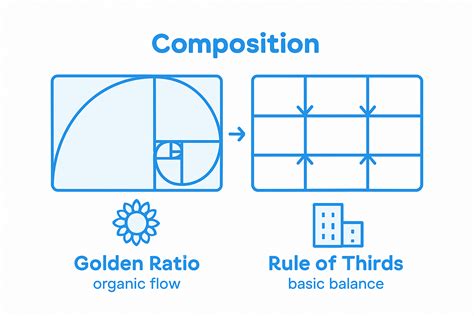
- Design Principles and Best Practices: Applying elements and principles of design (space, line, shape, color, balance, unity, etc.) to communicate visually. This includes mastering typographic adjustments for hierarchy and readability, and understanding photographic composition terms like aspect ratio, rule of thirds, and depth of field.
Objective 2: Project Setup and Interface
This objective covers workspace organization, program settings, and asset ingestion, crucial for an efficient and effective workflow.
- Document Creation: Setting up new documents with appropriate settings for web, print, and video, including width, height, resolution, and color mode. Creating custom document presets for recurring project needs is also assessed.
- Workspace Navigation and Customization: Identifying and manipulating elements of the Photoshop interface, such as the Options bar, menus, panels, and toolbar. Organizing and customizing workspaces, including tabbed documents, docking panels, and saving custom workspaces, is essential. Configuring application preferences, particularly Units & Rulers and Interface settings, is also covered.
- Non-Printing Design Tools: Utilizing non-printing elements like rulers, guides, and grids to aid in design and workflow. This includes understanding how to show, hide, and customize these tools, as well as using snap and align options.
- Asset Import: Opening and importing images from various sources, placing assets into a Photoshop document (embedded or linked), and utilizing the Adobe Camera Raw interface for image import.
- Color, Swatches, and Gradients: Setting active foreground and background colors, creating, customizing, and organizing gradients, and managing swatches.
- Brushes, Styles, and Patterns: Opening, browsing, and searching libraries of brushes, styles, and patterns, as well as creating, using, editing, and organizing them.
Objective 3: Organizing Documents
This section delves into document structure, with a primary focus on layers and efficient workflow management.
- Layer Management: Utilizing the Layers panel to manage visual content, including adding, deleting, hiding, showing, locking, and duplicating layers. Organizing complex projects by renaming layers, creating layer groups, and understanding the trade-offs between editability and file size is critical. Recognizing different layer types (background, pixel, adjustment, type, Smart Object, etc.) is also assessed.
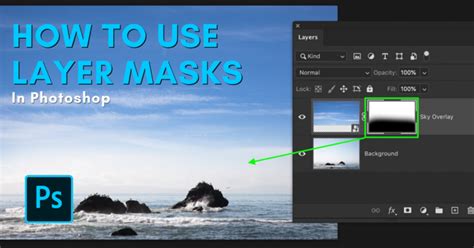
- Layer Visibility and Masks: Adjusting layer opacity, blending modes, and fill opacity. Creating and editing layer masks and clipping masks is a fundamental skill.
- Destructive vs. Nondestructive Editing: Differentiating between and performing both destructive (e.g., painting, erasing) and nondestructive editing techniques (e.g., Smart Objects, adjustment layers). Understanding the benefits of nondestructive workflows for maintaining editability is key.
Objective 4: Creating and Modifying Visual Elements
This objective covers the core tools and functionalities used to create and manipulate visual elements within Photoshop.
- Core Tools and Features: Creating and editing raster images using tools like Crop, Pencil, and Clone Stamp. Creating and editing vector images using the Pen tool, Shape tools, and Type tool.
- Text and Typography: Adding and manipulating text using appropriate typographic settings. Adjusting character and paragraph settings to enhance legibility, readability, and hierarchy. Understanding concepts like kerning, tracking, and leading.
- Selections: Making selections using a variety of tools, including Quick Selection, Lasso, Magic Wand, and the Object Selection tool. Modifying and refining selections using methods like feathering, expanding, and the Select and Mask workspace. Saving and loading selections as channels is also covered.
- Transforming Graphics: Modifying canvas or artboard dimensions, and rotating, flipping, and transforming individual layers, objects, selections, and groups. Understanding the difference between resizing and resampling is important.
- Reconstruction and Retouching: Applying basic auto-correction methods and tools. Using tools like healing brushes, clone tools, and Content-Aware fill to repair and reconstruct images. Adjusting the appearance of objects and layers.
- Filters and Styles: Using filters to modify images, both destructively and non-destructively (Smart Filters). Creating, managing, and applying custom layer styles.
Selections - Photoshop for Beginners | Lesson 6
Objective 5: Publishing Digital Media
This final objective focuses on saving and exporting documents and assets in various formats suitable for different media.
- Preparing for Export: Checking documents for errors and ensuring they meet project specifications, including setting the correct color space, resolution, and pixel dimensions. Understanding metadata is also part of this.
- Exporting and Saving: Saving files in the native Photoshop format (.psd) and understanding its compatibility. Saving in appropriate image formats for web, print, and video, considering file format, bit depth, color space, and resolution. Exporting project elements like layers and selections to various files and libraries.
Practice Makes Perfect: Leveraging Certification Resources
A variety of resources are available to help students practice and prepare for the Photoshop certification exam. These include comprehensive practice tests, interactive games, and detailed lesson plans.
- Practice Tests and Simulations: Resources like the Adobe Photoshop Industry Certification Practice Guide offer simulation questions that mirror the actual exam format. These often come with linked practice files (.psd) and video tutorials demonstrating step-by-step solutions. Updated practice exams, such as the 100-question ACP-style practice exam for 2025â2026, are designed to align with current certification standards, boosting student confidence and pass rates. Bundles that include practice guides for both simulation and multiple-choice sections of various test versions (e.g., 2020, 2023) are also available.
- Interactive Learning Tools: Games like "Certification Game" and Jeopardy-style review games, often with hundreds of slides, provide an engaging way to cover a significant amount of material. These can be played individually or in teams, fostering a competitive yet educational environment.
- Lesson Plans and Modules: Comprehensive 5-day lesson plans, such as those focusing on graphic design principles or specific Photoshop modules like Layers, Masks, and Selection Tools, are invaluable for structured learning. These plans often align with ACP exam domains and prepare students by focusing on purpose, audience, and image planning before diving into software tools.
- Tracking Sheets: Tools like the GMetrix Photoshop practice exam tracking sheet allow students to monitor their progress, encouraging practice until mastery is achieved (e.g., 100% in training mode, 85% in testing mode). This systematic approach has been shown to correlate with high pass rates.
- Skill Identification Resources: Free resources that identify the specific skills assessed in practice questions, detailing question numbers and skill names within platforms like Gmetrix, can help students target their study efforts more effectively.

Beyond Tools: Cultivating Professional Design Thinking
Effective preparation for Photoshop certification extends beyond simply learning individual tools. It involves developing a professional design mindset. Resources like the "Adobe Photoshop 5-Day Lesson Plan Graphic Design" emphasize thinking about purpose, audience, and image planning before editing begins. This approach helps students analyze requirements, identify target audiences, and plan their creative process strategically, mirroring the workflow of professional designers. Mastering core concepts like layers and masks, for instance, is crucial for professional, non-destructive editing, which is a key differentiator from merely knowing how to use individual tools. Understanding how to achieve "dominion over their images" through comprehensive assessment and activity bundles, particularly focusing on modules like "Selection Tools," ensures students gain deep technical proficiency.
The Path to Certification
The journey to becoming an Adobe Certified Professional in Visual Design Using Adobe Photoshop involves a combination of structured learning, hands-on practice, and strategic preparation. By leveraging the wealth of available resources, understanding the exam objectives, and cultivating a professional design approach, individuals can confidently pursue and achieve this valuable industry credential. The process is designed to validate not just technical skill, but also the ability to apply those skills effectively in real-world design scenarios.
tags: #photoshop #certification #quizlet