Adobe Photoshop, a cornerstone of digital art and design, is a remarkably complex and powerful application. Its extensive capabilities, however, can sometimes come at the cost of significant computing resources, leading to frustrating slowdowns and lag. Many users experience instances where operations become sluggish, or the software becomes unresponsive, often manifesting as a frozen screen or a cursor that turns into a spinning wheel. While it might seem daunting, understanding the underlying causes and implementing strategic solutions can significantly optimize your Photoshop workflow and unlock its full potential, even without immediate hardware upgrades.
Understanding Photoshop's Resource Demands
Photoshop’s performance is intricately linked to how it utilizes your computer’s hardware, primarily RAM (Random Access Memory) and disk space. It’s a common misconception that Photoshop is inherently slow; more often, the issues stem from incorrect settings, resource contention with other applications, or insufficient system resources. When Photoshop runs slowly, it's frequently because it's attempting to use more RAM than is readily available or efficiently allocated.
Optimizing RAM and Memory Usage
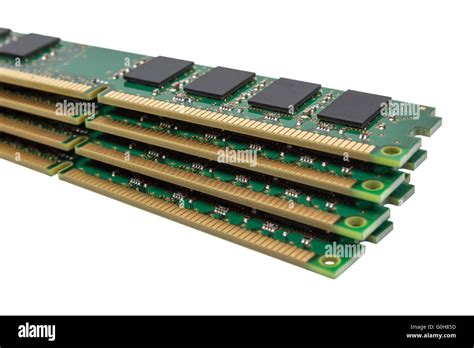
RAM is crucial for smooth operation, as it allows all functions and processes on your computer to run properly. Photoshop requires a substantial amount of RAM to operate smoothly, and the amount of RAM a specific program can use is often limited by default.
Increasing Photoshop's RAM Allocation: Photoshop's preferences allow you to adjust the percentage of your system's RAM that the application can utilize. By default, Photoshop picks a middle-ground amount. To optimize this, navigate to the general preference window. On Windows, this is typically done via Edit > Preferences > General, or by using the shortcut Control + K. On Mac, it's Photoshop > Preferences > General or Command + K. Within the preferences, select "Performance" from the left-hand side. Under the "Memory Usage" section, you'll find a slider. Moving this slider to increase the RAM Usage limit for Photoshop can significantly improve performance, especially for complex tasks. However, it's essential not to allocate an excessive amount, as this can starve other necessary system processes.
Managing Memory-Intensive Operations: When you work on Photoshop for extended periods, your computer's RAM can become heavily occupied. Using too many applications simultaneously can further confuse the system and exacerbate performance issues. To avoid this, a simple yet effective solution is to close Photoshop and start it afresh. Alternatively, restarting your entire computer will reset the RAM from the beginning, clearing out temporary data and freeing up resources.
Leveraging Cache Levels and History States
Photoshop employs a system of cache levels to store temporary data, which aids in speeding up operations by reducing the need to re-process information. The number of cache levels that is optimal for your work will depend on the type of work that you do.
Adjusting Cache Levels: Within the "Performance" tab of your Photoshop preferences, you will find "Cache Levels" situated below "History States." By default, this is often set to 4. For users working with larger, more complex files, increasing this value, for instance, to 6, can lead to noticeable performance improvements. This setting dictates how many levels of cached image data Photoshop keeps in RAM.
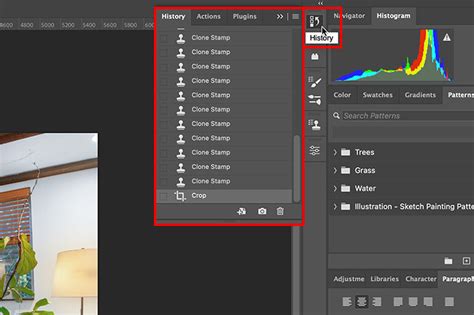
Managing History States: Actions you perform in Photoshop are saved as history states, allowing you to go back in time and undo your last moves. While this is an invaluable feature, a very high number of history states can consume significant memory. To free up RAM, you can manually purge the clipboard and/or the history if you’d like, to try and clean-up and reduce the memory usage. You can also lower the number of history states saved. This controls how many undo steps Photoshop saves (up to 1000 by default). After making adjustments to RAM usage and cache levels, you should notice Photoshop running smoother.
Optimizing Scratch Disk Usage
Photoshop uses a disk in the background to hold temporary data, and this is known as a scratch disk. When your primary hard drive is full or slow, it can significantly impact Photoshop's performance.
Utilizing an External SSD as a Scratch Disk: A potentially good way to enhance performance is to have an external Solid State Drive (SSD) with plenty of available space hooked into your computer permanently and set as your primary scratch disk. SSDs offer much faster read/write speeds compared to traditional Hard Disk Drives (HDDs), which can drastically reduce the time Photoshop spends accessing temporary files. Ensuring your scratch disk has ample free space (at least 20% free hard drive space on your computer is recommended for Photoshop to run smoothly) is critical. If Photoshop is running slow and there are no other apparent reasons, checking your hard drive space is a necessary step.
Streamlining Photoshop Preferences and Settings
Incorrectly configured preferences or unnecessary background processes can also contribute to slow performance.
Resetting Photoshop Preferences: There’s an easy way to delete Photoshop’s settings file and therefore reset the settings to the default values. To do this, when starting Photoshop, hold down Shift + Option + Cmd (on Windows: Shift + Alt + Ctrl) and then click to start Photoshop. This action will prompt you with a dialog asking if you want to delete the Adobe Photoshop Settings File. Confirming this will reset all your preferences to their factory defaults.
Disabling the Home Screen: Sometimes, the Photoshop home screen, which displays recent projects, can cause issues. It might appear frozen, blank, or prevent the new document window from loading. To prevent this, you should disable the home screen. Navigate to Edit > Preferences > General (or Control + K / Command + K) and deselect "Auto Show the Home Screen."
Using the Legacy "New Document" Interface: The pop-up window that appears when you open a new document in Photoshop can be quite large, and you may not necessarily need all the options it presents. This can unnecessarily slow down your system. To streamline this, navigate to the same preferences window as described above. Now, select "Use Legacy 'New Document' Interface." This will revert to an older, often simpler, new document creation dialog.
Disabling Clipboard Sharing: By default, Photoshop keeps your clipboard full with data in case you want to copy something to another software. Photoshop automatically saves copied files into the clipboard so that you can paste items into other programs at a later time. This becomes unnecessary at times, as you can drag and drop files instead of copy-pasting them. To disable this, navigate to the General Preference Menu (Control + K or Command + K) and then deselect ‘Export Clipboard’.
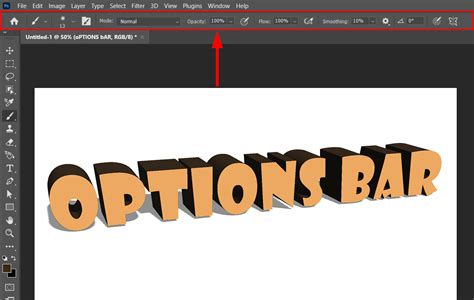
Optimizing Brush Tool Performance: If the brush tool is lagging in Photoshop, this may be because of a high Smoothing setting. With the Brush tool selected, go to the top options bar and decrease the Smoothing setting from the slider to a lower value. Another trick you can apply, especially when system configuration is low, is to change the drawing mode to “Basic.” Under the ‘Graphics Processor Settings’ on the top right, choose ‘Advanced Settings.’ Then select ‘Basic’ in the drop-down menu next to the ‘Drawing Mode’ option.
Addressing File Saving and Complex Paths
The process of saving files, especially large ones, can also be a bottleneck in Photoshop.
Disabling Compression for PSD Files: If you’re working with PSD files, you can save time on file saving by disabling compression on them. You’ll find that option under the Performance tab of your Photoshop preferences. It's a misconception that bigger files automatically mean greater quality; often, files can be unnecessarily large.
Simplifying Complex Vector Paths: Complex vector paths in Photoshop, involving numerous anchor points or intricate details, can significantly slow down the software. Photoshop offers a "Simplify" tool that can be used to reduce the number of anchor points in a path, thereby improving performance when working with such elements.
Hardware Considerations and Graphics Acceleration
While software optimizations are crucial, hardware plays a significant role in Photoshop's performance.
Graphics Card and Drivers: An old or inefficient graphics card can significantly slow down Photoshop, especially when working with large files, 3D graphics, or applying GPU-accelerated effects. Sometimes, simply updating to the latest driver for your graphics card can dramatically improve performance.
RAM Upgrades: If your computer’s RAM memory is not already maximized, a RAM upgrade is usually quite affordable and can amount to a very impactful performance enhancement. This is often one of the most cost-effective ways to boost Photoshop's speed.
External Monitors and Hardware Limitations: In some cases, especially when numerous edits are ongoing in Photoshop, the computer needs a lot of power to run these actions. This problem can sometimes be solved by unplugging an external monitor or, if feasible, upgrading your computer hardware.
Advanced Performance Tips and Tools
For users seeking further optimization, there are additional strategies and tools to consider.
Avoiding Network Drive Editing: If you are editing files or using elements that are saved on network drives, your workflow can become significantly slower due to latency and bandwidth limitations. It is generally advisable to work with files stored locally on your computer's hard drive or an attached SSD.
Considering Performance-Enhancing Hardware: For those who work regularly in creative applications like Photoshop, specialized hardware can offer substantial benefits. Devices like the TourBox allow users to map frequently used tools and commands to customizable buttons and dials, streamlining workflow. These devices can go beyond simple shortcuts, enabling complex macro sequences for instant mode switching between "High Performance" (more RAM, fewer undo steps) and "Standard Performance" configurations, for example.
How to Optimize your PC for a Better Performance and Speed in Photoshop | Works 💯
By systematically addressing these potential bottlenecks, from adjusting software preferences and managing system resources to considering hardware upgrades and specialized tools, users can significantly improve Photoshop's responsiveness and enhance their overall creative productivity.