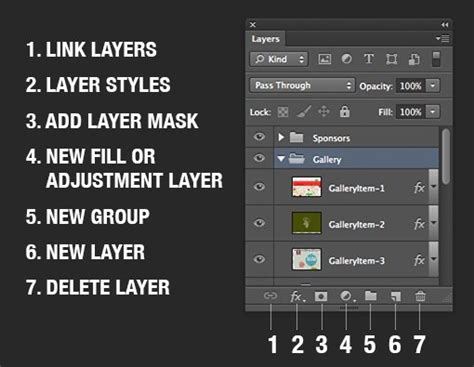
Adobe Photoshop, at its core, is a powerful image editing software that relies heavily on the concept of layers. These layers function like transparent sheets of paper stacked atop one another, each containing distinct visual information. This layered approach allows for precise, non-destructive editing of specific image areas. However, as projects grow in complexity, managing a multitude of layers can become unwieldy, impacting performance and file size. This is where the art of merging layers comes into play, a fundamental yet essential skill for any Photoshop user. Merging layers involves combining two or more separate layers into a single, unified layer. When this action occurs, the visual data from the topmost layer within the selection replaces any overlapping data on the lower layers. Understanding how and when to merge layers can significantly streamline your workflow, enhance efficiency, and ultimately lead to cleaner, more manageable project files.
Understanding the Fundamentals of Layer Merging
Before delving into the various methods of merging, it's crucial to grasp what merging entails and its implications. When you merge layers, you are essentially collapsing them into one. This means that the individual editability of the original, separate layers is lost. Merging is a "destructive" editing method in the sense that, once saved and closed, you cannot easily revert to the individual layers. Therefore, it's a process best undertaken when you are confident that the layers you are combining no longer require independent modification.
The primary motivations for merging layers are twofold: organizational clarity and performance optimization. As your designs evolve, you might accumulate numerous layers, some of which may serve a temporary purpose or are part of a completed element. Merging these redundant or finalized layers reduces the overall layer count, making the Layers panel less cluttered and easier to navigate. Furthermore, a high number of layers, especially complex ones, can consume significant system resources, potentially leading to slower performance or even program instability, such as crashing. Merging layers consolidates this information, thereby reducing the project's overall file size and often improving Photoshop's responsiveness.
It is important to note that certain tools and filters in Photoshop operate on only one layer at a time. For instance, the Camera Raw filter requires a single layer to process. Merging layers allows you to apply these single-layer-dependent operations to a composite of multiple elements. Additionally, some tools and filters are incompatible with vector data or certain generated content. If you encounter issues merging specific layers, rasterizing them first can often resolve the compatibility problem, as it converts them into pixel-based layers.
Methods for Merging Layers
Photoshop offers a variety of straightforward methods to merge layers, catering to different needs and workflows.
Merging Selected Layers
One of the most common scenarios is merging a specific group of layers.
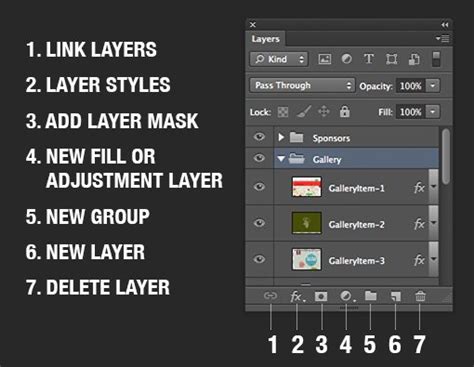
- Selecting Consecutive Layers: To merge a series of layers that are adjacent to each other in the Layers panel, click on the first layer you wish to merge. Then, hold down the Shift key and click on the last layer in the sequence. This action will select all layers between the first and last clicked layer, including those two.
- Selecting Non-Consecutive Layers: If the layers you want to merge are not next to each other, you can select them individually. Click on the first layer, then hold down the Ctrl key (or Cmd on macOS) and click on each additional layer you want to include in the merge.
- Executing the Merge: Once your desired layers are selected, you can merge them in several ways:
- Menu Command: Navigate to the Layer menu, then select Merge Down. This command is context-sensitive and will merge the selected layer(s) with the layer directly below them. If multiple layers are selected, it effectively merges them all into the bottommost selected layer.
- Panel Menu: With the layers selected, right-click (or Control-click on macOS) within the Layers panel. From the contextual menu that appears, choose Merge Layers.
- Keyboard Shortcut: The most efficient method for merging selected layers is using the keyboard shortcut. Press Ctrl+E (or Cmd+E on macOS).
When you merge selected layers, they are combined into a single new layer. The data from the topmost selected layer will overwrite any overlapping areas of the layers beneath it.
Merging Visible Layers
This method is particularly useful when you want to consolidate all currently visible elements of your design into a single layer, while leaving hidden layers untouched.
- Controlling Visibility: Before merging, use the eye icon next to each layer in the Layers panel to ensure only the layers you intend to combine are visible. Click the eye icon to toggle visibility on or off for individual layers.
- Executing the Merge: Once only your desired layers are visible, you can merge them:
- Panel Menu: Right-click (or Control-click on macOS) anywhere in the Layers panel and select Merge Visible.
- Keyboard Shortcut: A dedicated shortcut for merging all visible layers is Shift+Ctrl+E (or Shift+Cmd+E on macOS).
This process creates a new layer that contains the combined visual information of all visible layers, effectively flattening them into one. Hidden layers remain separate and untouched.
Flattening the Image
Flattening an image is the most comprehensive form of merging, combining all visible layers into a single background layer.
- Accessing the Command: To flatten your entire image, navigate to the Layer menu and select Flatten Image. Alternatively, you can often find this option within the main Image menu or the Layers panel menu.
- Implications of Flattening: Flattening is a definitive action. It discards all layer information, merging everything into one pixel-based layer. Any transparent areas in the original layers will be filled with white by default. This significantly reduces file size but permanently removes the ability to edit individual layers. It's akin to taking a photograph of your layered composition.
Difference between Merge and Flatten in Photoshop
Advanced Merging Techniques and Considerations
Beyond the basic merge commands, Photoshop offers more nuanced ways to combine layer content, along with important considerations for a smoother workflow.
Merging with Clipping Masks
A clipping mask is a powerful tool that constrains the visibility of a layer (or a group of layers) to the shape of the layer directly beneath it. You can merge layers that are part of a clipping mask structure.
- Setting up the Clipping Mask: Ensure you have a base layer that defines the desired shape. Then, place the layers you want to merge on top of this base layer. To create a clipping mask, select the layer(s) you want to mask, then go to Layer > Create Clipping Mask (or use the shortcut Alt+Ctrl+G / Option+Cmd+G on macOS). The masked layers will now only appear within the boundaries of the base layer.
- Merging within the Mask: To merge these layers, you would typically select the base layer and the layers directly above it that are part of the clipping mask. Then, use one of the standard merging methods described earlier (e.g., Ctrl+E). The resulting merged layer will retain the shape constraints of the original clipping mask.
It's important to remember that the clipping mask itself is a structural element. When merging layers that are clipped, the resulting merged layer will inherit the visual properties defined by the clipping mask.
Rasterizing Layers for Merging Compatibility
Certain layer types, such as type layers, shape layers, vector masks, and Smart Objects, contain vector or generated data. These types of layers cannot always be directly merged with pixel-based layers using standard methods because they are resolution-independent and editable as objects.
- Identifying Incompatible Layers: If you attempt to merge a layer and find that the option is grayed out or the merge results in unexpected behavior, it's likely due to incompatible layer types.
- Rasterization as a Solution: To overcome this, you can "rasterize" the layer. Rasterizing converts the vector or generated data into a pixel-based image.
- How to Rasterize: Select the layer you wish to rasterize in the Layers panel, then go to Layer > Rasterize and choose the appropriate option (e.g., "Type," "Shape," "All Layers").
- Caution: Rasterizing is also a destructive process. Once a layer is rasterized, you lose its vector scalability and editability as an object. It's highly recommended to duplicate a layer (Ctrl+J / Cmd+J) before rasterizing it, so you always have the original, editable version as a backup. After rasterizing, the layer should be compatible for merging with other pixel-based layers.
Stamp Visible: A Non-Destructive Merge Alternative
While merging is generally destructive, Photoshop offers a "Stamp Visible" feature that acts as a form of non-destructive merging. This command creates a new layer that contains a merged composite of all visible layers, leaving the original layers intact.
- Executing Stamp Visible:
- Keyboard Shortcut: Press Shift+Alt+Ctrl+E (or Shift+Option+Cmd+E on macOS).
- Menu Command: While there isn't a direct menu item for "Stamp Visible" in the same way as "Merge Visible," this shortcut achieves the same result by creating a new layer containing the merged content.
This technique is invaluable when you want to apply effects or make global adjustments to multiple layers as a single unit without permanently altering the original layers. You can then continue to edit the individual original layers if needed.
Grouping Layers for Organization and Merging
Before merging, organizing your layers can prevent confusion and ensure you're combining the correct elements.
- Creating Groups: Select the layers you want to group together, then right-click and choose Group from Layers (or use the shortcut Ctrl+G / Cmd+G). This bundles them into a folder-like structure in the Layers panel, which can be expanded or collapsed.
- Merging Groups: You can often merge an entire group of layers at once. Select the group in the Layers panel, and then use the merge commands. Alternatively, you can expand the group and select individual layers within it to merge.
Naming and Color-Coding Layers
To further enhance organization, especially in complex projects, adopt a consistent naming convention for your layers and groups. Double-click a layer or group name in the Layers panel to rename it. Color-coding layers (by right-clicking on a layer and selecting a color) can also help visually distinguish related elements, making it easier to locate and select them for merging.
Optimizing Your Workflow with Merging
Layer merging is not merely about reducing layer counts; it's a strategic tool for efficient image manipulation.
- Streamlining Complex Edits: When you have multiple adjustment layers or effect layers applied to a specific element, merging them after you've finalized those adjustments can simplify the process of moving or duplicating that element. For example, if you have a photo layer with several brightness and contrast adjustment layers on top, merging them allows you to copy and paste this single composite layer into another Photoshop document, carrying all the adjustments with it.
- Improving Performance: As mentioned, a large number of layers can tax your system. Regularly merging layers that are no longer independently editable is a proactive approach to maintaining smooth performance, especially on less powerful machines or when working with very large, high-resolution images.
- Preparing for Export: In some cases, you might need to export individual layers or groups as separate files. Photoshop allows you to export all layers or just the visible layers to separate files, which is facilitated by a well-organized and appropriately merged layer structure.
Avoiding Common Misconceptions
- Merging is Always Destructive: While standard merging is destructive, the "Stamp Visible" command offers a non-destructive alternative by creating a new merged layer.
- You Can't Edit After Merging: While you can't edit the original individual layers after merging, you can still apply further adjustments and edits to the newly created merged layer. This includes adding new adjustment layers, applying filters, or using transformation tools.
- All Layer Types Merge Equally: As discussed, vector and generated layers need to be rasterized to merge seamlessly with pixel-based layers.
By understanding these methods and considerations, you can effectively leverage layer merging in Photoshop to create cleaner, more manageable, and efficiently produced digital artwork.