Photoshop's snapping features are designed to aid users in achieving precision and alignment within their designs. These functionalities, while generally beneficial for creating structured layouts and aligning objects, can sometimes introduce an unintended constraint, particularly when performing actions like cropping or drawing marquee selections. This article delves into understanding and controlling Photoshop's snapping behavior, with a specific focus on resolving issues where cropping borders or selection marquees unexpectedly snap to the document window's edges.
The Annoyance of Unwanted Snapping
A common point of frustration for Photoshop users arises when the cropping border, activated by the Crop tool (C), exhibits an undesirable tendency to snap to the edges of the document window. This same behavior can also manifest when drawing large Marquee selections, where the selection boundary abruptly adheres to the document's perimeter. This instinctive adherence, while intended to guide users, can become a significant impediment when one desires a more fluid and uninhibited approach to defining crop areas or creating selections that don't necessarily align with the document's outer limits. The core of the problem lies in the default behavior of certain tools and selections to "snap" to predefined boundaries, including the very edges of your canvas.
Quick Solutions: Keyboard Shortcuts for Snapping Control
Fortunately, Photoshop offers direct and swift methods to temporarily disable this intrusive snapping behavior. A powerful shortcut allows users to toggle snapping on and off globally. By pressing Command-Shift-; (on a PC, this is Control-Shift-;), you can instantly deactivate all snapping functionalities. This includes not only the snapping to document bounds that affects the Crop tool and Marquee selections but also other snapping features like Snap To Guides, Snap To Grid, and Snap To Layers. This command acts as a master switch, providing immediate relief from unwanted magnetic pull.
However, it is crucial to understand that this particular shortcut is a comprehensive deactivator. Its primary drawback is that it turns off all forms of snapping. If your intention is to only disable the snapping specifically related to document bounds for your current task, while retaining other helpful snapping features for alignment and precision, this global toggle might be too broad an approach.
Granular Control: Navigating the View Menu for Specific Snapping Adjustments
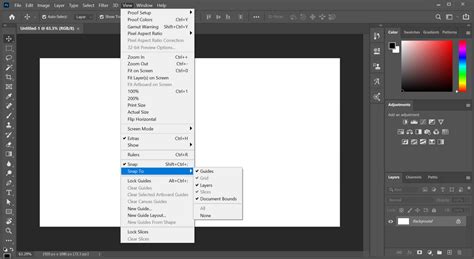
For users who require a more nuanced control over snapping, Photoshop provides a dedicated menu option. If you wish to specifically disable the snapping of the Crop tool or Marquee selections to the document's edges without affecting other snapping preferences, you can navigate through the application's menus.
Go to the View menu, then hover over Snap To. Within this submenu, you will find an option labeled Document Bounds. By selecting or deselecting this option, you can precisely control whether your tools attempt to snap to the edges of your document. Disabling "Snap To Document Bounds" will prevent your tools from exhibiting that often-frustrating behavior of snapping to your, well, document bounds. This offers a more targeted solution, allowing you to maintain other snapping aids while eliminating the specific annoyance of document edge snapping.
The Utility of Snapping in Photoshop
It is important to reiterate that snapping is not inherently a negative feature in Photoshop. In fact, it can be an incredibly helpful tool, especially when working on projects that demand a high degree of precision and alignment. For instance, when you are trying to align multiple objects perfectly side-by-side, or when you are creating intricate layouts for print or web design, snapping to guides, grids, or even other layers can significantly speed up your workflow and ensure pixel-perfect results.
Snapping provides a visual and intuitive way to connect elements, ensuring that edges meet cleanly, centers align, and spacing is consistent. This can be particularly valuable for beginners who are still developing their spatial awareness within the software, providing them with a safety net against misalignments.
When Snapping Becomes a Hindrance
Despite its benefits, there are indeed specific scenarios where the automatic alignment provided by snapping can become more of a hindrance than a help. This is particularly true when you are working on intricate designs that require a high degree of free movement. If you are trying to place an element with a very specific, non-aligned position, or if you are performing actions that require delicate, unconstrained manipulation, the constant pull of snapping can be disruptive.
For example, imagine trying to draw a freehand selection with the Lasso tool, or trying to position a decorative element that is meant to be slightly off-kilter for artistic effect. In such cases, the default snapping behavior might interfere with the fluidity of your actions, forcing you to fight against the software's automatic alignment. This is precisely when understanding how to control these snapping behaviors becomes essential for a smooth and efficient workflow.
Understanding Gridline Behavior and Nudging
Even when snapping to guides or grids is disabled, it's worth noting a subtle yet useful aspect of Photoshop's behavior related to object movement. When you select an object or a layer and use the arrow keys on your keyboard to nudge it, this action typically results in a small, incremental movement. Importantly, even with general snapping disabled, this nudging action often occurs without interference from guidelines or other snapping constraints. This means you can still make minor, precise adjustments to an object's position using the arrow keys, offering a level of fine-tuning that is independent of broader snapping settings. This subtle control allows for very delicate repositioning without the active "snap" sensation.
5 Photoshop TRICKS in 90 SECONDS!! Useful Tricks That You Probably Don't Know
Locating Snap Options: The Artboard's Corner
For a more visual and direct way to manage snapping, especially in relation to grids, Photoshop offers an interface element that can be easily overlooked. At the lower-left corner of your artboard (in some versions and contexts of Photoshop, particularly when working with artboards themselves or specific layout views), you might see an icon or a label that reads 'Show snap grid.' Clicking this icon will toggle the visibility and, in some cases, the active snapping behavior of the grid on and off. While this is primarily related to the grid, it often serves as a gateway to understanding the broader snapping controls available within the interface. It's a good visual cue to remember that snapping-related controls can sometimes be found in unexpected, yet logical, locations within the workspace.
The Philosophy of Snapping: Precision vs. Freedom
At its core, the concept of snapping in any design software revolves around a fundamental trade-off between precision and creative freedom. Snapping tools are engineered to provide an underlying structure, guiding users towards accuracy and consistency. They operate on the principle of "attraction," where an object or selection is drawn towards a predefined point or line. This is invaluable for tasks requiring strict adherence to alignment rules, such as creating symmetrical designs, aligning text blocks in a document, or precisely positioning elements for a user interface.
However, this very mechanism can feel restrictive when the creative intent is to deviate from strict rules, to embrace asymmetry, or to achieve a hand-drawn, organic feel. The user's desire for an unhindered workflow, where they can freely manipulate elements without the software imposing its own sense of order, is a valid one. The ability to toggle these features on and off, and to select which snapping behaviors are active, empowers the user to dictate the level of control the software exerts over their creative process.
Advanced Considerations: Snap To Options Beyond Document Bounds
While the focus of this tutorial has been on controlling snapping to document bounds, it is beneficial to briefly explore the broader spectrum of "Snap To" options available in Photoshop. These include:
- Snap To Guides: This is incredibly useful when you have manually placed guides on your canvas to define specific alignment lines. Objects and selections will snap to these guides, ensuring perfect alignment relative to your custom layout.
- Snap To Grid: If you have a visible grid enabled (View > Show > Grid), this option allows elements to snap to the grid intersections or lines. This is fundamental for creating structured, repeating patterns or for maintaining consistent spacing.
- Snap To Layers: This feature allows selections or new objects to snap to the edges or centers of existing layers. It's a powerful tool for aligning elements relative to each other, even if they are not directly adjacent.
- Snap To Slice: Relevant for web designers, this allows snapping to the boundaries of image slices defined for optimization.
- Snap To Document Bounds: As discussed, this is the specific setting that causes snapping to the edges of your canvas.
Understanding the interplay between these various snapping options allows for a sophisticated approach to layout and design. The ability to selectively enable or disable them, often through the View > Snap To menu, provides a granular level of control that caters to a wide range of design needs.
First Principles of Snapping: How It Works
From a first-principles perspective, snapping in Photoshop is an algorithmic process. When a snapping feature is enabled, the software continuously monitors the position of your cursor, selection marquee, or transformation bounding box. It compares these positions against a set of predefined "snap targets." These targets can be the edges, centers, or corners of the document, guides, grid lines, or the boundaries of other layers.
If the monitored element comes within a certain proximity (a tolerance threshold) of a snap target, the software calculates a vector that "pulls" the element towards that target. This pull is what creates the sensation of snapping. The strength and range of this pull are determined by the software's internal settings. By disabling a snapping feature, you are essentially instructing the algorithm to ignore a particular set of snap targets, thereby removing that specific "attraction" force.
The Second and Third-Order Implications of Snapping Control
The ability to control snapping has ripple effects that extend beyond the immediate task. For instance, a designer who masters the disabling of unwanted snapping might find themselves able to iterate on concepts much faster, as they are not constantly fighting the software's default behaviors. This can lead to more experimental and innovative design outcomes.
Conversely, a user who relies heavily on snapping might develop an extremely efficient workflow for repetitive tasks, ensuring a high degree of consistency across a project. The second-order implication here is that this consistency can enhance the professional appearance of the final product.
Third-order implications could involve how a user's skill in managing snapping influences their overall problem-solving approach within digital art. It fosters a deeper understanding of the software's underlying mechanisms and encourages a more deliberate and informed use of its tools. It cultivates a mindset where the user is in command, rather than being passively guided by default settings. This leads to a more personalized and effective creative process.
Avoiding Clichés and Misconceptions About Snapping
A common misconception is that snapping is a binary on/off switch for all alignment. In reality, Photoshop offers a nuanced system. Users might also assume that if snapping is "on," it's always aggressively pulling elements, when in fact, the sensitivity can often be adjusted, or specific types of snapping can be targeted. Another cliché is that snapping is only for beginners; experienced professionals often use snapping extensively for precision and speed, but they do so with a conscious understanding of when and how to employ it.
Furthermore, the idea that snapping "ruins" creativity is a generalization. While it can limit freedom in certain contexts, it can also be a powerful tool for realizing complex, structured creative visions. The key is not to avoid snapping altogether, but to understand its purpose and to wield it judiciously. The problem isn't snapping itself, but rather the user's lack of control over it when it conflicts with their immediate creative goals.
Conclusion: Empowering Your Photoshop Workflow
By understanding the various methods for controlling snapping behavior in Photoshop, from quick keyboard shortcuts to granular menu selections, users can transform a potentially frustrating experience into a more efficient and empowering workflow. Whether you need to quickly disable all snapping to freely manipulate an element or selectively turn off snapping to document bounds to refine a crop, Photoshop provides the tools to ensure that the software serves your creative vision, rather than dictating it. Mastering these controls is a significant step towards unlocking the full potential of your design process in Photoshop.