A great photo possesses the power to encapsulate a feeling, a place, or a fleeting moment that one wishes to preserve indefinitely. However, it is not uncommon for that seemingly perfect shot to turn out less than ideal, exhibiting blurriness, dullness, or a pixelated appearance. This is where the art and science of image enhancement, particularly through sharpening techniques, come into play. Picsart, a comprehensive creative workspace, offers robust tools to transform such images, making them crisp, clear, and visually compelling. Understanding how to effectively use the Picsart sharpen effect can elevate your photography from ordinary to extraordinary, ensuring your visuals resonate with clarity and detail.
Understanding Image Clarity: The Foundation of Sharpening
Before diving into the specifics of Picsart's sharpening tools, it's crucial to grasp what constitutes image clarity. Simply put, image clarity refers to the sharpness, detail, and overall quality of an image. A clear picture is one where the subject is well-defined, featuring crisp lines and distinguishable details. Several factors contribute to this perceived clarity, including:
- Focus: This is the most fundamental aspect. If your camera's focus isn't directed at the intended subject, the resulting image will inevitably appear blurry.
- Sharpness: Sharpness is directly related to the crispness of edges within an image. It's akin to giving your image a clear, defined outline, making elements stand out distinctly.
- Contrast: Contrast adds depth and definition to your images. It represents the difference between the lightest and darkest parts of your picture, influencing how details are perceived.
- Color Accuracy: While perhaps less intuitive, accurate colors also contribute significantly to the overall clarity and perceived quality of an image. Muted or inaccurate colors can make an image appear dull and less defined.
The Picsart Ecosystem: More Than Just a Sharpening Tool
Picsart is not merely an online photo quality enhancer; it's an entire creative workspace meticulously built for modern creators. Its interface is designed to be fast, intuitive, and surprisingly enjoyable to use. Whether your goal is to fix blurry photos online, enhance image quality online, or improve picture resolution, Picsart provides a versatile suite of tools to make every photo feel fresh again. For those needing to print or post a larger version of an image, Picsart’s Image Upscale tool is invaluable.
The platform's AI-powered features are particularly noteworthy. When you upload an image - be it a JPEG, PNG, or any common format - you can immediately leverage the AI Image Enhancer. In a single tap, this tool automatically adjusts lighting, tone, and sharpness, offering a quick way to enhance image quality online. The AI meticulously analyzes your photo, brightens colors, corrects lighting issues, and restores sharpness, all with remarkable speed. This intelligent approach ensures that images are made clearer in seconds, not minutes, unlocking a new level of detail and vibrance.
Harnessing the Picsart Sharpen Effect for Blurry Images
Blurry images are a common challenge for photographers, often detracting from an otherwise excellent shot. Fortunately, Picsart offers effective solutions to combat this issue. You have the flexibility to either sharpen the entire image if its overall quality is unsatisfactory, or to target and sharpen only the specific areas that appear particularly blurry.
When applying the sharpen effect, it's essential to remember the adage: "Less is better." Over-sharpening can introduce artifacts, halos, and an unnatural, "crunchy" look to your image, which is often more detrimental than the original blur. Therefore, you can and should customize the level of sharpness applied. If you find that certain areas still require more attention, you can repeat the sharpening process for those specific sections. It's important to note that, as of now, Picsart does not allow for the selection of multiple areas simultaneously for sharpening; each area requiring refinement may need individual attention.
Step-by-Step Guide to Using Picsart's Sharpen Effect:
- Upload Your Image: Start by opening the Picsart app or accessing the web editor and uploading the image you wish to enhance.
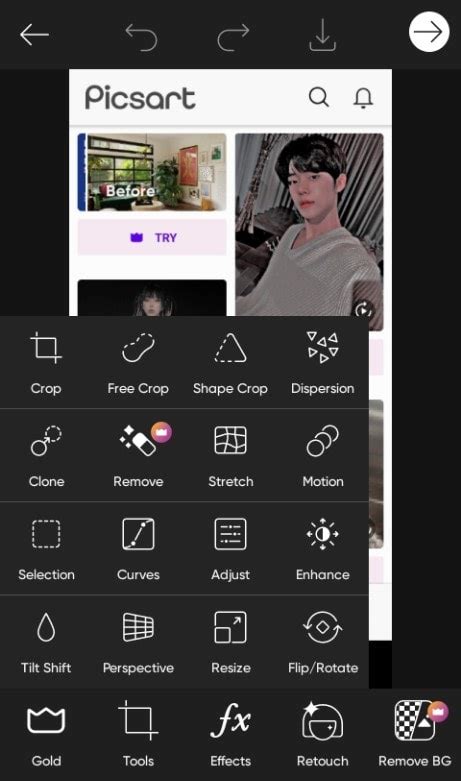
- Access the Tools: Navigate to the "Tools" section.
- Select "AI Enhance" (for overall improvement): For a quick, AI-driven enhancement that includes sharpness, select "AI Enhance." This tool automatically analyzes and improves various aspects of your image, including sharpness, lighting, and color. You can then preview the results and make further adjustments if needed.
- Manual Sharpening (for targeted refinement):
- If you need more precise control or wish to sharpen specific areas, look for the "Sharpen" tool within the "Tools" menu.
- Apply the effect and observe its impact.
- Crucially, adjust the intensity slider. Start with a low setting and gradually increase it until you achieve the desired crispness without introducing unwanted artifacts.
- If specific parts of the image require more sharpening, you may need to apply the effect multiple times or focus on those areas individually.
- Preview and Refine: Always preview your changes. Picsart often provides a before-and-after view or allows you to toggle the effect on and off to compare.
- Export Your Image: Once you are satisfied with the sharpened image, export it to save your work.
Beyond Sharpening: Comprehensive Image Enhancement with Picsart
Picsart's capabilities extend far beyond just sharpening. The platform is an entire creative suite designed to elevate your visuals. The AI Image Enhancer, for instance, is a powerful tool that analyzes your photo, brightens colors, corrects lighting, and restores sharpness automatically. This intelligent processing goes beyond basic adjustments, aiming to bring out the best in every image, one pixel at a time.
For those looking to fix blurry photos online, enhance image quality, or improve picture resolution, Picsart offers a comprehensive solution. The AI-powered image sharpening within Picsart is not a brute-force application of a filter; rather, it intelligently identifies specific areas within your photo that lack definition and selectively enhances them. This targeted approach improves resolution, adds depth, and refines details, making each element within your photo pop.
Key Enhancement Features in Picsart:
- AI Image Enhancer: A one-tap solution to automatically improve lighting, tone, and sharpness.
- Image Upscale Tool: Essential for when you need to print or post a larger version of your image, this tool increases resolution without sacrificing quality.
- Color Brightening and Correction: The AI automatically adjusts colors to make them more vibrant and accurate.
- Lighting Correction: Addresses underexposed or overexposed areas for a balanced look.
- Detail Refinement: The AI selectively enhances areas lacking definition, improving overall clarity.
When Digital Meets Print: Upscaling and Resolution for Printing
The transition from a digital screen to a printed page can reveal imperfections that were not apparent on a monitor. What looks sharp on a screen might appear fuzzy or dull when printed. This is often due to differences in resolution requirements. While a monitor typically operates at around 72 PPI (pixels per inch), printers require a much higher density, measured in DPI (dots per inch), often around 300 DPI for quality prints.
Low-resolution files, especially when enlarged, can result in visible pixels or blurred edges. For example, an 8x10 inch print at 300 DPI requires approximately 2400x3000 pixels. If your image falls short of these requirements, Picsart's AI photo enhancer for print, particularly the Image Upscale tool, can be instrumental. It enlarges the image while intelligently preserving texture and clarity.
AI enhancement for printing isn't simply about adding more pixels; it's about intelligent reconstruction. These algorithms analyze edges, patterns, and tones, then rebuild missing details with remarkable accuracy. Unlike traditional upscaling methods that merely inflate image size, AI-based tools improve photo clarity for printing by understanding what constitutes texture, light, and detail.
Optimizing Images for Print with Picsart:
- Start with the Strongest Version: Always choose the highest-quality photo file available. RAW files are ideal, but high-resolution JPEGs are also suitable.
- Utilize AI Tools: Upload your image to Picsart's AI Image Enhancer or Image Upscale tools.
- Manual Adjustments (Optional): If you prefer hands-on control, make subtle manual edits to brightness, saturation, or tone.
- Apply Gentle Sharpening and Noise Reduction: After enhancement, apply gentle sharpening for extra crispness and use noise reduction to smooth out any textures that may have become apparent.
- Test Before Full Print: Before committing to a full-size print, test a cropped section to ensure the quality is as expected.
Picsart's AI tools simplify the process of printing high-resolution images, handling tasks like sharpening photos for print and enhancing contrast and color with just a few clicks. Printing should elevate your images, not expose their flaws, and Picsart provides the means to achieve this.
Exploring Alternatives and Future Trends
While Picsart offers a powerful and integrated solution for image enhancement and sharpening, it's worth acknowledging other options. Some users might seek specialized desktop software for more granular control, especially when dealing with complex editing tasks or very large files. Online tools like Photo Sharpen can offer quick fixes, though they may lack the adjustability of a full-fledged editor.
For instance, the photo editor BeFunky provides "Sharpening" and "Smart Sharpening" effects. Smart Sharpening, which increases contrast along edges, is more intensive and often yields better results than regular sharpening. Photo Editor Pro also offers a sharpening effect, though it might be a premium feature and works best for mildly blurred images.
The demand for unblurring capabilities in photo editing apps is evident, with many users searching for such features. As AI technology advances, we can anticipate more sophisticated and user-friendly tools emerging to address image clarity issues. Apps that effectively integrate these solutions will undoubtedly gain popularity among photographers and casual users alike. Until then, exploring the diverse tools within platforms like Picsart remains the most effective way to breathe new life into less-than-perfect shots.
Enhancing Visuals for Impact: Beyond Technical Fixes
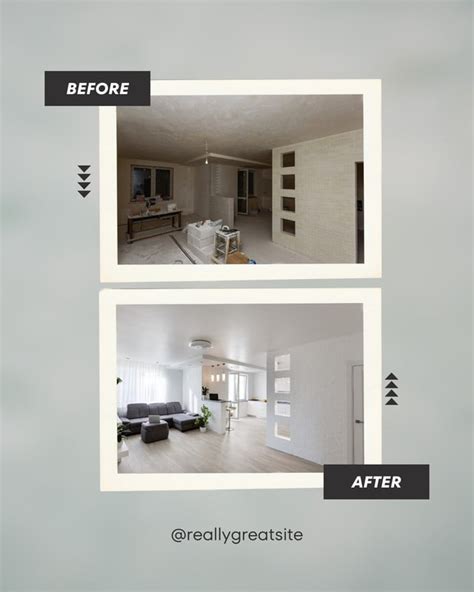
The purpose of sharpening and enhancing images often extends beyond simply correcting flaws; it's about making your visuals more impactful. In today's visually saturated digital landscape, particularly in e-commerce, compelling product images are crucial for improving sales. Picsart helps creators stand out in overpopulated feeds by enabling them to produce professional and polished visuals that highlight their brand and products.
Enhancing photos can involve various techniques, each serving a specific purpose:
- Cropping: The simplest way to improve focus and composition is often an image crop, removing distracting elements to emphasize the main subject.
- Background Blurring: This technique draws attention to the focal point by softening or blurring the background.
- Adding Text: Strategic text overlays can enhance an image, providing context or conveying a message, provided the font and placement don't interfere with the photo's elements.
- Saturation and Contrast Adjustment: These tools can deepen colors or intensify tones for a more dramatic effect. However, over-saturation can lead to unnatural results, and contrast should be adjusted judiciously.
- Lighting Adjustment: Tools like brightness and exposure correction can salvage photos with poor lighting conditions. It's advisable to use these scales slowly to avoid over- or under-exposure.
- Photo Filters and Presets: These offer a quick way to achieve a specific aesthetic, transforming an image with a single tap.
- Collages: For showcasing multiple images, organized collage layouts provide a clean and complementary presentation.
- Stickers and Overlays: Picsart's extensive library of stickers can add a unique flair to images, allowing for creative customization.
- Retouch Tools: For portraits, intricate retouch tools can enhance specific facial features, contributing to a polished final image.
Ultimately, photo enhancement empowers you to unlock the full potential of your images. It's about bringing out the clarity, detail, and vibrancy that might not have been fully captured by the camera. Whether you're digitizing old photos, removing blur, making colors pop, or refining professional shots, Picsart provides the tools to make every image shine.