In the ever-evolving landscape of digital art and photography, the ability to seamlessly extend an image beyond its original boundaries has become an invaluable skill. Photoshop's Generative Fill, powered by advanced AI, has revolutionized this process, transforming what was once a labor-intensive task into a swift and intuitive operation. This powerful feature allows creators to magically extend their images, unlocking new possibilities for composition, storytelling, and adaptation for various platforms. Whether you're looking to transform a tightly cropped portrait into a breathtaking landscape or simply need to add a bit more breathing room to a composition, understanding how to leverage Generative Fill is key to unlocking its full potential.
The Power of Generative AI in Image Extension
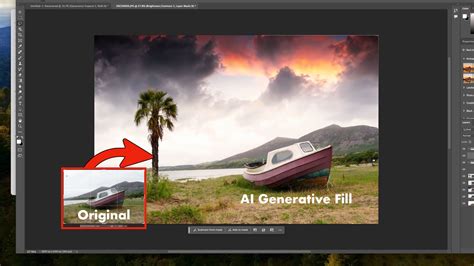
Generative AI in Photoshop, embodied by the groundbreaking Generative Fill feature, ushers in a new era of creative control. Tasks that previously demanded extensive time and expertise from even the most skilled Photoshop users can now be accomplished by anyone in mere minutes. The core of this innovation lies in its ability to intelligently analyze an existing image and generate entirely new content that seamlessly blends with the original. Photoshop's Generative Fill is designed to perfectly match the lighting, shadows, perspective, and even the depth of field of the original photograph, ensuring a natural and cohesive result. This means that when you expand an image, the newly generated areas are not just random pixels; they are contextually aware and harmoniously integrated, creating an illusion of an image that was always meant to be larger.
Understanding the Generative Fill Workflow
The process of extending an image using Generative Fill in Photoshop is remarkably straightforward. To begin, you'll typically use a selection tool, such as the Lasso Tool, to define the area you wish to extend. It's often beneficial to include a small portion of the existing image within your selection to provide the AI with sufficient context. Once the area is selected, you can access Generative Fill through the Contextual Task Bar that appears.
When you initiate Generative Fill, Photoshop analyzes your selection and the surrounding image data. It then generates new content to fill the selected area. Crucially, this process creates a new "Generative layer" in your Layers panel, positioned above your original image. This non-destructive approach is a cornerstone of good Photoshop hygiene, allowing for easy revisions and experimentation without permanently altering your base image.
In the Properties panel, you'll be presented with three initial variations of the AI-generated content. This allows you to quickly preview different interpretations of how the extended area could look. You can cycle through these variations using the left and right arrows in the Contextual Task Bar, or by clicking the "Generate" button again to produce a fresh set of three new options. This iterative process empowers you to explore various creative directions until you find a result that best suits your vision.
Extend Image Background in Adobe Photoshop Tutorial for beginners
Refining Your Generative Fill Results
While Generative Fill is incredibly powerful, perfection isn't always achieved in the first few attempts. Sometimes, the AI might produce results that are close but not quite right, or may introduce minor distractions. For instance, you might find that a generated element is too dark, has an unusual artifact, or simply doesn't match the aesthetic of the original image.
If you encounter a generated result that is mostly satisfactory but has a few distracting elements, you don't need to rely solely on repeatedly clicking "Generate" in hopes of a perfect outcome. Photoshop offers another AI-powered tool, the Remove Tool, which can be used to clean up these minor imperfections.
To use the Remove Tool effectively, you'll need to work on a separate layer above your Generative layer. This is because Generative layers themselves are not directly editable in the traditional sense. Select the Remove Tool from the toolbar, which is often nested with other healing tools like the Spot Healing Brush. Resize the brush using your keyboard's left and right bracket keys to match the area you need to clean up. Then, simply paint over the distraction. Upon releasing your mouse button, the AI will attempt to remove the unwanted element, seamlessly blending the area with its surroundings. This two-step approach - Generative Fill for expansion and the Remove Tool for refinement - offers a robust workflow for achieving polished results.
Extending Multiple Sides of an Image
The ability to extend an image can be applied to one side, or to multiple sides simultaneously. Photoshop offers a couple of methods for extending both sides of an image, each with its own advantages.
The first method is generally faster. It involves making a single, larger selection that encompasses the areas you want to expand on both sides. You would typically start by selecting the area on one side, and then, while holding down the Shift key (which adds to the selection), you would drag out a selection outline for the area on the other side. This approach allows you to generate content for both sides in one go, resulting in a single Generative layer.
However, for greater flexibility and control, a second method is often preferred. This involves extending each side separately. You would first create a selection for one side, generate content for it, and then repeat the process for the other side. This creates two distinct Generative layers, one for each side of the image. The advantage here is that if you like the result on one side but not the other, you can keep the satisfactory result and regenerate the content for the side that needs improvement. Furthermore, this method opens up the possibility of using specific text prompts for each side, allowing for even more tailored and unique content generation.
The Role of Text Prompts in Generative Fill
One of the most exciting aspects of Generative Fill is the ability to guide the AI's output through text prompts. While Generative Fill can often produce excellent results based on the existing image content alone, providing a descriptive prompt can significantly enhance the outcome, especially when aiming for specific details or a particular mood.
For instance, if you're extending the side of a building, you could prompt Photoshop with something like "continue the brickwork with weathered texture." If you're expanding a landscape, you might use a prompt such as "add a misty mountain range in the background" or "extend the sandy beach with gentle waves." When working with multiple Generative layers for different sides of an image, you can even use different prompts for each side. For example, one side might be prompted with "island shrouded in fog," while another might be left to the AI's contextual interpretation or prompted with something entirely different.
The key to effective prompting is to be descriptive but concise. Think about the elements, textures, lighting, and atmosphere you want to introduce. The more specific you are, the better the AI can understand your intent. This symbiotic relationship between the user's vision and the AI's generative capabilities is what makes Generative Fill such a powerful tool.
Beyond Expansion: Generative Fill vs. Generative Expand
It's important to distinguish between Generative Fill and a related feature, Generative Expand. While both leverage generative AI, they serve distinct purposes.
Generative Fill is primarily used to replace, remove, or add content within an existing image. You can select an object and use Generative Fill to change it into something else, or select an empty space and have Generative Fill populate it with new elements.
Generative Expand, on the other hand, is specifically designed to extend the canvas of an image outward. When you use the Crop Tool and choose Generative Expand, Photoshop intelligently fills the newly added canvas area, effectively expanding the image beyond its original borders. This is particularly useful for adapting images to different aspect ratios, such as converting a square image to a widescreen format for YouTube thumbnails or a vertical format for Instagram stories.
Understanding this distinction is crucial for selecting the right tool for the job. If your goal is to simply make an image larger by adding space around it, Generative Expand is the more direct and often more efficient choice. If you need to alter or add specific elements within the existing frame, or if you want more granular control over the expansion process, Generative Fill offers greater versatility.
Considerations for Optimal Results
While Generative Fill and Generative Expand are remarkably capable, a few considerations can help ensure the best possible outcomes.
File Format and Original Edits: The user's experience highlights a potential pitfall: the impact of initial processing on generative features. If you shoot in RAW, it's generally best practice to save your primary version as a layered TIFF file. This preserves all your edits non-destructively. Attempting to expand a JPEG, while possible for a one-time edit, can lead to artifacts due to its limited tonal range compared to RAW or TIFF. Some users have reported issues with Generative Expand not working on DNG files that have undergone significant processing, such as noise reduction (NR) or sharpening, in applications like Lightroom. In such cases, it might be necessary to revert to an earlier, unedited version of the RAW file and reapply edits after the generative expansion, or to export an intermediate format that preserves generative capabilities.
Image Dimensions: There are minimum dimension requirements for generative AI features to function effectively. If an image is too small (e.g., less than 512 x 512 pixels), Generative Fill or Expand may not process it, and you might encounter error messages.
Resetting Preferences: In rare instances where generative features appear grayed out or are not functioning as expected, resetting Photoshop's preferences can often resolve the issue. This is done by restarting Photoshop while holding down the Option + Command + Shift keys (on macOS) and confirming the deletion of current settings. This action can clear corrupted preference files that might be interfering with the software's functionality.
The Future of Image Manipulation
Generative AI in Photoshop, exemplified by Generative Fill and Generative Expand, represents a significant leap forward in image manipulation. These tools democratize advanced editing techniques, enabling a wider range of creators to achieve professional-looking results with unprecedented speed and ease. As AI technology continues to advance, we can anticipate even more sophisticated and intuitive features that will further blur the lines between imagination and digital reality. The ability to extend images, reimagine compositions, and create entirely new visual narratives is now more accessible than ever, opening up a universe of creative possibilities for photographers, designers, and artists alike.