Adobe InDesign stands as a cornerstone in the realm of professional graphic design, particularly for crafting sophisticated layouts and print media. This powerful tool empowers designers to bring a vast array of printable materials to life, from eye-catching flyers and impactful posters to essential business stationery. For those looking to harness its full potential, understanding its diverse capabilities and tools is paramount for successful design execution. This guide delves into the core functionalities and advanced features of Adobe InDesign, offering insights for beginners and experienced users alike.
The Foundation of Design: Setting Up Your Document
Embarking on any InDesign project begins with the fundamental step of creating a new document. This initial phase is crucial for establishing the framework of your design and sets the stage for all subsequent work. Understanding the nuances of document setup, including dimensions, margins, and bleed, ensures a professional and print-ready output.
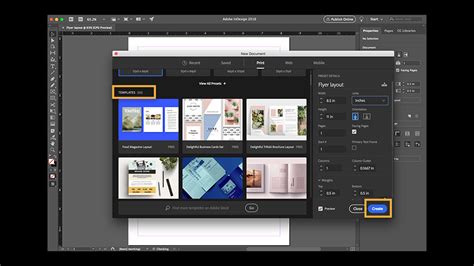
For beginners, this introduction to creating new documents provides all the essential knowledge needed for future projects. If certain design terms are unfamiliar, rest assured that the learning curve is manageable, and with practice, these concepts will become second nature. Questions about specific corporate colors or the distinctions between RGB and CMYK color modes are common for those new to the professional design landscape, and InDesign offers robust tools to manage these requirements.
Navigating the InDesign Workspace and Objects
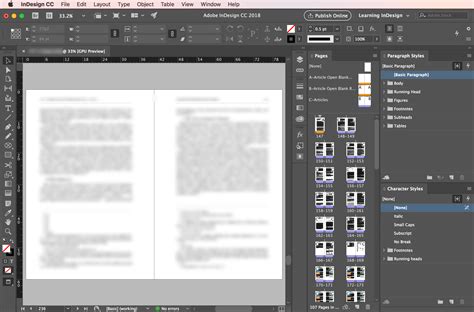
A fluid understanding of the InDesign workspace is key to an efficient workflow. This involves familiarizing oneself with the arrangement of panels, tools, and the overall layout of the application window. Basic navigation and interaction with objects within your composition are foundational skills that enable you to manipulate elements with precision and ease.
InDesign Workspace Navigation
Once comfortable with the workspace, the next step is often to preview your work in a more finalized, print-like view. InDesign allows for the easy preview of your work without guides and margins visible, offering a clear representation of the final output. This is particularly useful when evaluating the overall aesthetic and flow of a design before committing to print.
Typography: Harnessing the Power of Fonts and Text
Typography is the art of arranging type, and InDesign provides an extensive toolkit for creative text manipulation. Adobe Fonts, formerly known as Adobe Typekit, offers a vast collection of fonts suitable for both personal and commercial use, directly accessible within InDesign. Learning to access and utilize these fonts effectively is a significant step in elevating your designs.
For those needing to incorporate fonts not available through Adobe Fonts, or seeking to import custom typefaces, InDesign supports the installation of external font files. This ensures a comprehensive typographic palette for any project.
Working with Text Elements
Adding text to your InDesign document is a fundamental process. Whether it's for headlines, body copy, or captions, InDesign offers versatile text tools. Beyond basic text entry, mastering features like paragraph styles allows for faster and more consistent formatting across your document. This is particularly beneficial when dealing with large volumes of text, ensuring uniformity and saving considerable time.
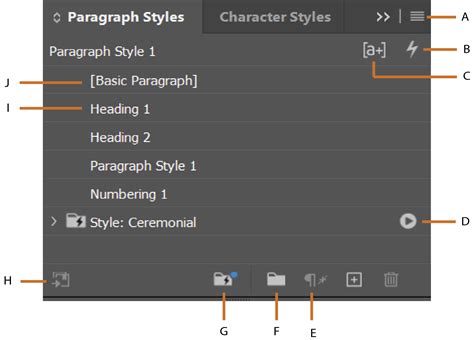
Creating structured text elements such as bullet points and numbered lists is also straightforward. These features not only enhance readability but also provide a logical flow for your readers. For a touch of artistic flair, InDesign's Drop Cap feature allows for the creation of distinctive initial letters, adding a unique visual element to paragraphs.
Advanced Text Formatting and Control
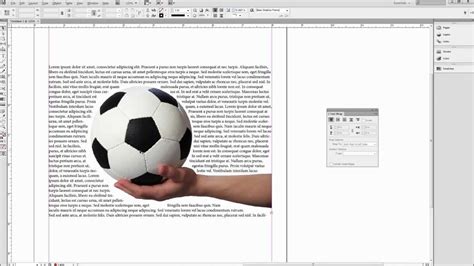
Understanding how to control text flow and formatting is crucial. The ability to wrap text around subjects in an image intelligently, by following simple steps, is a powerful feature. This allows text to wrap around the contours of a subject directly, eliminating the need for complex workarounds like Alpha Channels or Photoshop paths.
Hyphenation, while an automation feature designed to improve text flow, can sometimes lead to undesirable results. InDesign provides granular control over hyphenation settings, allowing you to understand, control, and even disable it to achieve the desired aesthetic. Similarly, overset text, a common issue where text exceeds its container, is easily handled with InDesign's built-in tools and automation tips.
The creation of columns is another essential layout technique. InDesign offers three primary methods for creating columns, each providing different levels of control and flexibility for achieving the perfect layout.
Font Management and Special Characters
When working with fonts, especially those with special characters in their names, potential issues can arise. In some instances, InDesign might crash during launch or when using the Type tool if fonts have unusual characters in their names. It's important to be aware of such potential conflicts and to ensure font compatibility.
The Glyphs panel is an invaluable resource for designers seeking to add visual edge to their text documents without relying solely on imported images. It allows access to a wide range of characters and symbols not typically found on a standard keyboard, enhancing the visual appeal and informational richness of your designs.
Incorporating Visuals: Images and Vector Graphics
Images and graphics are integral to compelling design. InDesign provides seamless integration with various image types, and understanding how to import and manage them is key. For those seeking high-quality, professional images, resources like Envato Elements offer unlimited access to a vast library of content, including InDesign templates, illustrations, and fonts, all usable within your design projects. Free image resources are also available, broadening accessibility for all users.
Beyond raster images, InDesign also supports vector imagery. Learning to work with these scalable graphics ensures that your designs maintain clarity and sharpness at any size.
Image Manipulation and Integration
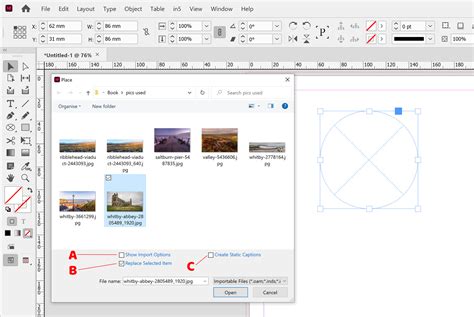
When importing images, the ability to insert them quickly and efficiently is paramount. InDesign offers fast methods for inserting single or multiple images. Furthermore, understanding how to handle images with text embedded within them and how to avoid common pitfalls is essential for professional output.
Creating a clipping mask from text, a single shape, or a group of shapes is a straightforward yet powerful technique for integrating images creatively. This allows for precise control over which parts of an image are visible within a defined boundary.
The Generative Expand feature offers an innovative way to fill any space around your image, seamlessly extending backgrounds or creating new visual elements based on the existing content. This AI-powered tool can significantly enhance composition and creative possibilities.
Layout and Structure: Mastering Pages and Spreads
InDesign excels at managing multi-page documents and complex layouts. You can easily create both single pages and two-page spreads within the same document, offering flexibility for various design projects.
Master Pages and Document Structure
Master Pages are a fundamental concept for maintaining consistency and efficiency in InDesign. By adding elements like page number markers to a master page, you ensure that these elements appear automatically on all designated pages of your document. This significantly reduces repetitive work and maintains a cohesive design.
InDesign Workspace Navigation
For documents with multiple chapters or distinct sections, such as books or catalogs, the InDesign Book function is invaluable. It allows you to manage and compile multiple InDesign documents into a single, cohesive book file, streamlining the workflow for large-scale projects.
Grids and Alignment for Organization
To ensure content is well-organized and visually appealing, the use of grids is highly recommended. Modular Grids provide a structured framework for placing elements, enhancing readability and aesthetic harmony. Understanding how to establish, use, and even strategically break grids is a hallmark of professional design.
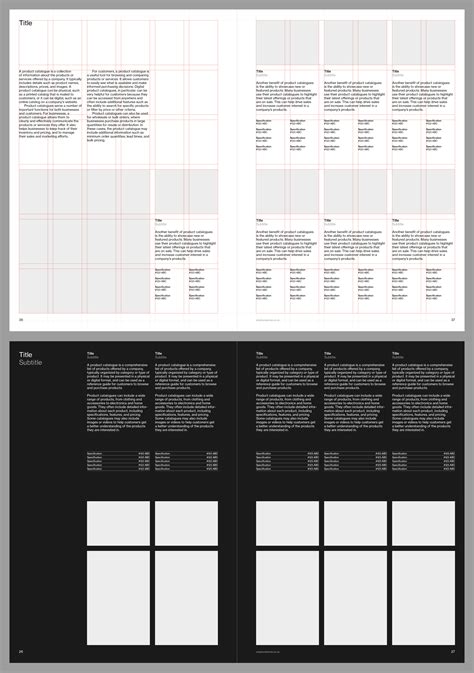
The Align panel is another essential tool for quickly aligning objects. Mastering its various functions ensures that elements are precisely positioned, contributing to a polished and professional final product.
Advanced Features and Workflows
Adobe InDesign is a robust program with a wealth of advanced features designed to streamline complex design tasks and automate repetitive processes.
Data Merge and Automation
Data Merge is one of InDesign's most powerful features, enabling the creation of multiple personalized documents from a single source of data. This is particularly useful for generating numerous business cards, invitations, or other variable data print materials efficiently.
XML integration opens up possibilities for dynamic publishing workflows, allowing for the automatic creation of documents with an almost superhuman level of efficiency. This advanced technique is crucial for managing large volumes of content and ensuring consistency across various outputs.
Working with Tables and Interactive Elements
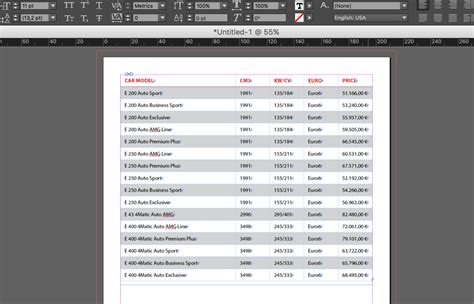
Creating tables within InDesign can be a complex task, but a three-part series of tutorials can guide you through the process, from creating tables from scratch to converting text into tables and importing data from Excel files. Linking an Excel file to an InDesign table allows for seamless updates, ensuring that your design accurately reflects the latest data without manual re-entry.
InDesign also empowers users to create digital and interactive PDFs, including fillable forms. While creating fillable PDF forms can be time-consuming, InDesign offers tools to simplify this process, making it more manageable. Furthermore, the ability to create accessible PDFs is crucial for ensuring your content can be understood and navigated by a wider audience.
Liquid Layout and Responsive Design
For publications that need to adapt to different page sizes, such as digital magazines for various devices, the Liquid Layout feature is indispensable. It allows for the resizing of pages while maintaining design integrity, ensuring a consistent user experience across different screen dimensions.
Exporting and Sharing Your Work
The final stage of the design process often involves exporting your work for various purposes. InDesign provides comprehensive export settings for creating high-quality PDFs suitable for commercial printing, as well as other formats. Understanding these settings ensures that your documents meet the specific requirements of printers and digital platforms.
Sharing your InDesign file with others can be more complex than simply sending a flat image file. The INDD file is a working file, meaning it contains all the editable design elements. To share your work effectively, the File > Package command is crucial. This command bundles all necessary assets, including linked images and fonts, into a single, sharable package, ensuring that recipients can view and work with your design as intended.
InDesign Workspace Navigation
Troubleshooting Common InDesign Issues
Even with its advanced capabilities, users may encounter issues within InDesign. Corrupted preferences can lead to strange behavior, but resetting them is a straightforward process. Printing or exporting issues can arise due to document- or system-level problems, and understanding potential causes is key to resolving them. Font conflicts, particularly with fonts containing special characters in their names, can also lead to application instability.
Learning Resources and Continuous Improvement
For those new to InDesign or looking to deepen their expertise, a wealth of learning resources is available. Beginner-friendly courses and tutorials cover the basics of document creation, font selection, image insertion, and more. Intermediate tutorials delve into more complex techniques like Master Pages, grids, and tables, aiming to improve speed and efficiency. Advanced tutorials explore sophisticated features such as GREP (a powerful pattern-matching tool), creating fillable forms, and dynamic publishing workflows.
Websites like InDesignSecrets offer a treasure trove of tips, resources, and expert insights, serving as an invaluable hub for addressing specific questions and discovering hidden features. Official Adobe forums provide a platform for users to ask questions and receive support from the community and Adobe experts.
Conferences, such as Adobe MAX, offer opportunities to stay abreast of the latest technologies and creative trends. Investing in skills through structured courses, like those found on platforms like Udemy, or by following dedicated instructors, can dramatically enhance productivity and professional development within the field of graphic design. Templates, both those built into InDesign and those available from external sources like Envato Elements, can serve as excellent starting points for projects, providing professionally designed layouts that can be customized to individual needs.