Removing distracting or cluttered backgrounds from photos can be a tedious process, but Snapseed's Remove tool makes it easy. Background remover Snapseed is a popular and powerful photo editing app for mobile devices that includes many useful editing tools, one of which is the ability to intelligently remove backgrounds from images. In this comprehensive tutorial, we'll walk through how to remove background from image in Snapseed on both iOS and Android devices.
Removing distracting backgrounds from your photos is a breeze with Snapseed's powerful and intuitive tools. In just a few taps, you can isolate any subject and give them the spotlight they deserve.
Getting Started with Snapseed
First things first, download Snapseed if you don't have it already. Once it's installed, open up the app and find the photo you want to edit. Snapseed is a free application available on both the App Store and Google Play, with no hidden in-app purchases or subscription fees.

Navigating the Snapseed Interface
Upon opening a photo, you'll notice two main editing areas within the app: "Looks" and "Tools." You can switch between these by tapping "Looks" or "Tools" at the bottom of the screen. The "Looks" section offers a variety of pre-set filters and styles to apply to your image, serving as a great starting point for your edits. The "Tools" section, which we will focus on for background removal and object manipulation, provides a comprehensive suite of editing capabilities.
Removing Backgrounds with the Brush Tool
While Snapseed doesn't have a single, dedicated "remove background" button in the traditional sense, it offers powerful tools that can achieve this effect. The "Brush" tool is a versatile option for selectively altering parts of your image, including the background.
- Accessing the Brush Tool: Once your photo is loaded, tap on the "Tools" icon at the bottom of the screen and choose "Brush" from the list.
- Applying the Brush: Use your finger to paint over the parts of the background you want to erase or alter. The area you paint over will be affected by the selected brush setting.
- Adjusting Brush Settings: The "Brush" tool offers several options, including "Dodge & Burn," which allows you to selectively lighten or darken areas. You can adjust the intensity of these effects using the provided slider. For instance, if you're aiming to make the background less prominent, you might use the "Dodge & Burn" tool with a negative value to darken it.
- Refining the Edges: For more precise control, you can adjust the brush size and zoom in on your image by pinching outwards with two fingers. This allows you to carefully paint along the edges of your subject to ensure a clean separation.
- Applying Changes: When you're happy with the result, tap the checkmark to apply the changes. Then, hit the “Save” or "Export" button to save your new background-altered photo.
Achieving a White Background
To specifically get a white background on Snapseed, you can employ the "Brush" tool in conjunction with color selection.
- Open your photo and select the "Brush" tool.
- Instead of using "Dodge & Burn," you can use the "Color" brush or a similar selective adjustment tool.
- Choose white from the color picker.
- Carefully paint over the existing background. You can adjust the brush size to fill in the edges precisely.
- Finish up by tapping the checkmark to apply the change.
It's important to note that for complex images with intricate subjects, manually painting the background can be time-consuming.
Erasing Unwanted Objects with the Healing Tool
Snapseed's "Healing" tool is specifically designed for removing unwanted objects, blemishes, or distractions from your photos, making it incredibly useful for cleaning up an image before or after background manipulation.
- Loading Your Image: Open the photo you wish to edit in Snapseed.
- Selecting the Healing Tool: Tap on "Tools" at the bottom and select the "Healing" option, which is often represented by a bandage icon.
- Painting Over the Object: Use your finger to carefully paint over the object you want to remove. The area you paint over will appear highlighted, usually in red.
- Automatic Removal: When you lift your finger, Snapseed will intelligently analyze the surrounding pixels and attempt to fill in the area, seamlessly blending it with the surroundings.
- Refining and Saving: If the result isn't perfect on the first attempt, you can use the "Undo" option (a curved back arrow) and try brushing over the object again. Sometimes, multiple attempts are needed for a flawless result, especially with objects that have complex edges or are near detailed areas.
- Finalizing Your Edit: Once you are satisfied with the removal, tap the checkmark to apply the changes. You can then tap the "Save" icon to save your object-less photo, or use the "Share" icon to post it directly to social media.
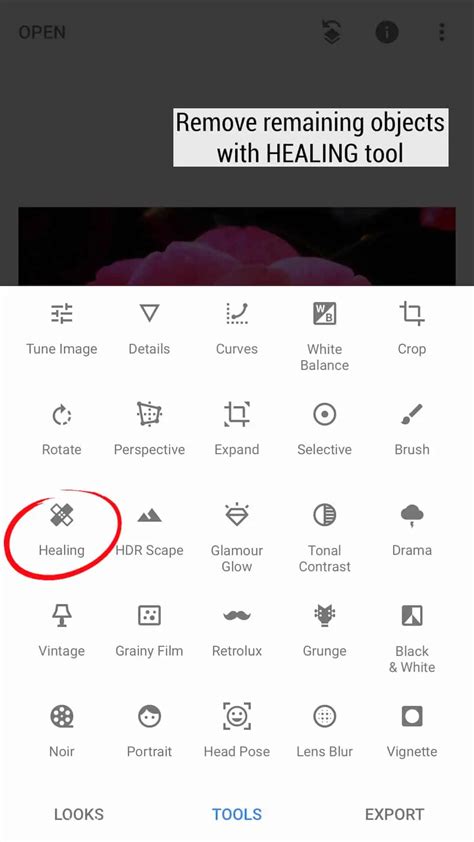
The "Healing" tool is particularly effective for removing small distractions like power lines, photobombers, dust spots, or minor blemishes on a person's skin. For best results, use the Healing tool when the object you want to remove is surrounded by relatively plain or uniform detail, such as sky, skin, or grass. Zooming in on the area before applying the healing brush can significantly improve accuracy.
Advanced Techniques and Alternatives
While Snapseed offers powerful tools for on-the-go editing, more complex background removal tasks, especially those requiring precise subject isolation or intricate details, might benefit from more advanced software.
The Double Exposure Tool for Complex Separations
For scenarios where you need to meticulously separate a foreground subject from its background, Snapseed's "Double Exposure" tool can be utilized creatively, though it requires a more involved process.
- Prepare Your Images: You'll typically need two images: the one with the subject you want to keep, and a background image (which could be a solid color or another scene).
- Open the Foreground Image: Start by opening the image containing your primary subject in Snapseed.
- Add the Background Image: Go to "Tools" and select "Double Exposure." Tap the "+" icon to add your second image (the desired background).
- Adjust Exposure and Blending: Use the blending modes (like "Lighten" or "Darken") and adjust the exposure of each layer.
- Masking for Separation: This is where the manipulation for background removal comes in. Click the layers icon on the top of the screen and then select "View Edits." Within the "Double Exposure" edit stack, choose the "Edit" option. Now, you can start removing the background of the front image by carefully painting with your finger, effectively masking out the unwanted background. Setting the exposure to 0 can help in precise masking.
- Fine-Tuning: You can then refine the edges and ensure a clean separation.
This method is more about compositing and using masking within the Double Exposure tool to achieve a background removal effect, rather than a direct background removal function.
Exploring Third-Party Solutions for Advanced Needs
When Snapseed's capabilities are pushed to their limits, or for users seeking more automated and professional-grade background removal, several alternative tools exist.
HitPaw Online Background Remover: This platform leverages intelligent AI technology to instantly identify subjects and remove backgrounds with remarkable accuracy. It's designed to be a quick and efficient solution, often requiring just a single click. HitPaw can seamlessly fill in the removed areas, creating natural-looking results. It also allows for easy replacement of the background with a solid color. Advanced users can utilize its Erase and Restore brushes for fine-tuning the background selection.
Best AI Image Remover 2026 | How to Remove Backgrounds & Objects - HitPaw FotorPea Tutorial
TopMediai BG Eraser Online: Similar to HitPaw, TopMediai offers an online platform for instant background removal without the need to download software. It's presented as a powerful tool for removing backgrounds, editing videos, and removing objects, providing a swift alternative to manual editing processes in apps like Snapseed.
FotorPea: This tool is also mentioned as an efficient way to replace backgrounds with white or any other color, utilizing AI for automatic background removal. It's highlighted as being significantly faster than manual painting methods.
These advanced tools often employ sophisticated algorithms to detect and isolate subjects, making them ideal for e-commerce product photos, professional graphic design, or any situation where a perfect, clean background is essential. They cater to users who need fast, quality results without extensive manual effort.
The Popularity of Snapseed for Background Editing
Snapseed by Google, originally developed by Nik Software, has garnered significant popularity among both professional editors and casual users for its robust set of editing tools, many of which can be creatively applied to background manipulation and object removal. Its availability on both Android and iOS devices makes it widely accessible.
The app's strength lies in its blend of user-friendliness and powerful features. For instance, the "Tune Image" tool is fundamental for adjusting brightness, contrast, saturation, and warmth, which can subtly alter the perception of a background. The "Details" tool, particularly "Structure," can enhance textures, though it should be used judiciously, especially on portraits, as over-application can introduce unwanted grain or make skin appear unnatural.
The non-destructive editing nature of Snapseed is a key reason for its appeal. Users can modify or delete any edit at any point by accessing the "Edit History" (the square icon with a curved arrow). This allows for experimentation without permanently altering the original image. Within the edit stack, individual edits can be modified, deleted, or even selectively applied using masking options, providing a high degree of control.
Mastering Composition and Detail with Snapseed
Beyond background removal and object erasing, Snapseed offers tools to refine the overall composition and detail of your photos, which can complement background edits by drawing more attention to your subject.
Enhancing Composition
- Crop Tool: This allows you to trim unwanted edges, reframe your shot, and emphasize key elements. You can choose from various aspect ratios or crop freely.
- Rotate Tool: Essential for straightening horizons or any elements that appear crooked, ensuring a professional look.
- Perspective Tool: This tool is invaluable for correcting converging vertical lines in shots of tall buildings or adjusting skewed perspectives, making architectural photography much more manageable.
Refining Details and Portraits
- Details Tool: As mentioned, this tool enhances texture and fine detail. It's particularly effective on subjects with inherent textures like wood grain or peeling paint.
- Portrait Tool: Designed for enhancing portraits, it offers options to brighten faces (Face Spotlight), smooth skin (Skin Smoothing), and enhance eye sparkle (Eye Clarity). Careful use is advised to maintain a natural appearance.
Selective Editing for Precision
The power of Snapseed truly shines with its selective editing tools:
- Brush Tool: Beyond basic painting, it allows for selective adjustments to brightness, contrast, saturation, and sharpness in specific areas.
- Selective Tool: This tool enables you to pinpoint a specific area of your image and adjust its brightness, contrast, and saturation without affecting the rest of the photo. You can expand or contract the area of effect.
- Masking: Accessible through the Edit History, masking allows you to apply or remove edits from specific parts of an image, offering granular control over your adjustments.
- Vignette: This tool can darken or lighten the edges of a photo, helping to draw the viewer's eye towards the center subject.
By understanding and utilizing these diverse tools, users can achieve a wide range of editing outcomes within Snapseed, from simple background distractions to complex compositional refinements, making it a comprehensive solution for mobile photo editing.
tags: #snapseed #remove #background