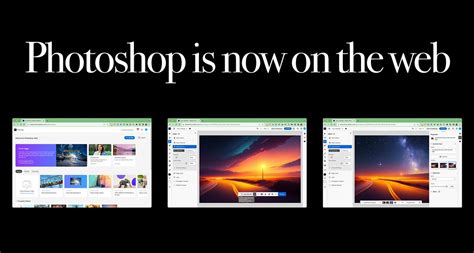
Adobe Photoshop, the undisputed titan of image editing software, has made a significant leap into the web browser with the introduction of Photoshop for the Web, accessible on Chromebooks and other platforms. This move signifies Adobe's embrace of Progressive Web Applications (PWAs) and aims to democratize access to powerful editing tools for a wider audience. While the web version offers a familiar yet streamlined interface, it comes with its own set of "quirks" and adjustments for long-time desktop users.
Instant Creation and AI-Powered Enhancements
Photoshop on the web allows users to start creating instantly, no download required. It emphasizes an intuitive and precise editing experience designed for creators of all skill levels. At its core, it leverages next-gen AI to bring ideas to life with speed and efficiency. Users can describe their edits, get suggestions, and even learn with step-by-step instructions. The platform facilitates quick isolation and enhancement of image details and colors, precise removal of unwanted elements, and overall creative control.
The integration of generative AI tools allows users to "dream it" and "type it" to create, working at the "speed of imagination." Fine-tuning and transforming images online can be accomplished in just a few clicks. Furthermore, the web application supports the creation of stylish designs by combining images and text, offering over 30,000 fonts to choose from. This enables the addition of bold headlines, captions, and other elements to craft eye-catching graphics, from social media posts to posters.
Navigating the Web Interface: A Learning Curve
For users accustomed to the desktop version of Photoshop, the web interface presents a notable learning curve due to streamlined functionalities and altered shortcut mappings. One of the most striking differences is the absence of a dedicated "Zoom" tool. Instead, users must rely on the keyboard shortcut Ctrl + mouse wheel up or down for zooming. This departure from the traditional magnifying glass is a common tactic employed by many popular web applications, though it represents a sacrifice for those accustomed to the conventional method.
Another adjustment involves the inversion of selections. On the desktop, Ctrl+i inverts a selection when the wand tool is active. However, in Photoshop Web, this same shortcut inverts the image's colors. To invert a wand tool's selection, users must utilize the "magic floating bar" that appears below the image.
The process of importing images also differs. On desktop Photoshop, users typically employ File > Place to import an image onto an existing or new layer. In Photoshop Web, this action is performed through the Import option found on the left-hand sidebar. This shift away from the top navigation menu for many functions requires users to adapt to a new workflow.
Keyboard Shortcuts and Transform Tools
The familiar Ctrl+T shortcut for transforming selections on desktop Photoshop triggers a new Chrome tab in the web version, as this shortcut is now hogged by the browser itself. To transform a selection in Photoshop Web, users need to select the desired layer in the right-hand side outliner, which then automatically displays transform handles around its contents. For more specific transformations of smaller areas, such as those selected with the wand or selection tool, reliance is again placed on the aforementioned magic floating bar. This bar is also integrated into the sub-tool for moving elements, a detail that may not be immediately apparent. The tools themselves are compacted and "stacked" on the left-hand side of the interface.
A potential point of frustration arises when using the move tool. Selecting an element, such as text, can inadvertently lead to moving a layer beneath it. The consistency of this behavior can vary, and often, multiple clicks are required to select the intended item. Alternatively, users can adjust the Auto-select options at the top of the interface, choosing between None, Group, or Layer to refine selection behavior.
Saving and Cloud Integration
A significant departure from the desktop experience is the inability to "save as" a PSD file directly to a local machine. Instead, files are automatically saved to the Adobe cloud. While this offers seamless cloud integration, it can be a concern for users who prefer local storage. However, the Export option, accessible via the Hamburger menu, allows users to choose Photoshop as the file type for saving, effectively enabling a PSD export.
Cost and Accessibility
While Photoshop for the Web offers a powerful suite of editing tools directly within a browser, it comes at a cost. The service requires a subscription, priced at $19.99 USD per month. This pricing model positions it more as a business expense than a casual hobbyist tool, prompting users to weigh its value against the investment. For Chromebook users, the accessibility is a game-changer, bringing a professional-grade editing application to a platform that previously lacked such capabilities.
Photoshop For Beginners: Easy Guide to Get Started!
The Future of Web-Based Design
Despite the adjustments and the subscription fee, the existence of Photoshop for the Web is a testament to Adobe's recognition of the growing capabilities of web applications and the demand from users, particularly those on Chromebooks and Linux systems. The platform is impressive, offering users the ability to perform edits with a full suite of tools directly in their browser. For artists using a stylus on their Chromebooks, Photoshop Web promises a robust experience.
The web version's introduction can be seen as a strategic move by Adobe, potentially in response to the growing popularity of web-based design tools like Canva, which has recently made Affinity's suite free. The continuous development and potential future tweaks to the interface, addressing the differences noted by experienced users, will further solidify its position as a viable and powerful option for image editing in the digital age. The ability to create and edit images directly within the browser, coupled with AI-powered features, marks a significant step forward in making professional-grade design tools more accessible and versatile. Users who already have an Adobe Creative Cloud subscription can seamlessly integrate Photoshop Web into their existing workflow, enjoying the convenience of browser-based editing without compromising on essential functionality. The platform's commitment to providing a familiar yet optimized experience aims to empower a new generation of creators to bring their visions to life, regardless of their hardware.