The world of digital design and print production hinges on understanding and effectively utilizing different color models. Two of the most fundamental are CMYK and RGB, each serving distinct purposes and operating on contrasting principles. For anyone involved in creating visuals that transition from the screen to the printed page, or vice versa, mastering the conversion between these systems is not just beneficial but essential. This article delves into the intricacies of CMYK to RGB conversion, exploring why it's necessary, how it works, and the various methods available to achieve seamless transitions, ensuring your colors remain vibrant and accurate across all mediums.
Understanding the Fundamentals: CMYK vs. RGB
At their core, CMYK and RGB are distinct color models, each designed for a specific application. The CMYK model is the bedrock of the publishing and printing industry. It is based on the four fundamental colors used for printing color images on white paper: Cyan, Magenta, Yellow, and Black (often referred to as "Key"). This model operates on a subtractive principle, meaning that as you blend these colors together, the resulting hue becomes darker. Imagine mixing paints; each added color absorbs more light, leading to a darker shade.
In contrast, the RGB model functions on an additive principle, a concept diametrically opposed to CMYK. This model is the standard for representing colors on digital screens, such as those found on computers, televisions, and smartphones. In the RGB system, colors are generated by combining varying intensities of Red, Green, and Blue light. As you increase the Red, Green, or Blue values, the colors become brighter. This additive nature means that when all three primary colors are combined at their maximum intensity, they produce white light. Conversely, the absence of any light results in black.
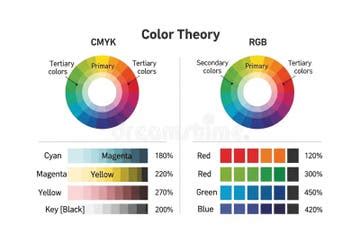
The practical implications of these differing principles are significant. CMYK colors are created by the physical inks applied to a surface, which absorb certain wavelengths of light and reflect others. RGB colors, on the other hand, are generated by emitted light from a display. This fundamental difference leads to variations in their color gamuts - the range of colors each model can reproduce. RGB, with its ability to emit light, generally possesses a wider color gamut than CMYK, meaning it can represent a broader spectrum of colors. This is a crucial point when considering the transition from digital to print, as some vibrant colors seen on a screen (in RGB) may not be accurately reproducible by CMYK inks.
The "K" in CMYK stands for "Key," and its inclusion is not arbitrary. It represents black ink. The primary role of black ink is to create richer, deeper blacks and to reduce the reliance on mixing the other three CMYK inks (Cyan, Magenta, and Yellow) to achieve black. Mixing C, M, and Y inks to produce black can often result in a muddy or brownish hue, and it consumes more ink. By having a dedicated black ink, printers can achieve more defined blacks and use less ink overall, leading to cost savings and improved print quality. The RGB model, in its additive nature, does not have a separate black component; black is achieved by the absence of light.
Why Convert CMYK to RGB?
The necessity for converting CMYK to RGB arises from the differing applications of these color models. While CMYK is indispensable for print, RGB is the universal language of digital displays. Therefore, when a design intended for print (created in CMYK) needs to be adapted for online use, such as for websites, social media, or digital advertisements, conversion to RGB becomes a critical step.
Several key reasons underscore the importance of this conversion:
- Software Compatibility: Some digital platforms, web applications, or software might exclusively accept images in RGB format. Attempting to upload or use CMYK files in these environments can lead to compatibility issues or outright rejection.
- Expanding Color Range: CMYK is necessary for printing, but its color gamut is inherently more limited than that of RGB. While CMYK is optimized for ink-on-paper reproduction, RGB can display a wider array of colors, particularly those that are highly saturated or luminous. Converting CMYK to RGB can sometimes reveal colors that were compressed or unavailable in the original CMYK rendition, offering a broader palette for digital presentation.
- Web and Digital Display Optimization: CMYK is not ideal for web use. Its subtractive nature and limited gamut mean that colors can appear dull or inaccurate on screen. RGB, being an additive light-based model, is far more suitable for screens, allowing for brighter, more vibrant colors that are accurately perceived by viewers on their devices. RGB files also tend to be smaller than their CMYK counterparts, which is beneficial for faster loading times on websites.
- Design Workflow Transitions: Converting CMYK to RGB is a quick but key move when taking your designs from the print world to the digital realm. Whether you’re working on a poster that will also be promoted online or adapting packaging designs for digital marketing, this conversion ensures your visuals are presented effectively in their new medium.
The Conversion Process: Methods and Tools
Converting CMYK to RGB is a straightforward process, and a variety of tools and methods are available to suit different user needs and technical proficiencies. The goal is to translate the color values from the subtractive CMYK model to the additive RGB model, aiming to preserve as much color fidelity as possible.
Online Converters: The Quick and Easy Route
For users seeking a simple and immediate solution, online CMYK to RGB converter tools are an excellent choice. These web-based applications offer a user-friendly interface that requires minimal technical expertise.
One such example is ShortPixel's online tool. The typical workflow involves these steps:
- Upload the CMYK file: You can either drag and drop your CMYK image file directly into the designated area or click to select it from your computer's file system.
- Choose Compression Level: The tool often offers compression options. You can select "lossy" if your primary goal is to significantly reduce file size, or "lossless" if preserving the original quality with minimal data loss is paramount.
- Initiate Conversion: Once the file is uploaded and settings are chosen, the tool automatically processes the conversion.
- Download the RGB file: Upon completion, a download button will appear, often accompanied by a percentage indicating the compression applied.
These online converters work by taking the CMYK values (typically represented as percentages from 0 to 100%) and applying a mathematical formula to derive the corresponding RGB values (usually ranging from 0 to 255). They provide a visual preview of the resulting color, making the process intuitive.
Professional Software: Precision and Control
For designers and professionals who require a higher degree of control and accuracy, professional graphic design software offers robust conversion capabilities.
Adobe Photoshop is a leading tool in this regard. Here's a common method for converting CMYK to RGB within Photoshop:
- Open the CMYK Image: Load your CMYK image into Photoshop.
- Navigate to Image Mode: Go to the top menu and select
Image > Mode > RGB Color. - Color Profile Selection: Photoshop may prompt you to choose a destination color profile. A common and widely compatible choice for digital displays is "Working RGB - sRGB." This profile ensures that the colors will be displayed consistently across most devices.
- Layer Handling: If your image contains multiple layers, Photoshop might ask whether you want to flatten the layers or discard any adjustment layers. Flattening combines all layers into a single one, which is often necessary for a simple RGB conversion.
Adobe Illustrator also provides efficient methods for CMYK to RGB conversion, particularly useful for vector graphics:
- Open the CMYK Document: Load your Illustrator file.
- Access Document Color Mode: Navigate to the top menu and select
File > Document Color Mode. - Choose RGB Color: From the options presented, select "RGB Color" as the new document color mode.
These professional tools allow for more sophisticated color management, including the ability to adjust color profiles and settings to minimize color shifts during the conversion process. This is particularly important when aiming to convert CMYK to RGB without losing much color fidelity.
Programming with Python: Automation and Customization
For those with programming knowledge, Python offers a flexible and powerful way to automate CMYK to RGB conversions, especially when dealing with large batches of images or integrating the conversion into a larger workflow.
The primary library for image manipulation in Python is Pillow, a fork of the Python Imaging Library (PIL). The process typically involves:
- Install Pillow: If you don't have it installed, you can add it using pip:
pip install Pillow. - Write the Python Script: A basic script would involve opening the CMYK image file using Pillow's
Image.open()function. Then, you would use theconvert('RGB')method to change the color mode.
from PIL import Image# Define input and output file pathscmyk_image_path = 'your_cmyk_image.jpg' # Replace with your CMYK image filergb_image_path = 'your_rgb_image.jpg' # Desired name for the output RGB imagetry: # Open the CMYK image img = Image.open(cmyk_image_path) # Convert the image to RGB # Pillow's convert('RGB') handles the conversion from CMYK to RGB rgb_img = img.convert('RGB') # Save the converted RGB image rgb_img.save(rgb_image_path) print(f"Successfully converted {cmyk_image_path} to {rgb_image_path}")except FileNotFoundError: print(f"Error: The file {cmyk_image_path} was not found.")except Exception as e: print(f"An error occurred: {e}")This script opens a CMYK image, converts it to RGB, and saves the result. For more advanced control, you might need to implement specific formulas for CMYK to RGB conversion, as the default convert('RGB') might use a standard profile. However, for most common use cases, it provides a quick and effective solution.
How to Convert RGB to CMYK in Photoshop
How the Conversion Works: The Underlying Mechanics
The conversion from CMYK to RGB is essentially a translation of color values between two different mathematical models. While online tools and software abstract this process, understanding the basic mechanism can be illuminating.
The core of the conversion lies in a mathematical formula that relates the CMYK values to their RGB equivalents. CMYK values are typically expressed as percentages (0-100%), while RGB values are usually represented on a scale of 0 to 255 for each color channel (Red, Green, Blue).
A simplified conceptual formula for converting CMYK to RGB might look something like this:
- Black component (K): This is the most significant factor. A higher K value generally leads to darker colors.
- Color components (C, M, Y): These values are used to adjust the hue and saturation.
The exact mathematical formulas can vary depending on the specific color profiles and rendering intents used by the software or tool. For instance, a common approach involves calculating the "white point" of the CMYK color space and then using that as a reference to derive the RGB values.
Input Values: Users typically input CMYK values, often ranging from 0% to 100% for Cyan, Magenta, Yellow, and Black.Calculation: The converter applies a formula that takes these CMYK percentages and calculates the corresponding Red, Green, and Blue values. This formula accounts for how inks absorb light and how light is emitted.Visual Representation: Many converters display a color preview box that updates in real-time as you adjust the CMYK sliders, providing an immediate visual feedback loop. The calculated RGB values are also displayed, allowing for direct numerical understanding.
For example, a pure cyan in CMYK (100% Cyan, 0% Magenta, 0% Yellow, 0% Black) would translate to a specific RGB value that represents that shade of cyan on a screen. Similarly, a deep black in CMYK (e.g., 0% C, 0% M, 0% Y, 100% K, or a richer "rich black" mix) would be translated to an RGB value of (0, 0, 0) or a very dark grey.
Navigating Color Shifts and Best Practices
While conversion tools aim for accuracy, it's important to acknowledge that CMYK and RGB have different color gamuts. This means that some colors achievable in RGB might not be reproducible in CMYK, and vice versa.
- RGB's Advantage: RGB has a larger color space than CMYK. This means that vibrant, luminous colors seen on a screen might not translate perfectly to print. When converting CMYK to RGB, you're essentially expanding the potential color range for digital use.
- CMYK's Limitation: The primary disadvantage of RGB is that it’s not ideal for print. Colors that appear brilliant on digital displays can appear dull, muted, or simply inaccurate when printed using CMYK inks.
- CMYK's Role: You would use CMYK over RGB when creating designs intended for physical printing, such as brochures, business cards, packaging, or magazines.
- Minimizing Color Loss: To convert CMYK to RGB without significant color loss, using professional software like Adobe Photoshop or Illustrator is recommended. These programs offer advanced color management options, allowing you to select specific color profiles and rendering intents that help minimize unexpected color shifts. When converting RGB to CMYK (the reverse process), specialized tools and careful profile management are also crucial.
Ultimately, understanding the fundamental differences between CMYK and RGB, and employing the right tools and techniques for conversion, is key to ensuring your visual designs maintain their integrity and impact across all platforms, from the glowing screen to the printed page. Whether you're a seasoned designer or just starting, the ability to bridge the gap between these two essential color models empowers you to present your work with confidence and precision.