Clip Studio Paint (CSP) is a powerful and versatile application for digital artists, comic creators, and animators. As new versions are released, users often face the question of how to best upgrade their existing licenses to access the latest features and improvements. This guide aims to demystify the upgrade process, offering clarity on the various options available for different license types and historical versions, ensuring you can leverage the full potential of Clip Studio Paint without unnecessary confusion or expense.
Understanding Clip Studio Paint Versioning and Licensing
Clip Studio Paint has evolved through several major versions, with each iteration introducing significant enhancements. Understanding these versions is crucial for determining the most suitable upgrade path. The software is available in two main editions: PRO and EX. The PRO version is geared towards illustration and single-page comics, while the EX version includes advanced features for multi-page comics, manga, and animation.
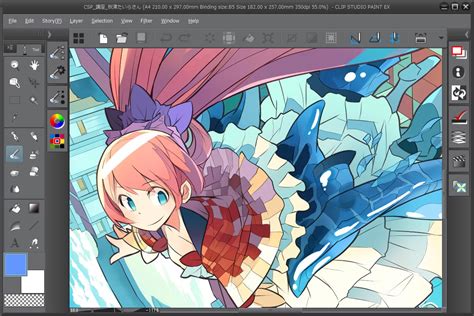
Licenses for Clip Studio Paint have primarily been offered in two models: perpetual licenses (a one-time purchase for a specific version) and subscription plans (monthly or annual payments for ongoing access to the latest updates). The introduction of the "Update Pass" has further diversified these options, offering a more flexible way for perpetual license holders to access new major versions.
Perpetual Licenses: A Foundation for Upgrades
Many long-time users possess perpetual licenses for older versions, such as Ver. 1.0, 2.0, 3.0, or 4.0. These licenses grant continued use of that specific version indefinitely. However, to access features in newer versions, a specific upgrade path or an Update Pass is required.
Upgrading from Ver. 1.0:
If you hold a serial number for Clip Studio Paint Ver. 1.0 PRO, you can upgrade at a discount to a Ver. 2.0 one-time purchase license. For users with Ver. 1.0, a direct discounted upgrade to Ver. 4.0 or Ver. 5.0 is not typically available. Instead, a common recommendation is to purchase an Update Pass, which grants access to the latest versions at a lower price compared to purchasing multiple individual upgrades. Alternatively, you can upgrade sequentially: Ver. 1.0 to Ver. 2.0, then to Ver. 3.0, and so forth, until you reach the desired version.
- Ver. 1.0 PRO to PRO: Upgrade your Ver. 1.0 perpetual license to a Ver. 2.0 PRO license. This is a discounted upgrade.
- Ver. 1.0 EX to EX: Upgrade your Ver. 1.0 perpetual license to a Ver. 2.0 EX license. This is also a discounted upgrade.
- Ver. 1.0 PRO to EX: Upgrade your PRO Ver. 1.0 perpetual license to an EX Ver. 2.0 license. This provides access to the EX features.
- Ver. 1.0 EX to EX: Upgrade your Ver. 1.0 perpetual license to a Ver. 2.0 EX license.
The process for upgrading from Ver. 1.0 to subsequent versions follows a similar pattern:
- Ver. 1.0 to Ver. 2.0: Discounted upgrade options are available for both PRO and EX.
- Ver. 1.0 to Ver. 3.0: A direct upgrade path is not usually offered. Sequential upgrades or the Update Pass are recommended.
- Ver. 1.0 to Ver. 4.0: Similar to Ver. 3.0, sequential upgrades or the Update Pass are the primary methods.
- Ver. 1.0 to Ver. 5.0: Users with Ver. 1.0 perpetual licenses are advised to consider purchasing the Update Pass for the most cost-effective access to Ver. 5.0 and future updates. Direct upgrades from Ver. 1.0 to Ver. 5.0 are not available.
Upgrading from Ver. 2.0:
For users with Ver. 2.0 perpetual licenses, upgrade paths to newer versions are more streamlined.
- Ver. 2.0 PRO to PRO: Upgrade your Ver. 2.0 perpetual license to a Ver. 3.0 PRO license. Pay once and use Ver. 3.0.
- Ver. 2.0 EX to EX: Upgrade your Ver. 2.0 perpetual license to a Ver. 3.0 EX license. Pay once and use Ver. 3.0.
- Ver. 2.0 PRO to EX: Upgrade your PRO Ver. 2.0 perpetual license to an EX Ver. 3.0 license. Pay once and use Ver. 3.0.
To reach Ver. 5.0 from Ver. 2.0, the most economical approach for perpetual license holders is often to upgrade sequentially: Ver. 2.0 to Ver. 3.0, then to Ver. 4.0, and finally to Ver. 5.0. However, purchasing an Update Pass is also a viable and often more cost-effective option for staying current.
Upgrading from Ver. 3.0:
Users with Ver. 3.0 perpetual licenses have clear upgrade paths to newer versions.
- Ver. 3.0 PRO to PRO: Upgrade your Ver. 3.0 perpetual license to a Ver. 4.0 PRO license. Pay once and use Ver. 4.0.
- Ver. 3.0 EX to EX: Upgrade your Ver. 3.0 perpetual license to a Ver. 4.0 EX license. Pay once and use Ver. 4.0.
- Ver. 3.0 PRO to EX: Upgrade your PRO Ver. 3.0 perpetual license to an EX Ver. 4.0 license. Pay once and use Ver. 4.0.
To get Ver. 5.0 from Ver. 3.0, perpetual license users can either purchase the Ver. 3.0 to Ver. 4.0 discounted upgrade, and then subsequently upgrade to Ver. 5.0, or they can opt for the Update Pass. For those seeking the Ver. 5.0 PRO perpetual license, it is often more economical to purchase a new PRO Ver. 5.0 license directly. Similarly, for EX, upgrading to Ver. 3.0, then Ver. 4.0, and finally to Ver. 5.0 offers a structured path.
Upgrading from Ver. 4.0:
For users holding Ver. 4.0 perpetual licenses, the upgrade to Ver. 5.0 is a significant step.
- Ver. 4.0 PRO to PRO: Upgrade your Ver. 4.0 perpetual license to a Ver. 5.0 PRO license. This is a discounted upgrade.
- Ver. 4.0 EX to EX: Upgrade your Ver. 4.0 perpetual license to a Ver. 5.0 EX license. This is a discounted upgrade.
- Ver. 4.0 PRO to EX: Upgrade your PRO Ver. 4.0 perpetual license to an EX Ver. 5.0 license. This is a discounted upgrade.
Users with a Ver. 4.0 perpetual license can purchase an Update Pass add-on or upgrade to Ver. 5.0 at a discount. The Update Pass provides access to all new features in Ver. 5.0 and subsequent updates.
Subscription Plans and the Update Pass
The introduction of subscription plans and the Update Pass has provided more flexible and continuous access to the latest software versions.
Subscription Plans (Monthly/Annual):
If you are on a monthly or annual subscription plan, you are generally entitled to the latest version of Clip Studio Paint as part of your subscription. This means that when Ver. 5.0 or any subsequent major version is released, your subscription should automatically grant you access to it. This model is ideal for users who want to stay perpetually up-to-date without managing individual upgrade purchases.
Update Pass:
The Update Pass is a particularly attractive option for users with perpetual licenses for Ver. 4.0 or earlier. Purchasing an Update Pass (often available as an annual payment) allows you to access all new features and updates for a set period, including the latest major version, such as Ver. 5.0. This is often more cost-effective than purchasing multiple sequential upgrades, especially for users who wish to jump several versions ahead. For instance, users with Ver. 3.0 or earlier are recommended to buy the Update Pass to access the latest versions at a lower price.
Compatibility and File Handling
A common concern when upgrading is the compatibility of existing work. Generally, .clip files created with newer versions of Clip Studio Paint can be opened in older versions. However, when a .clip file is opened in an older version (e.g., opening a Ver. 5.0 file in Ver. 4.0), you may not be able to edit parts that utilize new features exclusive to the newer version. This means that while your artwork will be accessible, some advanced functionalities might not translate perfectly backward.
Key New Features in Recent Versions
Each new version of Clip Studio Paint brings a suite of improvements designed to enhance the creative workflow.
Ver. 5.0 Enhancements
Ver. 5.0 represents a significant leap forward, focusing on drawing performance, 3D capabilities, and overall usability.
- Drawing Performance: Ver. 5.0 offers significant enhancements to drawing performance, including a new setting for faster painting with large brushes that feature rougher rendering quality. Blending quality has also been added to Ink settings for brush tools, offering more nuanced control over color application.
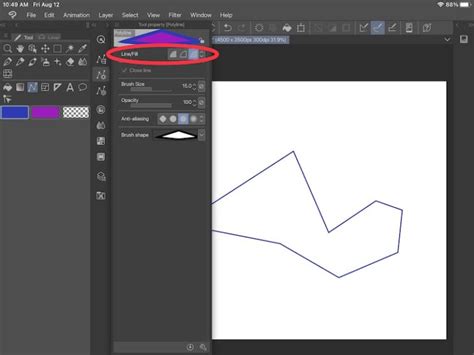
- Smart Shape Tool: A highly anticipated feature, Smart Shape, has been added. This allows users to draw clean straight lines, curves, and figures with a pen or brush by long-pressing with the pen on the spot, without needing to switch to a separate Figure tool.
- Improved 3D Features: The 3D capabilities have been bolstered with the addition of high-quality 3D hand models in the Material palette. These models offer a range of customizable hand shapes, serving as invaluable references for drawing hands accurately. Additionally, users can now select "Height from Fog" type in the Tool Settings palette when a 3D layer is selected with the Object tool, offering more environmental control. Batch export of textures for 3D models has also been implemented.
- Workflow and Usability: Commands in the Edit menu > Tonal Correction can now be applied to multiple layers simultaneously, streamlining color adjustments. A "Recently used materials" folder has been added to the Material palette for quicker access to frequently used assets. The "Sub Tool" name has been changed to "Tool" for clarity. A "Save recovery data for every operation" feature has been added to the Preferences dialog > File, ensuring better data protection. The default layout of the application has also been adjusted, with a Ver. 4.2 layout option available in the Window menu > Workspace for users who prefer the previous arrangement.
- VRM Import: VRM files can now be imported in a photorealistic rendering format, expanding compatibility with 3D avatar models.
Ver. 4.0 Innovations
Ver. 4.0 introduced its own set of powerful tools and enhancements.
- Puppet Warp: This allows users to transform drawings like a puppet, enabling complex distortions and posing of elements within an illustration.
- Filter Preview and Correction: Users can preview and compare multiple filters while color correcting and refining their work, leading to more efficient and precise adjustments.
- Object Snapping: Enhanced 3D features and precise object snapping allow for quick and accurate placement of elements.
- Update Pass Introduction: Ver. 4.0 also saw the broader introduction of the Update Pass for perpetual license holders, providing a cost-effective way to access new versions.
Other Notable Features Across Versions
Across various updates, Clip Studio Paint has continually refined its feature set:
- Improved Blurring and Watercolor Quality: Enhancements to blurring algorithms and watercolor edge quality provide more natural and professional-looking results.
- Faster Rendering and Filling: Optimization efforts have led to quicker rendering times and more efficient fill operations.
- Language Support: The application supports multiple languages across PC and mobile devices.
- Material Palette Enhancements: Additions like "Frequency" for sorting and improved icon placement for downloaded assets from Clip Studio ASSETS streamline material management.
- Tool Palette Pop-ups: Related palettes for each tool can now be set to pop up when selecting a tool, improving workflow efficiency.
- Draft Layer Management: A "Hide all visible draft layers" option in the Layer menu simplifies scene management.
- PDF Export with ICC Profiles: For professional print workflows, embedding ICC profiles and selecting CMYK color from Expression color during PDF export has been added.
Which Upgrade Path is Right for You?
The "best" upgrade path depends entirely on your current license, your budget, and your desire to stay current with the software.
For Perpetual License Holders (Ver. 4.0 or earlier):
- To get Ver. 5.0: Consider purchasing the Ver. 4.0 > Ver. 5.0 discounted upgrade if you are on Ver. 4.0. If you are on Ver. 3.0 or earlier, the Update Pass is often the most economical choice for accessing Ver. 5.0 and future updates. Sequential upgrades are also an option but can become more expensive over time.
- For the best deal on a new PRO Ver. 5.0 license: If you're looking to purchase a new PRO Ver. 5.0 license, buying a new one directly might be more cost-effective than upgrading from a very old version.
- For the best deal on a new EX Ver. 5.0 license: Similar to PRO, evaluate if a new EX Ver. 5.0 license is more economical than a series of upgrades. For EX users on older versions, upgrading sequentially to Ver. 3.0, then Ver. 4.0, and finally to Ver. 5.0 can be a structured approach.
For Subscription Users (Monthly/Annual Plans):
- If you are already a subscriber to a monthly or annual plan, you are likely entitled to the latest version, including Ver. 5.0, as part of your ongoing subscription. Check your account details to confirm, but generally, no additional purchase is necessary to access the newest features.
For Users Transitioning from Ver. 1.0 PRO to EX:
- If you have a Ver. 1.0 PRO license and wish to move to EX, you will need to purchase an upgrade. The most straightforward path might be to upgrade to a newer version of PRO, then to EX, or to purchase the Update Pass which can provide access to EX features depending on the plan. A user with a Ver. 1.0 PRO one-time purchase license who wants to upgrade to EX and use a monthly plan should research the specific upgrade path from their current license to the desired monthly EX plan.
Example Scenario: Upgrading from Ver. 1.0 PRO to Ver. 5.0 EX
Let's consider a user with a Ver. 1.0 PRO perpetual license who wants to reach Ver. 5.0 EX.
Option 1: Sequential Upgrades (Potentially Costly):
- Upgrade Ver. 1.0 PRO to Ver. 2.0 PRO.
- Upgrade Ver. 2.0 PRO to Ver. 3.0 PRO.
- Upgrade Ver. 3.0 PRO to Ver. 4.0 PRO.
- Upgrade Ver. 4.0 PRO to Ver. 5.0 PRO.
- Upgrade Ver. 5.0 PRO to Ver. 5.0 EX.This path involves multiple purchases and can quickly become more expensive than other options.
Option 2: Using the Update Pass (Recommended for older versions):
- Purchase the Update Pass. This will grant access to Ver. 5.0 and potentially higher versions as they are released, often at a significantly lower cost than sequential upgrades. If the Update Pass provides access to EX features or can be combined with a discounted EX upgrade, this is usually the most economical route.
Option 3: New License Purchase:
- Evaluate the cost of a new Ver. 5.0 EX perpetual license or a monthly/annual subscription for EX. Compare this to the cost of the Update Pass or sequential upgrades. For older versions, a new license might sometimes be the most straightforward and cost-effective solution.
Important Considerations:
- Check Your Current License: Before making any purchase, verify the exact version and type of your current Clip Studio Paint license. You can usually find this information within the software's "About" section or through your purchase history on the Clip Studio website.
- Promotional Offers: Keep an eye out for special offers and discounts, especially around new version releases or holidays.
- Monthly vs. Annual Payment: For subscription plans, an annual payment often offers a cost saving compared to monthly billing.
- Update Pass Benefits: The Update Pass is designed to provide a cost-effective way for perpetual license holders to access the latest major versions and ongoing updates without buying entirely new perpetual licenses each time.
By carefully considering your current software version, your desired features, and the available licensing models, you can confidently navigate the upgrade process and ensure you are using the most powerful and up-to-date version of Clip Studio Paint for your creative endeavors.