Filmora, a prominent video editing software, has revolutionized the way creators add subtitles to their content. Gone are the days of tedious manual transcription; Filmora offers a suite of powerful, AI-driven tools that make adding and styling captions simpler than ever before. Whether you're a seasoned professional or a beginner, understanding Filmora's auto caption capabilities can significantly enhance your video accessibility, engagement, and reach. This guide delves into the intricacies of Filmora's Speech-to-Text (STT) and Dynamic Captions features, empowering you to transform your raw footage into polished, accessible video masterpieces.
The Power of Automatic Subtitling in Filmora
Filmora's commitment to user-friendly video editing is evident in its robust auto-subtitling functionalities. The software integrates an automatic subtitle tool, aptly named Speech-to-Text (STT), which streamlines the captioning process. This feature is designed to analyze the audio within your video, transcribe spoken dialogue with remarkable accuracy, and generate timed captions directly onto your editing timeline. This not only saves considerable time but also minimizes the potential for human error inherent in manual captioning.
Does Filmora Have a Built-In Auto-Subtitling Feature?
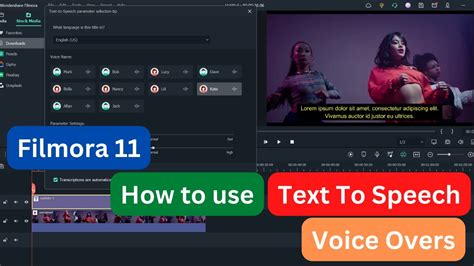
Yes, Filmora proudly includes a built-in automatic subtitle tool called Speech-to-Text (STT). This feature is a cornerstone of its accessibility toolkit, making the addition of subtitles to your videos faster and easier than ever. With a few intuitive clicks, Filmora can process the audio in your video, transcribe the dialogue, and create precisely timed captions directly on your timeline.
How to Automatically Add Subtitles in Filmora
For those seeking to bypass the manual labor of subtitle creation, Filmora's integrated Speech-to-Text (STT) feature stands as the ideal solution. This process is designed to be straightforward and efficient, guiding you through each step with ease.
Step 1: Import Your Video
The journey begins with launching Filmora and initiating a new project. Once your project is set up, you'll need to import your video file. This is accomplished by clicking the "Import" button and then selecting your desired clip from your files. After the video has been successfully imported into the media library, drag and drop it onto the timeline. This action prepares the video for the subsequent editing and captioning processes.
Step 2: Access the Speech-to-Text Feature
Filmora offers a variety of accessible pathways to activate the STT function, ensuring you can engage with it in the way that feels most natural to your workflow.
- Method 1: With your audio or video clip selected on the timeline, navigate to the top menu bar. From there, click on "Tools," then select "Audio," and finally choose "Speech-to-Text."
- Method 2: An alternative approach involves right-clicking directly on the selected clip on your timeline. From the contextual menu that appears, select "Speech-to-Text."
- Method 3: For quick access, you can also click on the dedicated "Speech-to-Text" icon, which is typically located in the toolbar situated above the timeline.
Step 3: Configure Transcription Settings
Upon activating the STT feature, a dedicated settings window will materialize, presenting you with crucial options to tailor the transcription process.
- Language Selection: This is a critical step for ensuring the accuracy of the transcription. You must choose the language that is spoken within your video's audio track. Filmora supports a wide array of languages, so selecting the correct one is paramount.
- Auto-Match to Timeline: It is highly recommended to ensure this option is checked. When enabled, it synchronizes the automatically generated subtitles with your video's existing timing, ensuring that the captions appear and disappear in perfect harmony with the spoken dialogue.
After meticulously configuring these settings to suit your video's requirements, click "OK" to initiate the transcription process. Filmora will then begin analyzing the audio and generating the text-based captions.
Step 4: Review and Edit Subtitles
Once the transcription process is complete, Filmora intelligently displays the generated subtitles as editable text layers directly on your timeline. This visual representation allows for easy review and refinement. To perfect your captions:
- Edit Text: Should you discover any inaccuracies or wish to rephrase certain segments, simply double-click on any subtitle segment. This action opens an editing panel where you can correct errors, adjust phrasing, or even add specific keywords for clarity.
- Adjust Timing: The duration and placement of each subtitle are crucial for readability. You can fine-tune their appearance by dragging the edges of the subtitle layers on the timeline. This allows you to extend or shorten the display time of individual captions to perfectly match the spoken words.
- Style Customization: Filmora provides extensive options to ensure your subtitles not only convey information but also complement your video's visual aesthetic. You can modify the font style, adjust the font size, choose from a vast color palette, and precisely position the subtitles on the screen. This level of customization ensures your captions are both functional and visually appealing.
Step 5: Export Your Video with Subtitles
With your subtitles meticulously reviewed and finalized, the next logical step is to export your video. Filmora offers flexibility in how your subtitles are integrated into the final output.
- Hardcoded Subtitles: If your intention is to have the subtitles permanently embedded within the video footage, meaning they cannot be turned off, you can simply export the project as usual. The subtitles will be "burned" directly into the video frames.
- Separate Subtitle File: For greater flexibility and compatibility with various platforms, you can export your subtitles as a separate file. This is particularly useful for video hosting sites that support external subtitle files. To do this, right-click on the subtitle track on your timeline and select "Export Subtitle File." Filmora commonly supports formats like .srt, .ass, and .ssa, with .srt being the most widely used due to its simplicity and broad compatibility.
Importing Subtitle Files into Filmora
Beyond generating captions directly within Filmora, the software also facilitates the seamless import of pre-existing subtitle files. This is an invaluable feature if you've obtained subtitle files from a third-party service or created them using external software. Filmora is designed to work with several common subtitle formats, ensuring broad compatibility.
Supported Subtitle Formats
Filmora readily supports the following popular subtitle file formats:
- .srt (SubRip Subtitle): This is by far the most commonly used format. It's simple, lightweight, and integrates flawlessly with Filmora.
- .ass (Advanced SubStation Alpha): A more advanced format that allows for richer styling and positioning options.
- .ssa (SubStation Alpha): An older but still functional format for subtitle files.
The Import Process
To import a subtitle file into your Filmora project, ensure your video is already on the timeline. Then, follow these straightforward steps:
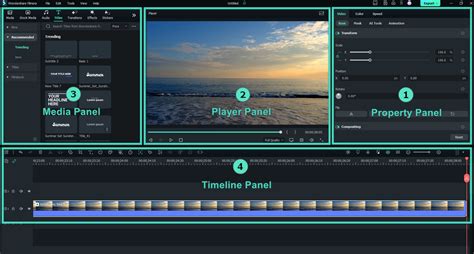
- Navigate to the "Titles" tab located in the media panel.
- Within the "Titles" section, click on "Subtitles" in the left-hand sidebar.
- You will find a "+" button or an option labeled "Import Subtitle File." Click on this.
- A file browser window will open, allowing you to navigate to and select your .srt, .ass, or .ssa file.
- Click "Open" to confirm your selection.
Filmora will then automatically process the imported file, generating individual subtitle segments and placing them onto a dedicated subtitle track positioned above your video on the timeline. These imported subtitles can then be further edited and styled within Filmora, just like those generated by the STT feature.
Beyond Basic Captions: Exploring Advanced Tools and Third-Party Integrations
While Filmora's built-in STT feature is highly capable, there are scenarios where users might seek additional functionalities, such as advanced editing power, support for multiple languages, or integration with specialized AI services. For these advanced needs, third-party solutions can complement Filmora's offerings.
Leveraging External Services like Checksub
For users working with extensive video projects, requiring subtitles in numerous languages, or desiring more sophisticated editing capabilities than the native STT provides, external services like Checksub can be a powerful enhancement.
Checksub Workflow:
- Generate Subtitles: Visit checksub.com and log in or create a free account. Click "Upload Video" and select your video file. Checksub supports a wide range of video formats, eliminating the need for pre-conversion. After uploading, specify the original language of your video. Checksub also enables translation into multiple languages directly from its dashboard. Once uploaded, Checksub's AI transcribes the audio with high accuracy, breaks it down into subtitle-length lines, and synchronizes each caption with the video timeline. This process is remarkably quick, even for lengthy videos, and requires no manual typing.
- Edit and Review: After subtitle generation, Checksub's intuitive editor allows for review and refinement. You can correct minor transcription errors, adjust timing for varying speech speeds, add speaker labels or sound cues, and ensure line lengths are optimized for mobile viewing. A live preview feature lets you see exactly how each subtitle will appear during playback.
- Export Subtitles: Once satisfied, click "Export" and choose .srt as your file format. Checksub generates a clean, well-timed .srt file that is fully compatible with Filmora.
This integration allows users to harness the power of advanced AI transcription and translation services while still utilizing Filmora for their primary video editing needs.
Filmora for Mac: Dynamic Captions and Speech-to-Text
Filmora for Mac introduces an advanced feature known as "Dynamic Captions." This functionality is specifically designed to automatically generate animated, stylized text captions that are precisely synchronized with the spoken words in your videos. Coupled with customizable fonts, sizes, and styles, you can tailor these captions to perfectly align with your video's aesthetic, elevating its professionalism and visual appeal.
Filmora offers two primary methods for creating these dynamic captions using AI on Mac: "Speech to Text" and "Dynamic Captions."
Method 1: Speech to Text on Mac
This approach leverages advanced speech recognition technology to convert spoken audio into highly accurate text captions.
- Step 1: Launch Filmora on your Mac and select "New Project" from the start page.
- Step 2: Navigate to the "Title" menu at the top of the interface and choose "Speech to Text." Here, select your preferred language for transcription and specify the desired output format.
- Step 3: Once Filmora processes your video, double-click on the generated caption track to open the text editing panel. Here, you can adjust the captions' font style, size, and color to match your aesthetic preferences.
- Step 4: To imbue your captions with dynamism, enable the "Animation" tab. Select from a wide array of animation presets and apply your chosen animation to all captions using the "Apply to All" button.
Method 2: Dynamic Captions on Mac
This feature offers a more integrated approach to creating visually engaging captions.
- Step 1: After importing your video into Filmora, go to the "Titles" tab. From the left-hand menu, select "AI Captions" and then choose "Dynamic Captions." Select the language for your subtitles and opt whether to include translation options.
- Step 2: Once the captions appear, open the right-side panel. Navigate to the "Basic" section to adjust the appearance of both the highlighted words and the rest of the text. You can modify font styles, colors, sizes, and even apply animations. Click "Apply to All" for consistent styling.
- Step 3: Within the "Text" panel, select the specific text you wish to emphasize and click the "Emphasis" button. This action makes the spoken words stand out prominently within the video, enhancing viewer comprehension.
These dynamic captioning features are invaluable for creating engaging social media content, educational videos, or professional presentations, ensuring your message is delivered clearly and impactfully.
Filmora's Auto Caption Generator: A Versatile Tool
Filmora's auto caption generator is a versatile tool designed to streamline the captioning process for a wide array of video content. Its capabilities extend to social media content, educational videos, professional presentations, and even podcast versions of videos.
How to Use Dynamic Captions in Filmora V15 | New Upgraded Subtitle Editor
Key Features and Benefits
- High Accuracy: The generator transcribes speech with an impressive accuracy rate, often cited as 95%, ensuring that the generated subtitles are largely correct and require minimal manual editing.
- Multiple Languages: It offers the functionality to auto-translate subtitles into over 20 languages, making your content accessible to a global audience.
- Ease of Use: The workflow is designed for simplicity. Users can import any video or audio file, click the "Auto Caption" button, and let the generator create accurate subtitles in seconds. This is particularly beneficial for creators who need to produce subtitles quickly and efficiently.
- Customization: Filmora provides extensive customization options. Users can choose from over 100 preset templates, adjust fonts, colors, sizes, backgrounds, animations, and positioning to match their brand style or desired aesthetic.
- Accessibility: The tool makes it effortless to create subtitles for videos, a crucial aspect of making content accessible to individuals with hearing impairments or those who prefer to watch videos with the sound off.
- Efficiency: For marketers, educators, and podcasters, this tool significantly streamlines their workflow, saving hours of manual effort. The ability to auto-translate subtitles into multiple languages further enhances content reach.
User Testimonials Highlight Effectiveness
Numerous users have lauded Filmora's automatic subtitle generator for its efficiency and accuracy:
- "This auto subtitle generator is absolutely incredible! I can now create subtitles for video free in under 2 minutes. The automatic subtitles are so accurate I barely need to edit."
- "As an educator, being able to automatically add subtitles to video has been transformative for my students. I can auto translate subtitles into multiple languages, making my courses truly accessible."
- "Our team relies on this auto caption generator for all product demos and webinars. Being able to auto generate captions that match our brand style is fantastic."
- "Being able to generate subtitles from video versions of my podcast has opened up entirely new platforms for distribution. This automatic subtitle generator handles multiple speakers perfectly, and I can auto translate subtitles to reach international listeners."
- "The bulk editing feature in this auto caption video tool is brilliant! I can update training materials across hundreds of videos in minutes."
- "I've tried many tools to auto generate subtitles from video, but this free automatic subtitle generator is by far the best."
Understanding Auto Caption Generators
An auto caption generator is an AI-powered tool that leverages advanced speech recognition technology to automatically generate subtitles from a video's audio. These generators analyze the audio track and create synchronized captions with high accuracy, allowing users to add subtitles to videos online for free and in a matter of seconds.
Accuracy and Language Support
Filmora's auto caption generator boasts an accuracy rate of approximately 95% for clear audio with minimal background noise. The advanced AI speech recognition technology is capable of handling multiple speakers, various accents, and technical terminology. While minor adjustments might be needed for absolute perfection, most users find the auto-generated captions require only slight edits. Furthermore, the generator supports over 20 languages, enabling users to auto-translate subtitles with a single click. After generating subtitles in the original language, they can be instantly translated into languages such as Spanish, French, German, Chinese, Japanese, and many more.
File Format Compatibility and Customization
The free automatic subtitle generator supports all major video and audio formats, including MP4, MOV, AVI, MKV, WMV, FLV, MP3, WAV, M4A, and others. Videos can be uploaded from any device or platform, and the generator will process them to add subtitles regardless of the format. Post-generation, users have complete control over customization. This includes choosing from over 100 preset templates, adjusting fonts, colors, sizes, backgrounds, animations, and positioning. It's possible to match brand styles, apply different styles to multiple speakers, add shadows and outlines, and incorporate animated effects.
Filmora App AI Caption Feature
The Filmora App integrates an AI caption feature that automatically generates accurate captions for videos, making them more accessible and engaging. This AI-powered functionality simplifies the captioning process, saving time and effort and eliminating the need for manual subtitle addition.
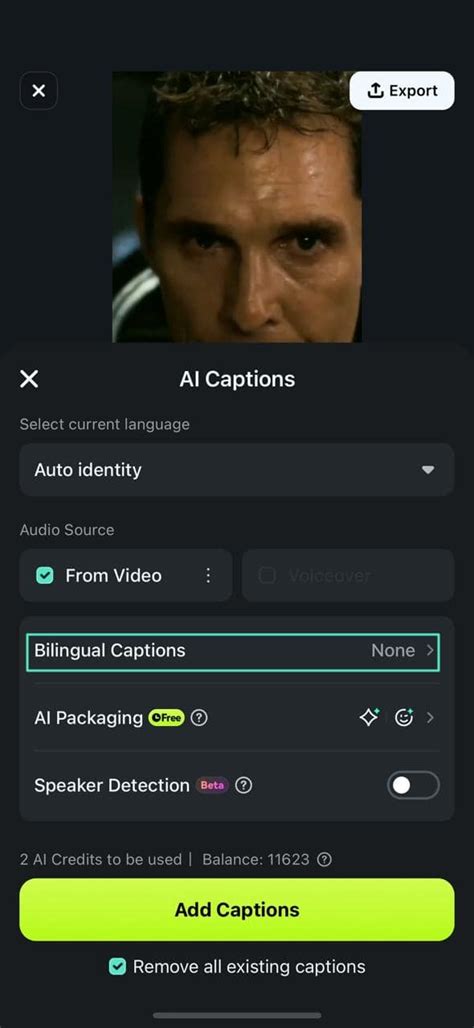
The AI caption feature within the Filmora App simplifies the process by automatically generating accurate captions for your videos. This not only enhances accessibility but also boosts engagement. The feature supports multiple languages, allowing users to specify their target language. Additionally, users can adjust the placement of captions by dragging them and modify font styles and colors for a personalized look.
Filmora's Speech-to-Text: Accuracy and Animation
Filmora's Speech-to-Text (STT) feature is a powerful tool for automating subtitle generation. It offers high accuracy, extensive language support, auto subtitle translation, and customizable animated captions.
Accuracy and Language Support
Filmora's Speech-to-Text utilizes advanced AI technology to achieve up to 99% accuracy under ideal conditions, significantly reducing the time spent on manual edits. However, accuracy can vary based on factors like audio quality, background noise, accents, and speech clarity. The feature supports 45 languages for transcription and offers auto subtitle translation capabilities.
Animated Captions and Customization
Plain subtitles can often appear dull. Filmora addresses this by providing 68 animated subtitle templates, enabling the creation of visually appealing captions. Users can customize fonts, colors, and effects to align with their video's style. The generated subtitles can be easily fine-tuned using Filmora's user-friendly interface, allowing for precise adjustments to text, timing, and placement.
Multilingual Support
Filmora goes beyond simple audio-to-text transcription by enabling users to generate subtitles in their original language and instantly translate them into 23 different languages. Both sets of subtitles can be displayed side-by-side on the timeline, catering to a global audience.
An All-in-One Editing Solution
Filmora positions itself not just as an AI subtitle generator but as a comprehensive video editing tool. Users can seamlessly add transitions, enhance visuals, adjust audio, and perform other editing tasks without needing to switch between different software platforms.
The Filmora Captioning Workflow
Filmora makes the process of creating and customizing subtitles remarkably straightforward, typically involving just a few intuitive steps.
Step 1: Download, Install, and Open Filmora
Begin by downloading, installing, and launching the Filmora software on your computer.
Step 2: Import Your Video File
In the "Import" window, select the video file to which you wish to add captions.
Step 3: Automatic Transcription
Filmora's AI Subtitle Generator will automatically detect and transcribe the speech present in your video. This process is automated and requires no manual input for transcription.
Step 4: Review and Align Captions
Once the transcription is complete, you will see the full set of captions aligned with your video on the timeline. This visual representation allows for easy review and any necessary minor adjustments.
The Importance of Captions and Subtitles
The inclusion of captions and subtitles in video content is no longer a mere optional enhancement; it's a crucial element for accessibility, discoverability, and overall viewer engagement. Filmora's tools make implementing these vital features accessible to all creators.
Enhancing Accessibility
Subtitles play a pivotal role in making videos accessible to a broader audience. They are indispensable for individuals with hearing impairments, allowing them to fully comprehend the video's content. Furthermore, captions enable viewers to follow along in noisy environments or when they choose to keep their sound off. This inclusivity ensures that your message reaches everyone, regardless of their auditory capabilities or viewing circumstances.
Improving Discoverability and Engagement
Search engines, such as Google, index video subtitles and captions. This means that the text within your captions can directly contribute to your content's visibility in relevant search results, boosting organic discovery. Moreover, studies indicate that videos featuring subtitles or captions tend to retain viewer attention for a significantly longer durationâup to 80% longerâthan those without. This enhanced engagement translates to a more impactful viewing experience.
Breaking Language Barriers
With the availability of multilingual subtitles, your content can transcend geographical and linguistic boundaries. By providing translations, you can effectively communicate your message to international audiences, expanding your reach and impact on a global scale.
Filmora's AI Speech-to-Text: Accuracy and Functionality
Filmora's AI Speech-to-Text (STT) feature, often referred to as its AI subtitle generator, is a sophisticated tool that employs advanced artificial intelligence technology to automatically generate subtitles for videos.
Accuracy Considerations
Filmora's Speech-to-Text technology achieves up to 99% accuracy under ideal conditions, which greatly reduces the need for extensive manual editing. However, it's important to acknowledge that accuracy can be influenced by various factors. These include the quality of the audio recording, the presence of background noise, the clarity of accents, and the overall clarity of the speech itself. Despite these variables, the AI's high accuracy rate makes it an invaluable asset for efficient subtitle creation.
Editing Generated Subtitles
Yes, users have the flexibility to edit the auto-generated subtitles. Filmora provides a user-friendly editing interface where you can make precise adjustments to the text, timing, and placement of any subtitle segment, ensuring 100% accuracy and perfect synchronization with your video content.
Availability and AI Credits
The Speech-to-Text feature has been a part of Filmora since version 11. Automatic subtitle generation is a rapid process, though its speed can depend on factors such as the video's length and the complexity of its audio. The feature operates on an AI credit system: 4 credits are used per minute of video for generating subtitles, and 5 credits are used per minute for subtitles that include translations. Subscribers to the Filmora Advanced Plan receive a monthly allotment of 1000 AI credits, providing ample usage for most creators.
Filmora for Windows: Dynamic Captions Explained
Filmora for Windows offers the utility of generating "Dynamic Captions," which are displayed across the spoken words in your visual content. This feature allows for a variety of caption styles and provides the ability to customize fonts and sizes to perfectly match your video's theme. The captions appear on the screen, with a dynamic emphasis placed on the specific word being spoken in the video, all achieved with high accuracy.
Method 1: Speech to Text for Dynamic Captions (Windows)
This method utilizes the Speech-to-Text functionality to efficiently convert spoken words into accurate text. You can then apply animations to these generated captions and emphasize specific words by accessing the font settings.
- Step 1: After launching Filmora on your Windows device, click the "New Project" option from the homepage.
- Step 2: Navigate to the "Title" option in the menu bar and access the "Speech to Text" feature.
- Step 3: Once the captions are generated, double-click on the text track to open the editing window. Here, you can customize the text according to your preferences, as the tool offers comprehensive text settings.
- Step 4: To make the subtitles dynamic, access the "Customize" section and make your desired changes. When the stylizing of the text is complete, apply it to all captions using the "Apply To All" button.
Method 2: AI Captions for Dynamic Emphasis (Windows)
This advanced feature of Filmora automatically detects spoken words in the video and generates text across them, with the word currently being spoken highlighted automatically.
- Step 1: Launch Filmora and import your video into the editing interface. Click on the "AI Captions" section, located on the left side of the "Titles" section in the menu bar. Next, access the "Dynamic Captions" option from the left and select the language of your subtitles.
- Step 2: Once the captions are generated, navigate to the right-side panel and click on the "Basic" section. Here, you can modify the appearance of both the active word and the keyword according to your preferences.
- Step 3: Go to the "Text" panel on the right, select the text you wish to highlight, and press the "Emphasis" button to draw attention to the spoken words.
The Role of SRT Files in Filmora
While Filmora's automatic captioning is powerful, importing SubRip Subtitle (.srt) files remains a highly efficient method for adding subtitles, especially when working with professional captioning services. The .srt file format is a widely recognized standard for closed captions.
Obtaining SRT Files
To obtain an .srt file, you can order it from a trusted provider. Services like Rev, for example, offer a network of professional video captioners who guarantee high accuracy rates (e.g., 99%). You can upload your video directly to these services, provide a URL, or even use content from platforms like YouTube. The providers will then generate the captions and deliver a finished .srt file, often within a quick turnaround time.
Importing and Editing SRT Files in Filmora
Importing an .srt file into Filmora is a straightforward process:
- Import Your Video: Open Filmora and import your video file into the project.
- Add the Subtitles: Navigate to the "Titles" tab, then select "Subtitles" from the left-hand sidebar. Click the "+" button or choose "Import Subtitle File." Browse for and select your .srt file.
- Preview and Edit: The .srt file will appear on a subtitle track above your video. You can preview it in Filmora's window. To customize the appearance (font, size, color, position), click on the "T" option (or similar text editing tool).
- Export: Once you are satisfied with the subtitles and their styling, export your video in your desired format.
Burned-in Captions (Open Captions)
For situations where subtitles need to be permanently part of the video (non-removable), services can also provide "burned-in" captions, also known as open captions. This is an option often available during the ordering process for .srt files, ensuring the captions are directly encoded into the video footage. This is also available for foreign language subtitles.
Why Adding Captions in Filmora is Vital
The importance of adding captions, whether automatically generated or imported, cannot be overstated. Beyond the legal and ethical implications of accessibility, captions enhance the overall user experience and broaden the potential audience for your video content.
Addressing Hearing Impairments
According to statistics, a significant portion of the population experiences hearing loss. For these individuals, captions are not just a convenience but a necessity for accessing and understanding video content. Filmora's captioning tools ensure that your videos are inclusive and cater to this substantial demographic.
Enhancing Comprehension and Engagement
Even for individuals without hearing impairments, captions offer distinct advantages. They aid in comprehension, especially with complex subject matter or fast-paced dialogue. The act of reading along can reinforce understanding and retention of information. For videos containing music lyrics, captions can facilitate sing-along experiences, adding an interactive element.
Broadening Audience Reach
Captioned videos can be enjoyed in environments where sound is not permissible or practical, such as public transport or quiet offices. This expands the contexts in which your videos can be viewed. Furthermore, the discoverability benefits derived from search engine indexing of captions mean that your content is more likely to be found by interested viewers, thereby increasing reach and potential viewership.
In conclusion, Filmora offers a comprehensive and user-friendly suite of tools for automatic subtitle generation and management. From its integrated Speech-to-Text feature and dynamic captioning options to its seamless import capabilities for .srt files, Filmora empowers creators to make their videos more accessible, engaging, and discoverable for a global audience.