You know that feeling when you've captured a moment, a scene, or a portrait that just speaks to you? But then, when you go to edit it, it feels like something's missing? VSCO Pro Presets are designed to be your seasoned creative partners, offering a significant upgrade beyond simple filters. They are meticulously crafted looks inspired by the platform's most popular aesthetics, but with an empowering addition: more control. This allows you to easily apply these presets to your images and videos, bestowing them with a professional polish, and crucially, enabling you to fine-tune them to perfection.
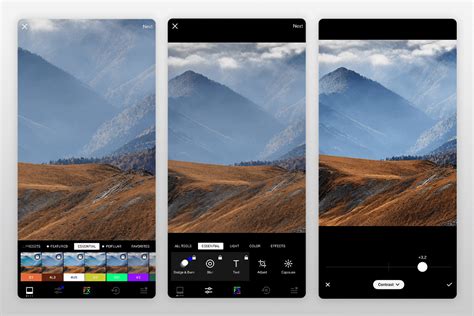
The power of VSCO Pro lies in its ability to move beyond one-size-fits-all solutions. For instance, when working with a preset like A6 PRO / ANALOG, it serves as a beautiful starting point. However, the true potential is unlocked when you begin to tweak its parameters. Adjusting settings such as STRENGTH to +10.5, CONTRAST to +0.5, COLOR to -3.0, and TONE to -6.0 are not arbitrary choices. These subtle shifts represent precise adjustments that can dramatically alter the mood and impact of your photograph. The inclusion of an extra contrast slider, for example, offers a more nuanced way to shape the visual narrative of your image.
The VSCO Ecosystem: More Than Just Editing
Beyond the sophisticated presets, VSCO Pro cultivates a comprehensive creative ecosystem. It is a dedicated space where photographers can not only edit with a full suite of advanced tools-including AI-powered features like the AI Photo Editor and the Remove tool for cleaner compositions-but also actively connect with a vibrant community. This community aspect is particularly valuable for those serious about their craft, offering a platform for inspiration, collaboration, and shared learning.
For individuals aspiring to elevate their passion into a sustainable profession, VSCO Pro also provides robust tools to manage their photography business. Imagine the ability to collaborate effectively on projects, elegantly showcase your portfolio through VSCO Sites, and even forge connections with potential brands. It represents a holistic approach to making your creative pursuits a viable and thriving career. Ultimately, investing in a VSCO Membership, especially the Pro tier, is an investment in your own creative growth, offering more precision tools and the capability to create custom presets.
Understanding the VSCO App Structure
To fully leverage VSCO Pro, it's beneficial to understand the app's core structure. As introduced by Zach Hodges, the VSCO app is organized into several key sections:
- Home: This is your personalized feed, displaying images from the creators you follow within the VSCO community.
- Discover: Here, you'll find a wealth of inspiring content, creative prompts, and the platform's search function, allowing you to explore new artists and trends.
- Studio: This serves as your private workspace, a secure area where you can gather and edit the images you intend to work on. It's crucial to note that images imported into the Studio are references; deleting them from your camera roll will also remove them from VSCO.
- AI Lab: This is where VSCO's cutting-edge AI-powered tools reside, including features for object removal, editing with descriptive prompts, and image upscaling for enhanced detail.
- Profile: This section allows you to view your published work, update your personal details, and manage your VSCO Site, acting as your digital portfolio.
- Spaces: Within Spaces, you can join or create collaborative groups centered around specific themes or interests, fostering a sense of shared creative endeavor.
Additionally, a side menu provides access to activity on your published content, messages from other users, your favorited images, follower information, and various account and privacy settings. This menu also offers navigation to VSCO Canvas for moodboarding and VSCO Capture for its advanced camera app.
Mastering Photo Editing with VSCO
The VSCO app's photo editor offers a diverse array of tools to achieve your desired aesthetic.
Importing and Editing Images
To begin editing, navigate to the Studio tab and tap the import button. From your camera roll, select the images and videos you wish to edit. Once your selections are made, tap 'Add.' These imported items will appear in your VSCO Studio as drafts, accessible for editing, AI Lab enhancements, collage creation, desktop syncing, or direct sharing.
Leveraging VSCO Presets
The Presets tab is the primary starting point for most users. VSCO offers over 200 pre-made looks, categorized to suit a wide range of styles and applications, allowing for quick application while maintaining high-quality results. You can view presets in a grid format, and the categories at the top are instrumental in navigating the extensive list.
The 'For This Photo' feature utilizes AI to recommend suitable presets based on your image, a popular starting point for many. Once a preset is applied, its strength can be adjusted with a slider.
Types of Preset Photo Filters:
- Free Presets: Available to all users upon signing up (e.g., B1, B5, F2, G3, M3, M5, P5, T1, X1).
- Standard Presets: These include a strength slider and encompass a vast array including Legacy 01-10, Analog A1-5, Artificial Lighting AL1-6, Black & White Classic B1-3, C1-3 / Vibrant Classic, C4-9 / Chromatic, G1-9 / Portrait, Infrared filters IR1-7, Mood M1-6, Instant P1-9, Bright S1-6, Low Contrast V1-8, and many more.
- Film Presets: Inspired by iconic analog film stocks from brands like Fujifilm, Kodak, Agfa, and Ilford, these presets aim to replicate the distinct characteristics of film photography.
- We the Creators Presets: These are signature styles developed in collaboration with professional photographers from the VSCO community.
- VSCO Pro Presets: These exclusive presets offer enhanced control over contrast, color, and tone, allowing for deeper customization of popular looks.
Tapping on the name of a preset provides a description and examples of its use by the community, encouraging exploration.
Advanced Tools in the VSCO Photo Editor
After applying a preset, the Tools tab offers a comprehensive suite of adjustments for further refinement. These tools are invaluable for correcting issues, enhancing artistic qualities, and achieving a specific vision.
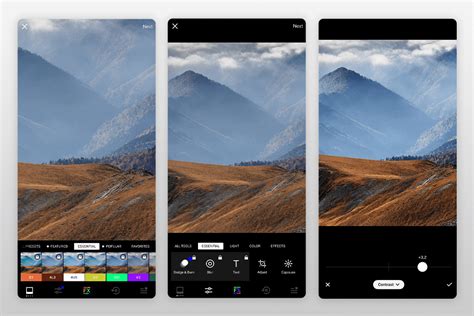
- Adjust: Enables cropping with free-hand or preset aspect ratios, rotation, skewing, and straightening for precise composition control.
- Exposure: Brightens or darkens photos to recover detail and correct over- or underexposed moments with a natural, editorial finish.
- Contrast: Allows intentional adjustment of contrast to shape light, depth, and mood, suitable for subtle scenes or bold, high-contrast looks.
- Tone: Balances highlights and shadows to reduce harsh contrast while preserving essential details within the frame.
- Dodge and Burn: Utilizes exposure brush tools to selectively brighten or darken specific areas, directing the viewer's eye to key elements.
- Saturation: Modifies color intensity for either vibrant or muted looks.
- White Balance: Corrects color casts and sets the mood by adjusting temperature and tint, ensuring images appear true to life.
- HSL (Hue, Saturation, Lightness): Provides granular control over individual colors, allowing for shifts in hue, saturation, and lightness to make specific tones stand out while maintaining overall image balance.
- Sharpen: Restores texture and clarity, subtly refining detail without sacrificing the image's natural feel.
- Clarity: Enhances texture and depth by cutting through softness, keeping the image clean and natural.
- Bloom: Adds a soft blur to highlights, creating a hazy, dreamlike glow for a more atmospheric, cinematic feel.
- Halation: Achieves a warm, cinematic glow with a subtle halo reminiscent of vintage film, without appearing overdone.
- Grain: Introduces film-like texture, adding grit and character to digital images for an analog depth.
- Vignette: Applies a subtle darkening around the edges to draw the eye inward, creating a classic, cinematic focus.
- Fade: Lowers contrast for a softer, time-worn feel, producing a muted, vintage print aesthetic.
- Skin Tone: Subtly balances reds and greens to refine facial and body tones without disrupting the rest of the image.
- Split Tone: Introduces color into highlights and shadows, shaping mood with subtle tints rather than heavy-handed filters.
- Borders: Adds structure to images with customizable size and color options for a considered, finished edge.
- Text: Integrates overlaid text into the image, allowing adjustment of scale, color, and orientation for cohesive typography.
- Blur: Controls focus intentionally by softening backgrounds or selective areas to guide attention and add depth.
VSCO on the Web: Desktop Editing Capabilities
VSCO facilitates a seamless workflow between mobile and desktop editing. By syncing photos and videos to the cloud from the mobile app, they become accessible in the VSCO desktop editor, allowing for continued refinement on a larger screen. This is particularly beneficial for client projects, personal series, or when managing multiple projects more efficiently. Changes are consistently synced across devices, ensuring your Studio, edits, and organization remain unified without duplicating files or restarting edits. Early access to VSCO on the web is a perk for VSCO Pro members, with this feature expected in the summer of 2023.
AI Lab: Intelligent Editing for Photographers
AI Lab is a growing suite of high-fidelity, AI-assisted tools designed for photographers who value detail and efficiency. Within the VSCO app, AI Lab offers:
- AI Photo Editing with Prompts: Allows users to edit photos by describing the desired look, with AI interpreting and applying the changes.
- AI Object Remover: Intelligently erases distractions and cleans up clutter from images while preserving natural texture and color.
- Image Upscaler: Enhances image resolution and sharpness, reducing pixelization without sacrificing quality.
Enhancing Visuals with FX and Video Editing
Film (FX) Effects
The FX tab offers a range of overlays for film and light effects, applicable to both photos and videos. These include:
- Distressed Photo Effects: Film-inspired textures like burn marks, light leaks, and imperfections of expired film, providing a lived-in, analog edge.
- Film Frame Overlays: Mimic the charm of analog formats like 35mm, 16mm, or 8mm, adding cinematic grit to digital work.
- Light Effects: Introduce realistic lens flares and light leaks using customizable overlays to add natural-looking rays of light, depth, and atmosphere.
- Texture: Incorporates grain, dust, and scratches from real film scans, layering vintage imperfections for unmistakable grit.
How to Make Your Photos Look Like Film — Presets & Colors
Video Editing Tools
VSCO functions as a capable video editing app, applying the same principles as photo editing. Users can start simply and build upon familiar tools like exposure, color grading, grain, and film effects to shape mood and motion.
- Trim: Adjusts the start and end points of video clips for a focused narrative.
- Speed: Modifies playback speed for slow motion or time-lapse effects, ranging from 0.1x to 16x.
- Reverse: Reverses playback for seamless loops or intentional mirroring.
- Volume: Controls or removes video audio for a more focused visual experience.
- Video Effects: Offers retro and creative looks such as VHS filters, digital glitch distortion, kaleidoscope mirroring, and chroma split effects.
Creative Combinations: Collages and Montages
Photo Collages
Within VSCO Studio, the option to create photo collages is available. Users can start with designer templates or a blank canvas, then scale, rotate, flip, and overlay images using intuitive drag-and-drop controls. Solid color backgrounds or geometric shapes can be added for personality, and text can be integrated. Opacity controls allow for double-exposure effects, and filters or film effects can be applied to individual elements to unify the collage's aesthetic.
Montages
By selecting a photo or video in VSCO Studio and clicking 'More,' users can create a Montage. This feature allows layering photos, videos, shapes, and color onto a blank canvas, sequencing them into scenes that function as visual stories.
VSCO Capture: Enhanced Camera Control
The core VSCO app includes a legacy camera with effects like prism lens and double exposure. For users seeking more precise control over their shots, VSCO Capture is a separate, standalone app offering manual controls for shutter speed, ISO, white balance, and more. It allows shooting with VSCO presets applied and effects like Bloom and Halation. Photos and videos captured can then be brought into VSCO for editing and sharing.
Streamlining Your Workflow: Recipes and Organization
The Recipes tab allows users to save a specific set of edits for quick recall, significantly speeding up the editing process. The Organize tab further enhances workflow by enabling users to favorite and arrange editor elements to their preference.
Sharing Your Work on VSCO
When ready to share, tap the top-right share icon. Options include:
- 'Share to…': Distributes the image to other installed apps on your phone.
- 'Post to VSCO': Publishes the image to the VSCO community. This action also simultaneously saves the image to your camera roll.
- 'Save to Camera Roll': A straightforward option to save the image locally.
- 'Share your recipe': Allows sharing of favorite edit settings with the community.
- 'Sync to Cloud': For Pro Members, this sends the image to the web editor for desktop editing.
When posting to VSCO, you can add a description and enable discussions, allowing followers to engage with your work. Only members can participate in discussions, but anyone can view them. Discussions can be enabled or disabled at any time.
The VSCO Feed and Community Interaction
The VSCO Feed displays images chronologically, starting with your most recent post. Here, you'll see content from users you follow. Under each image, several icons facilitate community interaction:
- VSCO Favorites: The star icon favorites an image, notifying the creator privately.
- VSCO Reposts: The chasing arrows icon reposts an image to your followers, adding it to your Profile's Reposts tab. The creator is also notified.
- VSCO Discussions: The chat bubble icon, available if enabled, allows members to start or join discussions with the creator.
The feed also features suggested creators, providing recommendations to discover new talent and expand your network.
Your VSCO Profile: A Digital Showcase
Your VSCO Profile is where all your published images, reposts, and personal 'About' information are displayed. Pro members can create albums to further organize and showcase their work.
The Evolution and Benefits of Pro Membership
The Pro Membership has evolved significantly since its introduction, transforming from an editing enhancement to an all-in-one platform supporting every stage of the creative process. Pro Membership grants access to advanced presets and professional-grade tools designed to bring your work closer to your vision.
Pro Presets and Customization
With over 26 exclusive presets, including the Analog series and the community-shaped We the Creators collection, Pro members can find and customize an aesthetic that amplifies their creative voice. Each Pro preset offers additional sliders for contrast, color, and tone, providing the flexibility to fine-tune every detail and craft a signature look.
Seamless Cross-Device Workflow
VSCO Studio on desktop extends the trusted editing experience to your web browser, enabling work across devices. This is ideal for client projects or personal series, ensuring a consistent workflow.
Intelligent Editing with AI Lab
VSCO AI Lab offers intelligent editing tools like 'Remove' for seamless object erasure and 'Upscale' for enhanced resolution, providing precision and efficiency while maintaining creative control and faithfulness to the original vision.
Vision and Inspiration with Canvas
VSCO Canvas moodboards help shape creative visions from the initial spark of inspiration. Whether planning a photoshoot or exploring new directions, Canvas allows for gathering inspiration, generating new images with prompts, and refining ideas. It's designed for collaboration and rapid iteration, turning inspiration into action.
Showcasing Your Work: Sites and Client Spaces
Pro Membership provides tools to share your work with confidence. VSCO Sites allow for the creation of password-protected galleries where clients and collaborators can view, comment, and interact. Updates are as simple as publishing a photo to your profile.
Community and Opportunities
VSCO is more than an app; it's a community of creators. Blogs offer a space to tell the story behind your images, connecting with your audience on a deeper level. Pro Member Profiles showcase your voice and perspective. Furthermore, Pro Members gain access to career-defining opportunities, including exhibitions, photo walks, and workshops, expanding their reach and making valuable connections within a network that celebrates creative voices globally.
VSCO Pro Membership is designed to grow with you, offering continuous development in advanced tools and new ways to connect and share, empowering you to build your creative practice on your own terms.