For artists navigating the vibrant digital landscape of Procreate, understanding and acquiring the right tools can be a transformative experience. Whether you're a seasoned professional or a budding enthusiast, the world of Procreate brushes offers an expansive universe of creative possibilities. This guide delves into the intricacies of Procreate brushes, exploring their diverse applications, how to download and manage them, and the wealth of resources available to enhance your artistic journey.
The Power of Procreate Brushes: Transforming Your Art
Procreate, an app exclusively designed for the iPad, has revolutionized digital art creation. At its core, the app's functionality is significantly amplified by its brush engine, allowing for an astonishing range of artistic expression. Procreate brushes are not merely digital drawing tools; they are sophisticated instruments capable of mimicking traditional art mediums with remarkable fidelity. For artists who are just starting out or trying to figure out Procreate and the brushes, then they are definitely in the right place. The sheer variety of downloadable Procreate brushes available can truly transform the way your art looks, and it is up to you to try and explore them all.
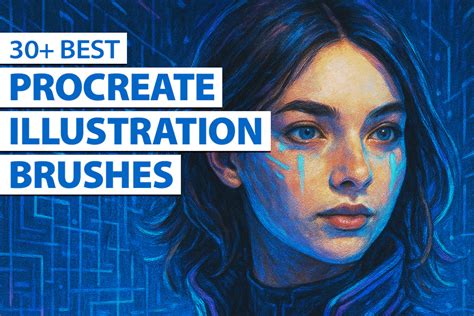
These digital assets are meticulously crafted to simulate various textures, behaviors, and effects, empowering artists to achieve results that were once only possible with physical materials. From the subtle nuances of watercolor washes to the bold impasto strokes of oil paint, the right brush can unlock new dimensions in your work.
Navigating the Brush Galaxy: Categories and Applications
To make it easier for users to navigate the vast array of brushes, platforms like Brush Galaxy have thoughtfully sorted them into distinct categories. This organization ensures that artists can efficiently find the specific tools they need for their projects.
Procreate Illustration Brushes: These are the workhorses for drawing and sketching. They are designed to replicate the feel of traditional drawing instruments, offering precision, fluidity, and a wide range of line weights and textures essential for creating detailed illustrations.
Procreate Design Brushes: When graphic design is the focus, these brushes come into play. This category primarily includes Procreate stamps and elements, which are pre-made graphics or textures that can be easily applied to designs. They are invaluable for adding consistent elements, patterns, or decorative touches to logos, posters, and other graphic design projects.
Procreate Calligraphy Brushes: For those who appreciate the art of beautiful lettering, these brushes are indispensable. They are pressure-sensitive, meaning the thickness and opacity of the stroke dynamically change with the pressure applied by the Apple Pencil. This feature is crucial for achieving the authentic up and down strokes characteristic of elegant calligraphy. These brushes come in a wide variety of shapes, sizes, and effects, allowing for diverse lettering styles.
Procreate Painting Brushes: These are often described as the "fun ones" because they allow artists to experiment with digital painting in a way that closely mimics traditional painting mediums. Each Procreate brush set in this category is designed to emulate specific painting styles, such as watercolor, oil, or gouache. They offer unique textures, blending capabilities, and color interactions that bring digital canvases to life.
Beyond Brushes: Expanding Your Procreate Toolkit
The offerings on platforms like Brush Galaxy extend beyond just brushes and stamps. To further enrich the Procreate experience, a variety of complementary digital assets are available for download:
Digital Paper: This includes downloadable digital paper that comes in many styles, such as patterned, textured, and vintage paper. These textures can add a tactile and authentic feel to digital artwork, mimicking the surfaces of traditional paper.
Procreate Color Palettes: To streamline the color selection process and ensure harmonious color schemes, pre-made Procreate color palettes are offered. These palettes are often curated based on color theory principles, saving artists the time and effort of creating them from scratch.
The availability of these comprehensive resources means artists can acquire everything they need to elevate their digital creations, from the fundamental drawing tools to the finishing touches that add depth and character.
Acquiring and Installing Procreate Brushes: A Step-by-Step Approach
For those looking to acquire more brushes for Procreate, exploring libraries with tens of thousands of brushes is a great starting point. Choosing the brush category needed and finding perfect brushes for your art is a straightforward process. You can download Procreate brushes from various platforms, and once you download brushes for Procreate, you can immediately launch them and start having fun - the sky is your limit!
However, it's important to understand the technical aspects of acquiring and installing these digital assets. Procreate brushes are a growing group of tools on Creative Market that work solely on a mobile device. Procreate is an app for iPad only, so Procreate brushes will only work on an iPad with the Procreate app installed.
Essential Requirements:
- Procreate App: In order to use Procreate brushes, you’ll need the Procreate app installed on your iPad. This requires iOS 10.0 or later.
- File Formats: Procreate brushes typically come in two main file formats:
- .Brush: This format is for individual brushes and is suitable for older iPads or Procreate versions 4.0 or earlier.
- .Brushset: This is a brush library format that allows you to install a set of brushes all at once. You'll need Procreate version 4.1 or higher to install .brushset files.
Installation Methods:
There are two primary methods for installing Procreate brushes, depending on your workflow:
1. Computer + iPad Method (Recommended):
This method involves downloading the brushes to your computer first and then transferring them to your iPad. This is often recommended for its ease of management.
- Download and Unzip: Download your Procreate brushes to your computer. You will then need to unzip the downloaded files. You'll see folder(s) that contain some files ending in .brush or .brushset.
- Transfer to Cloud Storage: Transfer the unzipped .brush or .brushset file(s) to a cloud storage service like Dropbox. This creates a bridge between your computer and your iPad.
- Access on iPad: On your iPad, open the cloud storage app (e.g., Dropbox). Navigate to the folder where your brush set is located.
- Import into Procreate:
- For .brushset files: Tap on the .brushset file, then click the small […] icon and click Export. Select "Open in Procreate" or a similar option.
- For .brush files: Tap on the .brush file, then click the small […] icon and click Export. Select "Open in Procreate."
- AirDrop (Mac Users): If you have a Mac (macOS 10.11 or higher), you can AirDrop the brush set directly from your Computer to your iPad, which is a very efficient method.
2. iPad Only Method:
This method involves performing all actions directly on your iPad, from purchasing and downloading to unzipping and installing.
- Purchase and Download: Make purchases and download brushes directly on your iPad.
- Unzip Files: You can unzip files on an iPad using the built-in Files app. Tap on the .zip file, then click the small […] icon and click Share, then click Export File, and finally click Save to Files.
- Locate Files: After unzipping, you'll be able to locate the .brush or .brushset files on your iPad within the Files app, typically in the "On My iPad" location.
- Import into Procreate: Navigate to the .brush / .brushset file(s) in the Files app. When you open Procreate, you'll see your new brushes.
- .brush files will appear in a set called "Imported" at the bottom of your brush library.
- .Brushset files will appear at the top of the Brush Library.
How to Install Procreate Brushes on your iPad (no computer needed)
Understanding Brush Formats and Procreate Versions
It's crucial to be aware of the different brush formats and how they interact with Procreate versions.
- .Brush: This format allows you to install one brush at a time. It's a good option if you have an older iPad or are using Procreate version 4.0 or earlier.
- .Brushset: This newer format, introduced with Procreate 4.1, allows for the installation of an entire set of brushes at once, significantly streamlining the process.
Procreate Brushes and Other Platforms
- Do Procreate Brushes work on a computer? No, Procreate Brushes are designed exclusively for the iPad-only app Procreate.
- Do Procreate Brushes work in Photoshop? No, Procreate Brushes are designed for the iPad-only app Procreate and are not compatible with Photoshop.
- Can I use fonts in Procreate? Yes, starting with Procreate version 4.3, you can import fonts onto your iPad and use them within Procreate to add text to your images.
- Can I install iPad Procreate Brushes in Procreate Pocket? Procreate Pocket is a version of Procreate built for iPhone. While similar, Procreate Pocket brushes are built differently than Procreate brushes for iPad, so compatibility is not guaranteed for all brushes.
Managing Your Brush Library in Procreate
Procreate offers robust tools for managing your brush library, ensuring you can keep your creative tools organized and accessible.
- Accessing Brush Libraries: Brush libraries are now stored in the Files app, either in "On My iPad → Procreate → Brushes" or "iCloud Drive → Procreate Brushes," depending on your storage settings.
- Creating New Brushes and Sets: Within Procreate's Brush Studio, you can create new brushes from scratch or create new brush sets to organize your custom creations.
- Importing Brushes: You can import individual .brush files by bringing them into a brush set folder in the Files app. A set called "Imported" is created when you import a single brush.
- Renaming and Deleting: You can rename brush libraries, brush sets, or individual brushes directly within Procreate or through the Files app. Deleting a brush or brush set removes it permanently from both Procreate and the Files app, so always ensure you have backups.
- Duplicating Brushes and Sets: To create backups or experiment with modifications, you can duplicate individual brushes or entire brush sets.
- Organizing with Stacks: For efficient organization, you can move multiple brushes or brush sets. You can pick up an item and then tap other items with another finger to create a stack for bulk movement.
- Recent and Pinned Brushes: Procreate keeps track of your recently used brushes, making them easily accessible. You can also "pin" brushes to keep them permanently at the top of your Recent set for quick access.
- Brush Studio Customization: The Brush Studio offers unparalleled control over every aspect of a brush. You can alter shape, grain, behavior, color dynamics, responsiveness, opacity, taper, and hundreds of other settings, allowing for the creation of limitless custom brush combinations.
Procreate's Built-in Brush Sets: A Foundation for Creativity
Procreate itself comes with a diverse collection of 18 handcrafted brush sets that form the core of its brush library. These sets are designed to provide a wide range of useful tools, catering to various artistic needs:
- General Brushes: For clean and simple, mostly rounded brushes.
- Ink Brushes: For comic or manga-style inks, halftones, and more.
- Technical Brushes: Purpose-built for projects with a more technical lean, ideal for practical drawing, planning, sketching, and quick studies.
- Artistic Brushes: Offering a range of rendering brushes for artistic drawing.
- Calligraphy Brushes: With Streamline enabled for smooth and even calligraphic forms.
- Painting Brushes: Encompassing a range of realistic and digital painting effects, from acrylic to stucco to oil.
- Texture Brushes: Focusing on texture, offering effects from watery to clumpy.
- Special Effect Brushes: Including brushes that change color, create smoky effects, and generate chaotic shapes.
- Material Brushes: Featuring metallics and roughness for 3D painting.
- Grunge Brushes: Designed to add realistic grunge textures to art.
- Organic Brushes: Mimicking natural elements like grass, leaves, and bark, as well as handmade mediums.
- Watercolour Brushes: Offering several realistic watercolor brushes.
The Value of Investing in Procreate Brushes
High-quality and diverse options, unique textures, and effects provided by professional Procreate brushes make investing in them worthwhile. Exploring a vast library with over 50,000 brushes for Procreate allows artists to find the perfect tools for their unique style and projects. The ability to easily download Procreate brushes and immediately start creating means that the creative potential is almost limitless. By understanding the diverse categories, installation methods, and management tools available, artists can fully leverage the power of Procreate brushes to bring their visions to life on the digital canvas.