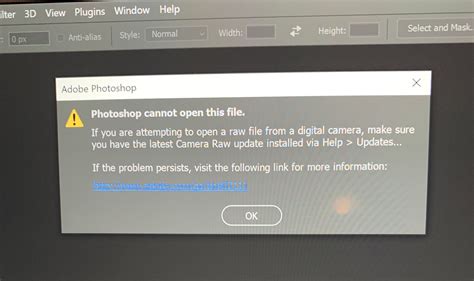
Adobe Photoshop, a cornerstone for digital artists and designers, occasionally presents users with frustrating error messages. One such persistent issue is the "1004 Server Not Responding" error, often accompanied by the cryptic "Windows could not find the installer in Program Files." This error can halt creative workflows, especially when attempting to utilize newer features like Generative Fill. While the exact cause can be elusive, a comprehensive understanding of the underlying technical aspects and a systematic troubleshooting approach can lead to a resolution.
Understanding the "1004 Server Not Responding" Error
The "1004 Server Not Responding" error in Adobe Photoshop typically indicates a communication breakdown between the Photoshop application and Adobe's servers. This can occur during various operations, but it is frequently reported when using cloud-dependent features such as Generative Fill, which require substantial processing power on Adobe's servers. The error message "Windows could not find the installer in Program Files" suggests that the application, or a component it relies on, is not being located correctly within the expected directory structure, which can be a symptom of permission issues or corrupted installation files.
The user experience described-where an operation loads for a period before the error appears, and the progress bar nearing completion before failing-points towards a timeout or a failure in the final stages of server communication or data retrieval. The fact that this issue can appear even after years of successful usage on the same computer suggests a change in system configuration, network environment, or a specific update that has introduced a conflict.
System and Software Configuration
The provided system information offers crucial details for diagnosing the problem. The user is running Adobe Photoshop Version 25.0.0 on a Windows 11 64-bit operating system (version 10.0.22621.2134). The system boasts a powerful Intel CPU with a high core and thread count (8 physical, 16 logical) and ample RAM (65391 MB), with Photoshop having access to a significant portion (51289 MB). The presence of an NVIDIA GeForce RTX 3060 Ti GPU with 8 GB of VRAM indicates that the hardware is more than capable of handling Photoshop's demands, and GPU acceleration is enabled.
The "Sniffer output" reveals that Photoshop is utilizing the latest graphics APIs, including DirectX 12.0 and OpenGL 4.72.12, with the NVIDIA driver version 30.0.14.7212 dated September 13, 2021. While the GPU is recognized as capable and has sufficient accessible RAM, the driver's age (23 months at the time of the sniffer output) might be a factor, as newer drivers often include performance improvements and bug fixes.
The presence of various Adobe components like ACE.dll, AdobeLinguistic.dll, AdobeSVGAGM.dll, and numerous DVA (Adobe Digital Video & Audio) related DLLs suggests a comprehensive Adobe Creative Cloud installation. The "Crash Handler" and "SAM SDK Version" indicate ongoing background processes that support the application's functionality.
Common Causes and Initial Troubleshooting Steps
Several factors can contribute to the "1004 Server Not Responding" error. Understanding these potential causes is the first step toward effective troubleshooting.
Network and Connectivity Issues
The most direct cause of a "Server Not Responding" error is a problem with the network connection. This can range from a general internet outage to specific issues with how Photoshop connects to Adobe's servers.
- Firewall and Antivirus Software: Security software can sometimes be overly aggressive, mistaking legitimate Adobe server communications for malicious activity. Checking firewall settings to ensure Photoshop and its related services are allowed to communicate is crucial. As one user noted, "Check your firewall. I've got the same problem and found that firewall blocks the IA working."
- Proxy Settings: Incorrectly configured proxy servers can interfere with network requests. If a proxy is being used, it's essential to verify its settings or temporarily disable it to see if the error resolves. A user reported success by stating, "Hello Guys, i tried this and it worked for me, turn off your proxy and log in again."
- VPN Usage: Virtual Private Networks (VPNs) can sometimes route traffic in a way that causes issues with specific services. Some users have reported that using certain VPNs, or even specific server locations within a VPN, can trigger errors, while others work fine. "I get a request_task 1000 error when I use the Estonian, Swedish, Dutch and so on VPNs. At the same time with the Russian ip address I have no such error. Adobe have blocked ip of popular VPNs?" This suggests that Adobe might be blocking certain IP ranges commonly used by VPNs. Trying a different VPN server location or temporarily disabling the VPN can help diagnose this.
- Network Adapter Settings: Corrupted network drivers or incorrect network adapter configurations can also lead to connectivity problems. Resetting network settings to their defaults has been a successful workaround for some users: "I set my network connection settings to default on windows. I reset the network sharing settings in the same way and my problem was solved, thanks."
Fix WiFi Not Showing in Settings On Windows 11 | Fix Missing WiFi
Permissions and User Account Issues
The error message "Windows could not find the installer in Program Files" strongly suggests a permissions problem. If Photoshop or its components do not have the necessary read/write access to their installation directories or temporary files, they cannot function correctly.
- Running as Administrator: A common first step is to run Photoshop with administrative privileges. This can grant the application the necessary permissions to access system resources. While the user mentioned trying this, it's a fundamental troubleshooting step worth reiterating.
- User Account Control (UAC) Settings: Windows UAC can sometimes prevent applications from accessing files or making changes they need. While not explicitly mentioned by the user, UAC settings could be a contributing factor.
- Installer Access Denied: The observation that "the installer is being denied the necessary access while being invoked under the current User account" is a key indicator. This means that the user account running Photoshop might not have the appropriate permissions to execute certain installer or update-related processes, even if it's an administrator account. This could be due to specific security policies or corrupted user profile data.
Software Integrity and Updates
Issues with the Photoshop installation itself or its interaction with other Creative Cloud applications can also cause errors.
- Outdated Software: While the user has Photoshop version 25.0.0, it's essential to ensure that all Creative Cloud applications and services are updated to their latest versions. Sometimes, compatibility issues arise between different versions of Adobe software.
- Corrupted Installation: A corrupted Photoshop installation can lead to missing or damaged files, resulting in various errors. A clean reinstall is often the most effective solution for such problems.
- Creative Cloud Desktop App: The Creative Cloud desktop application manages installations and updates. If this app is not functioning correctly, it can cause problems with Photoshop. Reinstalling or repairing the Creative Cloud desktop app might be necessary.
- Driver Updates: Although the user stated drivers are up to date, it's worth double-checking the graphics driver. Sometimes, a specific driver version can introduce bugs. Visiting the NVIDIA website directly for the latest driver for the RTX 3060 Ti is recommended. The driver version provided in the sniffer output (30.0.14.7212) is quite old, suggesting this is a high-priority area to investigate.
Advanced Troubleshooting and Workarounds
When standard troubleshooting steps don't yield results, more in-depth solutions may be required.
Clean Reinstallation of Creative Cloud and Photoshop
A common recommendation for persistent software issues is a clean reinstallation. This process goes beyond a simple uninstall and reinstall by ensuring that all residual files and registry entries are removed.
- Uninstall Creative Cloud Desktop App: Use the Creative Cloud Cleaner Tool from Adobe to thoroughly remove all Creative Cloud applications and services.
- Uninstall Photoshop: Uninstall Photoshop through the Creative Cloud desktop app or Windows' "Add or remove programs."
- Manually Delete Remaining Folders: Navigate to
C:\Program Files\AdobeandC:\Program Files (x86)\Adobeand delete any remaining Photoshop or Creative Cloud folders. Also, checkC:\Users\[YourUsername]\AppData\Local\AdobeandC:\Users\[YourUsername]\AppData\Roaming\Adobefor relevant folders. - Clear Adobe Cache Files: Adobe applications often store cache files that can become corrupted. Clearing these can resolve issues.
- Reinstall Creative Cloud Desktop App: Download and install the latest version of the Creative Cloud desktop app from Adobe's website.
- Reinstall Photoshop: Install Photoshop from the Creative Cloud desktop app.
This process ensures a fresh start for Photoshop and its associated services, potentially resolving underlying corruption issues.
Checking for Conflicting Software
Other applications running on the system can sometimes interfere with Photoshop's operation. Background utilities, system optimization tools, or even other Adobe applications could be the culprits.
- Disable Non-Essential Startup Programs: Use the Task Manager in Windows to disable unnecessary programs that start with the operating system.
- Test in a Clean Boot Environment: Performing a clean boot of Windows starts the system with a minimal set of drivers and startup programs, which can help identify if a third-party service is causing the conflict.
GPU-Specific Settings and Drivers
The NVIDIA GeForce RTX 3060 Ti is a powerful GPU, and its interaction with Photoshop is critical.
- NVIDIA Control Panel: Ensure that Photoshop is using the high-performance NVIDIA processor in the NVIDIA Control Panel. Also, check for any global settings that might be hindering OpenGL or DirectX performance.
- Driver Rollback or Beta Drivers: If the latest stable driver causes issues, consider rolling back to a previous version known to be stable. Conversely, sometimes a beta driver might contain fixes for specific problems. However, given the age of the current driver, updating to the latest stable version is the primary recommendation.
Examining Log Files
Adobe applications generate log files that can provide detailed error information. While the sniffer output is useful, deeper system logs might offer more clues.
- Photoshop Crash Logs: If Photoshop crashes, it often generates crash logs in specific directories. These can be analyzed for specific error codes or function calls that failed.
- Windows Event Viewer: The Windows Event Viewer can record system-level errors that might be related to Photoshop's operation or its interaction with the operating system or hardware.
Specific Workarounds for Generative Fill Issues
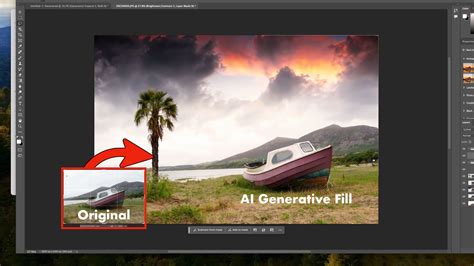
Given that the "1004 Server Not Responding" error is frequently encountered with Generative Fill, some specific workarounds have been reported by users:
- Try a Different VPN Server Location: As mentioned, if a VPN is in use, switching to a different server in another country has helped some users bypass IP-based blocking. "Решил проблему включением VPN от Франции, не знаю, связано ли. Говорили, что по IP блочить не должны, но это факт. Попробуйте." (Solved the problem by enabling a VPN from France, I don't know if it's related. They said they shouldn't block by IP, but it's a fact. Try it.)
- Ensure Adobe ID is Logged In Correctly: A stable and correctly authenticated Adobe ID is crucial for cloud features. Logging out and back into the Creative Cloud desktop app and Photoshop can sometimes refresh the authentication.
- Check for Policy Violations: Some users have encountered policy violation errors after resolving the 1004 error. This can happen even with blank text prompts, indicating a potential misinterpretation by Adobe's content moderation systems. Submitting feedback to Adobe regarding these false positives is important.
- Resetting Preferences: Corrupted Photoshop preferences can cause a wide range of issues. Resetting preferences to their default values can often resolve these problems. This can be done by holding
Ctrl + Alt + Shift(Windows) orCmd + Option + Shift(macOS) immediately after launching Photoshop.
Conclusion: A Multi-faceted Approach
The "1004 Server Not Responding" error in Adobe Photoshop is a complex issue with no single universal fix. It often stems from a combination of factors, including network connectivity, software permissions, driver issues, and the integrity of the Photoshop installation itself. The provided system diagnostics highlight a capable hardware setup, but the age of the graphics driver is a significant concern.
A methodical approach, starting with basic network checks, firewall configurations, and ensuring proper administrative privileges, is essential. If these steps fail, a clean reinstallation of Creative Cloud and Photoshop, coupled with updating the graphics driver to the latest stable version, is highly recommended. For users experiencing this error specifically with Generative Fill, exploring VPN configurations and ensuring a stable Adobe ID login are key areas to investigate. By systematically addressing each potential cause, users can increase their chances of resolving this persistent error and restoring their creative workflow.
tags: #1004 #server #not #responding #photoshop