In the realm of digital photography, the journey from capturing an image to its final polished form often involves a crucial step: converting raw image files. Among these, Sony's proprietary ARW format is widely used. However, for enhanced compatibility and long-term archival, many photographers opt to convert their ARW files to the Digital Negative (DNG) format, an open standard developed by Adobe. This article delves into the intricacies of the Adobe ARW to DNG converter, exploring its purpose, functionality, and the broader implications for digital asset management.
The Genesis of Raw and the Need for Conversion
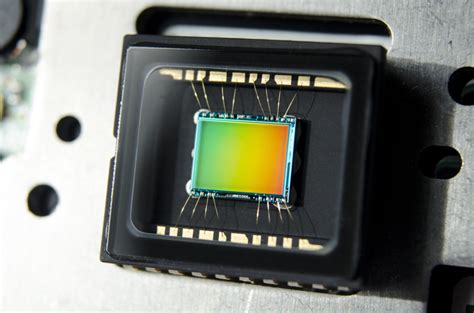
Digital cameras, at their core, capture light data directly from the image sensor. This raw data, before undergoing any processing or compression within the camera, is stored in proprietary formats specific to each manufacturer. For Sony cameras, this format is ARW. These raw files contain the unadulterated information from millions of photosites, offering a wealth of data that allows for greater flexibility and control during post-processing compared to compressed formats like JPEG.
However, the proprietary nature of these raw formats presents a significant challenge. Software manufacturers need time to develop the specific algorithms, or "formulas," to correctly interpret and process each new camera's unique raw output. This can lead to a lag between the release of new camera bodies and the availability of software support for their raw files. This delay can range from a couple of weeks to several months, often forcing photographers to shoot in JPEG temporarily until their preferred software is updated.
Introducing the Digital Negative (DNG)
Adobe recognized this fragmentation and developed the Digital Negative (DNG) format. DNG is an open, publicly available raw file specification designed to serve as a universal archival format for camera raw information. Unlike the often-undocumented specifications of proprietary raw formats, the DNG specification is freely available for other software and hardware vendors to implement. This openness fosters broader compatibility across different applications and operating systems.
The DNG format is an extension of the TIFF 6.0 format, allowing it to store not only the raw pixel data but also standard EXIF metadata, including date, time, camera model, and camera settings. A key advantage of DNG is its potential for better lossless compression compared to many manufacturer-specific raw files. This is because camera manufacturers often optimize their proprietary raw formats for speed and power efficiency during the capture process, rather than for maximum file size reduction. By converting to DNG, photographers can sometimes achieve smaller file sizes without sacrificing image quality.
The Role of Adobe DNG Converter
Adobe provides a free utility, the Adobe DNG Converter, specifically designed to translate camera-specific raw files from supported cameras into the universal DNG raw file format. This tool is instrumental in bridging the gap between proprietary raw formats and a more standardized workflow.
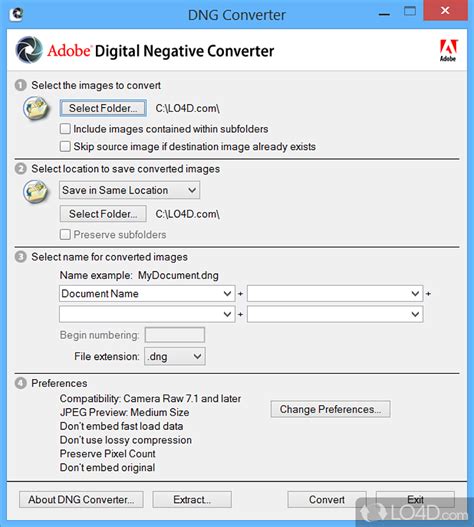
When using the Adobe DNG Converter, several important considerations come into play:
- Color Matrices and White Levels: The Adobe DNG Converter includes color matrices and white levels in the converted DNG files. These are crucial for accurate color rendering and are often not present or are less accurate in non-DNG raw files. Adobe's implementation of these parameters is frequently considered more precise than those derived from alternative conversion tools like dcraw.
- Compatibility and Versioning: The DNG format has evolved over time, with different versions offering varying levels of compatibility with Adobe's software. For instance, DNG files converted by older versions of the converter might be readable by Camera Raw 4.1 and later (Photoshop CS3 and Lightroom 1.1 and later). However, newer versions of the converter and its output are compatible with progressively later versions of Photoshop and Lightroom, such as Camera Raw 13.2 and later (Photoshop 22 and Lightroom 10.2 and later). It's important to ensure that the version of the DNG Converter used aligns with the capabilities of your primary image editing software.
- Demosaiced DNGs: The Adobe DNG Converter offers an option to create "demosaiced" DNG files. In a standard raw file, the data from the sensor's color filter array is still in its raw, filtered state. Demosaicing is the process of interpolating this data to create a full-color image. While generally undesirable for maximum editing flexibility (as it's a form of pre-processing), creating demosaiced DNGs can be useful in specific scenarios. For example, if a particular camera's sensor layout or color filter array pattern is not supported by raw processing software like RawTherapee, converting to a demosaiced DNG can enable processing. However, it's crucial to understand that these demosaiced DNGs are no longer truly raw, and keeping the original raw files is highly recommended in such cases.
Workflow Integration and Archiving Strategies
The decision to convert ARW to DNG often stems from a desire for a streamlined and future-proof workflow.
Archiving Dilemmas
Some photographers, after initial editing, find themselves with a vast archive of ARW and DNG files. The sheer storage requirements can become prohibitive. Furthermore, the practical reality is that only a small percentage of these archived files are ever revisited for re-editing. This has led some to abandon extensive raw file archiving altogether, opting to only re-edit a keeper if a new software release offers a significant enhancement that wasn't previously possible.
Capture One and DNG Import
For users of Capture One, a professional raw converter, there's a nuanced consideration when importing DNG files. Capture One applies specific, per-camera model fine-tuned initial processing upon ingesting proprietary raw files. This processing goes to waste when importing DNG files, as the DNG format, by its nature, aims for universality rather than camera-specific optimization during ingestion. This can mean that the "look" or initial rendering of a DNG file in Capture One might differ from that of its original ARW counterpart, potentially impacting the starting point for editing.
Lightroom VS Capture One in 2022
Testing and Validation
Before committing to converting an entire library of ARW files to DNG and subsequently deleting the originals, it is strongly advised to test the workflow. Convert a few sample DNG files and ensure that all aspects of your editing process, from import to export, function correctly. This validation step is critical to prevent potential data loss or workflow disruptions.
Beyond Adobe: Alternative Converters
While Adobe DNG Converter is the most prominent tool, it's not the only option for converting raw files to DNG. Other software solutions exist, such as:
- DNGLab: A dedicated tool for DNG manipulation.
- digiKam/kipi-plugins DNG Image Converter: This uses the LibRaw library, which is also the foundation for many other raw converters, and libkdcraw for its DNG conversion capabilities.
These alternatives offer different approaches and may cater to specific user needs or operating system preferences.
Technical Considerations and Cross-Platform Use
For users operating on Linux or macOS, converting ARW to DNG might involve additional steps if the native operating system or preferred software doesn't immediately support the latest camera models.
Running Adobe DNG Converter on Linux with Wine
Adobe DNG Converter is primarily a Windows application. However, it can be run on Linux distributions using Wine, a compatibility layer that allows Windows applications to run on Unix-like operating systems. The process typically involves:
- Installing Wine: It's recommended to install Wine via your distribution's package manager.
- Downloading Adobe DNG Converter: Obtain the installer for the desired version of the converter.
- Creating a Wine Prefix: To isolate the installation and avoid conflicts with other Windows applications, it's good practice to create a dedicated Wine prefix for the DNG Converter. This is done by prepending
WINEPREFIX="$HOME/path/to/your/prefix"before thewinecommand. For example,WINEPREFIX="$HOME/wine-dng" wine installer.exe. - Installation: Run the installer within the Wine environment. Wine might prompt to install Mono, which is necessary for some .NET applications. Setting the "Windows Version" to "Windows 10" in the Wine configuration can sometimes improve compatibility.
- Addressing Potential Issues: Older versions of Wine (prior to 5.0-rc5) had a known issue that caused the Adobe DNG Converter (version 11.2 and newer) to crash on startup. This was fixed in Wine 5.0-rc5. If encountering such issues, a workaround involves adding an override for
api-ms-win-core-winrt-error-l1-1-0in the Wine configuration's "Libraries" tab and setting it to "Disable."

The Future of Raw and DNG
The ongoing development of digital cameras means that new raw formats and sensor technologies are constantly emerging. While DNG provides a robust and open standard, the pace of camera releases means that software support will always be a dynamic landscape. Adobe's commitment to the DNG specification, by making it publicly available and providing the DNG SDK, encourages broader adoption and ensures that the format remains a viable option for long-term digital asset management.
The Adobe DNG Converter, along with the DNG specification itself, represents a significant step towards interoperability and preservation in digital photography. By understanding the nuances of raw conversion and the benefits of the DNG format, photographers can make informed decisions to safeguard their valuable image collections and ensure their work remains accessible for years to come.