Adobe InDesign stands as the industry-leading application for page design and layout, empowering professionals to craft sophisticated documents for both print and digital media. For those aspiring to become Adobe Certified Professionals in Print & Digital Media Publication Using Adobe InDesign, a structured approach to learning and practice is essential. This comprehensive guide explores the resources and knowledge required to achieve this certification, from understanding fundamental design principles to mastering the intricacies of document creation and publishing.
Understanding the Adobe Certified Professional in Print & Digital Media Publication Exam
Achieving Adobe Certified Professional (ACP) status signifies a validated understanding of Adobe InDesign's capabilities. This certification typically requires a commitment of around 150 hours of hands-on experience and dedicated instruction. The exam itself is designed to assess a candidate's proficiency across a broad spectrum of InDesign functionalities, encompassing everything from initial project setup to final document output. The exam guide, based on the 2021 version of "Print & Digital Media Publication Using Adobe InDesign," outlines key objectives that candidates must master. For those preparing for earlier versions (2018-2020), specific exam objectives can be found via Certiport.
1. Working in the Design Industry: Foundations for Success
A fundamental aspect of InDesign certification involves understanding the broader context of the design industry. This includes not only technical skills but also crucial professional practices, legal considerations, and effective communication strategies.
1.1 Identifying Purpose, Audience, and Audience Needs
Before embarking on any design project, it is imperative to clearly define its purpose, target audience, and the specific needs of that audience. This involves determining the relevance of content to the overall objective, considering user experience, and ensuring the design is appropriate for the intended target devices. Key terms in this area include understanding "client goals," "target audience," "demographics," and "accessibility." The design requirements will vary significantly depending on whether the final output is intended for print, web, or mobile platforms.
1.2 Communicating with Colleagues and Clients
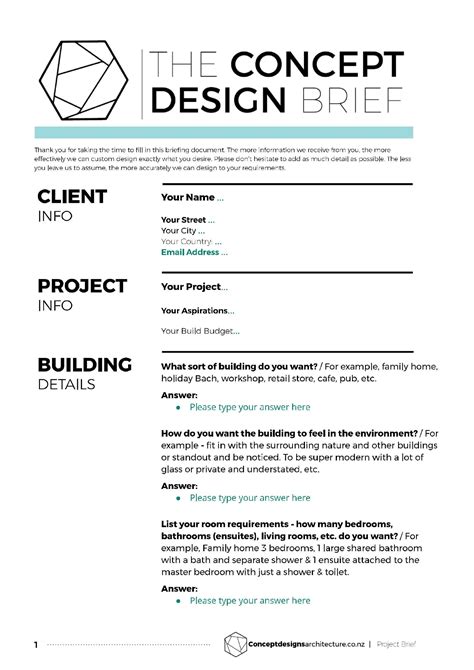
Effective communication is the cornerstone of successful design projects. Candidates must demonstrate knowledge of techniques for conveying design plans to peers and clients. This includes familiarity with terms such as "sketches," "specifications," "design process," "wireframes," "prototypes," "iterations," "change orders," "drafts," and the vital "feedback loop." Understanding a "creative brief" and basic "project management concepts" like "project scope" and the potential pitfalls of "scope creep," alongside efficient "cloud utilization and file management," are also critical.
1.3 Understanding Copyright, Permissions, and Licensing
Navigating the legal landscape of content usage is paramount. This objective covers identifying "copyright," "permissions," and "licensing" requirements for using third-party content. Candidates need to understand concepts like "Creative Commons," "public domain," "intellectual property," "derivative work," "commercial use," "attribution," "work for hire," "fair use," and "fair dealing." Knowledge of stock images, vector graphics, and the specific procedures for obtaining permission to use images of people and locations, including the nuances of "model releases" and "location releases," is essential. It's crucial to recognize that permission to use a photograph is distinct from permission to use a person's likeness or access a restricted location.
1.4 Understanding Key Terminology Related to Publications
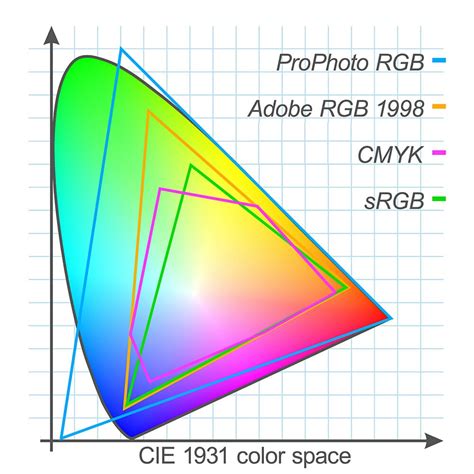
A robust vocabulary of design and publication-specific terminology is necessary. This includes understanding "digital image terminology" such as "image resolution," "image size," "file types," "linking and embedding," "pixel," "raster," "bitmap," and "vector." Knowledge of paths, objects, type, resizing, and various "units of measurement" like picas, inches, pixels, and centimeters is also tested. Furthermore, comprehending how "color is created in publications," including "color management," "gamut," and the distinctions between "CMYK," "RGB," and "grayscale," is vital. For multi-page layouts, familiarity with terms like "title," "header," "body text," "block quote," "footer," "caption," "table of contents," "index," "page size," "page orientation," "facing pages," "spread," "bleed," "trim," "slug," "master page," "alternate page layout," "column," "gutter," "margin," "frame," and "text wrap" is expected.
1.5 Applying Basic Design Principles and Best Practices
Proficiency in fundamental design principles and best practices is a core requirement. This involves defining terms and principles like the "rule of thirds," "foreground," "background," "tone," "emphasis," "movement," "hierarchy," "negative space," "grids," and "focal point." Understanding "gestalt principles" such as similarity, continuation, closure, proximity, figure/ground, and symmetry & order is also important. Visually communicating through the elements and principles of design - including line, shape, form, color, texture, contrast, balance, white space, proportion, rhythm, pattern, unity, repetition, and alignment - is key. Finally, candidates must be able to identify and utilize common "typographic adjustments" to create contrast, hierarchy, and enhance readability, understanding terms like "font," "size," "style," "color," "alignment," "kerning," "tracking," "leading," "horizontal and vertical scale," "line length," and the difference between "serif" and "san serif" fonts.
2. Project Setup and Interface: Streamlining Your Workflow
Efficiently setting up a project and navigating the InDesign interface are crucial for a productive workflow. This section focuses on the tools and settings that facilitate effective document creation and asset management.
2.1 Creating a Document with Appropriate Settings
The ability to create documents tailored for specific outputs is fundamental. This involves setting appropriate "document settings" for both "print" and "onscreen" publications, considering factors like "width," "height," "margins," "columns," "orientation," "pages," "bleed," "slug," "Facing Pages," "Primary Text Frame," and "column gutter." The creation of "document presets" for recurring project needs also demonstrates efficiency.
2.2 Navigating, Organizing, and Customizing the Application Workspace
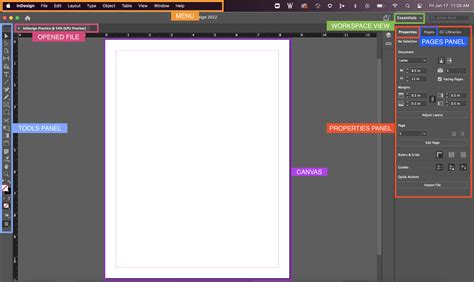
A well-organized workspace enhances productivity. Candidates should be able to identify and manipulate elements of the InDesign interface, including menus and panels like the "Control" and "Tools" panels. Customizing the workspace by arranging "tabbed documents," showing, hiding, nesting, and docking panels, and saving or resetting workspaces are essential skills. Configuring "application preferences," such as "Display Performance," "Interface," "Grids," "Guides & Pasteboard," "Spelling," "Story Editor Display," and "Units & Increments," further optimizes the user experience.
How to Set up Your Workspace Panels and Windows in Adobe InDesign
2.3 Using Non-Printing Design Tools
InDesign offers several non-printing tools to aid in design and workflow. These include efficient document navigation through "panning," "scrolling," and "zooming," as well as rotating pages and utilizing the "pasteboard." The effective use of "rulers," including changing measurement units, and "guides and grids" for alignment and layout precision are vital. This includes adding, removing, locking, and setting the color of guides, as well as utilizing "Smart Guides" and creating "guide layouts." Understanding different "views and modes," such as Normal, Preview, Bleed, Slug, and Presentation modes, allows for efficient work at various stages of the design process.
2.4 Importing Assets into a Project
Projects often require the integration of external assets. This objective covers opening and utilizing "templates," placing "assets" into an InDesign document, and even using the "Adobe Camera Raw interface" for image import.
2.5 Managing Colors, Swatches, and Gradients
Color management is a critical aspect of visual design. Candidates should be able to set the active "fill and stroke color," distinguishing between "frame" and "text" properties, and utilizing "swatches" and the "Color Picker." Creating and customizing "gradients," including editing color and transparency stops for both "radial" and "linear" gradients, is also important. The ability to create, manage, and edit "swatches and swatch libraries," including understanding "Process" and "Spot" colors and loading commercial libraries like "Pantone," is essential for consistent branding and accurate color reproduction.
2.6 Managing Paragraph, Character, and Object Styles
Styles are fundamental to maintaining consistency and efficiency in complex documents. This objective focuses on loading, creating, applying, and modifying "paragraph styles," "character styles," and "object styles." This allows for rapid formatting changes and ensures a cohesive visual appearance throughout the publication.
3. Organizing Documents: Structure and Flow
Effective document organization is key to managing complex projects and ensuring a smooth workflow. This involves leveraging InDesign's features for structuring content and pages.
3.1 Using Layers to Manage Design Elements
The "Layers panel" is an indispensable tool for organizing and managing design elements, especially in intricate layouts. Candidates must be able to add, delete, hide/show, lock/unlock, duplicate, and rename layers. Understanding layer options and recognizing that layers are "spread-based" is crucial. Managing multiple layers in complex projects, including working with layer color, understanding hierarchy and stacking order, grouping, and selecting objects, further enhances organizational efficiency.
3.2 Managing and Modifying Pages
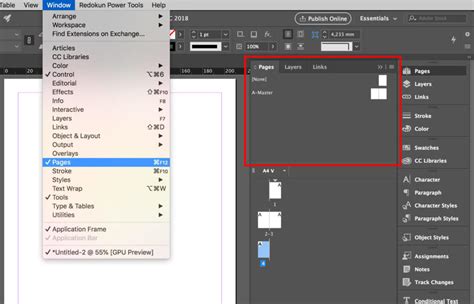
The management of pages within a document is central to layout design. This includes creating, editing, and arranging pages, understanding the distinction between "pages" and "spreads," and selecting and rearranging them efficiently. The ability to create "alternate layouts" and utilize the "Page tool" for precise page management is also important. Furthermore, mastering the creation and application of "master pages" - including setting options, naming, unlocking objects, and overriding master page items - is vital for consistent design elements across multiple pages.
4. Creating and Modifying Document Elements: The Core of Design
This section delves into the fundamental tools and functionalities of InDesign for creating and manipulating visual elements within a document.
4.1 Using Core Tools and Features for Layout
Creating "frames" using a variety of tools is a primary step in laying out content. This includes understanding frame types (graphic, text, unassigned) and utilizing tools like the Frame tools, Type tool, and Pen tool. Manipulating graphics within frames, including placing, fitting, and using "Content-Aware Fit," is also a key skill. Understanding how frames affect the visibility of content is essential for precise control.
4.2 Adding and Manipulating Text
InDesign's robust text handling capabilities are central to its functionality. This involves using "type tools" to add text, applying appropriate "character settings" (font, size, style, kerning, tracking, leading, baseline shift, scale, color) to enhance readability and hierarchy, and utilizing "paragraph settings" (indentation, alignment, spacing, hyphenation, Drop Cap, lists). The effective use of "paragraph styles" is crucial for consistency. Converting text to outlines, managing "text flow across multiple text areas" (including overset text and threading), and using "text wrap" are also vital. The ability to insert "special characters," page numbers, and index markers further enhances document functionality.
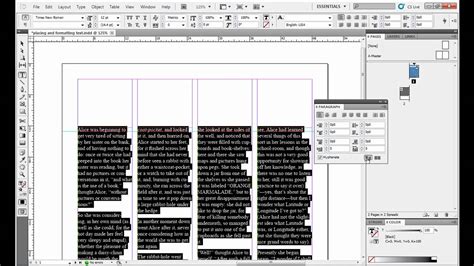
4.3 Making, Managing, and Editing Selections
Precise selection of objects is fundamental to manipulation. This objective covers using various tools like the "Selection tool" and "Direct Selection tool," as well as selecting frames versus their content. Modifying and refining selections using keyboard modifiers and selecting multiple objects in the "Layers panel" are also key skills. Understanding how to move and group objects is essential for efficient editing.
4.4 Transforming Digital Graphics and Media
Transforming frames and their content allows for dynamic layouts. This includes modifying frames, redefining frame types, using clipping paths, and understanding the relationship between a frame and its content. Rotating, flipping, and transforming objects using the "Transform panel" and understanding concepts like "alignment," "distribution," "scaling," and "shearing" are critical for achieving desired visual effects.
4.5 Using Basic Reconstructing and Editing Techniques
This objective covers essential tools for revising and refining project content. This includes using "Find/Replace," custom dictionaries, and spell-checking functions. Evaluating and adjusting the appearance of objects, frames, or layers using tools like "fill and stroke," "opacity," and the "Pathfinder panel" are also important. The "Story Editor" provides a dedicated environment for detailed text editing and proofreading.
4.6 Modifying the Appearance of Design Elements
Effects and styles can dramatically alter the visual appeal of design elements. This involves applying premade "object styles" and effects like "drop shadows" and "glows." Creating, editing, applying, and saving custom "object styles" are crucial for maintaining brand consistency and streamlining the design process.
4.7 Adding Interactive or Dynamic Content
InDesign supports the creation of interactive and dynamic documents. This includes adding "interactive elements and behaviors" such as hyperlinks, buttons, bookmarks, and animations. Demonstrating knowledge of how to embed "rich-media objects," including video files via the "Media panel," enhances the engagement of digital publications.
4.8 Creating and Editing Tables
Tables are essential for presenting data in an organized manner. Candidates should be able to create tables to display data, manage rows, columns, and cells, and edit tables and cells, including applying strokes, borders, merging/splitting cells, and converting text to table data.
5. Publishing Documents: Finalizing and Distributing Your Work
The final stage of the InDesign workflow involves preparing and publishing documents for various platforms. This requires meticulous attention to detail to ensure accuracy and optimal output.
5.1 Preparing Documents for Publishing
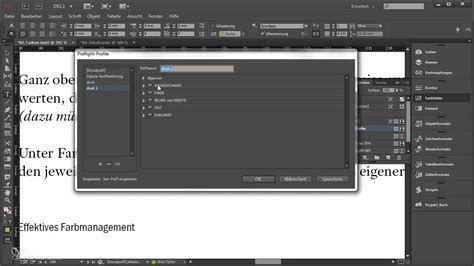
Thorough preparation is crucial before publishing. This involves using the "Preflight panel" to check documents for errors, ensuring correct "color space," "bleed," "resolution," and "document size." Understanding how to define profiles and resolve preflight errors is vital for professional output.
5.2 Exporting or Saving Documents to Various File Formats
The ability to save and export documents in appropriate formats is essential for different delivery methods. This includes saving in the native "InDesign (.indd)" format, as well as "IDML" for compatibility with earlier versions. Saving or exporting in formats suitable for "print" (e.g., PDF), "screen" (e.g., EPUB, HTML), or "online" (e.g., Publish Online) demonstrates versatility. Printing "proof copies" before publishing and the ability to "package an InDesign project" for handoff to printers or collaborators, including font and image management, are also critical skills.
Learning Resources and Practice
To prepare for the Adobe Certified Professional exam, a variety of resources are available. "Adobe Press" offers comprehensive textbooks and eBooks with integrated videos, activities, and downloadable files. Free "Adobe tutorials" provide an excellent starting point for learning the basics, refining workflows, or seeking inspiration.
For practical exam preparation, "CertPREP practice tests," powered by GMetrix, offer a realistic simulation of the in-app exam experience. Reviewing the "exam objectives" alongside relevant resources is a strategic approach to ensure all key areas are covered.
Flexible Learning Pathways
Becoming proficient in Adobe InDesign can be achieved through various learning pathways. While self-paced learning with tutorials and practice is possible, structured training offers significant advantages. Online courses, such as those offered by ONLC, provide flexible options, including live, instructor-led training (ILT) delivered virtually or at numerous centers nationwide, as well as "On-Demand" self-study courses combining video tutorials and labs. These courses are ideal for professionals seeking to enhance their skills on their own schedule and can be instrumental in preparing for the ACP InDesign certification.
How to Set up Your Workspace Panels and Windows in Adobe InDesign
For individuals or teams requiring multiple courses or comprehensive certification preparation, "InDesign Bundles" offer potential discounts and streamlined resources. ONLC's "Group Training solutions" cater to organizations looking to upskill their teams, offering customized content, virtual or in-person sessions, and flexible scheduling to meet specific learning objectives, budgets, and technologies.
The journey to mastering Adobe InDesign and achieving professional certification is a rewarding one, opening doors to a wide array of career opportunities in the dynamic field of design and digital media. By leveraging available resources and committing to hands-on practice, aspiring designers can confidently navigate the complexities of page design and layout, creating impactful and visually compelling documents.