Bored with monotonous photos? Here is the secret weapon to make your photos look very unique - collages. Photo collages provide a convenient, creative, and affordable way to personalize and share memories while expressing one's unique style. It allows for personal expression and showcases creativity through unique arrangements. With instant access to the photo library, collage-making is convenient and efficient. Collages can also be easily shared on social media, engaging viewers with a story or event. Can't wait to create your own photo collage? This comprehensive guide will introduce how to make a collage on iPhone, explore various styles, and offer tips to create stunning photo collages on your device.
The Power of Photo Collages
Photo collages are more than just a collection of images; they are a powerful tool for visual storytelling. By displaying two or more images together, you can often tell a more compelling story than with a single image. This is particularly effective for events that unfold over time. Whether it's a few minutes, like children playing or people interacting in a busy street scene, or longer periods, such as the stages of a DIY project, a landscape photographed at different times of the day, or even a series of photos from a holiday, collages can convey the entire narrative. The ability to arrange these images sequentially allows viewers to grasp the progression and context of events, making the storytelling more impactful.
Beyond chronological narratives, collages excel at capturing different perspectives of the same subject or event. For instance, combining a wide shot of a landscape with close-up details of specific elements like leaves, flowers, or textures provides a richer visual experience. This juxtaposition of distance and detail helps viewers understand the scene more comprehensively. Similarly, when photographing a subject using burst mode, a feature on your iPhone camera that captures a sequence of photos in quick succession, collages are perfect for displaying these rapid-fire shots. Arranging them in order allows the viewer to clearly see the movement of a subject as it happened, whether it's a person jumping on a beach or water splashes.
Collages also serve as an excellent medium for reinforcing a theme. Photos taken in a specific location during one session, or images from different places and times that share a common thread, can be unified in a collage. This provides context and meaning, allowing viewers to make connections between individual images and strengthening the overall theme, be it a nautical theme from photos taken at a fishing harbor or a collection of graffiti images from various locations. Even color can become the theme, with a collage of photos featuring a specific hue creating a bold visual statement that commands attention.
Furthermore, collages can be used to create abstract art. By selecting photos with interesting textures and using less traditional collage layouts, you can produce unique and captivating abstract compositions. Images of ice crystals, frosty car windshields, pebbles, or oil slicks, when arranged thoughtfully, can form a calming and subtle color scheme, demonstrating the versatile artistic potential of photo collages.
Making Photo Collages on Your iPhone: The Tools
While there isn't a built-in custom collage feature on the iPhone, the App Store offers a plethora of powerful and user-friendly applications to help you create stunning collages. These apps provide a wide range of templates, editing tools, and customization options to bring your creative visions to life.
PhotoDirector: A Versatile Collage Maker
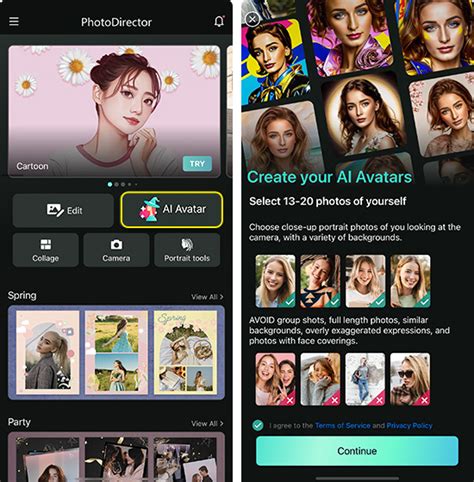
PhotoDirector is a free photo editing app available for both iOS and Android, revolutionizing the world of collage-making on iPhones. It offers powerful photo editing tools and the ability to create stunning collages with a user-friendly interface, making it easy for iPhone users to enhance their photos with ease.
To create a collage with PhotoDirector:
- Tap "Collage" on the launcher to access a wide variety of collage styles. You can select collages by style or by layout.
- Select the photos you want to combine from your photo library.
- After selecting, you can tap on individual photos to edit them respectively.
- Once you're satisfied with your editing, you can save your collage.
PhotoDirector provides endless photo collage styles for free. From classic to minimalist, films, polaroid, paper tear, and more, you can find whatever style you want. It also has versatile formats for any requirement. Each style template comes in six different layout formats to accommodate varying numbers of photos.
Google Photos: Convenience at Your Fingertips
Google Photos is a highly convenient option, especially since many iPhone users already have it installed. If not, it can be easily downloaded from the App Store.
To create a collage with Google Photos:
- Open Google Photos on your iPhone or iPad.
- Select up to six photos you wish to combine.
- Choose a collage design from the available options.
- Tap "Save" to finalize your creation.
Google Photos offers a straightforward and efficient way to create basic collages, making it an excellent choice for quick and easy collages.
Canva: Endless Creative Possibilities
Canva stands out with its vast library of collage templates, far exceeding what other apps might offer. It's a free and easy-to-use platform that empowers users to create professional-looking designs.
To create a collage with Canva:
- Access Canva.com (or the Canva app).
- Search for "photo collage" templates.
- Select a template that suits your needs.
- Upload your photos and drag them into the template.
- When the collage appears on screen, tap one of the photos in the template and then tap "Replace."
- Choose a photo from your camera roll to insert it into the collage.
- Once you're happy with the result, download the collage. Canva is also excellent for creating custom wallpapers.
How to Make Photo Collage on iPhone - No Apps Needed
PicCollage: Fun and Feature-Rich
PicCollage is another popular app that makes creating stylish photo collages fun and easy. It offers a wide array of features to personalize your creations.
To create a collage with PicCollage:
- Download the PicCollage app from the App Store.
- Press the teal plus (+) button to start a new collage. You'll be prompted to grant permission for PicCollage to access your phone's photos.
- Select the photos you want to include.
- Arrange and display the pictures as desired.
- You can adjust the aspect ratio by looking for the small white circle at the bottom-left of the collage preview.
- Add text, stickers, backgrounds, and other elements to personalize your collage.
- Save your masterpiece by tapping on the image or hitting the "Share" button.
PicCollage allows you to turn your photos and videos into memories you want to save and share. Whether you're looking to flex your creativity with a freestyle collage, stitch together a photo dump of your adventures, or create a quick card for a birthday, PicCollage is a perfect app for the job. It's easy, fun, and completely free.
PicCollage offers advanced features through its VIP subscription, including access to premium templates, layouts, effects, and backgrounds, while also removing watermarks and ads. A 7-day trial version is available for free testing.
Other Notable Mentions
- LiveCollage: Boasting over 100 million installs, LiveCollage is a top-rated photo collage maker and photo editor app. It offers trendy grid layouts, collage styles, sizes, awesome effects, exclusive stickers, background patterns, gradients, and the ability to doodle on collages to tell your story. It also includes a powerful and easy-to-use video editor, video collage, and slideshow maker. LiveCollage VIP is a subscription that provides access to all templates, layouts, effects, backgrounds, and more.
- InCollage: This app is praised for making it easy to create stylish photo PicCollages. You pick your favorite pictures, and the app handles the rest, offering grids, layouts, and various editing tools.
- Shortcuts App (for "Photo Grid"): For a more integrated iPhone experience, the Shortcuts app can be used to create custom workflows. A "Photo Grid" shortcut can be set up to quickly generate collages directly from your Photos app. Once created, this shortcut appears at the top of your Shortcuts app, making it super easy to access.
Styles to Inspire Your Collages
The variety of collage styles available allows for immense creative expression. Here are some popular and effective styles to consider for your iPhone collages:
1. Handwritten Collage Style
This style adds a charming and personal touch to your creations, making them feel more intimate and unique.
2. Paper Tear Collage Style
Emulating the texture and effect of torn paper, this style can add a rustic, artistic, or even distressed aesthetic to your collages, giving them a tactile quality.
3. Minimalist Collage Style
Embracing simplicity and clean design, the minimalist style focuses on using minimal elements and negative space to create a visually striking composition. This approach highlights the photos themselves without unnecessary clutter. The basic collage style, which keeps it simple and clean with a few elements and spaces, stands out as an excellent option to make a photo collage on an iPhone.
4. Retro Collage Style
Taking inspiration from vintage aesthetics, this style adds a nostalgic and classic touch to your collages, evoking a sense of timelessness and charm.
5. Seasonal Collage Style
This style encompasses various holidays such as Valentine's Day, Christmas, Mother's Day, and more. It offers themed templates, colors, and decorative elements that capture the essence of each occasion, making it perfect for creating themed cards or seasonal greetings.
6. Grid Layouts
While not a stylistic theme in itself, grid layouts are fundamental to many collage designs. Apps offer a multitude of grid options, from simple symmetrical arrangements to more complex asymmetrical ones. Choosing the right grid can significantly impact the overall aesthetic and how the photos are perceived.
7. Freestyle Collages
For ultimate creative freedom, freestyle collages allow you to arrange photos, text, and graphics in any way you choose, without being confined to a template. This is ideal for those who want to break free from predefined structures and create something truly unique.
Tips for Creating Stunning Photo Collages
To elevate your photo collages from simple arrangements to compelling visual narratives, consider these practical tips:
Vary Photo Sizes and Proportions
Varying the sizes and proportions of your photos within the collage can create a sense of depth and hierarchy, drawing the viewer's eye to specific elements. This also adds visual interest and prevents the collage from looking too uniform.
Embrace Negative Space
Don't be afraid to leave areas empty or use solid backgrounds. Embracing the power of negative space can help your photos stand out, improve readability, and create a more balanced and sophisticated composition.
Incorporate Text, Stickers, and Graphics
Adding text, stickers, or graphics can significantly enhance storytelling or add a personal touch. Whether it's a caption, a decorative element, or a playful sticker, these additions can inject personality and context into your collage. Many apps offer extensive libraries of fonts, stickers, and graphics, including exclusive collaborations with artists and illustrators.
Experiment with Layouts and Borders
Try unusual collage layouts or add colored borders and rounded edges to photos. These elements can add a fun and dynamic aspect to your collage, complementing the theme or simply adding a unique flair.
Maintain Color Harmony
When selecting photos, keeping the color tones similar can create a more harmonious and aesthetically pleasing collage. This is especially important when creating abstract collages or collages based on color themes.
Utilize iPhone Camera Features
Leverage your iPhone's camera features, such as Burst Mode, to capture sequences of action. These sequences are ideal for collages that aim to show movement or progression.
Personalize with Cutouts and Doodles
Apps like PicCollage offer tools like cutouts, which allow you to remove backgrounds from photos to isolate subjects, and even cut photos into custom shapes like stars or hearts. Doodling and drawing directly onto your collage adds another layer of personalization.
Explore AI-Powered Features
Some apps are integrating AI to enhance the collage creation process. For example, AI-powered highlight detection can ensure the focus of a photo remains prominent, and Magic Edit prompts can transform your photos in creative ways.
Consider the Story You Want to Tell
Before you even start selecting photos, think about the narrative you want to convey. Are you documenting an event, showcasing a theme, or creating an abstract piece? Having a clear intention will guide your photo selection and arrangement process.
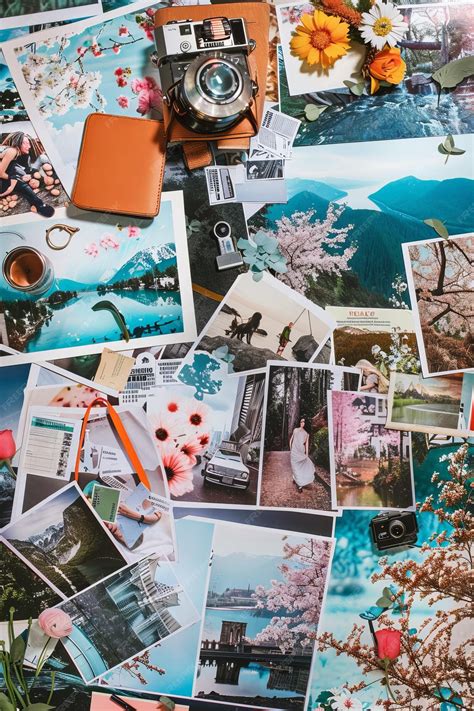
By understanding the capabilities of your iPhone and the various apps available, you can transform your everyday photos into captivating visual stories. The process is not only functional but also a rewarding creative outlet, allowing you to express your unique style and share your memories in a truly personal way.