Adobe Lightroom, a flagship application for photo editing and management, has become a powerful and accessible tool for photographers of all levels on the Mac platform. Initially launched on the Mac App Store a year after a significant revamp coinciding with the release of macOS Mojave, Lightroom represents Adobe's first major application to transition to Apple's digital storefront. This move places it alongside other prominent Mac applications like Microsoft's Office 365, Panic's Transmit, and Bare Bones Software's BBEdit, all available within the world's largest catalog of Mac applications.
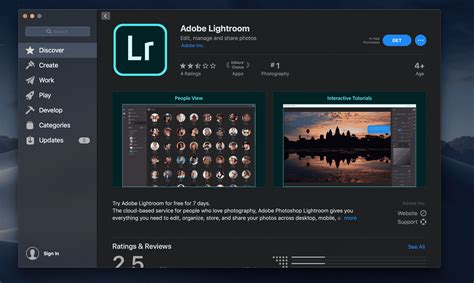
The availability of Lightroom on the Mac App Store signifies a broader trend of developers embracing Apple's platform for software distribution. While many major developers were quick to adopt the iOS App Store model, Mac developers initially showed some hesitation towards the Mac App Store due to existing sales channels and certain restrictions that differed from the traditionally more permissive Mac software model. However, Apple has since made adjustments to better accommodate developers' needs and has given its Mac App Store an overhaul, mirroring the enhancements made to iOS 11.
One significant factor that likely influenced Adobe's decision to bring Lightroom to the Mac App Store was the phasing out of Apple's own professional photo application, Aperture. With macOS Mojave being the last version of the operating system capable of running the aging Aperture software, Apple effectively signaled a shift away from its professional photography tool. Aperture, first launched in 2005 as a professional counterpart to iPhoto, was initially positioned as Apple's answer to Photoshop but focused more on managing photographic workflows rather than comprehensive editing. Adobe swiftly responded by launching its own beta of Lightroom shortly after Aperture's debut. After years of competition, Apple transitioned Aperture into maintenance mode in 2014, recommending users migrate to Adobe's Lightroom. Many of Aperture's unique features were later integrated into iPhoto and subsequently into the Photos app, transforming Apple's free, bundled photo application into an advanced, consumer-focused photo management tool that leverages machine learning for searchability and offers summaries of photo libraries to help users rediscover events and memories. Apple officially noted in April that Mojave would be the final macOS version to support the 32-bit Aperture software.
Core Features and Accessibility
Adobe commonly refers to the application as "Photoshop Lightroom," emphasizing its professional audience. The app is available as a free download from the Mac App Store and includes a complimentary one-week trial. For continued use, users can opt for in-app purchase subscriptions, with monthly plans at $9.99 and annual plans at $118.99. Adobe describes this as "a cloud-based service for people who love photography" that "gives you everything you need to edit, organize, store, and share your photos across desktop, mobile, and web."
A qualifying Adobe Photoshop Lightroom subscription is required to unlock its full potential. This subscription grants access to powerful photo and video editing features presented within an easy-to-use interface. A key benefit of a Photoshop Lightroom subscription is the inclusion of 1TB of cloud storage, providing users the ability to "access your entire library of full-resolution photos anytime you want, anywhere you are, from any device." This ensures that both original files and edits are securely backed up to the cloud.
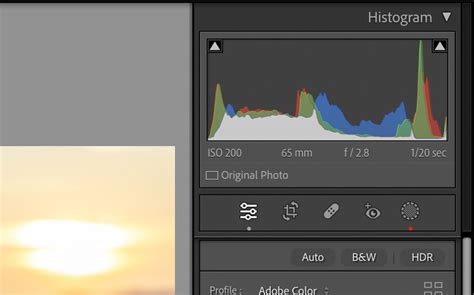
The editing capabilities are robust, allowing users to fix lighting by editing exposure, highlights, and more with precision sliders. These powerful photo editing features can also be applied to your videos, expanding the creative possibilities. The ability to edit your full-resolution photos anywhere-on mobile devices, the web, or your desktop-is a cornerstone of Lightroom's flexibility. Edits made on one device are automatically synchronized across all other connected devices, ensuring a seamless workflow.
Smarter Organization and Search
Beyond editing, Lightroom excels in organizing and managing vast photo libraries. The application incorporates Adobe Sensei, its artificial intelligence and machine learning technology, to recognize people and other content within photos. This recognition automatically generates searchable keywords, eliminating the need for manual tagging. This "smarter organization" means you can easily search your photos without ever having to tag anything, making it effortless to find specific images, such as shots of a particular person or memories from a favorite trip.
How to Batch Edit 200 Photos in 30 Seconds (Lightroom AI Automation)
Users have the flexibility to choose where their images are stored: either locally on their Mac or in the cloud. When moving photos from local storage to the cloud, there's now an option to copy them directly into an album, streamlining the organization process.
Enhanced Editing Capabilities and Workflow Efficiency
Lightroom offers advanced editing tools that cater to both beginners and professionals. Apple, in its Mac App Store feature articles, highlights "Master the Basics of Lightroom: 4 features every newbie should know" and "Move Up to Adobe Lightroom: edit and organize like a pro, no matter your skill set." These articles emphasize that while Lightroom is a go-to tool for creative professionals, its powerful photo editor and manager are approachable enough for beginners.
One of the featured beginner-friendly tools is the Auto tool. This feature is designed to "figure out the ideal adjustments to make to your image" and then "show you exactly what those adjustments are." Users can observe the suggested settings for exposure, contrast, and other parameters, and then experiment with each slider to understand its impact on the image.
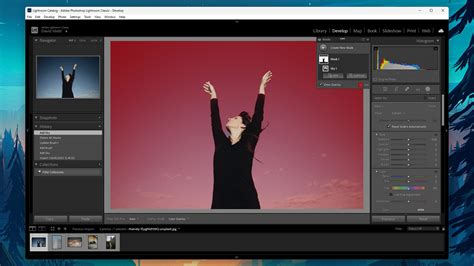
For those seeking more granular control, Lightroom provides advanced options. In the Light panel, users can access the Tone Curve by clicking an "S" icon. This allows for more precise editing of shadows, highlights, and midtones, offering greater control than simple sliders. Similarly, the Color Mixer, accessed via the Color panel by clicking a rainbow circle, enables adjustments to the hue, saturation, and luminance of specific colors within a photograph. Both tools operate intuitively: a target icon can be used to select a specific area to modify, and then users can experiment with the sliders. Skin tones are often suggested as a good starting point for practice. The Tone Curve tool specifically adjusts portions of the image that are similarly lit, while the Color Mixer targets areas with similar colors.
To enhance workflow efficiency, Lightroom allows users to reuse edits. Once a photo has been perfected, there’s no need to start from scratch for subsequent images. Users can select the adjustment panels they wish to reuse, copy them, switch to a new image, and paste these settings. This is a rapid method for editing multiple photos from a similar lighting setup or event. Furthermore, to apply settings to a batch of images quickly, users can create presets. By clicking Presets > Options (…) > Create Preset, users can save custom editing styles and apply them to other photos at any time.
Evolving Features and Compatibility
Lightroom's capabilities continue to expand with new features and improved compatibility. The application now supports generative upscale with Topaz Gigapixel, offering enhanced image resizing capabilities. Additionally, Lightroom now supports WebP files, a modern image format that offers better compression than traditional formats like JPEG. Significant improvements have also been made to the speed of interactive editing on photos with large masks, ensuring a smoother and more responsive user experience.
The application's compatibility requirements are straightforward: it requires macOS 14.0 or later. The file size is 3.5 GB, categorized under Photo & Video.
Sharing and Community
Lightroom facilitates sharing photographs with loved ones, clients, or a wider audience. This aspect of the application empowers users to showcase their work and connect with others. Apple actively promotes Lightroom within the Mac App Store, underscoring its value for both novice and experienced photographers.
The app's integration with the Mac App Store, coupled with its robust feature set and continuous development, solidifies Adobe Lightroom's position as a leading photo and video editing solution for Mac users. The platform's commitment to providing powerful tools within an accessible interface, combined with cloud-based storage and synchronization, makes it an indispensable asset for anyone passionate about photography and visual storytelling. The free trial period offers a valuable opportunity for users to explore these features firsthand and experience the full potential of this dynamic application.
When considering the creative process, the ability to share your photographs with loved ones, clients, or the world is paramount. Lightroom streamlines this process, allowing for easy export and sharing of your meticulously edited images. This connectivity fosters a sense of community and enables photographers to receive feedback, gain exposure, and build their portfolio. The platform’s cloud-centric approach ensures that your creative assets are not only safe but also readily accessible for sharing across various channels. The journey from capturing an image to sharing a polished masterpiece is made more efficient and enjoyable through Lightroom's comprehensive suite of tools.