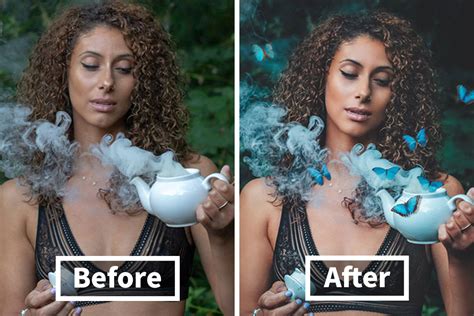
The ability to effortlessly change the background of a photograph is a cornerstone of digital image manipulation, offering creative professionals and hobbyists alike the power to transport subjects to entirely new environments, enhance visual aesthetics, or correct less-than-ideal shooting conditions. Whether you're aiming to swap a plain studio backdrop for a vibrant cityscape, introduce a textured element, or simply refine the overall mood of an image, Adobe Photoshop provides a robust suite of tools and techniques to achieve professional-grade results. This guide will delve into the various methods for changing backgrounds in Photoshop, from simple color replacements to complex image composites, ensuring you can elevate any project with a fresh perspective.
The Foundation: Selecting Your Subject with Precision
The success of any background change hinges on accurately isolating the subject from its original environment. Photoshop offers a diverse array of selection tools, each suited to different image complexities.
Quick Selection Tool: For many scenarios, the Quick Selection tool proves to be an incredibly efficient starting point. This tool works by intelligently detecting edges and areas of similar color and texture. You simply "paint" over your subject, and Photoshop attempts to build a selection around it. If the tool highlights an area outside your intended subject, you can refine the selection by using the "Subtract from Selection" brush, typically found at the top-left of the interface.
Object Selection Tool: Newer versions of Photoshop (2019 and later) introduce AI-powered tools like the Object Selection tool. This feature allows you to draw a rough rectangle or lasso around your subject, and Photoshop will automatically identify and select the object within that area. This can significantly speed up the selection process, especially for well-defined subjects.
Magic Wand Tool: The Magic Wand tool is another classic option, particularly effective for selecting solid blocks of color or areas with distinct tonal differences. Clicking on a specific area with the Magic Wand will select contiguous pixels of similar color. You can adjust the "Tolerance" setting to control how wide a range of colors the tool selects.
Lasso Tools: For more manual control, the Lasso tools (Lasso, Polygonal Lasso, and Magnetic Lasso) are invaluable. The standard Lasso allows for freehand drawing, while the Polygonal Lasso creates straight-edged selections, and the Magnetic Lasso attempts to "snap" to edges as you move your cursor. The Magnetic Lasso tool, in particular, can be useful for tracing around a subject in another photo you wish to incorporate.
Refining Your Selection with Select and Mask:Once an initial selection is made, it's rare that it will be perfect. Photoshop's Select and Mask workspace is a dedicated environment for fine-tuning selections. Within this workspace, you can:
- Adjust Edge Smoothness: The Shift Edge slider allows you to expand or contract the selection boundary, which is crucial for cleaning up jagged edges or ensuring all parts of the subject are included. Moving the Shift Edge slider to the left, for instance, can help to refine the edges of your selection, making them appear more natural.
- Refine Hair and Fur: Specialized tools within Select and Mask, such as the "Refine Edge Brush Tool," are designed to intelligently select complex details like wisps of hair or fur, which are notoriously difficult to isolate.
- Output Options: Critically, you can choose how to output your refined selection. A common and highly recommended output is a Layer Mask.
The Power of Layer Masks: Nondestructive Editing for Background Changes
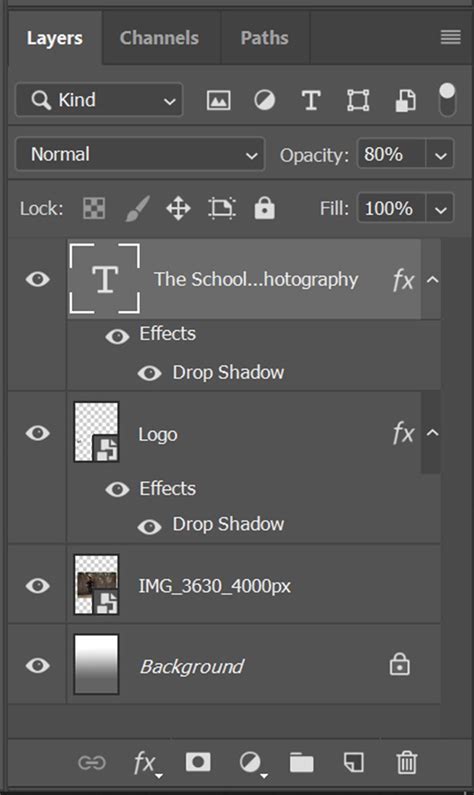
Layer masks are fundamental to nondestructive editing in Photoshop. Instead of permanently deleting pixels, a layer mask allows you to selectively hide or reveal parts of a layer. This means you can always go back and make adjustments without degrading the original image data.
When you apply a mask to your selected subject, the mask will typically hide everything except your subject. This is the desired outcome for placing your subject onto a new background.
Inverting the Mask: In some workflows, your initial selection might be of the background. In such cases, you can easily invert the mask. After making your selection, you can apply a mask. Then, with the masked layer selected in the Layers panel, click "Invert" above it in the Properties panel. Alternatively, you can right-click your selection and choose "Select Inverse" before applying the mask, or select the masked layer and choose "Invert Mask" from the three-dot menu in the Layers panel. This action effectively swaps what is hidden and what is visible, so if you selected the background, inverting the mask will reveal your subject.
Introducing New Backgrounds: From Solid Colors to Complex Scenes
With your subject cleanly isolated, the next step is to introduce and integrate your new background.
Replacing with a Solid Color:Transforming white backgrounds into bright pops of color, or any color for that matter, is a quick and easy way to elevate any project. To achieve this:
- Create a New Layer: Add a new layer above your subject layer.
- Position Below Subject: Drag this new layer beneath your subject layer in the Layers panel.
- Fill with Color: Select the Paint Bucket tool, choose your desired color from the Swatches or Color panel, and click on the new layer. Alternatively, you can press Alt + Backspace (Windows) or Option + Delete (Mac) to fill the layer with the current foreground color.
You can also create a new Photoshop document with a selected background color by going to File > New and choosing your desired color from the background options.
Creating Gradient and Ombre Effects:To create a gradient background, you can utilize the Gradient Tool. Select a new layer positioned behind your subject, choose the Gradient Tool, and then select your desired gradient preset or create a custom one. Drag across your canvas to apply the gradient. This is an excellent way to achieve an ombre effect.
Adding Textured or Image Backgrounds:To use a photograph or texture as your new background:
- Open New Background: Open your desired background image in Photoshop.
- Copy and Paste: Copy the background image (Ctrl+A to select all, Ctrl+C to copy) and paste it into your project document (Ctrl+V).
- Positioning: Drag the newly pasted background layer to the bottom of the Layers panel, beneath your subject layer.
- Scaling and Positioning: Use the Free Transform tool (Ctrl+T or Cmd+T) to scale, rotate, and position the background image as needed.
How to Create a Colorful Gradient Background | Photoshop Tutorial
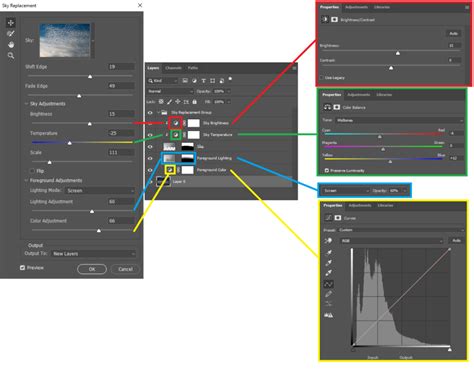
Matching Lighting and Color for a Seamless Composite
A common challenge when replacing backgrounds is ensuring the subject's lighting and color tone match the new environment. This creates a believable and professional composite.
Matching Lighting with the Average Filter:To match the lighting of the model with that of the background:
- Duplicate Background: Duplicate your new background layer and move this duplicate above your subject layer.
- Apply Average Filter: With this duplicated background layer selected, navigate to Filter > Blur > Average. This will fill the layer with a solid color representing the average color of the background.
- Blend Mode and Opacity: Change the Blend Mode of this averaged color layer to Soft Light. Then, reduce the Opacity setting until the color cast complements your subject's lighting. This technique subtly shifts the colors of your subject to better integrate with the new background.
Color Casting with Adjustment Layers:A more controlled way to unify the color palette is by using adjustment layers.
- Solid Color Adjustment Layer: Create a new Solid Color adjustment layer and place it above all other layers, or at least above your subject layer.
- Color Selection: Choose a color that complements your new background. This could be a dominant color from the background image or a color that enhances the mood you wish to convey.
- Clipping Mask (Optional but Recommended): To apply the color cast only to the layers below it (e.g., your subject), you can create a clipping mask. With the Solid Color adjustment layer selected, right-click and choose "Create Clipping Mask," or press Alt+Ctrl+G (Windows) or Option+Command+G (Mac).
- Blend Mode and Opacity: Similar to the Average filter method, adjust the Blend Mode (e.g., Color, Soft Light, Overlay) and Opacity of the Solid Color adjustment layer to achieve the desired effect.
Using Generative Fill with AI:For those using newer versions of Photoshop with AI capabilities, Generative Fill offers an advanced method for compositing. After selecting your subject and placing it on a new background, you can use Generative Fill to seamlessly blend the subject into the new environment, or even to generate entirely new background elements that match the lighting and style of your subject. This technology can automatically suggest content-aware fills and adjustments, significantly streamlining the compositing process.
Advanced Techniques and Considerations
Changing Background Color of a Group of Layers:Yes, you can change the background color of a group of layers in Photoshop. The most effective way is to create a new layer above the group of layers whose background you want to change. You can then fill this layer with your desired color. For more complex group management, you can select the layer group and choose Layer > New > Group from Layers to create a new, consolidated layer group. Then, select this new group and choose Layer > Layer Style > Color Overlay. This allows you to apply a color overlay to the entire group, effectively changing its perceived background color.
Working with PDFs:If you're considering changing the background color of a PDF within Photoshop, it's important to note that changing the background color would only change how the PDF displays on the screen. For true background modification of a PDF that affects its print or export properties, you would typically need to use a dedicated PDF editing software or re-save the PDF from its original source with the desired background.
The Smudge Tool:While not a primary tool for background replacement, the Smudge tool can be used in specific scenarios to replicate the feel and look of finger painting or to blend colors in particular areas, potentially adding artistic effects to your background.
Experimentation is Key:As you work with Photoshop, you'll begin to recognize which selection tools are best suited for different situations. For example, a plain blue sky in the background will be easier to select than a subject with intricate details against a busy backdrop. Don't be afraid to experiment with different combinations of selection tools, refinement techniques, and blending modes to achieve the desired outcome.
Replacing a background is a task you'll likely perform often in Photoshop. Whether you're changing the background to a different color, style, or placing your subject in an entirely new scene, the core principles of accurate selection, precise masking, and thoughtful integration remain paramount. With practice and by leveraging the powerful tools available, you can transform your photos and take your subjects anywhere in the world â or even out of this world.
tags: #adobe #photoshop #background #change