Adobe Lightroom for mobile has evolved into a powerful and indispensable tool for photographers, offering a robust suite of features for capturing, organizing, and editing images directly from smartphones and tablets. Whether you're a seasoned professional integrating it into your existing workflow or a mobile-first photographer looking for advanced editing capabilities, Lightroom Mobile provides a seamless and intuitive experience. This guide delves into the multifaceted functionalities of Lightroom Mobile, exploring its organizational tools, advanced editing features, and integration capabilities, empowering users to craft and share professional-quality images on the go.
Getting Started: Account Setup and Initial Access
Upon launching the Adobe Lightroom app on your Android device, the first step involves signing in and setting up your Lightroom account. This process is straightforward, enabling immediate access to your device's photo library. Once signed in, you can view your device's photos mirrored within the app's Gallery view. Selecting an image from this gallery instantly initiates the editing process. Lightroom automatically saves your edits internally, offering the flexibility to save a copy to your device, share, or export your images at any time. The Gallery view serves as the primary entry point for accessing your device's photos, allowing you to begin editing immediately.
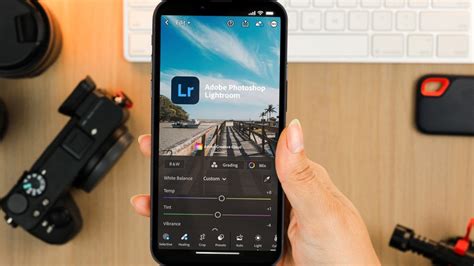
To navigate through your device's organized collections, you can utilize the dropdown menu within the Gallery view. Selecting a specific album from this menu will populate the Gallery with the corresponding files. This hierarchical organization allows for efficient management of your photo library. Within any album, you can easily sort and filter files by various criteria, such as newest to oldest or vice versa, using the sort icon.
Organizing Your Visual Library: Views and Albums
Lightroom Mobile offers a sophisticated system for organizing and viewing your photographs, catering to both free and subscribed users. The "Lightroom" tab provides a consolidated view of all photos you have edited within the app or synced from Lightroom desktop or Lightroom Classic. Within this view, you can specify the order in which files appear, offering a personalized organizational experience.
For subscribed users, the "All Photos" view is a comprehensive collection of all your imported and edited photos across all Lightroom-enabled devices. This unified library ensures that your entire photographic work is accessible from anywhere. Freemium users, on the other hand, will find the "All Photos" view to be a collection of all photos edited exclusively within the mobile app.
The Power of People View
The "People" view in Lightroom for mobile (Android) is a remarkable feature that automatically recognizes and groups photos of the same individual into distinct clusters. To access this feature, navigate to the "Library" view and select "People." Within this view, you can easily access clusters of photos identified for a particular person. By default, all detected people clusters are shown.

The "Show and Hide People" panel allows you to manage these clusters. You can select a hidden cluster to make it visible or hide clusters that you prefer not to display. A particularly useful function is the ability to merge photo clusters of the same person. If Lightroom detects that two clusters belong to the same individual, it may suggest a merge in the top panel. Tapping "Yes" will combine the selected photo clusters into a single, unified cluster. If you tap "No," this specific merge suggestion will not reappear. You can also tap the cancel icon to dismiss the suggestion entirely.
Within the "People" view, you can tap on an unnamed cluster to add a name. In the open cluster, you'll find an "Add Name" field at the top, where you can enter the desired name. Alternatively, you can directly edit the name at the top of an already named cluster or select "Rename Person" from the three-dot menu in the upper-right corner. The option to "Remove photos from person" allows you to detach specific photos from a cluster if they have been incorrectly assigned. This manual selection and movement of photos are valid for both named and unnamed clusters, providing granular control over your photo organization.
It's important to note that for new users, the "People" view is disabled by default. When enabled, Lightroom for desktop (Mac and Windows) and Lightroom for mobile (iOS and Android) analyze photos in the cloud to create sophisticated models of faces, grouping similar faces together. Disabling the "People" view will result in the deletion of all existing face model data from Lightroom servers. To enable this feature, navigate to "Settings" > "Privacy" and select "Enable People View."
Navigating Grid and Loupe Views
The "Grid" view is particularly useful when browsing photos within an album. By default, Lightroom selects one image to serve as the cover photo for the album, although you cannot specify a cover photo for the "All Photos" album. From the "Grid" view, you can access a three-dot menu in the upper-right corner to reveal additional options. Here, you can choose to view a "flat grid" or segment photos within the grid.
Enabling grid segmentation allows Lightroom for mobile (Android) to organize photos "By Month" (the default setting). You can also select other sorting options to reorder the display of photos based on various criteria. When grid segmentation is off, you can sort by "File Name" and "Star Rating." Furthermore, a "Custom Order" option allows you to manually reorder your grid photos by tapping the edit icon beside it and entering the "Reorder" panel.
The "Loupe" view becomes active when you select a single photo from the "Grid" view, displaying only that one image at a time. This is the primary window where you will perform all edits and modifications. To view essential Exif information for a photo in the "Loupe" view (specifically within the "Edit" panel and "Rate & Review" panel), tap the three-dot icon in the upper-right corner and enable the "Show Info" option.
Capturing and Importing Photos
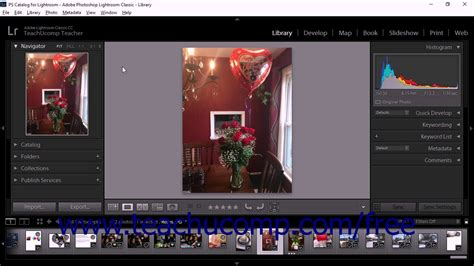
Lightroom Mobile empowers users with built-in capture modes, including "Auto," "Pro," and "HDR." The "Pro" mode offers granular control over camera settings such as shutter speed, focus, flash, and more, allowing for creative control at the point of capture.
Importing photos into Lightroom Mobile is a streamlined process. You can either use the in-app Lightroom Camera to capture new images or import existing photos from your device's camera roll or gallery. For users who wish to automate this process, the "Auto Add" feature can be enabled. When "Auto Add From Device" is switched on, any new picture added to your device's Camera Roll or Gallery will be automatically imported into Lightroom.
For those who shoot in RAW format, Lightroom Mobile offers a "Raw Default" setting, allowing you to specify default processing settings for RAW photos during import. This ensures consistency in how your RAW files are initially handled.
Advanced Editing Capabilities
Lightroom Mobile provides a comprehensive suite of editing tools, enabling users to refine their images with precision and creativity. Even the free version offers a powerful, yet simple solution for editing photos, with over 30 presets available to perfect shots in a single tap.
Non-Destructive Editing and Selective Adjustments
A cornerstone of Lightroom's editing philosophy is non-destructive editing. This means that all edits applied to a photo are recorded separately from the original file, allowing you to revert to the original image or modify any edit at any time, even after closing and reopening Lightroom. This flexibility is invaluable for experimentation and ensuring that your original image data remains intact.
Quick Tips On How To Use The Brush Tool In Lightroom Mobile
The app also excels in selective adjustments, a feature that allows you to apply enhancements to specific areas of a photo. This is particularly useful for making localized corrections, such as brightening a face in a portrait or enhancing a particular part of a landscape. Lightroom Mobile offers several tools for making these local corrections, including the Brush Selection tool, Radial Selection tool, and Linear Selection tool. These tools enable you to precisely define the area you wish to edit, offering a high degree of control.
Premium subscribers gain access to even more advanced selective adjustment features. In 2021, Adobe significantly enhanced masks with intelligent capabilities. Lightroom Mobile can now automatically detect the sky and the main subject of a photo, creating masks for these areas instantly. Additionally, users can create masks based on color or luminance ranges, allowing for highly nuanced edits. Adaptive presets, which are applied only to either the subject or the background of a photo, further expand the possibilities for targeted enhancements.
Tonal Scale and Color Adjustments
Lightroom Mobile provides extensive controls for adjusting the tonal scale of your images. You can fine-tune exposure, contrast, highlights, shadows, whites, and blacks to achieve the desired brightness and contrast. The app also offers tools for color correction, allowing you to adjust white balance, vibrance, and saturation to bring your photos to life.
Geometry and Perspective Correction
Distortions caused by shooting angles or lens types can be easily rectified with Lightroom Mobile's geometry and perspective correction tools. When capturing photos, especially of tall structures or at close proximity to a subject, perspective can become skewed. Lightroom's "Upright" modes and the "Geometry" slider tools within the Geometry panel allow you to fix and adjust the perspective of your photo, ensuring that straight lines appear correctly aligned.
Healing Brush and Generative Removal
For removing unwanted elements or imperfections from your photos, Lightroom Mobile offers a powerful Healing Brush and a Clone Stamp tool. Premium subscribers also benefit from the Generative Removal brush, an advanced tool that excels at removing small to medium-sized objects from images with remarkable ease. The usage of the generative removal tool consumes credits, with a certain number of free credits provided based on your subscription plan.
Presets and Adaptive Presets
Lightroom Mobile includes a vast library of presets, which are pre-configured editing settings that can dramatically alter the look and feel of your photos with a single tap. The subscription includes hundreds of premium presets, such as cinematic and portrait presets, offering a wide range of creative styles. Adaptive presets, as mentioned earlier, further enhance the targeted editing capabilities by applying adjustments to specific parts of an image.
Search, Organization, and Cloud Synchronization
Lightroom Mobile excels in its ability to help you find photos based on their content, even if you haven't manually added keywords. Your photos are automatically tagged in the cloud, enabling you to search for them by what's depicted within them. This intelligent tagging system significantly streamlines the process of locating specific images within a large library.

Synchronization is a core feature of the Lightroom ecosystem. Edits made on your mobile device sync seamlessly with Lightroom on your desktop (both Lightroom CC and Lightroom Classic, with specific nuances) and the web version. This ensures that your work is always up-to-date across all your devices.
Cloud Storage and Syncing Options
Lightroom Mobile relies on Adobe's extensive cloud infrastructure to sync image data and edits between desktop and mobile devices. For subscribed users, cloud storage is a key component of the service. Plans vary in storage capacity, with options like 1 TB or more.
You can control how Lightroom Mobile syncs your photos. The "Use Cellular Data" option allows you to choose whether to sync only over Wi-Fi or to utilize your cellular data plan's bandwidth. For users concerned about data usage or storage space on their mobile device, the "Only Download Smart Previews" option is invaluable. When enabled, only reduced-resolution, editable proxies of your photos are downloaded, significantly reducing storage requirements while still allowing for editing. The original files remain safely stored in the cloud.
When the "Use Cellular Data" option is disabled and there is no network connection, Lightroom Mobile will display a "Syncing Interrupted" icon in the Albums view. In such scenarios, you can tap the "!" icon in the upper-right corner and choose "Download Smart Preview" to enable editing using your cellular data.
Integration with Lightroom Desktop and Classic
Lightroom Mobile is designed to be a powerful companion to its desktop counterparts, Lightroom CC and Lightroom Classic. If you are a Lightroom Classic subscriber, you can integrate Lightroom Mobile into your workflow in various ways. Collections (but not Smart Collections or Collection Sets) can be synchronized with Lightroom Mobile by checking the appropriate box in the Collections panel on your desktop. When you open Lightroom Mobile, it connects to Adobe's servers and downloads Smart Previews of these synchronized photos, making them viewable on your device.
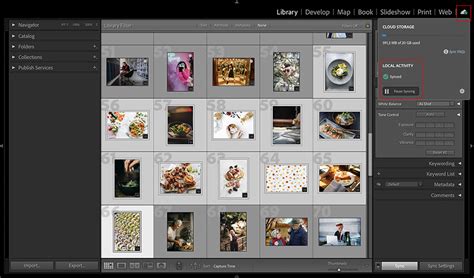
You can even download these previews permanently for offline viewing, allowing you to showcase your photos to others without an internet connection. The best way to present photos to someone is to tap the ellipsis icon (three-dot icon top right) and select "Start Slideshow," then let them swipe through. For the optimal viewing experience, it's recommended to tap the ellipsis icon next to the Collection name and select "Store locally."
While Lightroom Mobile offers a rich editing experience, it's important to acknowledge that mobile devices are not typically color-calibrated. Therefore, for critical color-sensitive editing, it is still advisable to perform those tasks in Lightroom Classic.
Lightroom Mobile vs. Lightroom CC Desktop
While the features are largely aligned, there remain a few differences between the desktop version of Lightroom CC and Lightroom Mobile. For instance, the capability to merge multiple photos into an HDR or panorama is a feature currently found on the desktop version, which would perfectly supplement features like the exposure bracketing of the Pro Camera app.
Premium Subscription and Cloud Credits
To unlock the full potential of Lightroom Mobile, including advanced features like the Healing Brush, selective adjustments, geometry tools, and RAW editing, a premium subscription is required. Adobe offers several subscription plans tailored to photographers' needs. The "Lightroom mobile-only" plan, which includes 1 TB of cloud storage, is available for $11.99 per month. For those seeking a more comprehensive solution, a plan that includes Lightroom CC for desktop and mobile, along with Photoshop CC for desktop and iPad, is available for $19.99 per month and also includes 1 TB of storage.
These subscription plans often come with cloud credits. The Photography plan typically includes 500 credits, while the Lightroom-only plan may include 100 credits. These credits are utilized for certain advanced features, such as the generative removal tool.
Free Version and Trial Periods
It's important to note that a free version of Lightroom Mobile is available, offering access to core capture, organization, and sharing features. Additionally, Adobe often provides a 7-day trial period for its premium features, allowing users to experience the full suite of tools before committing to a subscription.
Useful Tips and Tricks for Lightroom Mobile
To enhance your experience with Lightroom Mobile, here are some valuable tips and tricks:
- Slider Adjustment: When using any slider, tapping on the left side (the label) of the slider will decrease the value by -5, offering finer control.
- Clipping Indicators: Lightroom Mobile can mark clipping areas, which occur when details are lost in the highlights or shadows. In the "Lights" editing group, tap and hold either the exposure, shadows, highlights, blacks, or whites slider. Then, use a second finger to tap the image itself. Lightroom will display white clipping in red and black clipping in blue, helping you avoid over- or under-exposure.
- Sharpening Mask: To prevent over-sharpening your images, Lightroom Mobile can display a sharpening mask. In the "Detail" editing group, tap and hold the sharpening, radius, detail, or masking slider. Use a second finger to tap the image itself to visualize the sharpening mask.
- Accessing Device Info: You can check your app version in "Device Info & Storage" > "Device Info." If the App Version displays 'Arm 8,' certain features are supported on your device.
- Managing Storage: The "Manage Storage" option allows you to view a list of all albums for which you've enabled the "Store Locally" option.
- Clearing Cache: "Clear Cache" allows you to remove previews and temporary files from your mobile device, freeing up storage space. When you clear or purge the offline content of a locally stored album, Lightroom for mobile (Android) removes cache files stored for offline use in that album. However, images marked for offline use in another locally stored album are not removed. Clearing the cache removes any cache files stored for offline use by Lightroom for mobile (Android), but the offline content of albums stored locally remains unaffected.
- Resetting Coach Marks: If you find yourself needing a refresher on certain features, you can "Reset Coach Marks and Dialogs" to re-enable introductory tutorials and prompts.
- Contextual Help: Lightroom Mobile offers contextual help, allowing you to easily find assistance within the app. The first section of the pop-up menu displays tutorials for specific tools and features. You can also use the search bar at the top of the pop-up menu to enter keywords and find relevant information.
Future Considerations and Device Compatibility
Lightroom Mobile is continually updated with new features and improvements. As of 2025, the app is compatible with Apple Vision Pro, offering an immersive editing experience. Lens Blur and Quick Actions are compatible with iOS devices with a minimum of 4 GB RAM.
For Android users, a newer Android phone is generally required to utilize advanced editing features. Adobe Lightroom for mobile automatically detects and provides access to the advanced features supported by your specific device. Beginning with version 2.0, Adobe Lightroom for mobile supports DNG RAW image capture on devices running Android versions 5.0 (Lollipop) and later, provided the device supports RAW image capture. You can check whether DNG Capture is supported by your device within the app's settings.
Adobe has also introduced an HDR Capture mode as a Tech Preview, allowing you to determine if your device permanently supports this feature.
Lightroom Mobile supports JPEG, PNG, and Adobe DNG image formats. The Lightroom Classic and Lightroom desktop apps support a wider range of file formats, including RAW images from virtually any DSLR camera, JPEG, and PNG files.
Adobe Portfolio and Sharing Options
Lightroom Mobile makes it easy to showcase your photos online through web galleries. You can share an album of pictures or a random selection of photos as a shareable link or directly to Adobe Portfolio. When sharing, you have control over whether details like copyright data, location data, and metadata are available to the viewer.
Subscription Expiry and Data Access
Should your Adobe membership expire, Adobe will continue to store your original images and videos for a period of approximately one year before they are deleted. During this time, you can use the Adobe Lightroom Downloader app to download your photos from Creative Cloud. After a membership expires, Lightroom Desktop will no longer sync new files to the cloud. However, with Lightroom Classic, you will still have access to all your photos on your local hard drive and can continue to import, organize, and export your edited photos.
In conclusion, Adobe Lightroom Mobile offers a comprehensive and powerful platform for photographers, from casual users to professionals. Its intuitive interface, robust organizational tools, advanced editing capabilities, and seamless cloud synchronization make it an indispensable part of the modern photographic workflow. Whether you're capturing a spontaneous moment or meticulously refining an image, Lightroom Mobile empowers you to bring your creative vision to life, anywhere, anytime.