Adobe Photoshop has long been the industry standard for image editing, constantly evolving to offer more powerful tools. In recent years, the integration of artificial intelligence and machine learning has ushered in a new era of creative possibilities with Neural Filters. These innovative filters, powered by Adobe Sensei, leverage advanced algorithms to generate new pixels, enabling complex image manipulations that were once time-consuming or even impossible. Neural Filters are designed to make intricate editing tasks accessible and efficient, transforming workflows for photographers, designers, and creative individuals alike.
The Foundation of Neural Filters: AI and Machine Learning
At their core, Neural Filters are a sophisticated application of artificial intelligence and machine learning within Photoshop. Unlike traditional filters that apply predetermined effects, Neural Filters utilize AI-driven algorithms to analyze image content and generate entirely new pixels. This means they can understand the context of an image - whether it's a portrait, a landscape, or an old photograph - and apply intelligent adjustments. The engine behind this technology is Adobe Sensei, Adobe's AI and machine learning framework.
"Machine learning can help you do a lot of things that would have taken many steps in the past,” notes photo editor Jesús Ramirez. “In some cases, with just one click.” This encapsulates the fundamental benefit of Neural Filters: simplifying complex processes and accelerating creative output. The machine learning models that power these filters vary in size, ranging from less than 1 MB for simpler filters like Skin Smoothing to over 650 MB for more complex ones like Style Transfers.

When you access a Neural Filter, it will first attempt to utilize your computer's Graphics Processing Unit (GPU) for processing. If your system's GPU is not powerful enough, the filters will automatically default to using the Central Processing Unit (CPU). This ensures that Neural Filters are accessible across a range of hardware configurations, though performance will naturally be better on systems with dedicated GPUs.
Navigating the Neural Filters Gallery
Accessing the Neural Filters in Photoshop is straightforward. They are located under the "Filter" tab, within a dedicated "Neural Filters" panel. This panel serves as a central hub for all available filters, categorized into featured and beta options. By selecting the "All Filters" tab, users can view the complete list of current offerings. Prior to using any Neural Filter, it is essential to ensure your Photoshop application is updated to the latest version through the Creative Cloud app.
When using Neural Filters, it is a best practice to preserve your original image. Adobe recommends outputting to a "Duplicate Layer." As Ramirez advises, “What I recommend people to do on output is select Duplicate Layer so you have another layer that has all your colors and edits.” This ensures that your original image remains untouched, allowing for non-destructive editing and easy experimentation. Some filters, particularly those focused on portraits, may benefit from manual layer masks for smoother blending and more nuanced results. Ramirez explains, “Sometimes the filter just overlays pixels, and they don’t look as good on top of the original image. You can definitely do it by hand in some instances and you probably get better results.”
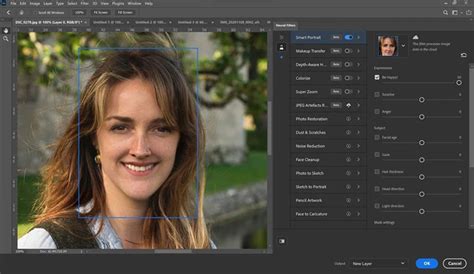
For filters that are intended for specific subjects, like facial features, implementing a layer mask manually can lead to more seamless integration. This allows for finer control over where and how the filter's effects are applied, preventing unnatural overlays. Before committing to any changes, the "Preview" button is invaluable. It allows you to see the potential impact of a filter directly on your image, helping you make informed decisions about adjustments. The output method can also be tailored to your project goals. Converting the current layer to a Smart Object before applying a Neural Filter is a highly recommended approach, as it allows the filter to be applied as an editable Smart Filter. This provides flexibility to revisit and tweak the filter’s settings at any time.
Exploring the Creative Potential of Key Neural Filters
The Neural Filters library is constantly expanding, offering a diverse range of tools for creative expression and image enhancement. Here's an exploration of some of the most impactful filters:
Skin Smoothing: Effortless Portrait Retouching
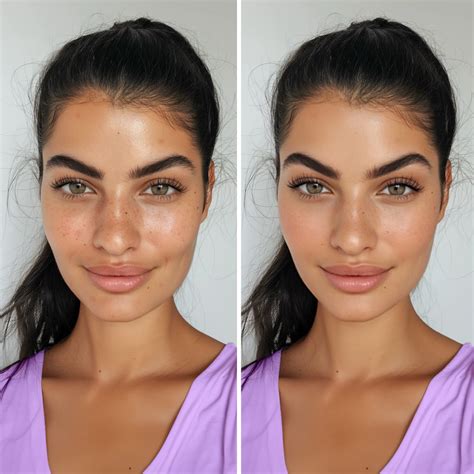
One of the most time-saving filters for portrait editing is Skin Smoothing. This filter is designed to automatically detect faces and gently soften skin, reducing the appearance of blemishes and uneven textures. It's a quick way to achieve a more polished look in portraits without the need for complex manual retouching. The filter is based on a relatively small machine learning model, meaning it's quick to download and process.
Colorize: Breathing Life into Vintage Photos
The Colorize filter offers a remarkable ability to bring vintage photographs back to life. It can quickly add color to black and white images, transforming them into vibrant, eye-popping visuals. This filter is particularly useful for restoring old family photos or historical imagery. By analyzing the grayscale information, the AI intelligently infers and applies realistic color tones.
Style Transfer: Artistic Reimagining
The Style Transfer filter allows you to explore new artistic looks for your images by transferring the visual style of one image onto another. You can select a reference image with a distinct color palette, texture, or artistic rendering, and then apply that style to your own photograph. This opens up vast creative avenues for generating unique artistic interpretations of your subjects. Due to the complexity of analyzing and replicating artistic styles, this filter utilizes a larger machine learning model.
Landscape Mixer: Crafting New Blended Scenes
For landscape photographers and digital artists, the Landscape Mixer filter is a powerful tool for creating entirely new scenes. It allows you to combine elements from an input image with those of a reference image to form blended landscapes. You can start with your landscape photo and then choose a reference landscape shot. The Landscape Mixer will then pull characteristics from both images to generate a novel composition, offering a unique way to blend tones and moods.
Depth Blur: Emphasizing Focus and Atmosphere
The Depth Blur filter is designed to create a sense of environmental depth within an image, allowing you to emphasize either a foreground or background object. This is achieved by intelligently blurring parts of the image, mimicking the natural depth-of-field effects seen in photography. The filter provides sliders for adjusting brightness, saturation, luminescence, and color settings, giving you fine-tuned control over the blur effect and its impact on the overall image.
Smart Portrait: Advanced Facial Adjustments
The Smart Portrait filter, currently in beta, offers a suite of advanced controls for modifying portraits. It uses cloud-based analysis to allow adjustments to facial age, expressions, gaze direction, and other fine details through intuitive sliders. This filter can be used for subtle enhancements or for more significant transformations, offering a powerful way to alter a subject's appearance. Because it involves complex facial analysis and generation, this filter processes some operations in the cloud.
Harmonization: Seamless Layer Compositing
The Harmonization filter is a key tool for creating seamless photo composites. It works by matching the color and brightness of two layers, ensuring that elements from different images blend together naturally. When you have a subject from one image that you want to place onto another background, Harmonization analyzes the reference image and applies its color and tone characteristics to the target layer, creating a cohesive and believable composite.
Super Zoom: Intelligent Enlargement
The Super Zoom filter addresses the challenge of enlarging images without sacrificing detail. This filter intelligently enlarges and crops an image, then uses AI to reconstruct and add back detail that would typically be lost during standard enlargement. This is particularly useful when you need to crop in closely on a subject while maintaining sharpness and clarity.
Photo Restoration: Reviving Old Negatives
Building on the concept of bringing old photos back to life, the Photo Restoration filter specifically uses AI to revive damaged or faded old photographs. It can intelligently repair scratches, creases, and discoloration, helping to preserve cherished memories.
Considerations for Using Neural Filters
While Neural Filters offer unprecedented creative power, there are important considerations for their use. Since many of these filters are based on new technology and are often applied to portraiture, there's a recognized potential for unforeseen results related to inclusivity and biases. Adobe states its commitment to ensuring inclusivity and equity in its AI development, and this is an ongoing area of focus as the models are continuously improved.
The performance of Neural Filters can be influenced by your computer's hardware, as they leverage either the GPU or CPU for processing. Furthermore, some filters require a download before use, with file sizes varying significantly. Adobe is continuously working to improve the performance of the underlying machine learning models.
Enhancing Your Photoshop Workflow
For those looking to further optimize their Photoshop experience, tools like the TourBox creative controller can be beneficial. Devices like the TourBox allow for one-handed control of slider values, enabling precise nudging of adjustments by one increment. They also facilitate the grouping of frequently used tools and filters into a single "TourMenu" for more organized and efficient editing workflows.
In conclusion, Adobe Photoshop Neural Filters represent a significant advancement in digital imaging. By harnessing the power of AI and machine learning, these filters democratize complex editing techniques, enabling users to achieve professional-level results with greater ease and speed. From enhancing portraits and restoring old photographs to creating entirely new artistic compositions, Neural Filters unlock a world of creative possibilities within Photoshop.