Photopea, a powerful web-based image editor, offers a suite of intuitive tools for navigating and manipulating your digital canvases. Understanding how to effectively zoom in and out, pan across your image, and even rotate your view is fundamental to efficient and precise editing. This tutorial will delve into the various methods available within Photopea, from simple mouse wheel gestures to the more nuanced quick modes of specialized tools, ensuring you can work with clarity and control, no matter the complexity of your project.
The Core of Visual Precision: Understanding Zoom
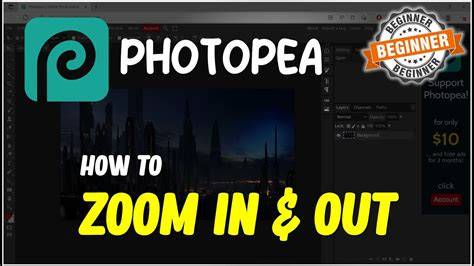
Zooming is the cornerstone of detailed image editing. It allows you to inspect fine pixels, make precise selections, and refine intricate elements of your design. Photopea provides several straightforward ways to achieve this. The most accessible method involves your mouse wheel. Simply scrolling forward will zoom in, bringing your image closer, while scrolling backward will zoom out, providing a broader overview. This immediate feedback loop makes it easy to adjust your view on the fly.
However, for users who prefer keyboard shortcuts or more deliberate control, Photopea offers dedicated zoom functionalities. Within the toolbar, you will find the Zoom tool, typically represented by a magnifying glass icon. Selecting this tool activates its specific modes. A particularly useful feature is the quick mode for the Zoom tool. By holding down the Alt key (or Option on a Mac) while using the Zoom tool, you can seamlessly switch between zooming in and zooming out. This eliminates the need to toggle between different zoom settings, streamlining your workflow. Clicking and dragging with the Zoom tool also allows for precise zooming to a selected area, a function invaluable for focusing on specific details.
Effortless Movement: Navigating Your Canvas with the Hand Tool
Once you've zoomed in on a particular area of your image, the need to move around and view different sections becomes paramount. This is where the Hand tool shines. Similar to the Zoom tool, the Hand tool is readily available in the Photopea toolbar, usually depicted as a hand icon. Its primary function is to allow you to pan or scroll across your image, dragging the visible portion of the document to reveal hidden areas.
Photopea also incorporates a highly efficient quick mode for the Hand tool. By pressing and holding the Spacebar, you can temporarily activate the Hand tool from any other active tool. This means you can be working with the Brush tool, for instance, and with a simple press of the Spacebar, instantly grab and move your image without having to switch tools explicitly. Releasing the Spacebar returns you to your previously selected tool, maintaining your editing momentum. This is a significant time-saver, especially during extensive editing sessions where frequent repositioning is necessary.
A New Perspective: Rotating Your Document View
Beyond simply zooming and panning, Photopea introduces the ability to rotate your document's view. This feature is particularly useful for tasks that require working at different angles, such as calligraphy, drawing, or analyzing perspective. The Rotate View tool is typically located in close proximity to the Hand tool in the toolbar.
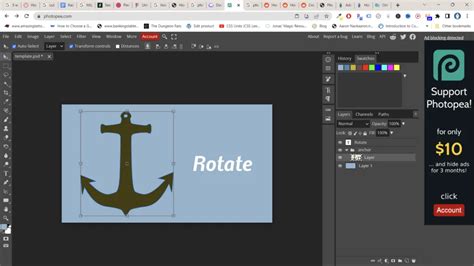
To utilize this tool, you simply select it and then click and drag on your document. As you drag, the entire canvas will rotate around the center of the screen. This rotation is purely visual; it does not alter the actual orientation of your image data. This means you can rotate your view to a comfortable angle for drawing a curved line, for example, and then reset the view to its original orientation without affecting the underlying pixel data. This non-destructive rotation is a powerful feature for enhancing comfort and precision during specific editing tasks.
Leveraging Your Mouse for Seamless Navigation
For users who prefer a more tactile approach, Photopea fully supports mouse wheel functionality for both zooming and scrolling. As mentioned earlier, the mouse wheel is your primary tool for zooming in and out. However, its utility extends to navigation as well. While the specific behavior might vary slightly depending on your operating system and browser settings, often holding down a modifier key like Ctrl or Cmd while using the mouse wheel can enable horizontal scrolling, allowing you to pan left and right across your image. Experimenting with these combinations can reveal convenient shortcuts tailored to your personal workflow.
The Power of Undo: Navigating Your Editing History
Every action you take in Photopea - from applying a filter to making a minor adjustment - is meticulously recorded. This sequence of actions is made visible and accessible through the History panel. The History panel is not just a record; it's a powerful tool for non-linear editing, allowing you to revisit and revert to any previous state of your document.
How to History Panel on Photopea.com
The History panel displays your work as a chronological list of edits. If you make a mistake, or if you simply want to explore alternative editing paths, you can click on any action in the History panel. Doing so will immediately revert your document to the state it was in after that specific action was performed. This capability is invaluable for experimentation, as it allows you to try different approaches without fear of permanently altering your work. You can move forward and backward through your editing history, effectively "undoing" and "redoing" actions with a simple click. This granular control over your editing process is a hallmark of professional-grade software and a key reason for Photopea's widespread appeal.
The ability to zoom, pan, rotate, and navigate through your editing history forms the foundational toolkit for any serious Photopea user. By mastering these techniques, you unlock the potential for greater precision, efficiency, and creative freedom in your digital image manipulation endeavors. Whether you are a seasoned graphic designer or a beginner exploring the world of photo editing, these fundamental skills will significantly enhance your experience and the quality of your final output. The intuitive design of Photopea ensures that these powerful features are accessible, making complex editing tasks feel more manageable and enjoyable.