Adobe Photoshop's Super Resolution feature represents a significant leap forward in image processing, leveraging artificial intelligence to dramatically enhance image detail and scale. This powerful tool, integrated into Adobe Camera Raw (ACR) and subsequently Lightroom, allows photographers to effectively increase the resolution of their images, opening up new possibilities for large prints, tight crops, and breathing new life into older, lower-resolution files.
Accessing and Understanding Super Resolution
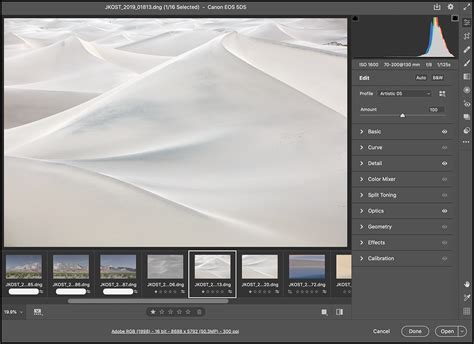
The Super Resolution feature is accessible within Adobe Camera Raw (ACR) through the "Technology Previews" section in the Camera Raw Preferences. By navigating to Camera Raw Preferences > Technology Previews > New AI Features and Settings, users can find and utilize AI-powered Enhance features, including Denoise and Super Resolution. This new panel allows for experimentation with these advanced AI capabilities without the immediate need to create a new DNG file.
Denoise, a related AI feature, excels at removing noise from images that were captured in challenging lighting conditions, such as high-ISO settings or low-light environments. Raw Details, formerly known as Enhance Details, is another crucial component that produces sharper details, more accurate edge renditions, improved color rendering, and a reduction in artifacts. While Raw Details enhances the fidelity of the existing resolution, Super Resolution takes this a step further by creating an enhanced image with twice the linear resolution of the original. This translates to an image with double the width and double the height, resulting in a total pixel count that is four times that of the original.
Super Resolution supports a wide array of file types, including JPEG and TIFF, in addition to the raw file formats compatible with Raw Details. For optimal performance, especially with GPU-accelerated features, it's recommended to consult the system requirements for GPU acceleration.
The Super Resolution Workflow
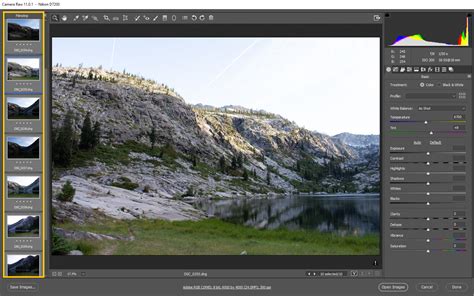
To apply Super Resolution, the process typically begins by opening an image in Photoshop's Camera Raw dialog. For raw files, this is often the default behavior when opening them via File > Open or through Adobe Bridge. Once the image is open in ACR, users can right-click on the image and select "Enhance…" from the context menu. This action will bring up the Enhance Preview dialog box.
Within this dialog, users can select "Raw Details" to preview the enhanced version of the image. A useful feature here is the ability to click and hold on a highlighted image area to compare the enhanced version with the original. Subsequently, selecting "Super Resolution" in the same dialog box initiates the upscaling process. The dialog box will display an estimated completion time for the enhancement. After the process is complete, users can again click and hold the highlighted image area to see the remarkable difference between the original and the super-resolved image.
For a more streamlined workflow, users can bypass the Enhance Preview dialog box. By holding down the Option key (on macOS) or Alt key (on Windows) when selecting "Enhance" from the context menu, the Super Resolution process will be applied directly. This is particularly useful when enhancing multiple images. To apply Super Resolution to several images simultaneously, select the desired images in the Filmstrip within ACR. Then, choose "Enhance" from the context menu. The Enhance Preview dialog box will display a preview of the first selected image, but the chosen enhancement (Denoise, Raw Details, or Super Resolution) will be applied to all selected images. Users can change this selection if needed.
It's important to note that Super Resolution is not accessible when using the Filter > Camera Raw Filter within Photoshop itself. To utilize this feature effectively, images must be opened directly into the Camera Raw dialog, typically through File > Open or Adobe Bridge.
The Power of AI in Image Upscaling
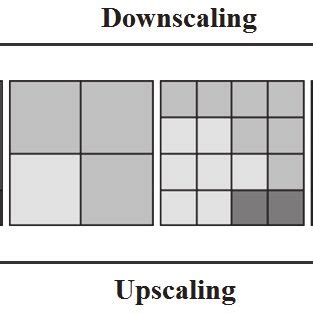
The advent of Super Resolution marks a significant shift in the photo industry, powered by machine learning and artificial intelligence. Adobe's Super Resolution feature builds upon the foundation laid by "Enhance Details," a technology launched two years prior. Enhance Details used machine learning to interpolate raw files with a high degree of fidelity, resulting in images with crisp details and fewer artifacts. The term "Super Resolution" itself refers to the process of improving a photo's quality by boosting its apparent resolution.
Traditionally, enlarging a photo often leads to blurry details. Super Resolution, however, employs an advanced machine learning model trained on millions of photos to overcome this limitation. This means that even images captured with lower-resolution cameras can be upscaled to produce significantly larger files for prints or other applications requiring higher resolution, without a perceptible loss of sharpness.
Michael Clark, a photographer and friend of DPReview, has expressed his impressiveness with Adobe's Super Resolution feature. He tested it on a 10-year-old 12MP Nikon D700 image, and the resulting upscaled image was 48.2MP, appearing as sharp, if not sharper, than the original. This capability empowers users with lower-resolution cameras, such as current 24MP models, to output massive image files.
The underlying technology involves training a computer using millions of pairs of low-resolution and high-resolution image patches. This training utilizes a deep convolutional neural network, where the processing of a pixel is influenced by its surrounding pixels, providing context for the upsampling task. The training process itself is computationally intensive, often taking days or weeks. Adobe's training regimen for Super Resolution includes unique elements such as training directly from raw data for Bayer and X-Trans files, optimizing end-to-end quality, and focusing on "challenging" image areas with intricate textures and tiny details.
Practical Applications and Real-World Results
The practical implications of Super Resolution are far-reaching. For photographers with lower-resolution cameras (12-16MP or even 24MP), it offers a powerful way to create large, high-quality prints that were previously unattainable. Even photographers with high-resolution cameras benefit, as Super Resolution allows for further upscaling of existing images, provided the resulting enhanced image file remains under 65,000 pixels on the long side and under 500 MP in total. This means a 102MP image from a FUJIFILM GFX 100 can be upscaled to a staggering 400 MP file, opening doors for exceptionally large prints.
Photographer Michael Clark shared an example of upscaling a 12MP Nikon D700 image (4256 x 2832 pixels) to an 8512 x 5664 pixel image. He noted that the higher-resolution image looked "absolutely amazing" and, when zoomed in to 100%, appeared just as sharp, if not a little sharper, than the original, despite being massively larger in terms of resolution and file size.
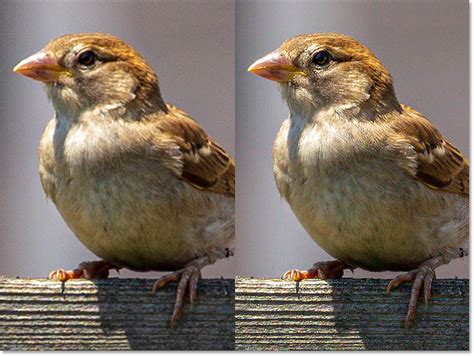
Another compelling use case is for tightly cropped photos. When a subject occupies only a small portion of the frame due to distance, Super Resolution can significantly increase the resolution of the cropped file, making it suitable for decent-sized prints. For instance, a bird photo cropped down to 2.5 megapixels could be upscaled to a 10-megapixel image using Super Resolution.
Super Resolution! Amazing New Feature in ACR
While Super Resolution is a powerful tool, it's not a magic bullet. It's important to manage expectations. A 12MP image enhanced to 48MP will not match an original photo from a 48MP camera. However, it represents a substantial improvement over traditional upsampling algorithms. In tests comparing Bicubic Smoother, Photoshop's Preserve Details 2.0, and Super Resolution, the latter consistently produced crisper details, particularly in areas with fine textures.
Even with its advancements, Super Resolution is not a replacement for native high-resolution capture. An actual 188-megapixel image, captured with a camera capable of such resolution, will still exhibit finer details and less noise than an upscaled image. Nevertheless, Super Resolution is a significant advancement, offering better results than previous upsampling methods and rivaling, or in some cases exceeding, the performance of third-party AI upscaling software like Topaz Gigapixel AI.
Super Resolution vs. Other Upscaling Methods
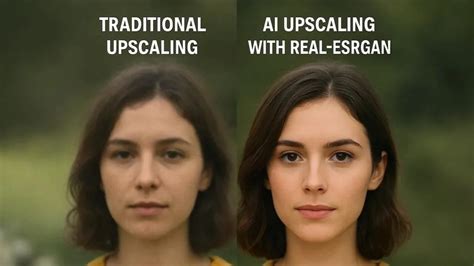
When comparing Super Resolution to other upscaling techniques, its AI-driven approach stands out. Traditional algorithms like Bicubic Smoother often result in softened details and artifacts. Photoshop's Preserve Details 2.0, an earlier AI-enhanced algorithm, offered significant improvements. However, Super Resolution, with its more advanced machine learning model trained on a vast dataset of images, generally provides superior results.
In head-to-head comparisons with Topaz Gigapixel AI, another prominent AI upscaling software, the results can be quite close. While some users might lean towards Topaz for slightly finer details or less noise in certain scenarios, Adobe Super Resolution offers comparable quality with the advantage of being integrated into the existing Adobe ecosystem, often making it a more cost-effective solution for existing Adobe Creative Cloud subscribers.
It's also worth noting that Super Resolution can be applied to JPEG and TIFF files, not just raw files. However, when working with compressed JPEG files, the compression artifacts may be exaggerated after applying Super Resolution. To open JPEGs and TIFFs in Camera Raw for Super Resolution processing, use File > Open in Photoshop and change the "Format" dropdown menu to "Camera Raw" before opening the file.
Considerations for Optimal Performance
Several factors can influence the performance and results of Super Resolution. Using raw files whenever possible is recommended, as they contain more image data that the AI can leverage for enhancement. The quality of the source image is paramount; Super Resolution will not magically fix an out-of-focus image.
A faster Graphics Processing Unit (GPU) significantly speeds up the processing time for both Enhance Details and Super Resolution, as these features perform millions of calculations. For laptop users, an external GPU (eGPU) can provide a notable boost. When considering new hardware, look for GPUs optimized for machine learning technologies like CoreML (Apple M1 chip's Neural Engine) and Windows ML (NVIDIA's RTX series Tensor Cores).
The output files from Super Resolution can be very large, which means they take longer to read from and write to disk. Users should be mindful of the increased file sizes, which can be over twelve times larger than the original, especially when working with raw files.
The limits for Super Resolution are currently set at 65,000 pixels on the long side and 500 megapixels in total. Attempts to process files that would exceed these limits will result in an error message. Adobe is reportedly exploring ways to raise these limits in the future.
Finally, it's important to use Super Resolution judiciously. It's a powerful tool for specific needs, such as large prints or rescuing cropped images, rather than a feature to be applied to every single photograph. As one Adobe engineer noted, while he has hundreds of thousands of photos, he's only used Super Resolution on a handful, as not every subject demands a hundred-megapixel image.
Beyond Upscaling: The Future of AI in Imaging

Super Resolution is just one example of how AI is revolutionizing the field of digital imaging. Adobe is continuously exploring other applications of this underlying technology, including improved sharpening, noise reduction, and potentially even fixing motion blur. The advancements in AI suggest that software will play an increasingly crucial role in image quality, potentially rivaling or even surpassing the impact of camera hardware in the coming years. This trend democratizes high-quality imaging, leveling the playing field for photographers regardless of their camera's megapixel count. The ongoing development in AI-powered image processing promises even more sophisticated tools that will continue to push the boundaries of what's possible in photography and digital art.
tags: #adobe #photoshop #super #resolution