Adobe Stock has revolutionized how designers and creatives source imagery for their projects, particularly within the robust ecosystem of Adobe Creative Cloud applications like Photoshop. Gone are the days of cumbersome workflows involving downloading low-resolution placeholders, manually searching external websites, and then painstakingly replacing them with high-resolution, licensed assets. Adobe Stock, deeply integrated into Photoshop, streamlines this entire process, making it more efficient and intuitive than ever before. This article will guide you through the practical application of Adobe Stock within Photoshop, from initial discovery to final licensing and even post-licensing edits, demonstrating how this powerful combination can elevate your creative workflow.
Discovering and Previewing Assets within Photoshop
The integration of Adobe Stock directly into Photoshop means that finding the perfect image is now as simple as navigating through your familiar workspace. You can access Adobe Stock photos directly from the File menu, offering both Quick and Advanced modes for searching. Alternatively, and perhaps more conveniently for ongoing projects, you can explore a vast library of images directly within the Libraries panel. To do this, simply open the Libraries panel in Photoshop and locate the "Search Adobe Stock" field at the top of the panel. Typing your desired keywords here will instantly populate the panel with relevant results.
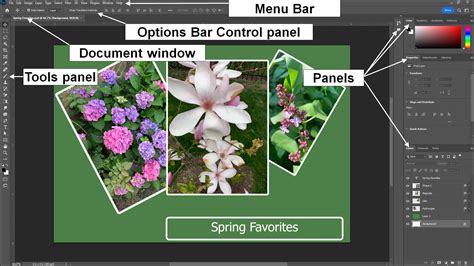
To aid in visual assessment, resizing the Libraries panel can enlarge the thumbnails, making the images easier to scrutinize. For a more in-depth look at any particular asset, a simple double-click will open the image on the Adobe Stock website in your default web browser, providing a larger preview and additional details. However, the true power of integration lies in the ability to preview and save assets directly to your Creative Cloud Libraries without leaving Photoshop. On each asset displayed in the Adobe Stock search results, you will notice two distinct icons. The first icon allows you to download a low-resolution, watermarked preview of the asset directly into a CC Library. The second icon is for licensing and saving the asset to your CC Library.
In the initial design and conceptualization phases, where experimentation is key and committing to a purchase might be premature, selecting the "Save Preview" option is ideal. This action downloads a watermarked version of the photo into your CC Library. Once the preview is added, you can effortlessly drag it from the library directly onto your Photoshop document. Crucially, when you add the photo this way, it is incorporated as a Smart Object. This is a significant advantage, as any filters, effects, or adjustments applied to it will be treated as Smart Filters. This non-destructive editing capability ensures that you can modify these elements later without degrading the original image quality. You can also freely add any Adjustment Layers you desire to further refine the look and feel of your composition.
CC Libraries explained in under 2 minutes
Licensing and Seamlessly Updating Assets
The workflow for licensing an image is designed for maximum efficiency. Once your project has received approval and you're ready to move forward with the final, high-resolution version of the image, the licensing process is remarkably straightforward. Simply locate the watermarked photo within your Libraries panel, right-click on it, and select "License Image." If you have sufficient credits on your Adobe Stock account, you will be informed that one credit will be deducted for the transaction.
Upon confirming the license, the high-resolution, watermark-free version of the photo will automatically download to your CC Library, seamlessly replacing the previously used watermarked preview. The speed of this download is contingent upon your internet connection. During the download process, a small spinning icon will appear in the upper-right corner of the thumbnail for your photo within the Libraries panel, providing a visual cue of the ongoing transfer.
The magic of this integration truly shines at this stage. Your Photoshop project will automatically refresh, updating to display the newly downloaded, high-resolution image. All the adjustment layers and effects that you previously applied to the watermarked preview will be intelligently transferred and applied to the licensed, high-resolution version. This means you can continue working on your project without any interruption or the need for manual reapplication of edits, saving valuable time and effort.

Advanced Editing of Licensed Smart Objects
The benefits of licensing an Adobe Stock image as a Smart Object extend beyond the initial replacement. Because the licensed image is still a Smart Object, you retain the flexibility to make further edits as needed. For instance, if you later realize that certain elements within the photo are distracting or no longer serve your design, you can easily modify them. To do this, simply double-click on the thumbnail of the photo within your Libraries panel. This action will open the image in a separate window, such as Adobe Camera Raw or Photoshop itself, depending on the asset type and your preferences.
Within this separate editing environment, you can utilize any of Photoshop's powerful tools to remove unwanted elements, make color corrections, or perform any other necessary retouching. Once you have completed your edits, saving the image and closing the window will automatically update the asset in your Libraries panel and, consequently, in your active Photoshop project. The changes will be reflected instantaneously, demonstrating the seamless and non-destructive nature of working with Smart Objects. This capability ensures that your creative vision can evolve throughout the project lifecycle without compromising image quality or workflow efficiency.
Understanding Adobe Stock Subscriptions and Licensing Options
Adobe offers a variety of flexible options to suit different user needs and budgets for accessing Adobe Stock assets. Subscriptions are generally the most cost-effective solution for individuals or teams with regular stock content requirements. These subscription plans provide access to a set number of standard assets per month, which include royalty-free, high-resolution photos, vectors, illustrations, templates, 3D assets, and audio files. Many plans also bundle high-definition (HD) video, with a discount offered on 4K videos and extended licenses.
For those with less frequent needs, credit packs offer a flexible alternative. Credit packs allow you to purchase a bundle of credits that can be used to license any asset on Adobe Stock. The cost per credit decreases as you purchase larger packs. These credits typically remain valid for one year, though this duration can be shorter in specific regions like Japan. It's important to note that unused credits in a credit pack generally expire after their validity period, so it's advisable to plan your usage accordingly.
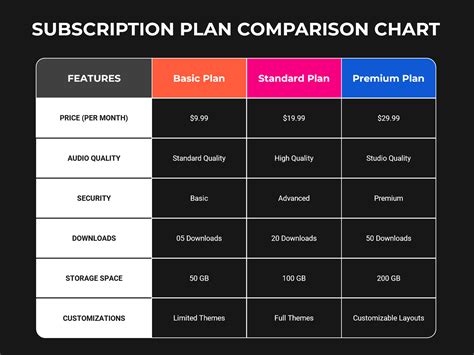
Adobe Stock also offers a free trial, which allows users to download a set number of assets included in their chosen plan without charge for a limited period. Any assets downloaded during the free trial are yours to keep, even if you decide to cancel the trial before it concludes.
The standard license, included with most subscriptions and credit pack purchases, permits perpetual use of the licensed image. However, there are limitations: print runs cannot exceed 500,000 copies, and the image cannot be used on items intended for commercial resale, such as printing it on a coffee mug to sell. For broader commercial use cases, extended licenses are available for purchase.
Adobe Stock's Unlimited Plan is a comprehensive offering that provides unlimited downloads of royalty-free standard assets, including images, music, templates, vectors, and illustrations. This plan also grants access to the entire collection of 4K and HD videos and includes the Adobe Firefly Standard Plan with generative AI credits. Unlike metered plans, the Unlimited Plan does not use credits for downloads. If you cancel an Unlimited plan, you may not use any assets downloaded for the first time after your plan ends. For users with very specific or infrequent needs, metered subscription plans with a set number of monthly credits offer a balanced approach, providing flexibility to use credits for licensing standard stock assets as needed.
Becoming an Adobe Stock Contributor
Adobe Stock isn't just a platform for consumers; it's also a valuable marketplace for creators. If you are 18 years old and possess high-quality photos, videos, or vector content that you own or control the rights to, you have the opportunity to become an Adobe Stock contributor. By uploading your work, you can earn income from your creative assets. Adobe provides resources and guidelines to help contributors understand the submission process, quality standards, and earning potential. This allows creatives to monetize their portfolios and reach a global audience of designers and marketers actively seeking unique and compelling visual content.
Conclusion
The seamless integration of Adobe Stock into Photoshop and other Creative Cloud applications represents a significant leap forward in creative workflow efficiency. By eliminating the traditional barriers between searching, previewing, licensing, and utilizing stock imagery, Adobe empowers designers to focus more on their creative output and less on administrative tasks. The ability to work with Smart Objects, leverage non-destructive editing, and seamlessly update assets ensures a fluid and adaptable design process. Whether you are a seasoned professional or an emerging creative, mastering the integration of Adobe Stock within your Photoshop workflow can unlock new levels of productivity and creative freedom.