In the dynamic world of digital art and image manipulation, Krita offers a versatile set of tools to enhance your creative workflow. One such fundamental yet powerful feature is the ability to flip the canvas. This function allows you to mirror your artwork horizontally or vertically, a technique invaluable for checking symmetry, correcting anatomical errors, or simply exploring different compositional possibilities. Whether you're a seasoned digital artist or just beginning your journey with Krita, understanding how to effectively utilize the flip canvas feature can significantly improve the quality and efficiency of your work. This tutorial will delve into the various methods for flipping your canvas in Krita, providing clear instructions and practical applications for each.
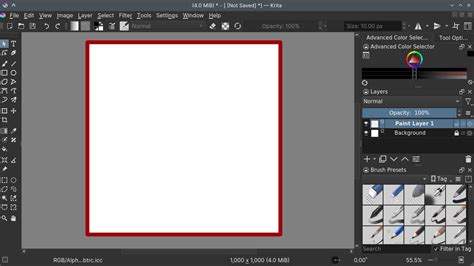
Understanding the Purpose of Flipping the Canvas
At its core, flipping the canvas in Krita serves to mirror your image across a central axis. Imagine you have a character in your drawing that is predominantly facing to the right. By flipping the canvas horizontally, that same character will now appear to be facing to the left. This action affects the entire canvas, the active image, or a selected layer, depending on the method you choose.
The primary reasons for employing this function often revolve around critical evaluation and design refinement. For instance, when working on a portrait or a character design, the human eye is remarkably adept at detecting subtle asymmetries. Flipping the canvas can instantly reveal proportions that might seem correct in one orientation but appear slightly off when viewed in reverse. This is particularly useful for ensuring facial features are balanced or that limbs are rendered with accurate length and placement. Beyond symmetry checks, flipping can also help artists break free from ingrained visual habits, offering a fresh perspective on their work and potentially sparking new creative directions. It's a simple yet effective way to "unsee" what you've become accustomed to and identify areas that require adjustment or improvement.
Temporary Canvas Mirroring: A Quick Perspective Shift
Krita provides a straightforward method for temporarily mirroring your canvas, a feature designed for quick checks without committing to a permanent change. This temporary flip, often referred to as "Mirror View," is an excellent tool for spotting inconsistencies in your design or drawing. It essentially creates a mirrored reflection of your canvas that you can view and interact with, but it doesn't alter the underlying artwork itself.
To activate this temporary mirror, navigate to the main menu bar at the top of the Krita window. Click on "View," then hover over "Canvas," and select "Mirror View." Alternatively, you can often use a keyboard shortcut for this function. Once "Mirror View" is enabled, your canvas will appear horizontally flipped. This allows you to critically assess your artwork from a reversed perspective, helping you to identify any elements that might appear unbalanced or incorrect.
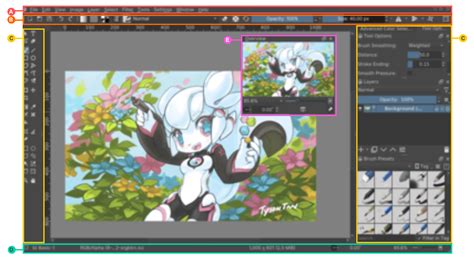
The beauty of the "Mirror View" function lies in its non-destructive nature. Your original artwork remains untouched. To revert your canvas back to its original, unflipped orientation, you can simply click the "M" key again if it's assigned as a shortcut for this feature, or you can follow the same menu path: "View" > "Canvas" > "Mirror View." This toggle functionality makes it incredibly easy to switch between the normal and mirrored views as often as needed during your creative process. This is particularly beneficial for complex illustrations, character designs, or any project where precise alignment and balance are crucial. It allows for a dynamic and iterative design process, enabling artists to catch errors early and make informed adjustments.
Permanent Canvas Flipping: Utilizing the Transform Tool
While the temporary mirror is excellent for quick checks, Krita also offers a way to permanently flip your canvas or layers using the powerful Transform Tool. This method is ideal when you intend to change the orientation of your artwork or a specific element within it as a deliberate artistic choice.
To begin, you'll need to activate the Transform Tool. You can typically find this tool in Krita's main toolbar, often represented by an icon resembling a bounding box or a set of transformation handles. Once the Transform Tool is active, you'll notice a set of options appear in the "Tool Options Docker," which is usually located near the toolbar or can be opened from the "Settings" menu.
Within the "Tool Options Docker" for the Transform Tool, you will find specific icons dedicated to flipping. There are generally two primary flip icons: one for horizontal flipping and another for vertical flipping. The horizontal flip icon will mirror your selection or the entire canvas from left to right. The vertical flip icon will mirror it from top to bottom.
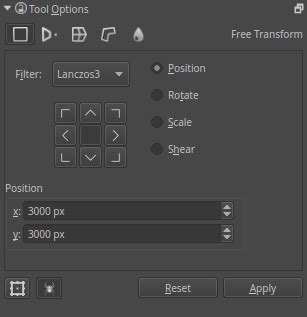
When you click either the horizontal or vertical flip icon, the canvas or the selected layer will be immediately flipped and will remain in this new orientation. This change is persistent unless you choose to flip it back using the same icons. This method is useful for creating mirrored elements, preparing artwork for specific printing requirements, or when an artist decides that a reversed composition is artistically superior. For example, if you've completed a detailed illustration and then decide that the overall balance would be improved by having the main subject face the opposite direction, using the Transform Tool to permanently flip the canvas is the appropriate approach.
It's important to note the distinction between flipping the entire canvas and flipping a specific layer. If you have multiple layers in your project, selecting a layer before activating the Transform Tool and using the flip icons will only affect that particular layer. Flipping the entire canvas, however, will alter all visible layers in their current arrangement. This offers granular control over your transformations, allowing for complex manipulations within a single project.
Advanced Applications and Considerations
The ability to flip the canvas in Krita extends beyond simple mirroring for error checking. Artists can leverage this functionality for a variety of advanced techniques and creative explorations. For instance, when developing character designs, artists often sketch multiple variations. Flipping the canvas can help visualize how a character would look from the opposite side, which is crucial for maintaining consistency in a 3D model or a multi-view illustration.
Consider the process of creating symmetrical designs. While Krita has dedicated symmetry tools, manually flipping the canvas can be an effective way to check and refine symmetrical elements. You can draw one half of a design, then flip the canvas to see how the other half aligns, making adjustments as needed. This iterative process ensures a more precise and aesthetically pleasing symmetrical outcome.
Furthermore, flipping the canvas can be a powerful tool for overcoming creative blocks. Sometimes, an artist can become too accustomed to the default orientation of their work, leading to a sense of stagnation. Flipping the canvas can provide a fresh, albeit reversed, perspective that might reveal new compositional possibilities or highlight areas that were previously overlooked. This simple change in viewpoint can often be enough to reignite inspiration and push the artwork in unexpected directions.
When working with text in Krita, flipping the canvas requires special attention. If you have text that needs to be mirrored, it's generally best to either create the text after flipping the canvas or to use a dedicated text transformation tool that handles mirroring correctly. Directly flipping a text layer might result in the characters themselves being mirrored, making them unreadable unless the text was intended to be backward. For instance, if you need to create text that reads correctly from right to left, you would typically type it normally and then use a tool to flip the entire layer or canvas.
Another important consideration is the workflow when exporting artwork. If your final output requires a specific orientation, such as for printing on a particular side of a product or for a specific display format, ensuring your canvas is flipped correctly before exporting is essential. Always double-check the orientation of your final artwork to avoid any unintended inversions.
Conclusion: Enhancing Your Krita Workflow
The flip canvas functionality in Krita, whether used temporarily for review or permanently for artistic intent, is an indispensable tool for digital artists. It empowers you to critically assess your work, refine symmetrical elements, overcome creative hurdles, and ensure your final artwork is presented precisely as intended. By mastering both the "Mirror View" option and the Transform Tool's flip capabilities, you can significantly enhance the precision, efficiency, and creative potential of your Krita workflow. Regularly incorporating canvas flipping into your routine will undoubtedly lead to more polished and impactful digital creations.