Experiencing an unresponsive Apple Pencil when trying to draw in Procreate can be a frustrating roadblock for digital artists. This guide aims to systematically address the common causes and solutions for when your Apple Pencil is not drawing in Procreate, focusing on ensuring proper functionality and exploring potential hardware or software conflicts. We will delve into the intricacies of the Apple Pencil's battery, its connection to your iPad, and the software environments it interacts with, providing a comprehensive approach to diagnose and resolve these drawing disturbances.
Initial Software and Device Checks
Before delving into more complex diagnostics, it is crucial to ensure that your iPad and the Procreate application are running on the latest available software. Outdated operating systems or app versions can often lead to compatibility issues and unexpected behavior.
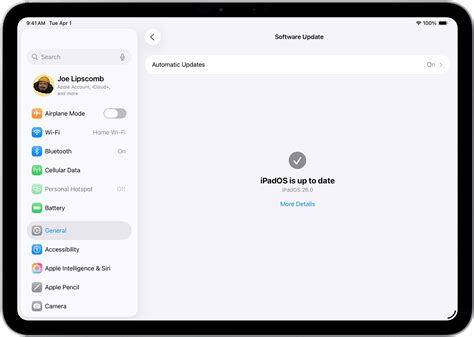
Firstly, let's check to see if the software on your iPad is up to date. Ensure your device is running the latest version of iPadOS. You can verify this by navigating to Settings > General > Software Update. If an update is available, it is recommended to install it. Following a software update, it is good practice to restart your device. A simple restart can often resolve minor software glitches that might be interfering with the Apple Pencil's functionality. To restart your iPad, you can typically hold down the power button and one of the volume buttons until the power off slider appears, then slide to power off. After a few moments, press and hold the power button again to turn it back on.
Next, let's check to see if there are any app updates available to install for Procreate and other relevant applications. App developers frequently release updates to fix bugs, improve performance, and enhance compatibility with the latest operating system versions. You can check for app updates by opening the App Store, tapping on your profile icon in the upper-right corner, and then scrolling down to see available updates. Tap "Update All" or individually update Procreate if it appears in the list.
Testing Apple Pencil Functionality in Other Applications
If the issue persists within Procreate after ensuring your software is up to date and your device has been restarted, the next logical step is to isolate the problem. This involves testing the Apple Pencil's responsiveness in a different application to determine if the issue is specific to Procreate or a more general problem with the Apple Pencil itself.
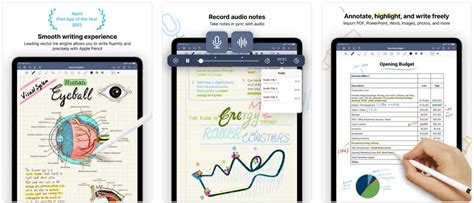
If the issue still occurs in the Procreate app after checking out the resources above, we’d advise testing to see if when drawing in the Notes app the Apple Pencil responds to pressure. The built-in Notes app is a simple yet effective tool for this test. Open the Notes app, create a new note, and select the drawing tools. Try drawing with your Apple Pencil, paying close attention to whether it registers strokes and responds to varying pressure. If the Apple Pencil functions correctly in the Notes app, it strongly suggests that the problem lies with Procreate's settings, compatibility, or a specific configuration within the app. Conversely, if the Apple Pencil is unresponsive or exhibits similar issues in the Notes app, the problem is more likely to be with the Apple Pencil hardware or its connection to the iPad.
Diagnosing Apple Pencil Battery and Charging Issues
A significant number of Apple Pencil issues, particularly those related to unresponsiveness or lack of pressure sensitivity, can be attributed to battery-related problems. The internal lithium-ion battery in the Apple Pencil is a critical component, and its condition directly impacts the device's performance.
As described, your Apple Pencil is displaying symptoms of a dead battery - that will not accept or hold any charge. This is a common scenario, especially if the Apple Pencil has been left uncharged for extended periods. The tiny internal Li-ion battery is susceptible to permanent/irreversible damage through being left discharged for long periods. Even some “new” pencils can exhibit signs of failure out-of-the-box if they are “old stock.” This means that even a brand-new Apple Pencil might have a battery that has degraded due to prolonged storage without charging.
It is essential that if you have an Apple Pencil that you charge it regularly - whether used or not - so as to protect the battery from deep-discharge. Do not allow a pencil to remain in a low-charge state for any period of time, as the internal battery will fail, rendering the Pencil useless. This proactive charging habit is key to maintaining the longevity of the Apple Pencil's battery.
Assuming that you do not have any other iPad charging issues, and that the Lightning Port of your iPad is free from debris, let's focus on charging the Apple Pencil. Ensure you are using a reliable charging method. For the first-generation Apple Pencil, this typically involves plugging it directly into the iPad's Lightning port or using the included Lightning adapter with a power source. For the second-generation Apple Pencil, ensure it is magnetically attached to the side of a compatible iPad Pro and that the charging indicator appears on the screen.
Whilst the Pencil is plugged-in to the Lightning Port of your iPad, verify that the Pencil is recognised. Navigate to Settings > General > About. Scroll to the bottom of the page, and you should find two identical entries for the Pencil (one each for the physical and Bluetooth connections). If the Pencil is not recognized here, it could indicate a connection issue or a deeper problem with the Pencil or the iPad's port.
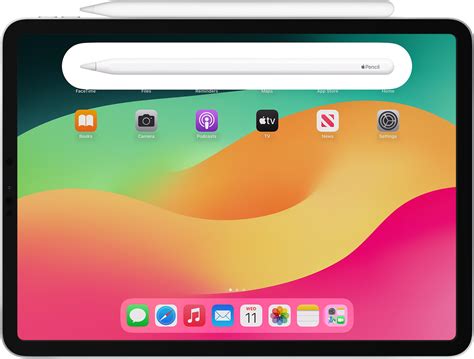
If the Pencil Battery has failed, the only remedy is to replace the Pencil. If purchased directly from Apple, and your pencil is within its one-year warranty, you should look to having it replaced. Given the current circumstances, you may need to contact Apple Support online or via phone to arrange for a replacement, especially if Apple Stores are not yet fully operational in your area.
Apple Pencil NOT WORKING? or NOT CHARGING? Let's Fix It
Deep Dive into Procreate Settings and Configurations
If the Apple Pencil is functioning correctly in other applications and its battery health appears to be satisfactory, the focus shifts to Procreate's internal settings and potential conflicts. Procreate offers a robust set of customization options that, if misconfigured, could lead to drawing issues.
Within Procreate, navigate to the Actions menu (wrench icon), then to Preferences. Here, you will find several options that can affect drawing input. One crucial area is Gesture Controls. While less likely to cause complete unresponsiveness, incorrect settings here could lead to unexpected behavior. Ensure that no gestures are inadvertently mapped to interfere with standard drawing input.
Another critical setting to examine is Apple Pencil. This section allows you to fine-tune how Procreate interprets your Apple Pencil's input. Look for options related to Pressure Sensitivity and Jitter Smoothing. If Pressure Sensitivity is turned off or set to a very low level, you may not see variations in line thickness based on how hard you press. Experiment with adjusting the pressure curve to see if it resolves the issue. Jitter smoothing helps to reduce shaky lines, but excessively high smoothing could potentially make the drawing feel less responsive, though it is unlikely to cause complete non-drawing.
Consider also checking the Palm Support settings within Procreate. While designed to prevent accidental touches from your palm, an overly sensitive or misconfigured palm rejection setting could potentially interfere with the Apple Pencil's input. Try toggling this setting to see if it makes a difference.
If you suspect a specific brush is causing the problem, try switching to a default Procreate brush (like "Technical Pen" or "Soft Brush") and see if the Apple Pencil draws with that brush. If it does, the issue might be with the settings of a custom or downloaded brush. You can reset brush settings by tapping the brush, then tapping it again to open the brush studio, and selecting "Reset to Default."
Advanced Troubleshooting and Potential Hardware Interactions
When basic software and settings checks do not yield a solution, it's time to consider more advanced troubleshooting steps and potential interactions between your iPad, its case, and the Apple Pencil.
Ensure that your iPad's screen protector, if you are using one, is compatible with the Apple Pencil. Some screen protectors, especially those that are very thick or have a textured surface, can interfere with the touch sensitivity and the Apple Pencil's ability to register input accurately. Try removing the screen protector temporarily to see if this resolves the drawing issue.
Similarly, consider your iPad case. Some cases, particularly those with magnetic closures or built-in stands, can sometimes interfere with wireless signals or the functionality of the Apple Pencil, especially if the Pencil is magnetically attached to the iPad for charging. Remove the case and test the Apple Pencil's drawing capabilities again.
If you are using a first-generation Apple Pencil, double-check the condition of the Lightning connector on both the Pencil and your iPad. Ensure there is no debris, lint, or damage that could prevent a proper connection for charging or data transfer. Carefully clean the Lightning port with compressed air or a dry, non-metallic brush if necessary.
For second-generation Apple Pencil users, ensure a strong magnetic connection. If the Pencil is not firmly seated on the magnetic charging strip, it may not charge or communicate effectively. Try re-attaching it firmly.
If the Apple Pencil is still not drawing in Procreate, and you have exhausted all software and settings troubleshooting, it may be an indication of a hardware fault with either the Apple Pencil itself or, less commonly, the touch digitizer on your iPad.
Here is a link to an excellent troubleshooting guide for the Apple Pencil, which provides further in-depth information and support options. This comprehensive guide covers a wide range of issues and may offer additional steps tailored to your specific situation. Remember, if the battery has failed, replacement is the only recourse.
Exploring Edge Cases and Uncommon Scenarios
While the majority of Apple Pencil drawing issues in Procreate can be resolved through the previously mentioned steps, there are a few less common scenarios that are worth considering if the problem persists.
One such edge case involves Bluetooth interference. Although the Apple Pencil primarily uses a direct connection for drawing input, Bluetooth plays a role in its overall functionality and recognition. Ensure that Bluetooth is enabled on your iPad. If you have a large number of Bluetooth devices connected simultaneously, try temporarily disabling other active Bluetooth connections to see if this improves the Apple Pencil's performance in Procreate.
Consider the possibility of a corrupted Procreate installation. While rare, it's not impossible for an app's core files to become corrupted. If all other troubleshooting steps have failed, you might consider backing up your Procreate work (if possible) and then uninstalling and reinstalling the Procreate app. This will essentially give you a fresh installation, eliminating any potential software corruption within the app itself.
Another factor to consider is the overall performance of your iPad. If your iPad is running very slowly or experiencing frequent crashes, it could be struggling to process the demands of Procreate and the Apple Pencil simultaneously. Closing all other open applications and ensuring your iPad has sufficient free storage space can sometimes alleviate performance-related issues that might indirectly affect drawing input.
Finally, think about the specific tools and features you are using within Procreate. Are you working with extremely large canvas sizes, high layer counts, or complex brush settings? While Procreate is designed to handle demanding tasks, pushing the limits of your iPad's hardware could potentially lead to input lag or unresponsiveness. Try simplifying your canvas size, reducing the number of layers, or using less complex brushes to see if the drawing input becomes more reliable. If these advanced checks don't resolve the issue, and the Pencil is confirmed to be recognized by the iPad and has a healthy battery, it may be time to contact Apple Support for further hardware diagnostics.