Shooting videos with diverse backgrounds is a common practice, but often these backdrops may not be as flattering as desired or might not align with the intended theme of the video. Fortunately, the post-editing phase offers powerful solutions for transforming your footage. One of the most effective methods involves utilizing sophisticated video editing software, and Adobe Premiere Pro stands out as a premier choice for achieving this. This tutorial delves into the intricacies of removing video backgrounds using Premiere Pro, while also exploring accessible alternatives for streamlined editing.
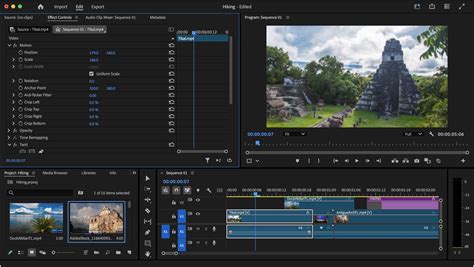
The Power of Adobe Premiere Pro for Background Removal
Adobe Premiere Pro is a widely recognized and highly capable video editing application, boasting an extensive array of features designed to enhance video production. Among its robust capabilities is the functionality to effectively remove backgrounds from video clips. The software offers specialized tools, notably the Chroma Key effect, which facilitates the creation of background-free videos with remarkable ease. Within the Chroma Key options, users will find both a basic Color Key and the more advanced Ultra Key.
To access the Ultra Key effect, navigate through the Premiere Pro interface by selecting "Effects," then "Video Effects," followed by "Keying," and finally "Ultra Key." Once the effect is applied to your video clip, a crucial step for visualizing the removal process is to change the output view to "Alpha." This setting is instrumental in clearly displaying the details of your subject against a transparent or black background, allowing you to meticulously assess the effectiveness of the keying.
Fine-Tuning Your Alpha Matte for Precision
Once the initial keying is applied, the "Matte Cleanup" settings within the Ultra Key effect become your best friend for achieving a polished result. This feature allows for the precise refinement of the edges of your subject, ensuring a clean separation from the background. It’s common for certain background colors, especially those with high saturation like green or blue, to "spill" onto the edges of your subject. The Matte Cleanup tools are designed to address these imperfections, allowing you to meticulously scrub away any residual color contamination.
The process involves a careful adjustment of various parameters within the Matte Cleanup section. You might need to increase "Choke" to slightly shrink the matte, effectively pulling the edges of your subject inwards and away from any lingering background elements. Conversely, "Soften" can be used to smooth out any harsh or jagged edges that may have resulted from the initial keying process. "Spread" can help to expand or contract the matte, offering further control over the boundary between your subject and the background. For more complex scenarios with semi-transparent elements like hair, the "Conluence" and "Rollback" settings can be particularly useful in preserving detail while still removing the unwanted background.
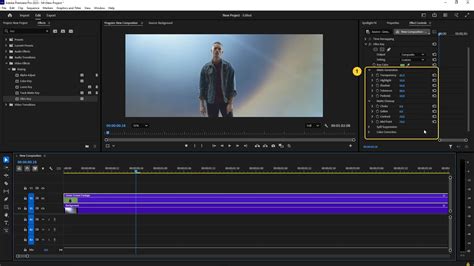
By diligently working through these settings, you can achieve a professional-looking background removal. The goal is to create a clean alpha channel where your subject is perfectly isolated, ready to be placed against a new background or utilized in compositing. Once you are satisfied with the matte, you can switch the output view back to "Composite" to see your subject seamlessly integrated with a transparent background. This methodical approach ensures that even challenging shots with subtle color variations or complex edges can be resolved effectively within Premiere Pro.
An Accessible Alternative: FlexClip for Effortless Background Management
While Adobe Premiere Pro offers unparalleled depth and control for professional video editing, some users may find its extensive feature set to be somewhat complex or overwhelming, particularly for specific tasks like background removal. Additionally, there might be instances where Premiere Pro is not readily available. In such scenarios, a more direct and user-friendly alternative is highly beneficial. FlexClip emerges as a powerful, all-in-one video background remover and editor, providing a simplified yet effective pathway to achieve professional-looking results.
FlexClip distinguishes itself by offering two primary methods for background manipulation: a Chroma Key tool and an AI-Powered Video Background Remover. This dual approach ensures that users can tackle a wide range of video scenarios with ease, whether the footage was shot with a traditional green screen or not.
Harnessing the Power of Chroma Key in FlexClip
For videos shot against a solid color background, such as the ubiquitous green screen or blue screen, FlexClip's free Chroma Key tool is exceptionally efficient. This feature allows for the one-click removal of any chroma background. The process is remarkably intuitive: simply select the color picker tool within the Chroma Key interface and click on the background color present in your video. FlexClip's algorithm then intelligently identifies and removes that specific color.
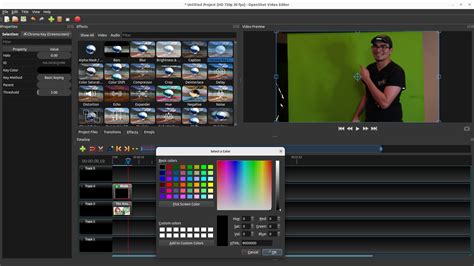
Following the initial removal, FlexClip provides adjustment sliders for "Intensity" and other parameters, enabling users to fine-tune the result. This allows for precise control over the transparency and cleanliness of the edges, ensuring that no unwanted background remnants persist and that your subject remains intact. Once the background is successfully removed, you have the creative freedom to replace it with any color, a selection of stock photos, or even AI-generated imagery, opening up a world of possibilities for your video's aesthetic. This straightforward process makes it an ideal solution for creating dynamic intros, product showcases, or any video that requires a clean, isolated subject.
AI-Powered Background Removal: The Future of Video Editing
The limitations of traditional green screen techniques are well-known; not every video project is shot with such a setup. For those instances where a green screen is absent, or when dealing with more complex, non-uniform backgrounds, FlexClip's AI-Powered Video Background Remover is a game-changer. This advanced feature eliminates the need for green screen filming altogether. Users simply upload their video directly to FlexClip, and its sophisticated artificial intelligence takes over. The AI automatically analyzes the footage, intelligently recognizes and isolates the subject from the background, and removes it seamlessly.
The Fastest Way to Get Realistic AI Backgrounds
The power of this AI lies in its ability to handle intricate details and varying lighting conditions, often producing results that rival or even surpass traditional keying methods, especially without a controlled green screen environment. After the background is automatically removed, FlexClip provides a versatile canvas for customization. You can choose to fill the background with a solid color, select from an extensive library of stock photos and videos, or even utilize AI image generation to create a completely unique backdrop. This capability is particularly revolutionary for content creators who need to quickly and efficiently produce professional-looking videos without extensive technical expertise or specialized equipment.
Expanding Your Creative Toolkit with FlexClip's Additional Features
Beyond its core background removal capabilities, FlexClip offers a comprehensive suite of editing tools designed to empower users of all skill levels. Whether you are a seasoned editor looking for a quick solution or a beginner embarking on your video creation journey, FlexClip provides the resources to polish your projects to perfection.
Essential Editing Tools for a Polished Finish
FlexClip includes an easy-to-use trimmer and cutter, allowing for precise control over the duration and flow of your video clips. The integrated text editor enables you to add titles, captions, and other textual elements with a wide range of customizable fonts, colors, and animations. For adjusting the pace of your narrative, a video speed changer is readily available, allowing you to create slow-motion effects or speed up footage as needed.
Video overlay effects offer a way to add depth and visual interest, enabling you to layer graphics, animations, or even other video clips onto your main footage. For projects requiring narration or voiceovers, FlexClip provides a straightforward voice-over recording tool. These features, combined with the background removal tools, create a holistic editing environment where complex video transformations can be achieved without the need for downloading or installing any software. The platform is entirely web-based, ensuring accessibility from any device with an internet connection.
Embracing the Future with Advanced AI Tools
FlexClip is at the forefront of integrating cutting-edge AI technology into its platform to further simplify and enhance the video creation process. For those struggling to brainstorm ideas or script their content, the AI video script generator can provide creative prompts and even draft entire scripts based on user input. The text-to-speech tool allows you to convert written text into natural-sounding voiceovers, saving time and effort compared to recording your own narration.
Furthermore, the auto subtitle generator is an invaluable asset for improving video accessibility and engagement. This tool automatically transcribes spoken words in your video and generates accurate subtitles, which can be easily edited for precision. The integration of these advanced AI tools transforms FlexClip from a simple editor into a comprehensive content creation hub, catering to the evolving needs of modern digital storytellers.

Inspiration at Your Fingertips: Customizable Templates
For those seeking a starting point or creative inspiration, FlexClip offers a vast library of fully-customizable video templates. These templates span a wide range of categories and styles, from business presentations and social media ads to personal vlogs and event invitations. Each template is professionally designed and can be easily adapted to your specific needs by replacing placeholder text, images, and video clips with your own content. This feature significantly accelerates the production process, allowing users to create polished and engaging videos in a fraction of the time it would take to start from scratch. Whether you're aiming for a modern, minimalist aesthetic or a vibrant, energetic feel, the template library provides a rich source of ideas and a solid foundation for your video projects.
tags: #remove #background #adobe #premiere