Adobe Illustrator is a powerful vector graphics editor used by designers worldwide for everything from logo creation to complex illustrations. While its extensive feature set can be daunting, mastering its shortcuts can significantly boost productivity and streamline workflows. This guide delves into the essential artboard shortcuts in Illustrator, offering practical advice and exploring advanced techniques that can elevate your design capabilities.
The user experience with Illustrator shortcuts often begins with a desire for efficiency. As noted, "A few weeks ago I compiled a list of InDesign shortcuts that I use daily and made a A4 printable cheat sheet… Lots of people downloaded it, and asked me if I could make the same thing for Illustrator. So, here it is: a single A4 printable cheat sheet that you can always have on your desk, ready to be checked. I hope this will help you memorize a few more shortcuts and be even more productive." This sentiment highlights the common challenge of retaining and utilizing a vast array of keyboard commands.
Understanding Artboard Fundamentals in Illustrator
Artboards are the canvases within your Illustrator document where you create your artwork. They are crucial for managing multiple pages, different screen sizes, or various design variations within a single file. Efficiently navigating and manipulating these artboards is key to a smooth design process.
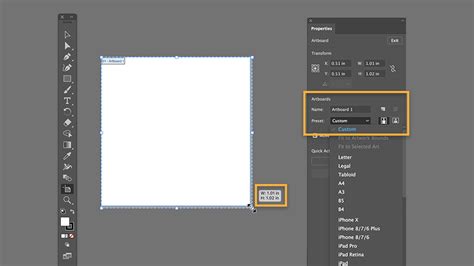
The primary tool for managing artboards is the Artboard Tool, accessible via the shortcut Shift + O. This tool allows you to select, move, resize, and create new artboards. Once the Artboard Tool is active, you can perform several key operations:
- Creating New Artboards: With the Artboard Tool selected, simply click and drag on the canvas to draw a new artboard. You can also hold Alt (Windows) or Option (macOS) while dragging to create a duplicate of an existing artboard.
- Moving Artboards: Click and drag an artboard with the Artboard Tool to reposition it. Holding Shift while dragging constrains the movement to horizontal or vertical axes.
- Resizing Artboards: Select an artboard with the Artboard Tool. Dragging the corner or edge handles will resize it. Holding Shift while resizing maintains the aspect ratio.
- Deleting Artboards: Select an artboard with the Artboard Tool and press the Delete key.
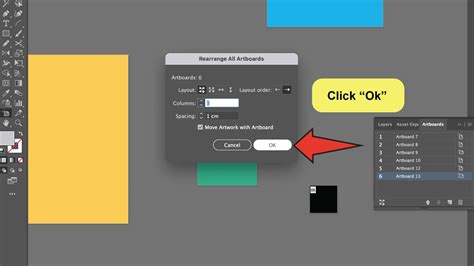
- Arranging Artboards: The Artboard Panel (Window > Artboards) provides a centralized location to manage your artboards. Within this panel, you can rename artboards, change their stacking order, and crucially, use the "Arrange All Artboards" option. This feature allows you to automatically lay out your artboards in a grid, which is incredibly useful for organizing multiple pages or variations. You can specify the number of columns, the spacing between artboards, and the layout direction.
Essential Artboard Shortcuts for Enhanced Productivity
Beyond the Artboard Tool itself, several general Illustrator shortcuts significantly improve artboard management:
- Zooming: Ctrl + + (Windows) or Cmd + + (macOS) zooms in, while Ctrl + - (Windows) or Cmd + - (macOS) zooms out. Ctrl + 0 (Windows) or Cmd + 0 (macOS) fits the artboard to the screen, and Ctrl + Alt + 0 (Windows) or Cmd + Option + 0 (macOS) fits all artboards to the screen. These are fundamental for quickly assessing your work at different scales.
- Panning: Hold down the Spacebar to temporarily activate the Hand Tool, allowing you to click and drag to pan across your artboard. This is indispensable for navigating large or complex artwork.
- Switching Artboards: The Page Up and Page Down keys can be used to cycle through your artboards sequentially, provided you have multiple artboards in your document. This is a quick way to jump between different sections of your design.
Advanced Artboard Management and Workflow Tips
For those looking to truly "transform into an Illustrator SuperHero," as one expert suggests, understanding advanced artboard techniques is paramount. The course outline mentions "Advanced Artboard & Pages Tricks," indicating a deeper dive into capabilities beyond basic manipulation.
One crucial aspect is the distinction between artboards and pages. While artboards serve as your design canvases, Illustrator also has a concept of "pages" that can be relevant, particularly when considering print output. Understanding how artboards translate to printed pages is essential for professional workflows.
Consider the scenario of creating a multi-page document, such as a brochure or a book. Each page of the final output will correspond to an artboard in Illustrator. The "Arrange All Artboards" function in the Artboard Panel is invaluable here. By setting up your artboards in a logical sequence and spacing them appropriately, you can ensure that when you export for print or create a PDF, the pages will be in the correct order.
Furthermore, the ability to easily duplicate artboards, as mentioned with Alt/Option + drag, is a time-saver when creating variations of a design or preparing assets for different platforms (e.g., social media posts of varying dimensions).
Integrating Artboards with Other Illustrator Features
The true power of artboards is unlocked when they are used in conjunction with other Illustrator features. The provided information hints at advanced techniques that leverage artboards for complex projects:
- Vectorizing Sketches: The ability to "take hand-drawn sketches and vectorize and color them" implies that you might place a sketch on one artboard and then create the vectorized version on another, or even within the same artboard but on a separate layer. This requires efficient artboard management to keep related elements organized.
- Creating Charts and Graphs: When making "beautiful charts and graphs for your documents," you might dedicate specific artboards to these elements, allowing for focused design and easy integration into larger layouts.
- Working with Images: Mastering images within the Illustrator workflow, including "Unlink vs Embedded Images" and "Crop Images Rather than Mask," can be managed more effectively when you have dedicated artboards for image-heavy sections of your design or for preparing assets for export.
- Advanced Exporting: "Advanced Exporting Assets Tricks in Illustrator" often involve utilizing artboards. The "Export for Screens" feature (File > Export > Export for Screens) allows you to export multiple artboards at once, specifying different resolutions and file formats for each. This is a game-changer for creating assets for web, mobile, and other digital applications. You can select individual artboards or all of them, define scale factors (e.g., 1x, 2x for Retina displays), and choose formats like PNG, JPG, SVG, or PDF.
How and why to use Export for Screens in Adobe Illustrator
Beyond Artboards: Expanding Your Illustrator Skillset
While artboard shortcuts are a crucial component of efficient Illustrator use, the provided expert insights reveal a wealth of other advanced techniques that complement artboard management:
- Artificial Intelligence in Design: The mention of "artificial intelligence to boost your creativity in ideation" and tools like "Text to Vector Ai," "Text to Pattern Ai," and "Generative Recolor" points to the evolving landscape of design tools. These AI-powered features can rapidly generate concepts and variations, which can then be organized and refined using artboards.
- Shape Manipulation: Techniques like "Advanced Shape Builder Uses," understanding the "differences between the Pathfinder Vs Shape Builder," and mastering "Compound Paths" are fundamental for creating complex vector artwork. The Curvature Tool and advanced Pen Tool tricks also fall into this category.
- Typography Mastery: "Secret gems that'll help you level up your typography skills," including how to "put Text Inside a Letter or Shape," "use the Touch Type Tool," and "add a Gradient in Text," are essential for professional design.
- Color Management: From "Color mastery" and "Advanced Color Swatches" to understanding "RGB vs CMYK color modes," "Pantone Spot Colors," and "Recolor Artwork," a strong grasp of color is vital.
- Effects and Transformations: Techniques like "Live Shape Effects," "Repeating Grids & Concentric Circles," "Random Objects," and the "Transform and Distort" section can dramatically speed up the creation of intricate designs. The "Dimension Tool" is also highlighted for adding measurements to designs.
- Workflow Enhancements: Concepts like "Advanced Keyboard Shortcuts," "Super Selection Mastery," and "Layer Power Moves" are all about optimizing your daily workflow. The "History Panel" for tracking changes and "Retype to know what Font is being used" are practical tools for any designer.
The emphasis on becoming an "Illustrator SuperHero" and transforming into a "master of Illustrator" underscores the continuous learning required in the field. The structured curriculum described covers a broad spectrum of skills, from the fundamental artboard manipulations to the cutting-edge AI features.
The journey into mastering Adobe Illustrator, as suggested by the expert, is one of transforming from a basic user to a highly proficient designer. It involves not only memorizing shortcuts but also understanding the underlying principles of vector graphics and leveraging the software's advanced capabilities. By focusing on efficient artboard management and integrating it with these broader techniques, designers can unlock their full creative potential and produce exceptional work with greater speed and precision. The availability of printable cheat sheets and comprehensive courses further supports this learning process, making advanced Illustrator skills accessible to a wider audience, from beginners seeking structure to seasoned professionals looking to explore new horizons.
tags: #artboard #shortcut #illustrator