In the realm of digital design, achieving a harmonious and visually engaging aesthetic often hinges on the subtle interplay of colors and textures. CSS background blend modes offer a powerful and versatile toolkit for designers to manipulate how background layers interact with each other and with the underlying element. These modes dictate the mathematical and perceptual relationships between pixels, allowing for sophisticated effects that range from subtle darkening to dramatic color transformations. Understanding and effectively utilizing background blend modes can elevate a design from ordinary to extraordinary, imbuing it with depth, dynamism, and a unique visual character.
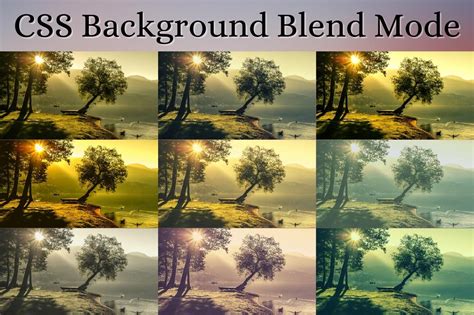
The Fundamental Concept of Blending
At its core, blending, also known as compositing or mixing, is the process by which two or more layers of visual information are combined to create a single, unified image. In digital image editing and computer graphics, blend modes are algorithms that determine how the pixels of one layer interact with the pixels of the layer beneath it. The "top" layer, often referred to as the blend layer or the active layer, influences the "base" layer, which is the layer below it. This interaction can be based on various mathematical operations applied to the color channels (Red, Green, Blue, and Alpha) of the pixels involved.
The concept of blending extends beyond simple opacity. While opacity controls the transparency of a layer, blend modes govern the how of the interaction. Even with a deep understanding of the mathematical definitions of each blend mode, predicting the precise visual outcome can be challenging. This is precisely why interactive tools and visual experimentation are invaluable for designers exploring these effects.
Background Blend Modes in CSS: Layering and Interaction
The background-blend-mode CSS property specifically addresses how multiple background layers of an element should blend with each other and with the element's background color. When an element has multiple background-image layers, the background-blend-mode property, when provided as a comma-separated list, is applied in the same order as the background-image list. This means the first blend mode in the list corresponds to the first background image (the topmost layer), the second blend mode to the second background image, and so forth. Each background layer must blend with the element’s background layer that is below it and the element’s background color.
It is crucial to remember that when using multiple background images in CSS, they do not stack in the order you might intuitively expect. The first image declared is actually drawn on top of the second, not the other way around. This order is critical when applying blend modes, as the blend mode specified for the first image will affect how it interacts with the second image, and so on, down to the base background color.
Deconstructing the Blend Modes: A Categorical Overview
The vast array of blend modes can be broadly categorized based on their primary effect: darkening, lightening, increasing contrast, or manipulating color. While the specific mathematical formulas can be complex, understanding their general behavior and visual impact is key to their effective application.
Darkening Blend Modes
These modes tend to make the resulting image darker by either multiplying or burning the colors. They are particularly useful for creating shadows, adding depth to dark base layers, or achieving a vintage or muted aesthetic.
- Normal: This is the default behavior. The color is simply placed on top of the color of the layer below, with its opacity determining the visibility of the underlying layer. This is also known as alpha blending.
- Multiply: This mode multiplies the color values of the blend layer with the base layer. The result is always a darker color, as the RGB channel values are multiplied. The composite is darker, unless the pixel is white in either layer or black in both layers. Where either layer is white, the composite is the same as the other layer. This mode is commutative, meaning exchanging the layers does not change the result. If the two layers contain the same picture, multiply blend mode is equivalent to a quadratic curve, or gamma correction with γ=2. When one layer contains a homogeneous color, such as gray (0.8, 0.8, 0.8), multiply blend mode is equivalent to a curve that is simply a straight line.
- Color Burn: This mode darkens the base layer by increasing the contrast between the two layers, using the colors from the blend layer. It is named after a traditional darkroom technique of overexposing prints to make colors darker. The Color Burn blend mode divides the inverted base layer by the top layer, and then inverts the result. This darkens the base layer, increasing the contrast to reflect the color of the blend layer. The darker the base layer, the more its color is used. Blending with white produces no difference. When the blend layer contains a homogeneous color, this effect is equivalent to changing the black point to the inverted color. The operation is not invertible due to possible clipping of shadows.
- Linear Burn: This mode darkens the base layer by decreasing its brightness, again using the colors from the blend layer. It achieves this by summing the values in the two layers and subtracting 1. This is the same as inverting each layer, adding them together (as in Linear Dodge), and then inverting the result. The Multiply and Linear burn effects are applied, strengthening the contrast depending on the color of the applied layer.
- Darken: This mode retains the darkest components of the foreground and background pixels. It compares the color information of the blend layer and the base layer for each channel and displays the darker of the two. Darken Only creates a pixel that retains the smallest components of the foreground and background pixels.
Lightening Blend Modes
Conversely, these modes tend to make the resulting image lighter by screening or dodging the colors. They are excellent for creating highlights, adding a luminous glow, or achieving a brighter, more airy feel.
- Lighten: This mode retains the lightest components of the foreground and background pixels. It compares the color information of the blend layer and the base layer for each channel and displays the lighter of the two. Lighten Only has the opposite action of Darken Only. It selects the maximum of each component from the foreground and background pixels.
- Screen: This mode inverts the base layer colors, multiplies them with the blend layer colors, and then inverts the result. This creates an effect opposite to Multiply, resulting in a lighter composite. The Screen blend mode takes the RGB channel values from 0 to 1 of each pixel in the top layer and multiplies them with the values for the corresponding pixel from the bottom layer, after inverting them. This mode is commutative: exchanging two layers does not change the result. When one gets linear interpolation between 0 and ; when one gets linear interpolation between and 1. This mode is not commutative. Screen: keeps only the white and lighter colors of the blend layer and makes black or dark colors less opaque.
- Color Dodge: This mode lightens the base layer by decreasing the contrast between the two layers, using the colors from the blend layer. The Color Dodge blend mode divides the base layer by the inverted top layer. This lightens the base layer depending on the value of the top layer: the brighter the top layer, the more its color affects the base layer. Blending any color with white gives white. Blending with black does not change the image. The operation is not invertible due to possible clipping of highlights. (The clipping happens in the same area as for the Linear Dodge.) When the top layer contains a homogeneous color, this effect is equivalent to changing the white point to the inverted color.
- Linear Dodge (Add): This mode lightens the base layer by increasing its brightness. The Linear Dodge blend mode simply sums the values in the two layers (also known as additive blending). Blending with white gives white. Blending with black does not change the image. When the top layer contains a homogeneous color, this effect is equivalent to changing the output black point to this color, and (input) white point to the inverted color. The RGB values of the applied layer are added to those of the layer below. If the total RGB value is higher than 255, it is treated as 255. This effect is similar to Difference, except with a lower contrast. If the applied layer is white, the colors of the layer below are inverted. "Linear Dodge" produces the same visual result. Since this always produces the same or lighter colors than the input it is also known as 'plus lighter'.
Contrast Blend Modes
These modes create a more dramatic effect by increasing or decreasing contrast, often combining darkening and lightening behaviors based on the luminance of the blend layer. They are excellent for adding punch, depth, and dynamic visual interest.
- Overlay: This mode creates a composite that is a mix between Screen and Multiply. It behaves like Screen mode in bright areas and like Multiply mode in darker areas. The darker the base layer is, the more its color is used. The brighter the blend layer is, the more its color affects the base layer. Blending with white gives white. This is a variation of hard-light. The Overlay mode behaves like Screen mode in bright areas, and like Multiply mode in darker areas.
- Soft Light: This mode applies a softening or hardening effect based on the density of the superimposed color. It is most closely related to Overlay and is only similar to Hard Light by name. The effect of the Soft light mode depends on the density of the superimposed color. Using bright colors on the blend layer will create a brighter effect like the dodge modes, while dark colors will create darker color like the burn modes. There are a variety of different methods of applying a soft light blend. All the flavors produce the same result when the top layer is pure black; same for when the top layer is pure neutral gray.
- Hard Light: This mode also combines Multiply and Screen, but in a more intense way than Overlay. The effect of the Hard light mode depends on the density of the superimposed color. The Color dodge and Color burn effects are applied, strengthening the contrast depending on the color of the applied layer. If the blend color is lighter than 50% gray, the image is lightened, as if it were screened. If the blend color is darker than 50% gray, the image is darkened, as if it were multiplied. This is a variation of hard-light.
- Vivid Light: This mode combines Color Dodge and Color Burn, rescaled so that neutral colors become middle gray. Dodge applies when values in the blend layer are lighter than middle gray, and burn applies to darker values. The middle gray is the neutral color. When the blend layer's color is lighter than this, it effectively moves the white point of the base layer down by twice the difference; when it is darker, the black point is moved up by twice the difference.
- Linear Light: This mode combines Linear Dodge and Linear Burn, rescaled so that neutral colors become middle gray. Dodge is applied when the value on the blend layer is lighter than middle gray, and burn applies when the blend layer value is darker. The calculation simplifies to the sum of the base layer and twice the blend layer, subtract 1.
- Pin Light: This mode darkens or lightens the colors, depending on the blend color. The effect is similar to shining a diffused spotlight on the image. If the blend color is lighter than 50% gray, the image is lightened. If the blend color is darker than 50% gray, the image is darkened.
- Hard Mix: This mode replaces the colors, depending on the blend color. If the blend color is lighter than 50% gray, pixels darker than the blend color are replaced, and pixels lighter than the blend color do not change. The RGB components are added together. Also known as additive rendering. The RGB components are multiplied. A subtraction is performed between the elements' RGB components. The result, of course, is different depending on the z-index. When element B is drawn in front of element A, the resulting color has B's hue and saturation and A's lightness. A mix between screen and multiply. The darker is A, the more its color is used. The brighter is B, the more its color affects A. Blending with white gives white. This is a variation of hard-light.
Comparative Blend Modes
These modes often involve subtraction or comparison of color values, leading to effects that can invert colors, highlight differences, or create unique layered appearances.
- Difference: This mode subtracts the base color from the blend color or vice versa, depending on which is brighter, and takes the absolute value of the result. Difference never returns negative values. Blending with black produces no change, as values for all colors are 0. One of the main utilities for this is during the editing process, when it can be used to verify alignment of pictures with similar content. Difference subtracts the bottom layer from the top layer and takes the absolute value of the result.
- Exclusion: This mode is similar to Difference but produces a lower contrast effect. It simply adds pixel values of one layer with the other. In case of values above 1 (in the case of RGB), white is displayed. "Linear Dodge" produces the same visual result. Since this always produces the same or lighter colors than the input it is also known as 'plus lighter'.
Color Blend Modes
These modes specifically manipulate the hue, saturation, and luminosity of the layers, offering sophisticated color grading and correction capabilities.
- Hue: This mode uses the hue of the blend layer and the saturation and luminosity of the base layer. Colors which end up out of gamut are brought inside by mapping along lines of constant hue and luma.
- Saturation: This mode uses the saturation of the blend layer and the hue and luminosity of the base layer.
- Color: This mode uses the hue and saturation of the blend layer and the luminosity of the base layer. Colors which end up out of gamut are brought inside by mapping along lines of constant hue and luma. This mode is often used for colorizing grayscale images or for applying tinting effects.
- Luminosity: This mode uses the luminosity of the blend layer and the hue and saturation of the base layer. The Luminosity mode is commonly used for image sharpening, because human vision is much more sensitive to fine-scale lightness contrast than color contrast.
Practical Applications and Design Considerations
The practical applications of CSS background blend modes are vast and varied. Designers can leverage them to:
- Create complex background textures: By layering images, gradients, and solid colors with different blend modes, intricate and visually rich backgrounds can be constructed.
- Enhance visual hierarchy: Blend modes can be used to subtly differentiate between foreground and background elements, guiding the user's eye.
- Add depth and dimension: Darkening and lightening modes can simulate light and shadow, giving flat designs a sense of three-dimensionality.
- Achieve unique color effects: Color, Hue, and Saturation blend modes are invaluable for creative color grading and stylistic treatments.
- Develop dynamic and interactive designs: When combined with JavaScript, blend modes can be animated or adjusted in response to user interaction, creating highly engaging experiences.
All CSS blend modes explained || CSS blend mode for beginners
When implementing blend modes, consider the following:
- Browser Support: While widely supported in modern browsers, it's always good practice to check compatibility, especially for older versions. As of June 2016, CSS blend modes were not a standard yet, but they have since become a more established part of the CSS specification.
- Performance: Complex blend mode calculations can sometimes impact rendering performance, especially on less powerful devices. Test thoroughly.
- Accessibility: Ensure that the chosen blend modes do not compromise the readability of text or the overall accessibility of the design. High contrast is crucial for users with visual impairments.
- Experimentation: The best way to truly understand blend modes is through hands-on experimentation. Utilize online tools and experiment with different image and color combinations to discover their unique potential.
By mastering the nuances of CSS background blend modes, designers can unlock a new level of creative control, crafting visually compelling and sophisticated web experiences that captivate and engage users. The ability to seamlessly meld colors, textures, and images opens up a world of possibilities for innovative and memorable design.
tags: #background #blend #mode