Adobe Photoshop is a venerable and exceptionally powerful tool that serves as the backbone of image manipulation and graphic design for professionals and hobbyists alike. Whether you're looking to enhance your personal photos, create stunning digital art, or dive into professional graphic design, understanding how Photoshop works is a crucial first step. Needless to say that Photoshop is one of the best design software and used by all design enthusiasts around the world. It lets you create amazing art and design but understanding how Photoshop work or how you can use it, can be difficult if you just getting started. This tutorial is designed to guide you through the essential basic Photoshop skills, making your journey into this creative software both accessible and rewarding.
Navigating the Photoshop Workspace
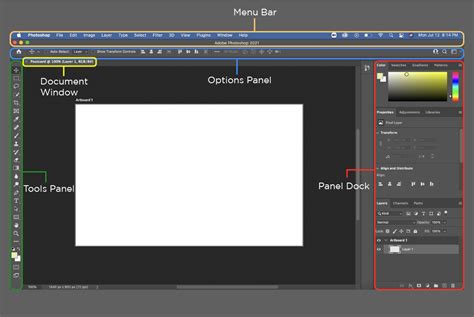
Before we delve into the intricate world of Photoshop, it's essential to familiarize ourselves with its environment. When we first open Photoshop, we're greeted by a sophisticated and customizable interface. At the heart of this interface is the Menu Bar, located at the top, which contains a variety of menus such as File, Edit, and Image, each holding an array of functions. Directly beneath, we find the Tool Options Bar, displaying settings for the selected tool. The main area, or canvas, is where our creativity comes to life, and surrounding it are panels like Layers, Adjustments, and History, which are integral to our workflow. To start working, we need to create a new document by going to File > New or using the shortcut Ctrl+N (Cmd+N on Mac). Once our document is set up, understanding how to navigate is key. We can use tools like the Zoom Tool or the Hand Tool to change our view. These can be accessed from the toolbar or with keyboard shortcuts like Z for Zoom and H for Hand. Our mouse cursor transforms into different icons depending on the tool we're using, providing a visual cue to its function. To work efficiently in Photoshop, we must keep our workspace organized and know how to find our way around. This includes mastering navigation like zooming in and out with the mouse wheel or by pressing Ctrl and + or - (Cmd on Mac).
To add or remove panels, we go to Window in the menu bar. We can tailor Photoshop to our needs. To start, we choose a workspace from the top-right corner. Color settings are crucial for consistent results. For existing files, we use File > Open. When saving, we choose File > Save As and pick a suitable format.
Photoshop for Beginners: 30-Minute Masterclass!
Understanding Photoshop's Core Tools and Panels
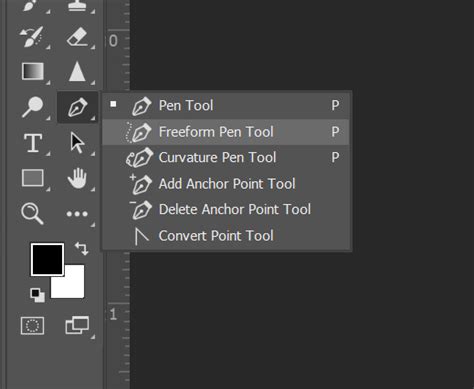
Photoshop's extensive array of tools is what makes it a leading software in the image editing industry. The Toolbar is a vertical strip of icons on the left side of the screen, each representing a different tool. Familiarize yourself with this major hub, where tools like the Move Tool, Brush Tool, and Eraser Tool are accessed. We can click and hold on a tool icon to see more options. To work faster, we use keyboard shortcuts.
The Layers panel is crucial for organizing our work. We find it on the right side of the screen. To make a new layer, we click the "New Layer" button at the bottom of the panel. Layer opacity controls how see-through a layer is. Adjustment Layers help us edit images without changing the original. To add an Adjustment Layer, we click the half-filled circle icon at the bottom of the Layers panel. We can edit Adjustment Layers any time by double-clicking their thumbnail in the Layers panel.
The Power of Layers and Layer Masks
Before we dive into the intricate world of Photoshop, it's essential to grasp the power of layers and layer masks. Layers in Photoshop are akin to transparent sheets stacked on top of one another, where each layer holds different pieces of your image. When we begin working with layers, understanding that the stack order affects visibility is key-layers at the top cover those below them.
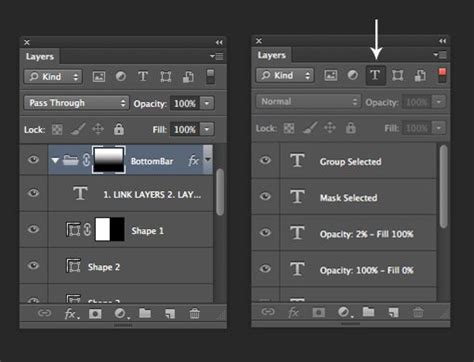
Layers in Photoshop are like clear sheets stacked on top of each other. Each layer can hold different parts of an image. The Layers panel shows all layers in our file. We can see layer names, thumbnails, and icons here. Clicking the eye icon next to a layer turns it on or off. We can adjust layer opacity to make it see-through. Changing the blend mode affects how layers mix. To make a new layer, we click the "New Layer" button in the Layers panel. We can move layers up or down by dragging them in the Layers panel. This changes their order in the image. Groups help us organize layers. We can put related layers in a folder.
Layer masks are our secret weapon for revealing or hiding portions of a layer. We use white on the mask to show content and black to conceal it-think of it as a grayscale map where shades of gray represent varying levels of transparency. Layer masks let us hide parts of a layer without deleting anything. A white mask shows everything on that layer. A black mask hides it. We can use brushes, gradients, or shapes on masks.
Essential Selection Techniques
Selections are fundamental in Photoshop because they allow us to isolate and work on specific areas of an image. Often beginners found making selection is difficult, that is why we added some selection tutorials as well. Photoshop offers powerful tools for isolating and editing specific parts of an image. The Quick Selection tool in Photoshop makes it easy to select objects with just a few clicks. Next, we adjust the brush size to fit the area we want to select. To refine the selection, we can add or subtract from it using the "+" and "-" options in the tool options bar. We click to create anchor points along the edge of the object we want to select. As we work, we can adjust anchor points and handles to perfectly match the object's shape. For extra precision, we can use the "Refine Edge" tool to fine-tune the selection.
The Pen Tool is essential for precise selections. We carefully trace around objects we want to isolate. Mastering these selection techniques is crucial for many editing tasks, from simple object removal to complex compositing.
Enhancing Light and Color
In this section, we'll explore how to enhance and correct image colors using Photoshop's robust tools such as adjustment layers, levels, and curves. Adjustment layers are the cornerstone of non-destructive editing in Photoshop. By using them, we can apply color and tonal adjustments to our image without permanently altering the original layer. These include but are not limited to Brightness/Contrast, Hue/Saturation, and Color Balance adjustments. When we talk about working with color, we're focusing on creating the right color palette for our images. Incorporating different blend modes can also significantly affect how colors interact with each other on different layers.
Curves and Levels are powerful tools for detailed color correction and exposure adjustments. With Curves, we can pinpoint specific tonal areas and adjust them with precision, creating contrasts or lightening shadows. Mastering these techniques allows us to achieve professional-looking results, elevating the visual quality of our work.
For example, learning how to create a breathtaking Northern Lights composite in Photoshop involves blending different images, matching colors and light, and using essential tools like Levels, Clipping Masks, Smart Objects, and Custom Photoshop Brushes. We use adjustment layers like Curves and Color Balance to harmonize the different elements.
Improving Exposure and Tonal Range
Photoshop offers powerful tools for enhancing and fixing common issues in photos. Cropping helps remove unwanted parts of an image and improve composition. Drag the edges to adjust the crop area. Resizing changes the image dimensions. Enter new width or height values. For web use, we recommend resizing to 72 pixels per inch. Brightness and contrast adjustments can dramatically improve photo quality. Drag the middle slider to adjust midtones. Move the left slider to darken shadows. For a quicker option, try the Brightness/Contrast adjustment. Go to Image > Adjustments > Brightness/Contrast. Remember, subtle changes often yield the best results.
When it comes to adjusting exposure, the Dodge and Burn Tools are particularly handy. We use the Dodge Tool to lighten areas of our photo, and conversely, the Burn Tool to darken them.
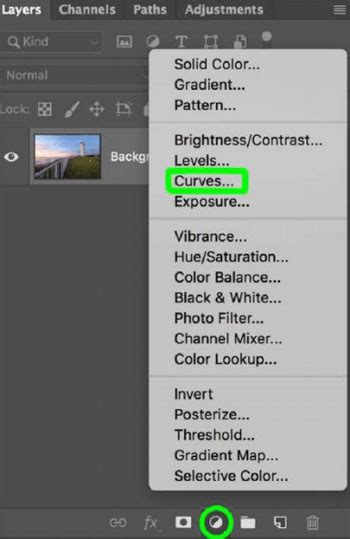
Image Compositing and Retouching
When venturing into advanced design elements in Photoshop, we'll focus on utilizing specialized tools and features to elevate our graphics. We can enrich our artwork with the Custom Shape Tool, which offers an array of preset shapes or the possibility to create our own unique designs. By exploring the Shapes Panel, we encounter an assortment of default options or can import custom shape presets to our library. If certain shapes are missing, we can easily replenish them via Photoshop's shape resources. In our workflow, Smart Objects are essential for maintaining the integrity of our design's original elements. By converting layers into Smart Objects, we allow ourselves the freedom to transform and apply filters without permanently altering the original graphic.
Essential Retouching Tools
When we approach the art of refining photos, retouching them is essential for producing professional and eye-catching results. In the realm of photo editing, familiarizing ourselves with the core tools is crucial. The Spot Healing Brush Tool is perfect for quick fixes, such as removing blemishes or small objects, such as dust spots or minor imperfections, as it intelligently blends the affected area with the surrounding pixels. Choose a brush size slightly larger than the area you want to fix. Alt-click to sample a clean area nearby. Photoshop blends the sampled pixels with the surrounding texture and color. For larger areas, try the Patch Tool.
As we advance our skills, we delve into sophisticated retouching methods to tackle complex editing tasks. Utilizing layers and masks allows us to apply non-destructive edits, meaning we can readjust any changes without permanently altering the original image. Crafting photo effects often involves manipulating the exposure or color balance, which is where our understanding of tools like the Dodge, Burn, and Sponge Tools is essential.
Photoshop for Beginners: 30-Minute Masterclass!
Working with Text and Shapes
To add text in Photoshop, we use the Type Tool. It's easy to find - look for the "T" icon in the toolbar. Text effects in Photoshop can make words pop. We can add shadows, outlines, or even 3D effects to our text. Shapes add visual interest to designs. We can combine shapes to make complex designs. Wrapping text in shapes is a cool technique. It adds a unique touch to logos and graphics.
Saving and Exporting Your Work
When we work with Adobe Photoshop, especially the latest iteration, Photoshop 2022, saving and exporting are foundational skills that ensure the integrity and usability of our work. When ready to export a document, Adobe Photoshop offers a myriad of formats. JPEG is commonplace for web use due to its balance of quality and file size. For lossless quality, TIFF and PSD are preferred, with PSD being the native Photoshop format containing all layers and adjustments. It's crucial to choose the correct format based on our end use.
Preparing Images for Print and Web
To prepare our documents for printing, a few key adjustments are necessary. Resolution is a top priority; we aim for 300 dpi (dots per inch) to ensure high-quality prints. In addition, it's critical to confirm that our color mode is set to CMYK to align with printer capabilities, as screens display in RGB. Our document's resolution and canvas size directly impact the final output. Adjusting the resolution dictates the clarity of our print and digital work. For web images, we might reduce the resolution to 72 dpi to decrease file size and enhance loading times. Modifying the canvas size allows us to change the active area of our Photoshop document.
Mastering Advanced Photoshop Techniques
We'll explore some powerful tools and methods to take your Photoshop skills to the next level. To create custom brushes, we go to Edit > Define Brush Preset. Smart Objects keep our edits flexible and preserve image quality. We can edit Smart Objects by double-clicking the layer thumbnail. Clipping Masks let us use the content of one layer to define the visibility of another.
Photoshop offers powerful tools to enhance and transform images. We start by opening our image and duplicating the background layer. Popular options include Oil Paint and Watercolor. For more control, we use Smart Filters. We convert our layer to a Smart Object first. Blending modes add another dimension. We duplicate our filtered layer and experiment with modes like Overlay or Soft Light. Matching lighting is crucial for realism. We use adjustment layers like Curves and Color Balance to harmonize the different elements. Layer masks allow for non-destructive blending. We paint with black to hide parts of a layer or white to reveal them.

Continuing Your Photoshop Learning Journey
Learning Photoshop can seem tricky at first. Begin with simple tools like crop, resize, and basic adjustments. Try following along with video tutorials. For beginners, we recommend starting with Adobe Photoshop Elements. If you're ready for more advanced features, try Adobe Photoshop. Start with basic tools and gradually move to more complex features. Follow online tutorials and join Photoshop forums. Work on small projects that interest you. We also suggest searching for "Photoshop PDF tutorials" online.
As beginners, we should focus on understanding layers, which form the building blocks of non-destructive editing in Photoshop. Effective self-learning begins with exploring trusted tutorials and resources, such as 10 must-know Photoshop skills for beginners, which outline key edits and adjustments. Beginners should enhance their editing skills by mastering basic adjustments like cropping, resizing, and color correction. All beginners need to understand the interface, including navigating images, and fundamental concepts like resolution and image adjustment layers. Consistent practice can be achieved by setting regular learning goals and following structured tutorials, such as a beginner's guide to Adobe Photoshop. To showcase Photoshop proficiency on a resume, include specific projects you've worked on or link to an online portfolio.
You can also learn how to fix warped perspectives in your photos with Photoshop. Ready to dive into the world of creating conceptual artwork in Photoshop? Our tutorial covers everything you need to know, from mastering subject cutouts and harmonizing color and lighting in multiple images to even crafting a captivating parallax animation in After Effects. Learn how to create a unique artistic effect by combining a portrait with splatter effects in Photoshop. Learn to combine graphics and photos to create beautiful visual effects. Learn how to remove backgrounds from graphics and illustrations accurately and professionally. Learn to create realistic shadows for compositing, product mock-ups, product placements, e-commerce and graphic layouts. Lightroom Controls in Photoshop! Learn to most powerful tools in Photoshop to improve any photo! Learn how to create stunning and realistic lighting effects in Photoshop 2022! Learn how to create stunning nature composite using only free stock image assets and some Photoshop savvy. Learn how to create realistic light rays in Photoshop using Levels, Radial Blur, Layer Masks and more!
Photoshop tutorials for beginners cover creating and editing layers, adding masks, and removing objects. Getting comfortable with Photoshop's interface is key. Adobe Photoshop is a powerful image editing tool. The toolbar on the left contains essential editing tools. On the right, we see panels for layers, color, and more. To navigate, we use the zoom tool and hand tool.