Embarking on the journey of digital art can be an exhilarating yet daunting experience, particularly when faced with the sheer volume of tools available. For aspiring digital artists, the initial challenge often lies in selecting the perfect brush to translate their vision onto the digital canvas. Whether you're aiming for the subtle nuances of a sketch, the crisp precision of line art, or the vibrant hues of a painted masterpiece, the right brush can make all the difference. Fortunately, Clip Studio Paint, a powerful and versatile digital art software, offers a rich ecosystem of brushes, both built-in and downloadable, to cater to every artistic need. This comprehensive guide will navigate you through some of the best and most popular brushes for sketching and painting in Clip Studio Paint, many of which can be acquired for free from Clip Studio Assets. We'll also delve into the practicalities of importing external brushes and the rewarding process of creating your own custom tools, ensuring you have the knowledge to elevate your digital art workflow.
The Foundation: Understanding Clip Studio Paint's Default Brush Library
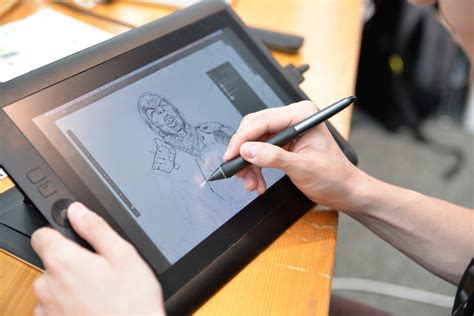
Clip Studio Paint, like many sophisticated drawing applications, comes equipped with an impressive array of default brushes. These pre-installed tools serve as a solid starting point for artists of all levels, offering a spectrum of effects that mimic traditional media. From the sharp clarity of pens and pencils to the rich textures of oil brushes and the fluid washes of watercolor, the built-in library provides a diverse palette to experiment with.
For those seeking a realistic pencil feel, the SU Cream Pencil stands out as a highly favored sketching tool. With an astonishing download count exceeding 700,000, its popularity is undeniable. This brush is celebrated for its subtle texture, which becomes more pronounced and characterful as the brush size increases, adding a tangible depth to your sketches. Complementing this, a set of pencils designed to authentically replicate the experience of using real B sketching pencils and charcoal is also available, offering artists the tactile sensation of traditional drawing materials within a digital environment.
When it comes to inking and line work, the Nong Pen emerges as a remarkably versatile option. Described as a soft, buttery pen, it adapts beautifully to various stroke weights and styles. Depending on the brush size, it can be employed for both delicate linework and broader painting applications. A key feature of the Nong Pen is its responsiveness to stylus pressure; applying lighter pressure results in fainter strokes, creating a gentle, nuanced effect that is ideal for subtle shading or expressive line variations. For artists who crave more dynamic linework, the Pen Pen offers a textured experience that truly shines. This pen brush intelligently responds to stylus pressure, allowing for seamless transitions between thin and thick lines, making it an excellent choice for sketches brimming with energy and movement.
Beyond sketching and general line art, Clip Studio Paint also provides specialized brushes for more specific tasks. An inking pen with a dense texture, perfect for bold, impactful lines and detailed hatching, is available. Its rich black quality makes it ideal for creating strong contrasts and defining forms with authority. For those venturing into painterly styles, the Thick Paints brush set is a noteworthy inclusion. This collection features textured, heavy painting brushes that introduce subtle color jitter with each stroke, resulting in natural and organic color variations that mimic the unpredictable beauty of traditional oil paints. Furthermore, a comprehensive set comprising 30 textured brushes for dry and wet oil paint, pastels, and rough hatching is at your disposal. This set is not only adept at painting but also includes heavily textured brushes specifically designed for adding those crucial final touches and intricate details to your paintings, breathing life and depth into your artwork.
If you find yourself overwhelmed by the sheer variety and are unsure where to begin your brush exploration, the ARTIST21 brush pack is a highly recommended starting point. This all-encompassing pack offers a cohesive collection that includes sketching pencils, watercolor brushes, and markers, ensuring you have a foundational set for various artistic approaches. What sets ARTIST21 apart is its inclusion of custom blending brushes and erasers, which are instrumental in achieving a harmonious and polished look across your painted pieces.
Expanding Your Horizons: Discovering and Importing Brushes
The true power of digital art software often lies in its extensibility, and Clip Studio Paint is no exception. The platform boasts a vibrant community and an extensive online repository known as Clip Studio Assets, where artists can share and download a vast array of brushes, materials, and other creative tools. Searching for brushes on Clip Studio Assets is a straightforward process; you can utilize keywords to filter your search and quickly locate the specific types of brushes you desire. This platform is an invaluable resource for discovering new textures, effects, and stylistic tools that can significantly enhance your artistic repertoire.
Beyond the native Clip Studio Assets, the software also offers the flexibility to import brushes from external sources. This is particularly useful if you have previously worked with other digital art software or have discovered brushes created by other artists on different platforms. Clip Studio Paint supports the import of brushes in both .sut (the native format for Clip Studio Paint) and .abr (Photoshop brush format) files. This interoperability ensures that you are not limited to the brushes available within the Clip Studio ecosystem.
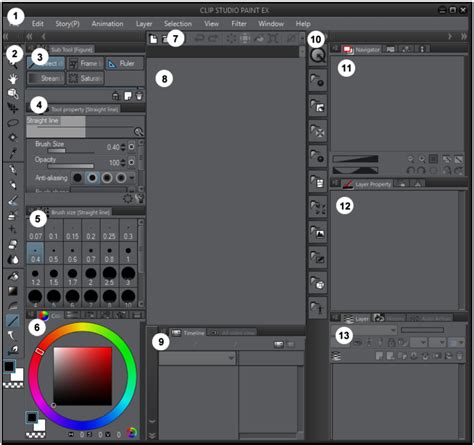
The process of importing brushes is generally intuitive. Once you have downloaded a brush file (e.g., a .sut or .abr file), you can typically import it directly into Clip Studio Paint through the brush palette or a dedicated import function within the software. For .sut files, they often appear directly in your Sub Tool palette. For .abr files, you might need to use the "Import Brush" option within the brush settings. This ability to integrate brushes from various sources opens up a world of possibilities, allowing you to tailor your toolkit precisely to your individual needs and preferences.
How to import photoshop brushes into clip studio paint.#howto #clipstudiopaint #photoshop
Unleashing Your Creativity: Crafting Custom Brushes
While the abundance of downloadable brushes is a significant advantage, the ultimate level of artistic control comes from creating your own custom brushes. Clip Studio Paint empowers artists to modify and fine-tune existing brushes or build new ones from the ground up. This process allows you to develop tools that perfectly match your unique artistic style and workflow.
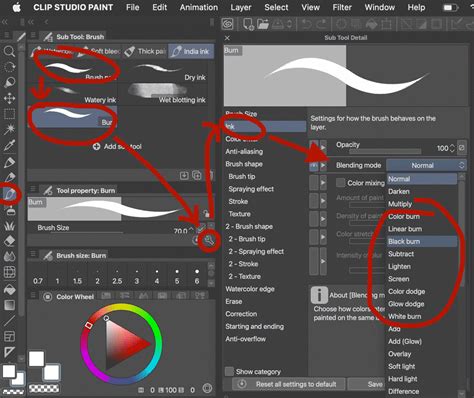
To begin creating your own brush, the most straightforward approach is to duplicate an existing brush from the Sub Tool palette. By making a copy, you can experiment with various settings without altering the original tool. The Tool Properties panel is your command center for brush customization. Here, you can adjust a multitude of parameters, including brush shape, texture, scattering, flow, opacity, and sensitivity to stylus pressure. As you make changes, you can immediately test the brush on the canvas, observing how each adjustment impacts its behavior and appearance. This iterative process of tweaking and testing is key to developing a brush that feels intuitive and performs exactly as you envision. For a more in-depth understanding and practical demonstration, there are numerous tutorials available, often linked within the Clip Studio Paint community or on platforms like YouTube, which provide step-by-step examples of creating custom brushes.
The ability to create custom brushes is not merely about replicating existing tools; it's about innovation. You can design brushes that produce unique textures, mimic specific traditional media with unparalleled accuracy, or create entirely new visual effects that are impossible to achieve with standard brushes. This level of customization is what truly distinguishes digital art, allowing for boundless experimentation and the development of a signature artistic voice.
Curated Selections: Top Picks for Sketching and Painting
Navigating the vast ocean of available brushes can be a challenge, especially for beginners. To assist you in this endeavor, here are some highly recommended brushes that have garnered significant praise and widespread use among Clip Studio Paint artists, many of which are free and readily available on Clip Studio Assets.
One artist's personal favorite, often found within the Subtool [Brush] > Watercolor category, is a remarkably versatile tool. The artist states, "Almost everything I draw and paint is done with this brush. It's really convenient and simple to mix the colors together, as I show in the video below. This is one of my all-time favorite brushes." This highlights the importance of finding a core set of brushes that resonate with your personal workflow.
For those who appreciate a natural, tactile feel to their line art, a specific brush is lauded for its texture. "I adore the texture of this brush," the artist notes. "It's really natural. It gives your line art the appearance of being drawn on grainy paper." This type of brush is excellent for adding a touch of analog charm to digital creations.
Precision and control are paramount for many artists, and a particular pen brush excels in this regard. "This brush is ideal for anyone who likes drawing crisp, precise lines," it is recommended. "It is easy to regulate line weight and exceptionally clean." This is crucial for illustrators, comic artists, and designers who require sharp, well-defined outlines.
When it comes to thick painting styles, a brush that allows for rich, impasto-like effects is a must-have. "If you enjoy thick painting, this brush is for you!" the recommendation exclaims. "You'll have a lot of fun mixing colors with this brush." This suggests a brush capable of producing visible bristle marks and a substantial paint feel.
Another brush is also noted for its suitability for thick painting. "My Note: This one is also suited for a thick painting. The kit consists of 4 brushes and the mixer is included." The inclusion of a mixer brush within this set is particularly beneficial for achieving seamless color blends and realistic paint manipulation.
A brush that might present a slight learning curve but offers unique possibilities is also mentioned. "My Note: I use it sometimes for painting the clothes of characters. I find this brush a bit difficult to use. But I believe you guys might want to try." This indicates that some brushes require a bit of practice to master but can yield rewarding results.
For creating captivating visual effects, a specific brush is highlighted as a favorite. "My favorite brush for painting effect! It can be used to create flower petals, dust particles, and other effect particles." This type of brush is invaluable for adding atmospheric elements and subtle details that enhance the overall composition.
When a touch of texture is desired on an artwork, a dual-purpose brush is recommended. "My Note: Sometimes, when I need a little texture on the artwork, I utilize the brush for line art and painting." This demonstrates the versatility of certain brushes that can serve multiple functions within an artist's toolkit.
Finally, an easy-to-use and enjoyable brush is celebrated for its intuitive feel. "My Note: Such an easy-to-use and entertaining brush. I adore the pressure and the feel of the brush." This emphasizes that not all effective brushes need to be complex; simplicity can also lead to highly satisfying results.
Beyond Brushes: Essential Assets for a Complete Workflow
While brushes are the cornerstone of digital art creation, Clip Studio Paint offers a broader ecosystem of assets that can significantly streamline and enhance your workflow. These include pattern brushes, stamp brushes, color sets, and even 3D models, all designed to save you time and add professional polish to your work.
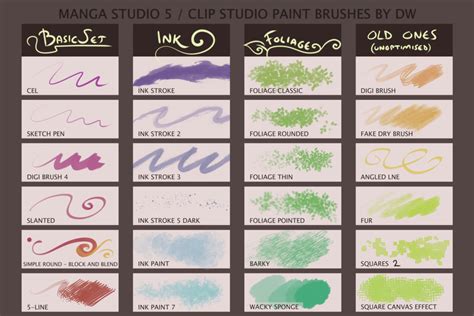
Pattern brushes and stamp brushes are particularly useful for adding intricate details and textures efficiently. For instance, if you're creating backgrounds or complex environments, these brushes can quickly lay down repetitive elements like foliage, clouds, or architectural details without the need to draw each one individually. The benefit of digital art is the access to a huge variety of pattern brushes and stamp brushes to add detail.
Color management is another critical aspect of digital art, and Clip Studio Paint provides tools to help artists maintain consistency and explore palettes. Color sets, such as those mimicking real-life Prismacolor or Copic markers, can be invaluable for artists who want to replicate traditional color experiences or maintain a specific color harmony in their work. For those who prefer working in grayscale before applying color, a custom brush set designed for grayscale value rendering can be extremely helpful. This approach allows artists to focus on form and lighting without the distraction of color, often leading to stronger compositions.
Furthermore, advanced techniques like Gradient Mapping can be simplified with pre-made color sets. These sets offer interesting color gradients that can be overlaid onto an illustration to quickly color and render work, saving considerable time in the coloring and shading process.
Beyond these, Clip Studio Paint also supports custom materials that can be warped to fit any perspective plane, allowing for the seamless integration of textures and patterns onto 3D objects or into complex scenes. For character artists, 3D models, such as a skeleton modeler, can be incredibly useful for understanding anatomy and posing characters accurately, even if the final illustration is stylized.
The software's ruler options are extensive, but a notable absence for some users has been an isometric ruler. While not a brush, the availability of such specialized rulers can significantly impact the creation of precise, technical artwork or environments.
Navigating Licensing and Usage Terms
When acquiring any digital asset, whether free or paid, it's crucial to understand the associated licensing and usage terms. This is particularly relevant for brushes, textures, and other materials obtained from third-party sources or marketplaces. For example, materials from True Grit Texture Supply come with specific End-User License Agreements (EULAs) that govern their use.
These agreements typically outline what you can and cannot do with the purchased assets. Generally, you are granted a non-exclusive, terminable, and non-transferable license to use the graphic assets. This means you can use them for your personal projects, commercial work, and even for creating physical end-products for sale (such as apparel, stationery, or posters). You can also use them for creating stock illustrations, logos, branding, and advertisements.
However, there are strict limitations. It is almost universally prohibited to resell, redistribute, or sub-license the graphic assets or any modification of them in source file form. This means you cannot package and sell the brushes themselves, nor can you offer them as part of templates that allow others to edit the original brush data. Similarly, reverse-engineering, decompiling, or disassembling the assets to create similar products for sale is also forbidden.
For fonts, the licensing is equally important. While you can use them to create design works for yourself or clients, you cannot embed editable font files within templates or offer them as part of a "create-on-demand" service where end-users can customize products using the font. The number of users permitted to install and use a purchased font is also typically dictated by the license purchased.
Understanding these terms is vital to avoid copyright infringement and ensure you are using the digital assets ethically and legally. Always take the time to read the EULA associated with any brush pack or asset you download or purchase.
The Journey of Discovery: Finding Your Perfect Tools
Ultimately, the "best" brushes for Clip Studio Paint are subjective and depend entirely on your individual artistic style, preferred medium, and project requirements. While popular and highly-rated brushes like the SU Cream Pencil, Nong Pen, and the various textured paint sets offer excellent starting points, the true magic happens when you begin to explore, experiment, and even create your own tools. Clip Studio Assets is a treasure trove waiting to be discovered, and the ability to import brushes from other sources further expands your options.
Don't be afraid to try brushes that might seem outside your comfort zone. You might be surprised by the new creative avenues they open up. The journey of finding your perfect set of digital brushes is an ongoing process of learning and adaptation. By understanding the capabilities of Clip Studio Paint, leveraging the vast resources available, and embracing the power of customization, you can equip yourself with a toolkit that empowers your artistic expression and helps you bring your most ambitious creative visions to life. The key is to experiment, iterate, and most importantly, to have fun with the process of making art.