Moving your entire Lightroom catalog and photo library to a new computer can seem like a daunting task, filled with potential pitfalls. However, with a systematic approach, this process can be managed efficiently, ensuring that all your edits, keywords, and meticulously organized images are seamlessly transferred. This guide will walk you through the essential steps, covering various scenarios and best practices to make your transition as smooth as possible.
Understanding the Lightroom Catalog
At its core, a Lightroom Classic catalog is a database. It doesn't store your actual image files, but rather it meticulously tracks their location, along with all the metadata, edits, keywords, collections, and other information you've applied. When you edit photos, rate them, add keywords, organize them into collections, or perform any other action within Lightroom Classic, these changes are recorded in the catalog. This database is crucial for maintaining your workflow and ensuring that all your organizational efforts are preserved. The most important files within your catalog folder are the .LRCAT file and the .LRCAT-DATA file. The .LRCAT-DATA file is particularly important as it stores additional information, including AI edits. If this file is missing or misplaced, AI edits may be permanently lost.
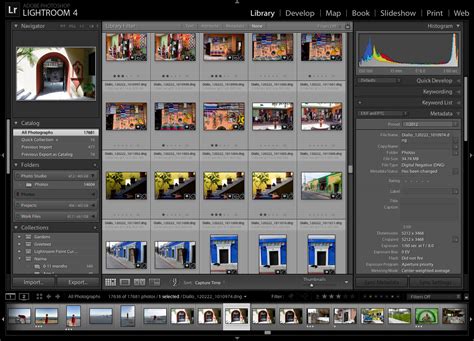
When you install a newer version of Lightroom Classic, especially for a major version update, the application will prompt you to upgrade your catalog. This is a standard procedure designed to accommodate database-related changes made for the updated version, ensuring you can access new features and benefit from performance improvements. Lightroom Classic will create a copy of your old catalog during this process. If you encounter issues upgrading a catalog, you can open the old catalog in your previous version and export it as a new catalog, which can then be imported into the newer version.
It's important to note that Lightroom Classic catalogs are not backward compatible. This means a catalog created in a newer version cannot be opened in an older version. However, starting with certain releases, you can rename your catalog directly within the application by selecting "File > Rename Catalog." This function also handles the renaming of associated files like .lrcat-data, previews, and smart previews, simplifying the process.
Preparing for the Transfer: Organization is Key
Before you even begin the transfer, it's essential to have a clear understanding of your current catalog and photo storage. Many users opt to keep their catalog files and photo library on separate drives for organizational and performance reasons. For instance, some users store their catalog on their main computer's drive (like a Mac Mini) while keeping all their Raw Files on an external SSD. This separation is a common practice, but it requires careful consideration during the transfer process.
A crucial aspect of managing your Lightroom workflow is consistent folder organization. Many users adopt a system that starts with the date followed by a short description for their folders. For example, "2023-10-27VacationPhotos." Maintaining this organizational structure is vital, especially when importing photos or merging catalogs, as it helps keep your library tidy and easily navigable.
When importing photos from an SD card to your laptop, for instance, you might create a folder structure that mirrors your home computer's labeling system. This preparatory step makes it easier to integrate these imported photos into your main catalog later on.
The Core Transfer Process: Copying and Merging
The primary method for transferring your Lightroom catalog and photos to a new computer involves copying the relevant files. You'll need to copy your catalog file (.LRCAT and .LRCAT-DATA), preview files (optional, as they can be regenerated), and importantly, your actual image files.
Moving Your Catalog
Your Lightroom catalog can be moved to a different location on your computer's hard drive, to an external disk, or to another computer. If you are moving your catalog between different operating systems, such as between a Windows computer and a Mac, the process involves copying your catalog, .lrcat-data file, preview files, and image files from the original computer onto an external drive. Once the files are on the new computer, you may need to guide Lightroom Classic to find the catalog. The application provides a "Lightroom Classic can't find my catalog" feature to help with this.
When you have your catalog and photos on an external drive, you can easily use your Lightroom Classic catalog on more than one computer, such as a desktop and a laptop. In this scenario, keeping the catalog and photos together on the external drive is often the simplest approach.
Importing Photos and Merging Catalogs
When setting up a new catalog on your new computer, or when importing photos from a separate catalog (perhaps from a laptop used during travel), you have a few options. You can create a new catalog, for example, naming it "Catalog for Test Photos," and save it on the same external drive where your pictures are backed up. This makes it easy to transfer everything later.
When importing photos into your laptop catalog, it's generally recommended to "Add" the photos to your catalog rather than copying them, unless you specifically want a duplicate copy.
The process of merging a catalog from a secondary location (like a travel laptop) into your main home catalog is straightforward. You'll use the "Import From Another Catalog" option. Select the catalog you wish to import (e.g., your "Road Catalog" from your external drive). A key option here is within the "File Handling" section, where you can select "Copy new photos to a new location and import." This allows Lightroom to copy the underlying photos to your home computer's designated location as it imports the catalog data. This ensures your photos are neatly placed within your existing organizational structure, such as your date-based folder system.
If you didn't have Lightroom move your photos during the catalog import, you can do this manually. Simply select the folders containing your photos on the external hard drive and drag them to the desired location on your home computer.
Advanced Scenarios and Considerations
Using Lightroom on Multiple Machines
If your goal is to use Lightroom Classic on multiple machines (e.g., a desktop and a laptop), a common recommendation is to maintain one master catalog and keep all images together on a single computer or an external drive. You can then sync these images to the Adobe Cloud using Smart Previews. This feature allows Lightroom Classic to sync all your cataloged images as Smart Previews, which doesn't consume your Photography plan storage. This enables you to work with your photos on another machine using the standard Lightroom (desktop) application.
Some users consider exporting all their photos as a catalog to use on a different machine. However, a strong recommendation from experienced users is against exporting catalogs or photos in this manner. The preferred approach is to keep the original files in their current location and then open the copied catalog on the new machine, re-linking it to the folders and files.
Cloud Sync and Storage Services
When using Lightroom Classic, especially in conjunction with cloud storage services like Microsoft OneDrive or Apple iCloud Drive, be mindful of where you store your catalog. It's generally recommended not to store the catalog in locations actively used by these services to avoid unintentionally consuming your online storage. Changes to how image previews are stored have been implemented in newer versions (e.g., version 13.3), so staying updated is beneficial.
Watermarks and Preferences
After transferring your catalog, you might find that certain preferences, such as custom watermarks, are not immediately visible. This can happen if the catalog location is pointing to an old setup. Often, simply re-establishing the correct catalog location within Lightroom Classic will resolve such issues.
Avoiding Data Loss
A critical point to remember is that backing up your catalog does not back up the photos it references. Therefore, a robust backup strategy for both your catalog and your image files is paramount. When moving images, it's always best practice to move them from within Lightroom Classic rather than using your operating system's file explorer (Finder on macOS or Explorer on Windows). When you move images outside of Lightroom, your catalog can lose track of them, leading to "missing photos."
How to Move Lightroom to External Hard Drive - Catalogue and Photos for LR Classic
Keeping Your Old Computer
Until you have thoroughly verified that everything is working correctly on your new computer, it's wise to keep your old computer accessible. This provides a fallback option and allows you to compare and troubleshoot if any discrepancies arise during the migration process. You're essentially copying files, so the risk of losing data is minimized if you follow these steps carefully and maintain backups.
By understanding the nature of the Lightroom catalog and following a methodical approach to copying and importing, you can successfully transfer your entire photographic workflow to a new computer without losing any of your valuable work.
Troubleshooting Common Issues
Catalog Not Found
If Lightroom Classic cannot find your catalog after a move, the application has built-in tools to help. You can navigate to "File > Open Catalog" and browse to the location where you've saved your catalog files on the new system. If you've renamed your catalog, it should appear at the top of the list in the "Select Catalog" dialog box.
Missing Photos
As mentioned, moving photos outside of Lightroom Classic can cause them to appear as missing. To resolve this, you'll need to relink the folders. In the Library module, you'll see question marks or exclamation points next to the affected folders. Right-click on these folders and select "Find Missing Folder" to navigate to their new location.
AI Edits Not Appearing
If AI-edited photos are not showing your edits after a transfer, ensure that the .LRCAT-DATA file was copied along with your .LRCAT catalog file. This file is essential for preserving AI-specific edits. If you don't have the corresponding .lrcat-data file, those AI edits might be unrecoverable.
Watermarks Not Visible
Watermarks are typically stored within the catalog. If they are not appearing after a transfer, it's usually an indication that the catalog file itself might not have been fully transferred, or the catalog location within Lightroom is still referencing an old or incorrect path. Double-checking the catalog location in Lightroom's preferences and ensuring all catalog-related files were copied are the first steps to resolving this.
By systematically addressing these potential issues, you can ensure a complete and successful transition of your Lightroom catalog and photo library to your new computer.