As a professional photographer, the truth is that your computer is one of your most critical pieces of equipment, perhaps even more so than your camera and lenses. You can possess the finest lenses available, but if your computer struggles to manage a large wedding shoot, it creates a significant bottleneck in your workflow. The quest for the "best computer for Lightroom" can feel like navigating a minefield of technical jargon such as CPU, GPU, RAM, and NVMe. Deciding between a Mac or a PC, or a laptop versus a desktop, adds another layer of complexity. This guide aims to simplify these choices and help you make an informed decision.
Understanding the Core Components: What Lightroom Cares About
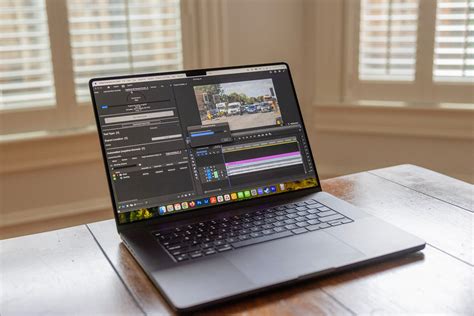
To build the best computer for Lightroom, it's essential to understand how the software utilizes your hardware. Lightroom is a demanding application, and its performance is directly tied to the specifications of your machine.
The CPU (Processor): The Brains of the Operation
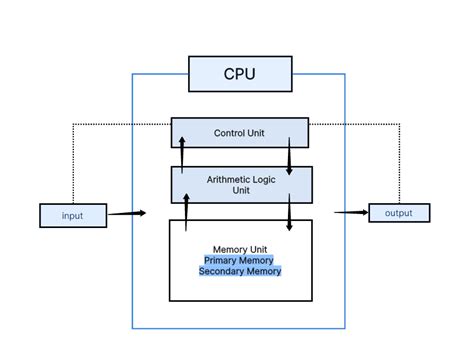
The CPU, or Central Processing Unit, is the primary engine that drives most of your active tasks within Lightroom. This includes building previews, culling images, applying presets, and exporting your final files. When you're actively working with your photos, making adjustments, or quickly switching between images, a powerful CPU is paramount.
Cores vs. Clock Speed: A Crucial Balance
- Clock Speed (measured in GHz): Think of this as the speed at which a single worker can perform a task. A high clock speed, such as 5.0 GHz, is exceptionally beneficial for those "active" tasks like manipulating sliders and rapidly culling images. This ensures a responsive and fluid editing experience.
- Core Count (e.g., 8-core, 16-core): This represents the number of workers available. More cores are advantageous for "parallel" tasks, where a job can be divided and processed simultaneously. Tasks like batch exporting, generating previews, and certain AI-driven features benefit significantly from a higher core count.
For Lightroom, the general consensus is that you need a balance between these two. However, for the most immediate and noticeable performance boost in everyday tasks like culling and applying adjustments, prioritizing high clock speed is often more impactful. A 6-core CPU running at 5.0 GHz might feel snappier for general use than a 12-core CPU at 3.5 GHz. Conversely, for tasks like exporting large batches of images, the processor with more cores will likely outperform.
RAM (Memory): Your Active Workspace
RAM, or Random Access Memory, functions as your computer's short-term memory and serves as its active workspace. When you open a Lightroom catalog, the software loads its database into RAM for rapid access. The more RAM you have, the more data your computer can hold in this fast-access workspace. This is critical for smooth multitasking. If you're running Lightroom, Photoshop, a web browser with numerous tabs open, and perhaps a music player, you're consuming a significant amount of RAM. When your system runs out of available RAM, performance plummets, and your computer slows to a crawl.
- 16GB: This is the absolute minimum for any new computer in 2026. While it's possible to run Lightroom with 16GB, you will likely experience limitations and will need to close other applications to ensure smooth operation. You will "feel the pinch" during demanding tasks.
- 32GB: This is the widely accepted new standard for professional photographers and offers the sweet spot for performance. It provides ample headroom to run Lightroom, Photoshop, and other essential applications simultaneously without your computer struggling.
- 64GB or More: This tier is reserved for extreme power users. If you regularly stitch together massive panoramas, work with Photoshop files containing 100+ layers, or shoot with ultra-high-resolution medium format cameras (100MP+), then 64GB or more can be a worthwhile investment.
Apple's Unified Memory: Macs with Apple Silicon (M-series chips) utilize "Unified Memory." This architecture means the CPU and GPU share a single pool of high-bandwidth memory. This is incredibly efficient, and an Apple machine with, for example, 18GB of Unified Memory can often perform as well as a PC with 32GB of traditional RAM.
Storage: The Filing Cabinet for Your Digital Life
Storage is where your operating system, Lightroom itself, your catalog, and all your precious photo files reside. For Lightroom, the speed of your storage is paramount to minimizing delays during imports, culling, and exports.
The End of Hard Disk Drives (HDDs)
For any new computer purchased in 2026, it is strongly advised not to use an old-fashioned spinning Hard Disk Drive (HDD) as your primary drive (your "C:" drive). HDDs are simply too slow for modern operating systems and demanding applications like Lightroom.
Solid State Drives (SSDs) are the Standard
SSDs have no moving parts, making them dramatically faster than HDDs.
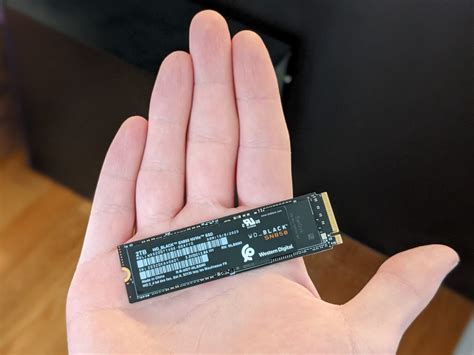
- NVMe M.2 SSD: This is the fastest and most preferred type of SSD. It resembles a small stick of RAM and connects directly to the motherboard, offering the highest data transfer speeds. Your operating system, Lightroom, and your catalog file absolutely must reside on an NVMe SSD for optimal performance.
- SATA SSD: This is an older, slightly slower type of SSD, but still significantly faster than an HDD. They typically come in a 2.5-inch form factor.
- External SSD: These connect via USB-C or Thunderbolt and are excellent for transferring files directly from your camera or for working on active projects when on the go.
Optimal Storage Configuration:
A recommended setup for Lightroom users involves a multi-drive strategy:
- Drive 1 (Internal NVMe SSD): Install your Operating System, Lightroom and other applications, and crucially, your Lightroom Catalog file here. Keeping the catalog on the fastest drive ensures that browsing your library and culling images feels instantaneous.
- Drive 2 (Internal/External SSD): This drive should be designated for your "Active Projects." When you import a new shoot, place the RAW files here. This allows for fast read/write access during your editing process.
- Drive 3 (Large HDD or NAS): This is your "Archive." Once a project is completed and delivered to the client, move the entire project folder from your SSD to this larger, slower drive for long-term, cost-effective storage. Consider capacities of 8TB - 20TB or more.
The GPU (Graphics Card): A Specialized Helper
The Graphics Processing Unit (GPU) plays a role in Lightroom, though its importance is often debated and can be secondary to the CPU and RAM for many core tasks. Historically, the GPU's contribution to Lightroom was minimal, but this has changed with the introduction of AI-powered features.
What the GPU Does in Lightroom:
- AI Masking: Features like "Select Subject," "Select Sky," and "Select Background" heavily rely on the GPU for processing.
- "Enhance Details": This feature, which intelligently upscales and debayers RAW files, also utilizes the GPU.
- Driving High-Resolution Displays: If you're working with 4K or 5K monitors, the GPU is essential for smooth display output.
Is a "Gaming" Card Overkill?
For most photographers, a high-end "gaming" GPU is often overkill and not the best allocation of budget. You will typically see a much greater performance improvement by investing an additional $300 in a better CPU or more RAM than in an extravagant GPU.
VRAM (Video RAM): Pay attention to the amount of VRAM your GPU has. 8GB of VRAM is generally considered the sweet spot for photo editing. On Apple Silicon Macs, this is handled by the unified memory architecture.
The Rise of Cloud AI and its Impact
The landscape of photo editing is rapidly evolving with the advent of cloud-based Artificial Intelligence (AI) tools. This shift significantly impacts hardware requirements.
Local Processing vs. Cloud Processing:
- Local AI Tools: Many new AI features, such as AI noise reduction, sharpening, and even some masking capabilities, run directly on your computer. These tools are very hardware-intensive, relying heavily on your CPU and GPU. Examples include Luminar Neo, Topaz Labs suite (DeNoise AI, Sharpen AI), and Aftershoot for AI culling. These applications demand more from your local machine.
- Cloud AI Tools: Services like Imagen (which offers cloud-based AI editing by integrating with Lightroom Classic) offload the heavy computational lifting to remote servers. You cull and select photos locally, send them to the cloud for AI processing (often with personalized AI profiles), and then the edits are downloaded back into your Lightroom catalog. This dramatically reduces the need for a top-tier local GPU and CPU, as your local machine primarily needs to be capable of managing files and performing the initial culling and final export. This approach can lead to substantial hardware savings.

Mac vs. PC: The Eternal Debate
The choice between a Mac and a PC for photo editing is a perennial one, with valid arguments for both.
Macs (Apple Silicon)
Apple's M-series chips (M1, M2, M3, and their Pro/Max/Ultra variants) have revolutionized the computing landscape. These are "Systems on a Chip" (SoC) that integrate the CPU, GPU, and RAM into a single, highly efficient package.
Pros of Macs:
- Incredible Efficiency and Performance: Apple Silicon chips offer exceptional speed and power efficiency, leading to long battery life in laptops and quiet operation in desktops.
- Unified Memory: As mentioned, the shared memory architecture provides a significant performance advantage.
- User-Friendly Ecosystem: macOS is known for its intuitive interface and seamless integration with other Apple devices.
Cons of Macs:
- Limited Upgradability: You cannot upgrade the RAM or internal SSD after purchase. The configuration you buy is the configuration you're stuck with.
- Higher Cost: Macs generally come with a higher price tag compared to similarly specced PCs.
PCs (Windows)
The PC ecosystem offers unparalleled choice and flexibility.
Pros of PCs:
- Vast Choice and Customization: You can choose from hundreds of brands or even build your own PC, selecting every component to your exact specifications.
- Upgradability: Desktops, in particular, offer significant upgradability. You can easily add more RAM, swap out GPUs, or add more storage over time.
- Value for Money: Generally, you can achieve more raw processing power for your money with a PC compared to a Mac.
- Open Ecosystem: A wider range of peripherals and software compatibility.
Cons of PCs:
- Complexity: The sheer number of options can be overwhelming for less technically inclined users.
- Potential for Lower Build Quality: While high-end PCs are exceptionally well-built, budget options can sometimes compromise on materials and cooling.
- Windows OS Vulnerability: While improving, Windows is historically more susceptible to malware and viruses due to its open nature.
Laptop vs. Desktop: Where Will You Edit?
Your editing workflow and personal preferences will heavily influence whether a laptop or a desktop is the right choice.
Laptops: Portability and Flexibility
Laptops are ideal for photographers who need to edit on the go, in different locations, or who have limited space.
Pros:
- Portability: Edit anywhere - cafes, client locations, on set.
- All-in-One Solution: Screen, keyboard, and trackpad are integrated.
Cons:
- Limited Upgradability: Typically, only RAM and storage can be upgraded, and sometimes not even that.
- Thermal Throttling: Under sustained heavy loads, laptops can overheat, leading to reduced performance.
- Smaller Screen Size: Standard laptop screens are smaller than desktop monitors, which can impact editing precision.
- Higher Cost for Equivalent Performance: To achieve the same performance as a desktop, a laptop usually costs more.
Recommended Laptops for Lightroom:
- Apple MacBook Pro (M-series): Offers exceptional performance, efficiency, and build quality. The M2 or M3 Pro/Max chips with ample RAM (32GB+) are excellent choices.
- Dell XPS Line: High-end Windows laptops known for their premium build, excellent displays, and strong performance.
- ASUS ROG or Lenovo Legion (Gaming Laptops): While designed for gaming, these laptops often offer powerful CPUs, ample RAM (32GB+), and capable GPUs at a competitive price point, making them a strong value proposition for photo editing.
Desktops: Power, Value, and Upgradability
Desktops are the workhorses for photographers who primarily edit in a dedicated studio or home office.
Pros:
- Superior Performance for the Price: You generally get more processing power and better cooling for your money.
- Excellent Upgradability: Easily upgrade components over time to keep your system current.
- Better Thermal Management: Larger cases allow for more robust cooling solutions, enabling sustained peak performance.
- Ergonomics: Can be paired with larger, more comfortable monitors and peripherals.
Cons:
- Not Portable: Tied to a single location.
- Requires Peripherals: You'll need to purchase a monitor, keyboard, and mouse separately.
Recommended Desktops for Lightroom:
- Apple Mac Studio: A compact powerhouse offering incredible performance with Apple Silicon, especially the M2 Ultra models, with ample RAM and fast storage.
- Custom-Built PCs: The ultimate in customization, allowing you to select every component. This offers the best value and performance if you have the knowledge or use a reputable builder.
- Intel NUC 13 Extreme: A small form-factor PC that offers surprising power and upgradability, allowing you to build a high-performance system in a compact chassis.

Building Your Lightroom Workstation: Key Considerations
When selecting or building a computer for Lightroom, prioritize the components that have the most significant impact on its performance.
The CPU is King
If you have a limited budget and must choose one high-end component, make it the CPU. As discussed, a balance of high clock speed and sufficient cores is ideal. For Intel, look at the i7 or i9 series; for AMD, consider their Ryzen 7 or Ryzen 9 processors. Apple's M-series chips (especially Pro, Max, and Ultra variants) are also exceptional choices.
RAM: Never Skimp
As highlighted, 32GB of RAM is the professional standard. Ensure your chosen system can accommodate this, or opt for 16GB as an absolute minimum if budget is severely constrained, with a plan to upgrade later. For Apple Silicon Macs, consider 18GB or 36GB configurations for a noticeable performance uplift.
Storage Speed is Crucial
Always opt for an SSD, and preferably an NVMe M.2 SSD for your operating system, applications, and Lightroom catalog. Do not compromise on this.
The GPU: Important, But Not Primary
While the GPU is becoming more important with AI features, it's generally not where you should allocate the bulk of your budget. A mid-range GPU with 8GB of VRAM is usually sufficient. Spending more on the CPU or RAM will yield greater overall performance gains for Lightroom.
Monitors and Calibration
Your monitor is your window into your images.
- Resolution: Aim for at least 4K (3840x2160) for sharp details and ample screen real estate. 5K or 6K monitors offer even greater clarity and workspace.
- Color Accuracy: Look for IPS panels that cover at least 99% of the sRGB color space. If you print frequently, aim for 95%+ Adobe RGB coverage.
- Calibration: A monitor calibration tool (like a SpyderX Pro or Calibrite i1Display) is essential. Your monitor's factory calibration is rarely accurate, and calibration ensures consistent and reliable color reproduction.
MONITOR CALIBRATION for photo and video editing. Photo and video monitor settings.
Budgeting for Your Editing Machine
The "best" computer is subjective and depends on your needs and budget. Here's a general breakdown:
- Entry-Level (Sub-$1,500): Suitable for hobbyists or new professionals. You'll need to make compromises, likely with RAM or CPU speed. A Mac Mini with an M2 chip or a well-specced Windows laptop can fall into this category.
- Prosumer ($1,500 - $2,500): This is the sweet spot for many professionals. You can acquire a fantastic machine with 32GB RAM, a strong CPU, and a fast NVMe SSD that will serve you well for 4-5 years. This could be a higher-end MacBook Air/Pro, a powerful Windows laptop, or a custom-built desktop.
- High-End ($2,500+): For high-volume professionals with demanding deadlines, this tier offers top-of-the-line components. This includes powerful Mac Studio configurations, high-end Intel i9 or AMD Ryzen 9 desktops, or premium MacBook Pro models.
Final Recommendations for a Lightroom-Ready System
When making your decision, be honest about your workflow:
- If you're always at your desk: A desktop offers better value and upgradability.
- If portability is key: A laptop is your primary option, but consider pairing it with an external monitor.
Prioritize these components:
- RAM: Aim for 32GB (or 18GB/36GB on Apple Silicon).
- CPU: Get the best one your budget allows after meeting your RAM needs.
- Storage: At least a 1TB internal NVMe SSD is highly recommended for your OS, applications, and catalog.
Your computer is an investment in your business and your creative sanity. By understanding Lightroom's hardware demands and prioritizing the right components, you can build a powerful and efficient editing workstation that eliminates lag and allows your creativity to flow.