Choosing the best photo editing software has become increasingly difficult thanks to the plethora of great applications photographers have at their fingertips. Whether you’re a beginner who’s only ever heard of Photoshop, a student who’s looking for the cheapest software solution, or a professional photographer who simply wants the best photo editing software money can buy, this guide has got you covered. The best photo editing software for you isn’t necessarily the most expensive or feature-rich option. If you’re a prolific photographer, you may opt for a batch-editing program, like Adobe Lightroom Classic or Capture One. If you require the best image quality possible, you’ll want to invest in the most powerful Raw image processors, such as DxO PhotoLab 8 Elite. And if you spend your time retouching or compositing imagery, then traditional layer-based editing applications such as Adobe Photoshop are the way to go.
And that’s before you consider the emergence of AI-powered editing software such as Radiant Photo 2, which seeks to take the legwork out of laborious edits, or Skylum Luminar Neo, which can convincingly replace a sky at the click of a button. If you’re new to the best photo editing software, all of this can sound a bit daunting. Thankfully, there are beginner-friendly options, such as Adobe Photoshop Elements, too.
Of course, price has always been a bugbear with image-editing software, but all budgets are catered for nowadays, with many companies opting for subscription-based packages that allow you to split the cost. But if you don’t want to have to commit to yet another subscription service, examples such as Affinity Photo 2 and ON1 Photo RAW still allow you to pay outright. Many options also offer free trials so you can find out firsthand if a particular package is the right fit, and in the case of RawTherapee, the software itself is entirely free.
So, whether you’re looking to pick up your very first editing suite or wanting to upgrade, double-check your system requirements and enjoy browsing through this list of the best photo editing software you can get right now.
Industry Standard for Professionals: Adobe Lightroom Classic
Adobe Lightroom Classic is the industry standard photo editing software for professionals and serious enthusiasts, running great on Mac. If you’re a prolific image editor, then batch editing will dramatically reduce the time you spend in front of your computer. And in my opinion, batch editing doesn’t get much better on Mac than Lightroom Classic. Unlike Photoshop - which requires you to tackle each image more or less separately - Adobe Lightroom Classic allows you to speedily organize, edit, and print in batches. And since it’s not layer-based, it presents a more streamlined editing experience overall.
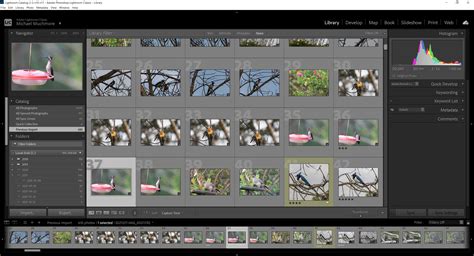
Adobe offers two versions of Lightroom: Lightroom Classic and Lightroom. Classic is the desktop-centric version (the other being cloud-centric), which means original files are stored locally on your computer, an external hard drive, or a local server. For this reason, Lightroom Classic is undoubtedly my recommendation for those working with big, high-resolution files, terabytes of data, or anyone who doesn’t have regular access to reliable and/or fast Internet.
Lightroom Classic’s file management workflow will prove confusing for newcomers, but editing images is much more intuitive than Photoshop - think a much more in-depth Camera Raw.
Specifications:
- Operating system (PC): Windows 10 (version 22H2) or Windows 11 (version 23H2) or later
- Operating system (Mac): macOS Sonoma (version 14.x) or later
- PC processor: Intel or AMD (2 GHz or faster, 64-bit), ARM processors (via emulation)
- Mac processor: Multicore Intel processor (2 GHz or faster, 64-bit support), Apple Silicon processor
- Hard drive: 8GB
- RAM: 8GB (16GB recommended)
- Minimum screen resolution: 1024 x 768px
Reasons to buy:
- Local storage
- Integrated RAW Enhance tools
- Excellent AI masking
- Powerful cataloguing and search tools
Don't buy because:
- Dated interface
- Module-based workflow
- Limited cloud-sync capabilities
Buy it because:
- Unrivalled batch editing: If you’re dealing with lots of large files and want to get through them as quickly as possible, Lightroom Classic is hard to beat.
- Effective AI: The latest updates use AI for intelligent subject and sky selection and noise reduction, enhancing editing efficiency.
Don't buy because of:
- Subscription-model only: Some users dislike the ongoing subscription model, preferring one-time purchase options.
- Large catalogs are hardware intensive: Drawing up thumbnails in large catalogs can prove sluggish and selecting different images in the Develop module can chug a bit, too.
Many professional photographers use Lightroom as a core part of their workflow. Professional photographers commonly use Adobe Lightroom and Photoshop. Many also incorporate tools like Capture One for studio work or DxO PhotoLab for RAW optimization. If you’re looking for speed, consistency, and long-term growth as a photographer, Lightroom is where you should start. It’s user-friendly and powerful, especially when combined with a preset pack that matches your style and helps you edit faster.
Best for Absolute Beginners: Adobe Photoshop Elements 2025
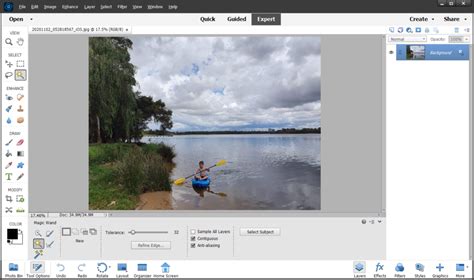
Adobe Photoshop Elements 2025 is still the best software for absolute beginners on a budget, even though it may feel dated and is no longer yours to keep forever. Its stripped-down interface and guides have long made it the go-to for those new to photo editing.
Specifications:
- PC (minimum): Intel 6th Generation or AMD equivalent (or later), 8GB RAM, Windows 10 and 11 (64-bit only)
- Mac (minimum): Intel 6th Generation or Apple Silicon M1 (or later), 8GB RAM, macOS 13, macOS 14 (or later)
- Hard drive space: 10GB
- Minimum screen resolution: 1280x800 px
Reasons to buy:
- Excellent new AI features
- No subscription
- Full-fat Organizer app included
- Guided edits
Reasons to avoid:
- Ignores RAW files until you download free extras
- Media file display glitches in Organizer
- Dated non-destructive editing
- Primitive RAW support
- Limited three-year license
Buy it because:
- Good value: Still represents good value for money, especially with the option to bundle with Premiere Elements 2025.
- In-app guidance: Photography newcomers will welcome guidance to help develop their image-editing skills.
Don't buy because of:
- You’re a photography enthusiast: If you’re serious about photo editing, you’ll probably outgrow Photoshop Elements relatively quickly.
- Limited RAW support: If you’re looking for what is primarily a RAW photo editor then Elements' limited RAW capabilities may not satisfy your needs.
Adobe Photoshop Elements 2025’s headline updates are - as I expected - powered by AI. The new Remove tool and Depth Blur filter are impressive additions. It comes with a separate Elements Organizer application which is a useful way to streamline your workflow, but if you want to import RAW files you have to download free additional software, which isn’t particularly well communicated. When you do get to editing RAW files, the options are extremely basic. And yet, as you’d expect from Adobe software, you do get good results. If you’re a JPEG photographer or would like to get more out of your camera phone’s photos, Photoshop Elements 2025 is easier to recommend. There are plenty of features, they’re just not always as deep or easy to find as I’d like. Ultimately, it might feel dated at times, but I still think Adobe Photoshop Elements is the best gateway into image editing for complete beginners.
The Best Photoshop Alternative: Affinity Photo 2
Affinity Photo 2 is the best like-for-like alternative to Adobe Photoshop, offering its powerful capabilities without a subscription. Affinity’s first release under the Canva banner has brought with it a fresh new look and a free-for-everyone model. While some AI tools are hidden behind a paywall (requiring a Canva subscription), Affinity alone is more than powerful enough for most creatives.
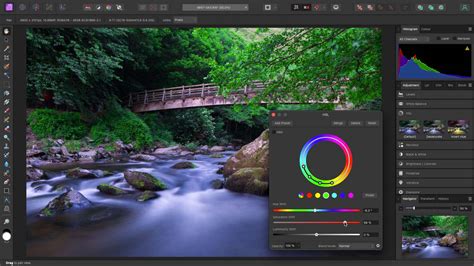
What you’re getting is the same fully-fledged, layer-based Photoshop-alike the photography industry has come to know and love, and more. Affinity now combines Affinity Photo, Affinity Designer, and Affinity Publisher in a single application that can handle photo editing, vector design, and page layout combined. Tabs on the top toolbar for ‘Vector’, ‘Pixel’ (photo editing), and ‘Layout’ mean you can easily stay in your lane.
While Affinity remains a very faithful alternative to Photoshop’s tried-and-tested workflow, it isn’t for everyone. If you like to work in layers and on one image at a time, it’s fantastic, but if you’re searching for software that will enable you to organize your library and power through batch edits, this isn’t it. It doesn’t hold your hand, either, meaning it isn’t the most accessible software for beginners. Ultimately, I wish I had access to this caliber of free software when I was studying photography at college. If you’re looking for a free alternative to Photoshop, Affinity is all that and more. If you don’t need (or want) to pay for Canva’s AI tools, you’re left with an old-school, layer-based editor that will either be right up your alley or not your cup of tea.
Specifications:
- Operating system (PC): Windows (64-bit)
- Operating system (Mac): Catalina 10.15 or later
- PC processor: Intel, AMD or ARM64 processor
- Mac processor: M-Series chip or Intel processor
- Hard drive: 1GB (PC), 2.8GB (Mac)
- RAM: 8GB
- Minimum screen resolution: 1280x768px
Reasons to buy:
- Completely free!
- All-in-one creative suite
- Photoshop-style layers and adjustments
- HDR Merge, panoramas, focus merge, astro stacking
Reasons to avoid:
- AI tools need a subscription
- No off-the-peg effects/inspiration
- No image cataloguing tools
Buy it because:
- It's FREE: While you could bemoan the Canva subscription required for AI tools, it’s incredible that software like this is ostensibly free for everyone.
- All-in-one package: Affinity comprises Affinity Photo, Affinity Designer, and Affinity Publisher, but if you only need the photo editor, you needn’t fear this impeding your workflow.
Don't buy because of:
- Lack of image browser/cataloging: Doesn't include a built-in image browser/cataloging feature for RAW files, which may be a drawback for some.
- Not a complete Photoshop replacement: While it competes closely with Photoshop, it may still lack some advanced features and integrations offered by the industry standard.
Powerful RAW Processing: DxO PhotoLab 8 Elite
DxO PhotoLab 8 Elite boasts a formidable feature set, making it a powerful tool for RAW photographers. If you’re looking to turn out the best-quality RAW edits, image by image, DxO PhotoLab 8 Elite is a great choice. This is a serious piece of editing software that’s probably not the best choice for beginners but will afford professionals and serious enthusiasts looking to pore over every image, extreme levels of control.
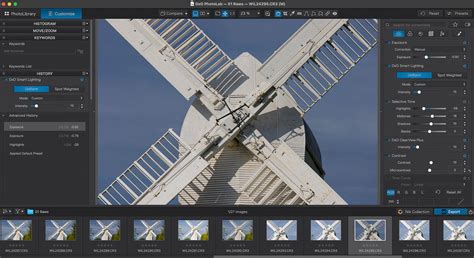
Its lens corrections capabilities boast more depth than its competitors, and if you’re prone to working at high ISOs, DxO’s proprietary DeepPRIME XD2s noise-reduction technology is - in my humble opinion - unrivaled. DxO PhotoLab 8 does sit behind the curve somewhat when it comes to AI-powered tools. But then again, its dense range of features will likely appeal to those with a more hand-crafted approach to photo editing. And while the software doesn’t come cheap, it’s only sold as a perpetual license - a big plus if you loathe subscriptions - with discounted upgrade prices for existing users.
Specifications:
- PC (minimum): Intel Core or AMD Ryzen with 4 cores (or later), 8GB RAM, Windows 10 (64-bit) or later
- Mac (minimum): Any CPU, 8GB RAM, macOS 13.6 (Ventura) or later
- Hard drive: 4GB
- Minimum screen resolution: 1920 x 1080 px (Mac), 1280 x 768 px (PC)
Reasons to buy:
- Exceptional DeepPRIME XD2s denoising
- Excellent lens corrections and edge sharpening
- Greatly improved Tone Curve controls
- New Hue Mask tool
Reasons to avoid:
- DeepPRIME XD2s not yet compatible with X-Trans files
- Adjustment tools can be daunting
- Elite version is much better, but expensive
Buy it because:
- Excellent lens corrections: Provides lab-developed lens corrections, including fixing edge softness, enhancing image quality.
- Incredible noise reduction: DeepPRIME XD2's noise-reduction performance is very hard to beat. If you're a low-light photographer, check it out.
Don't buy because of:
- Learning curve: The advanced features may require a steeper learning curve for new users compared to simpler photo editing software.
- Complexity: The extensive features and tools might be overwhelming for users who prefer a more straightforward or less complex editing experience.
The Premier Lightroom Alternative: Capture One Pro
Capture One Pro is a fantastic Adobe Lightroom Classic alternative, but it’s not the most cost-effective option. It’s often the choice for high-end commercial and studio photographers. If you’re someone who shoots tethered or needs precise color control, this software delivers. It is known for its RAW processing quality, and it especially shines with color grading and managing large shoots.
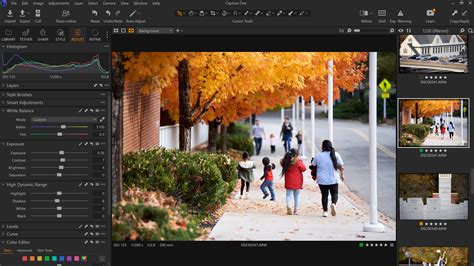
That said, it does have a learning curve. The interface feels more technical and complex than Lightroom, and the workflow takes some adjustment. But if your work involves fashion, product photography, or any studio-based workflow, Capture One might be a strong contender. I’ve used it for specific client projects, but I still return to Lightroom for my day-to-day editing. It’s just more streamlined for the kind of work I do.
Specifications:
- Operating system (PC): Windows 10 (64-bit) 22H2 or Windows 11 23H2 or later
- Operating system (Mac): macOS 14 or later
- PC processor: Intel Core i3 or AMD Jaguar CPU
- Mac processor: Apple Silicon (M-Series)
- Hard drive: 10GB
- RAM: 8GB
- Minimum screen resolution: 1200x800 pixels (1920 x 1080 recommended)
Reasons to buy:
- Excellent raw processing
- Superb colour adjustment tools
- Adjustment layers and masks
- Session or Catalog workflows
Reasons to avoid:
- You may still need an external editor like Photoshop
- More expensive than Lightroom
Buy it because:
- Professional workflow: Well-suited for commercial photographers, especially those shooting tethered in studios and using the Capture One Live service for real-time client collaboration.
- Superior RAW processing: Offers high-quality raw processing, which is notably better than Lightroom’s.
Don't buy because of:
- Lack of Creative Cloud integration: Does not have access to Adobe’s Creative Cloud ecosystem, which could be a drawback for those using multiple Adobe products.
- High cost: More expensive than Adobe Lightroom, which may not justify the expense for all users.
AI-Powered Creativity: Luminar Neo
Luminar Neo is a really fun tool if you want to push creative boundaries or work quickly using artificial intelligence tools. It offers features like sky replacement, portrait enhancement, background removal, and one-click presets that are surprisingly good.
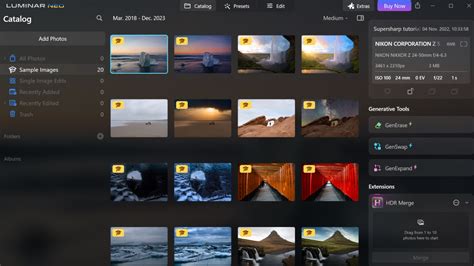
I’ve played around with Luminar for travel and content creation edits. It’s not my main workflow, but I love how fast it can produce share-ready results. For example, if you’re working with influencers, bloggers, or doing social media content, Luminar Neo can help you turn around polished edits fast. It’s also a good Lightroom companion if you want to try some AI effects that Lightroom or Photoshop doesn’t offer out of the box.
While it boasts impressive AI features, for professional use, it's missing certain features and performance, as with its simpler sister software Luminar AI, can be occasionally spotty.
All-in-One Solution: ON1 Photo RAW 2025
ON1 Photo RAW is kind of an all-in-one editor. It has layers like Photoshop, presets and organization tools like Lightroom, and effects and retouching features baked in. For someone who wants a single program that does it all, ON1 is a good value. I’ve found the interface a little more cluttered than Lightroom or Photoshop, but that might just come down to what you’re used to.
Free and Open-Source Powerhouse: GIMP
GIMP (GNU Image Manipulation Program) is a professional, open-source photography powerhouse that works on Linux, Windows, and macOS. It's both the best Adobe Photoshop alternative overall and an excellent free alternative. GIMP comes with an absolutely huge range of pro-grade tools for editing images, drawing, and more. If you're familiar with Photoshop already, it won't take too long to get to grips with the interface. And if you're new to all this, you'll find a huge community of developers and artists who have created a wide array of plugins, making this a highly adaptable program. If you desire a specific feature, there’s probably an add-on for it. The interface is highly customizable, so you can pare things back or leverage multiple windows and toolbars as needed.
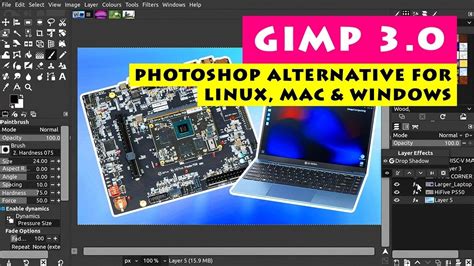
However, GIMP isn't the best for its photo editing tools; it's more of a drawing tool than a photo editor. For that reason, certain features are missing: fewer photo filters, no automatic heal tool, etc. While it has a complex interface and a steep learning curve, and no CMYK color mode (though an add-on is available), its extensibility and free nature make it a compelling option.
Web-Based Editing: Pixlr
Pixlr is one of the best free Photoshop alternatives online, and what makes this a good pick is that it's available as a web app. Pixlr is impressively feature-rich compared to downloadable software. Often, it's used for those quick image edits and compositions when there's no need to crack open Photoshop. The interface is more spartan than either Photoshop or GIMP, but that’s not a bad thing. The workflow is streamlined and intuitive: you can drag-and-drop a photo from your computer or add a URL, and then get to work adjusting images with familiar one-click filters and sliders.
Given that it’s a web app, Pixlr has surprisingly robust layer support - one of the reasons why it's considered one of the best Photoshop alternatives. However, important features are still missing. Custom brushes, for example, are slated for development in the future but don’t exist yet. Overall, Pixlr gives you a super clean and intuitive interface for basic to medium-complexity photo editing.
The Ideal Middle Ground: ACDSee Photo Studio Ultimate
ACDSee Photo Studio Ultimate is an image manipulation tool that, like any good Photoshop alternative, allows you to perform many of the functions you’d find in Adobe's popular photo editor, but at a fraction of the cost. This app is an ideal middle-ground if you're not quite a beginner, but not yet a pro. It might not match every powerful feature in Adobe’s top tool, but it delivers most tools for most photographers and designers, including layers and RAW file editing. As expected, there are AI tools on offer here, too.
What’s especially appealing is the option to buy a perpetual license - great for those wanting to avoid subscriptions. But you can still get it for a monthly or annual fee, if you prefer, with a range of cloud storage options depending on how much you pay. Overall, it's one of the best Photoshop alternatives for creating professional-looking content while working to a budget.
Choosing the Right Software for Your Needs
When deciding which alternative to Photoshop is best for you, first consider how much of your relevant image file you need to edit and change. If you’re just trying to make simple edits to an existing image file, you may find a free software program will suit you fine. However, if you plan to develop a file from scratch and/or plan to make a series of complicated edits using advanced photo-editing tools and filters, it may be better to aim for one of the higher range and more expensive programs on this list.
You should also check your current computer specs. Photo editors tend to have low minimum requirements, but for more seamless workflows, you may need a higher-power device. To help with this, consider the best laptops for graphic design, best laptops for photo editing, and best photo editing PCs. For professionals, choosing one of the best monitors for photo editing is also recommended.
IS RAW BETTER? You may be surprised!
For photographers who need pixel-level control, creative compositing, or advanced retouching, Photoshop is the perfect sidekick. Together, Lightroom and Photoshop cover every editing need, from quick batches to highly detailed individual images. If you haven’t already explored presets, they are truly game-changing. Presets help you create a polished, consistent aesthetic across your portfolio with just one click. They’re not about turning your photo into something fake; they’re about saving you time and helping you stay true to your creative style.
Choosing the right editing software can feel overwhelming with so many options available. But the truth is, your editing tools should support your creativity, not slow you down. Whether you’re just starting or you’ve been shooting professionally for years, the right combination of tools can make all the difference. For many, Lightroom and Photoshop continue to be the foundation of everything they create. With their powerful editing capabilities, easy organization, and seamless workflow, you can feel more in control of your process than ever.