The ability to link directly to web pages or other documents from within your InDesign layouts is a powerful feature, especially for interactive PDFs or digital publications. However, there are times when you might need to remove a hyperlink from a graphic without affecting the graphic itself. This can sometimes feel like a hidden process, with users encountering outdated scripts or convoluted workarounds. This guide aims to demystify the process, offering clear, actionable steps for removing hyperlinks from graphics in Adobe InDesign.
Understanding the Hyperlinks Panel
Adobe InDesign provides a dedicated panel for managing all hyperlinks within your document. This panel is your central hub for both creating and, crucially, removing these links.
Accessing the Hyperlinks Panel: To open this essential tool, navigate to the Window menu at the top of your InDesign workspace. From the dropdown, select Interactive, and then choose Hyperlinks. This will reveal the Hyperlinks panel.
Identifying the Target Graphic: Once the Hyperlinks panel is open, you need to select the graphic object in your InDesign layout that has the hyperlink applied. You can do this by clicking directly on the graphic with the Selection Tool (V).
Locating the Hyperlink: With the graphic selected, look at the Hyperlinks panel. The hyperlink associated with your selected object should be highlighted, clearly indicating which link you need to manage.
The Direct Method for Hyperlink Removal
While the user experience for removing hyperlinks has historically been less intuitive than its creation, InDesign offers a direct method within the Hyperlinks panel.
Selecting the Hyperlink: In the Hyperlinks panel, ensure the hyperlink associated with your graphic is selected.
Initiating Removal: At the bottom of the Hyperlinks panel, you will find several icons. The one that resembles a trash can or a small "X" is used for deleting selected items. Click this icon to remove the highlighted hyperlink.
This action will remove the hyperlink entirely, disassociating it from your graphic. The graphic itself will remain untouched, preserving its appearance and placement within your document.
Addressing Common Challenges and Misconceptions
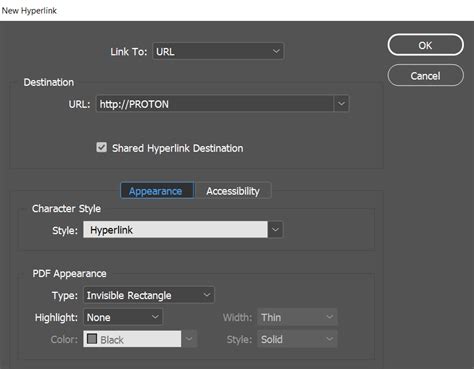
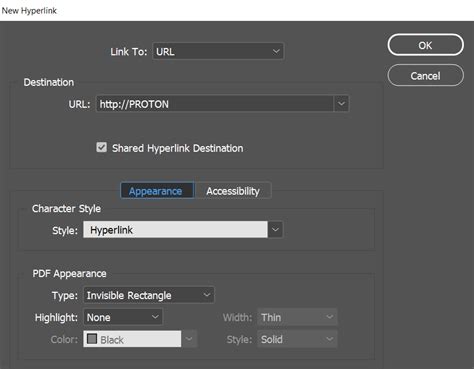
The user's experience highlights a common point of confusion: the lack of an obvious "Remove Hyperlink" button directly on the object or in contextual menus. Many users, upon attempting to edit a hyperlink, find themselves in a dialog box where deleting the link's destination or URL seems to be the only option.
The "Edit Hyperlink" Trap: When you double-click a hyperlink in the panel or select "Edit Hyperlink," you are presented with options to change the destination, appearance, or other settings. While there's a field for the URL or document destination, directly deleting the content of this field often results in an "Invalid Entry" error. This is because InDesign expects a valid destination to be present. The correct approach is to use the deletion function within the Hyperlinks panel itself, not by editing the destination field.
Scripts from 2011: The mention of a script from 2011 underscores the historical evolution of InDesign's features. While scripts can be incredibly powerful for automating tasks, InDesign's built-in functionality for hyperlink management has become more robust over time. Relying on outdated scripts can lead to compatibility issues or unnecessary complexity. The Hyperlinks panel provides a native and straightforward solution.
Styles vs. Hyperlinks: The context provided about styles in InDesign, while valuable for general document management, is distinct from hyperlink management. Styles (paragraph, character, object) control the formatting of text and objects. Hyperlinks, on the other hand, are interactive elements that link to external or internal destinations. Deleting styles will not remove hyperlinks, and vice-versa. The advice about deleting all styles and preserving formatting is a separate workflow for style management, not for interactive elements.
Preserving Formatting and Content
A critical aspect of removing a hyperlink is ensuring that the underlying graphic remains unaffected. The method described above, using the Hyperlinks panel's delete function, is designed precisely for this purpose. It targets the interactive link property, not the visual or structural properties of the graphic object.
Consider the implications of how hyperlinks are applied. A hyperlink can be applied to an entire object, a text frame, or even specific text within a frame. The Hyperlinks panel will accurately reflect this, allowing you to select the graphic object and then delete the associated hyperlink.
For instance, if you have a logo image that is hyperlinked to your company's website, selecting that logo in your layout and then clicking the delete icon in the Hyperlinks panel will sever the link without altering the logo's pixels or its placement on the page.
Advanced Considerations and Best Practices
While removing a hyperlink from a graphic is typically a simple task within the Hyperlinks panel, understanding the broader context of interactive elements in InDesign is beneficial.
Interactive Elements and Export: When exporting your InDesign document to formats like PDF, interactive elements, including hyperlinks, are preserved. If you need to ensure that a hyperlink is not active in the exported file, it must be removed from the InDesign document before exporting.
Object States and Hyperlinks: In more complex interactive designs, you might use object states. A hyperlink can be applied to a specific state of an object. The Hyperlinks panel will allow you to manage these links as well, ensuring you are removing the correct interactive element.
Consistency in Workflow: Developing a consistent workflow for managing interactive elements is key. Regularly checking your Hyperlinks panel, especially before finalizing a document for distribution, can prevent accidental or unwanted links from appearing in your final output.
In-Document Hyperlinks Demo for InDesign and Interactive PDFs
By understanding and utilizing the Hyperlinks panel, you can efficiently manage and remove hyperlinks from any object in your Adobe InDesign documents, ensuring your layouts are precisely as you intend them to be, both visually and interactively.