Adobe offers two distinct applications under the Lightroom umbrella: Lightroom Classic and Lightroom CC. While both aim to empower photographers through robust editing and organization capabilities, they cater to fundamentally different workflows and user needs. Understanding these differences is crucial for any photographer, from the hobbyist to the seasoned professional, to make an informed decision about which tool best fits their photographic journey.
The Core Distinction: Local vs. Cloud Storage
At the heart of the Lightroom Classic vs. Lightroom CC debate lies the fundamental difference in how they manage your photographic assets.
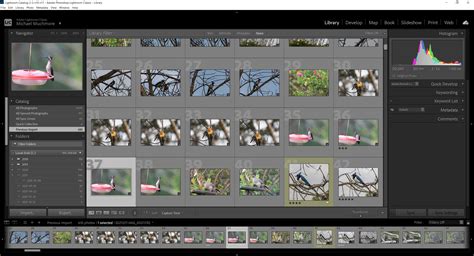
Lightroom Classic, the renamed and evolved version of the Lightroom application many have used for years, is optimized for desktop-focused workflows. It operates on the principle of local storage. This means your photos are primarily stored in files and folders directly on your computer or external hard drives. The interface, photo import and organization functionalities, and editing feature set remain largely familiar to long-time users.
Lightroom CC, conversely, is a newer, cloud-based photo service. It is designed to work seamlessly across desktop, mobile, and web platforms, offering a more fluid, cross-device experience. In Lightroom CC, your photos are stored in the cloud by default. This cloud-centric approach has implications for storage and accessibility. If you reach your allotted cloud storage limit, new photos will only be saved on the devices they originated from. They will no longer be backed up to the cloud or synced across your devices, and critically, they won’t be automatically tagged for easy keyword search within Lightroom CC. To accommodate growing photo libraries, Adobe offers tiered storage plans, starting with a 20GB base and allowing upgrades to 1TB, 2TB, 5TB, or even 10TB, with pricing often structured per terabyte. Purchasing additional storage or upgrading an existing plan typically involves signing into your Adobe ID account and navigating to the plan management section.
Organization and Search: Catalogs vs. Smart Search
The methods by which each application organizes and allows you to find your images also present a significant divergence.
Lightroom Classic relies heavily on the concept of "Catalogs." A catalog is essentially a database that keeps track of all your photos, their edits, and metadata. You can spread your photo library across multiple hard drives and manage them all within one or more catalogs. A key procedural difference is that in Classic, you must import photos into a catalog before you can begin working on them. Organization in Classic is primarily folder-based, supplemented by the powerful cataloging system.
Lightroom CC takes a more modern, AI-driven approach to organization. It leverages Adobe Sensei, an artificial intelligence platform, to automatically recognize faces, objects, and scenes within your images. This intelligent recognition then generates searchable keywords, allowing for remarkably intuitive searching. For instance, typing "beach" or "cat" into the search bar will instantly bring up all matching photographs, eliminating the need for manual keyword tagging for many common elements.
Editing Capabilities: Core Power and Advanced Features
When it comes to the fundamental editing of RAW files, both Lightroom Classic and Lightroom CC are remarkably similar. At their core, both applications provide the same powerful tools for manipulating exposure, contrast, white balance, tone curves, clarity, dehaze, sharpening, and noise reduction.
However, Lightroom Classic shines when it comes to a suite of advanced, desktop-centric features that cater to more granular control and workflow customization. These include the ability to tag images with color labels, change a photo's capture time, batch-rename files with extensive options, and export to a wide array of formats (RAW/DNG, TIF/PSD, JPEG, PNG). Classic also boasts built-in tools for creating print layouts, photo books, and slideshows, complete with features like soft-proofing to ensure accurate color representation for print. Furthermore, its extensive plugin ecosystem and the ability to send images to external editors (like Photoshop, Photoshop Elements, or other third-party applications) offer unparalleled flexibility for users with specialized needs.
Both applications allow for the creation and application of presets. However, Lightroom CC's preset workflow is often described as more modern and visually intuitive, featuring thumbnail previews as you edit and ensuring your presets are accessible across all your devices. The export functionality in CC is generally simpler and more streamlined compared to Classic's extensive options.
User Interface and Experience: Pro Dashboard vs. Mobile App Feel
The visual design and user experience of each application reflect their core philosophies.
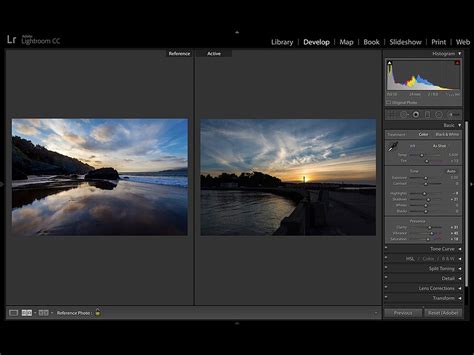
Lightroom CC's interface is characterized by its clean, simple, and modern aesthetic. It often feels more akin to a mobile application, with easily accessible controls, large sliders, and clear icons. This design prioritizes ease of use and a less cluttered experience.
Lightroom Classic, on the other hand, presents a more complex and feature-rich interface that is often likened to a professional camera dashboard. It is divided into distinct modules (Library, Develop, Print, Book, Slideshow, etc.), each dedicated to a specific task. The layout can appear busy, with panels packed with numerous options, reflecting its depth and comprehensive functionality.
Performance and Speed: Local Drive Advantage vs. Network Dependency
Performance is another area where the two applications diverge significantly, largely due to their differing storage models.
Lightroom Classic operates entirely from your local drive. This generally translates to consistently fast and reliable performance, especially when dealing with large files or extensive libraries. Offline work is seamless, and you are less dependent on your internet connection.
Lightroom CC, being cloud-based, introduces an element of network dependency. Every time you sync or download photos, your internet speed and stability become a factor. While CC offers an on-demand download option, allowing you to keep low-resolution previews on your device and download full-resolution originals from the cloud as needed, its overall speed can be influenced by your network connection. For users who prioritize offline editing and rapid access to their entire library without network interruptions, Classic holds a distinct advantage.
Learning Curve: Accessible Introduction vs. Powerful Depth
The ease of learning and mastering each application also differs.
Lightroom CC is generally considered easier to pick up, especially for new users. Its simplified interface, coupled with built-in tutorials and guided edits, provides a smoother introduction to photo editing.
Lightroom Classic, while more powerful and offering a more comprehensive feature set, presents a steeper learning curve. The multitude of modules, panels, and options can be overwhelming for beginners. However, for those willing to invest the time, Classic offers a depth of control and workflow customization that is unmatched.
Subscription Model and Accessibility
It's important to note that Adobe has transitioned to a subscription-based model for its Creative Cloud suite. Both Lightroom Classic and Lightroom CC are typically bundled together within the Adobe Photography Plan, which often includes Photoshop as well. This means that for a single monthly fee, users gain access to both versions, allowing them to try both and determine which best suits their needs. There are often free trial periods available to facilitate this exploration.
Which One Should You Choose?
The decision between Lightroom Classic and Lightroom CC hinges on your individual workflow, photographic habits, and priorities.
Consider Lightroom Classic if:
- You are a professional photographer or aspire to be one, managing client work and high-volume shoots.
- You shoot a large number of images and prefer to store them locally on hard drives or your computer.
- You require advanced organizational tools, such as extensive metadata control, batch renaming, and catalog management.
- You need precise control over print output, including soft-proofing and built-in book/slideshow creation tools.
- You rely on third-party plugins or need to send images to external editors frequently.
- You prioritize consistent offline performance and are not reliant on cloud syncing for your primary workflow.
2024 LIGHTROOM CLASSIC TUTORIAL | Full Beginner Walkthrough
Consider Lightroom CC if:
- You are a hobbyist or casual shooter who primarily uses a smartphone for photography.
- You value accessibility across multiple devices (desktop, mobile, web) and seamless cloud syncing.
- You prefer a simpler, more intuitive interface and a streamlined editing experience.
- You are comfortable with cloud storage and understand its implications for cost and accessibility.
- You are new to Lightroom and want an easier entry point into photo editing.
- Your editing needs are primarily for social media or personal sharing, and you don't require the deep organizational or print-specific features of Classic.
The Hybrid Approach: Using Both Together
Interestingly, many photographers find value in using both Lightroom Classic and Lightroom CC in conjunction. A common workflow involves using Lightroom Classic on a desktop for its robust organization and editing capabilities, especially for high-volume shoots. Selected images from these shoots can then be synced to Lightroom CC. This allows those chosen images to be accessible and further refined on mobile devices or shared more easily. Adobe even facilitates this by allowing the syncing of Smart Previews from Classic to the cloud, enabling a secondary round of edits in CC on a mobile device.
Conclusion: Power and Flexibility for Every Photographer
Ultimately, both Lightroom Classic and Lightroom CC are powerful tools designed to enhance your photography. Lightroom Classic remains the industry standard for professional photographers, offering unparalleled control, organization, and a deep feature set for managing extensive local libraries. Lightroom CC, with its cloud-native design and intuitive interface, provides a more accessible and cross-device-friendly experience, ideal for those who prioritize convenience and mobile integration. By understanding your own workflow and needs, you can confidently choose the Lightroom solution that best empowers your creative vision.