Blackmagic Design’s DaVinci Resolve has rapidly ascended to become a titan in the non-linear editing (NLE) landscape, challenging established giants like Adobe Premiere Pro and Apple’s Final Cut Pro. This powerful software, available in both a robust free version and a paid Studio edition, offers an immense value proposition. Its popularity has naturally led to a flourishing ecosystem of third-party plugins, designed to enhance workflows, introduce specialized tools, and unlock new creative possibilities for editors of all levels. These plugins are not merely cosmetic additions; they are essential tools that can significantly expedite the post-production process and elevate the final product.
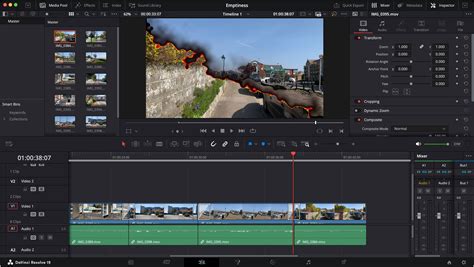
Video editing plugins are essentially add-on modules that imbue your chosen NLE with capabilities that would otherwise be impossible or prohibitively time-consuming to achieve. They range from simple transition packs and preset collections to sophisticated visual effects suites and advanced audio processing tools. For those looking to push their edits further, understanding and leveraging these plugins is crucial.
Understanding the Power of Blackmagic RAW
Before diving into plugins, it's important to acknowledge the foundational technologies that DaVinci Resolve supports, such as Blackmagic RAW (BRAW). Blackmagic RAW is described as the world’s only truly modern, high-performance, professional RAW codec that is open, cross-platform, and free. The codec is supported via a free SDK on Mac OS, Windows, and Linux systems, with no hidden licenses or ongoing fees. This open approach ensures broad compatibility across various professional applications, including Alteon Transcoder by Alteon.io, SynthEyes by Andersson Technologies LLC, Scratch by Assimilate, and a suite of Autodesk products like Flare, Flame, Flame Assist, and Lustre. Other notable applications supporting BRAW include Baselight by FilmLight, Nuke Studio/Hiero by The Foundry, and Edius by Grass Valley, among many others.
The Blackmagic RAW Speed Test is a valuable tool for assessing system performance, acting as a CPU and GPU benchmarking utility to gauge the speed of decoding full-resolution Blackmagic RAW frames. It automatically detects and utilizes multiple CPU cores and GPUs for accurate, realistic results. Users can select various constant bitrates (3:1, 5:1, 8:1, or 12:1) and desired resolutions to perform these tests. The .braw SDK is thoroughly documented and publicly available, granting developers access to GPU-accelerated and CPU-optimized algorithms for decoding BRAW files. Crucially, the SDK provides unique camera imaging sensor information, enabling accurate decoding and image presentation tailored to the sensor's characteristics.
Essential Plugin Categories for DaVinci Resolve
The world of DaVinci Resolve plugins can be broadly categorized to help users identify tools that align with their specific needs. Whether you're focusing on visual aesthetics, audio quality, or workflow efficiency, there's a plugin designed to enhance your capabilities.
Enhancing Visuals: Color Grading, Stylization, and Effects
For many editors, the allure of DaVinci Resolve lies in its unparalleled color correction and grading tools. Plugins can further refine this process, offering specialized looks and advanced manipulation techniques.
Cinematic Grading and Film Emulation: Creators are increasingly seeking that coveted "cinema look," even for social media content. This trend has fueled the popularity of LUT packs and film emulation tools.
FilmConvert Nitrate: This plugin is a standout for filmmakers aiming to transform raw digital footage into cinematic masterpieces. Instead of simply applying a LUT, FilmConvert Nitrate employs a sophisticated process to emulate the unique color science and grain structure of specific film stocks. It offers a wide array of presets for major camera brands, including Panasonic, DJI, ARRI, Canon, GoPro, Nikon, Sony, and Blackmagic. The plugin provides access to 6K grain scans and 19 distinct film stocks, with options to export 3D LUTs. Users have granular control over grain strength and texture, allowing for subtle or pronounced looks. The workflow is designed for film emulation, making it faster and more intuitive than manual methods for many users.

Sapphire by Boris FX: A powerhouse in the visual effects realm, Sapphire offers an extensive collection of over 270 effects and thousands of customizable presets. This suite is invaluable for adding flair to content, delivering stunning visual effects such as lens flares, glow effects, transitions, and sophisticated motion graphics. Sapphire’s strength lies in its ability to combine multiple effects and presets, enabling the creation of entirely new, custom looks. This offers an incredible degree of creative control and flexibility for visual storytelling.
Red Giant Universe: This comprehensive suite boasts 89 GPU-accelerated plugins, offering a vast array of creative tools. From VHS effects and glitch aesthetics to retro looks and stylized glows, Universe provides a rich palette for visual experimentation. It integrates seamlessly with DaVinci Resolve versions 16, 17, and 18, making it a versatile option for adding unique visual treatments to projects.
Advanced Visual Effects and Compositing
Beyond basic grading, certain plugins excel in complex visual effects, motion tracking, and object removal, often employed in high-end productions.
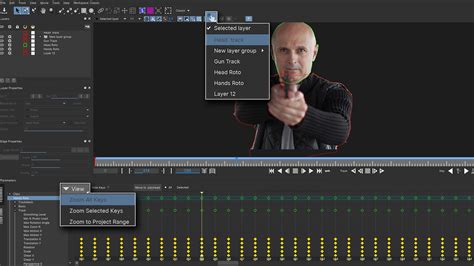
BorisFX Mocha Pro: Renowned for its industry-leading planar tracking, rotoscoping, object removal, and stabilization capabilities, Mocha Pro is an indispensable tool for visual effects professionals. While it doesn't operate natively within DaVinci Resolve, its OpenFX support ensures seamless integration. Mocha's tools have been instrumental in numerous Oscar-nominated films for Best Visual Effects, such as Dune. Its planar tracking is highly accurate, capable of following objects through occlusions, reflections, and non-flat surfaces. It can automatically generate "clean plates" to remove unwanted elements, facilitate screen replacements, and add realistic motion blur and distortion for insert shots. Its stabilization features are also top-tier.
Beauty Box: This plugin is a highly effective tool for automatic skin smoothing and retouching. Its core strength lies in its automatic skin and face detection. With a single click, Beauty Box identifies skin tones and creates a precise mask, eliminating the need for laborious manual rotoscoping. This acts as digital makeup, delivering natural-looking results for both HD and 4K videos. It leverages CUDA and OpenGL for fast, real-time rendering, making it an efficient solution for beauty work and subtle retouching.
MotionVFX Channel Clean Booster: For those seeking high-quality graphic design elements, the Channel Clean Booster plugin is a must-have. It provides 59 presets for DaVinci Resolve, encompassing titles, transitions, social media graphics, lower thirds, overlays, and backgrounds. This plugin is an ideal solution for content creators who need to produce professional-looking content quickly without a steep learning curve, particularly beneficial for corporate videos and social media content. It offers a way to achieve a clean, modern, and polished aesthetic without building motion graphics from scratch in Fusion.
Audio Enhancement and Cleanup
High-quality audio is as critical as compelling visuals. Plugins dedicated to audio processing can significantly improve dialogue clarity, remove unwanted noise, and create immersive soundscapes.
Fairlight FX Suite: While not a third-party plugin in the traditional sense, DaVinci Resolve's integrated Fairlight audio page is a professional-grade digital audio workstation (DAW) that comes with a comprehensive suite of audio tools and over 25 FX in its effects library. These tools are designed for dialogue cleanup, hum removal, and a wide range of audio mixing and mastering tasks. Editors can adjust clip levels, panning, pitch, and utilize a full 4-band parametric equalizer directly within the inspector. The mixer provides visual meters for monitoring signal levels, ensuring optimal audio balance.
"Place it" by Acon Digital: This specialized tool focuses on realistically placing sounds within a specific environment. It's not a general-purpose EQ or compressor but a dedicated solution for making sounds, such as voiceovers or sound effects, seem to emanate from a particular speaker or location. This allows editors to create more natural-sounding audio by simulating the acoustic properties of different spaces, making sound effects blend more seamlessly into the video's narrative.
Workflow Acceleration and Specialized Tools
Some plugins are designed to streamline repetitive tasks, automate processes, or introduce unique functionalities that significantly speed up the editing workflow.
Simon Says: In an era where video content is abundant, standing out is paramount. Simon Says addresses the critical need for accurate subtitles and closed captioning. It allows users to add captions and subtitles to footage natively within DaVinci Resolve, supporting 100 languages with a single click. This can transform hours of manual transcription into minutes. The platform also facilitates translation of generated transcripts and is lightweight, ensuring it doesn't hinder Resolve's performance.

Pixel's False Color: While DaVinci Resolve 17 introduced a native false color node, Pixel's False Color plugin remains a top choice for false color monitoring. It visualizes exposure levels through color overlays, offering a more intuitive way to assess image exposure than traditional scopes like waveforms and histograms. The plugin allows for customization of false color ranges, export as 3D LUTs, and utilization of high-quality presets. It provides a quick "gut check" on set and a final verification in post-production, saving time and effort.
Twixtor by RE:Vision Effects: Achieving convincing slow-motion effects can be challenging in standard NLEs, often resulting in choppy or artificial-looking footage. Twixtor excels at synthesizing unique frames by warping and interpolating original frames, producing much smoother slow-motion with fewer artifacts, even when objects cross in the scene. It operates in real-time with a single-speed setting, offering a superior solution for speed manipulation.
De:Noise by RE:Vision Effects: For tackling digital and electronic noise, especially in low-light footage, De:Noise is a highly powerful solution. While Resolve's built-in denoiser is capable, a dedicated plugin like De:Noise offers superior versatility and detail preservation. It addresses blotchy spots and noise while using temporal filtering to keep footage looking sharp, a common challenge with many denoisers.
Jake Wipp's Highlight Window: This user-friendly tool simplifies the process of creating professional-looking highlight effects. It allows editors to easily define shapes and sizes for highlight areas, drawing viewer attention to specific elements on screen. This is particularly useful for tutorials, product demos, and educational content where emphasizing certain buttons, menus, or data points is crucial.
Reactor: Often described as the "App Store" for Fusion, Reactor provides a centralized interface for browsing, downloading, and installing a vast collection of user-created audio effects, 3D effects, transitions, blurs, and more. This community-driven approach ensures a wealth of practical and creative solutions addressing real-world production challenges, making video editing more accessible and efficient.
BEST PLUGINS and RESOURCES! | Davinci Resolve 20
Trends in DaVinci Resolve Plugins for 2025
The plugin landscape is constantly evolving. Looking ahead to 2025, several key trends are expected to shape the development and adoption of DaVinci Resolve plugins:
- AI-Powered Tools: Expect a significant surge in plugins leveraging Artificial Intelligence to automate repetitive tasks. This includes AI-driven auto-editing, intelligent color matching, and smart captioning, all aimed at drastically reducing post-production time.
- GPU Acceleration: The push for faster render times continues. Nearly all new plugins are being optimized for platforms like Apple Silicon and CUDA, ensuring maximum performance on modern hardware.
- Cinematic Grading Dominance: The pursuit of the "cinema look" will remain a primary driver, with LUT packs and film emulation tools continuing to dominate the market as creators strive for cinematic quality across all platforms.
- Modular Motion Graphics: Pre-built title and transition packs will become even more sophisticated, offering editors polished design elements that save time while maintaining a high level of aesthetic quality.
Choosing the Right DaVinci Resolve Plugins
With such a diverse array of options, selecting the right plugins can seem daunting. A strategic approach is key:
- Define Your Workflow: Identify your primary needs. Are you focused on color grading, visual effects, audio cleanup, or motion graphics? This will help narrow down the relevant plugin categories.
- Check Compatibility: Always verify that a plugin is compatible with your version of DaVinci Resolve. Some advanced tools may only function in the paid Studio version.
- Test Before Buying: Most plugin developers offer free trials. Utilize these to assess playback speed, ease of use, and how well the plugin integrates into your existing workflow.
- Plan for the Long Term: Opt for plugins that receive frequent updates. This ensures continued compatibility with future DaVinci Resolve versions and ongoing support.
While plugins offer immense power, it's also worth noting that many creators prefer building reusable workflows within Resolve itself. Mastering the software's built-in features, such as its advanced editing tools, Fusion effects, and professional color grading capabilities, provides a solid foundation for any editor.
Frequently Asked Questions About DaVinci Resolve Plugins
Are DaVinci Resolve plugins free?
While some basic plugins, like certain LUT packs and simple transitions, are available for free, most high-end, specialized tools, such as Neat Video, FilmConvert, and Dehancer, require the purchase of a paid license.
How do I install plugins in DaVinci Resolve?
The installation process typically involves running an installer provided by the developer or dragging a .DRFX file into the DaVinci Resolve plugins folder. After installation, restarting Resolve will usually make the plugin accessible within the Effects library or under the OpenFX section.
Can I use Premiere Pro plugins in Resolve?
Directly, no. Premiere Pro and DaVinci Resolve utilize different plugin APIs, meaning plugins designed for one software are generally not compatible with the other.
By understanding the capabilities of DaVinci Resolve and strategically integrating the right plugins, editors can unlock new levels of creativity and efficiency, transforming their post-production workflows and delivering truly exceptional results.