The name 'Photoshop' has become synonymous with photo editing and manipulation. Undeniably, Photoshop is the king of image editing, unofficially the default image editor in the market with not many competitors that rival its features and usability. For decades, it has been the industry standard for photographers, graphic designers, and digital artists alike. However, the subscription-based model of Adobe Creative Cloud can present a significant financial barrier, especially for those just starting out or operating on a budget. This has fueled a growing demand for robust, free, and accessible alternatives that can deliver professional-grade results without the hefty price tag. While simple photo-enhancing software is readily available for smartphones, a true Photoshop alternative needs more than just basic corrections; it requires advanced features like layers, masks, batch editing, color correction, and a wide assortment of automatic and manual editing tools. The ability to integrate plugins to expand functionality and enhance workflow efficiency is also a crucial consideration.
The landscape of digital imaging software is constantly evolving, with a significant surge in powerful browser-based applications that offer a compelling alternative to traditional desktop software. These web-based tools provide the advantage of accessibility from any device with an internet connection, eliminating the need for installation and often offering a more streamlined user experience. For many tasks, a browser can effectively become your new desktop. This is particularly beneficial for individuals who utilize multiple computers or need to work on projects while traveling. Furthermore, the integration with cloud storage services makes sharing and collaborating on projects seamless.
The Rise of Web-Based Image Editors
The concept of performing complex image editing tasks directly within a web browser was once considered a distant possibility. However, advancements in web technologies, such as HTML5, WebGL, and WebAssembly, have enabled developers to create sophisticated applications that rival the capabilities of their desktop counterparts. These browser-based alternatives are not just for quick edits or basic retouching; many now offer advanced features like layers, masks, blend modes, vector tools, and even AI-powered enhancements. This accessibility and power make them ideal for a wide range of users, from amateur photographers to seasoned graphic designers.
One of the key advantages of web-based Photoshop alternatives is their immediate availability. There's no need to download and install large software packages, which can be time-consuming and require significant disk space. Users can simply navigate to a website, and within moments, they have access to a powerful editing suite. This also means that updates are handled automatically by the service provider, ensuring that users always have access to the latest features and security patches without any manual intervention.
Animated Explainer Video for Citeel - Cloud Storage (SaaS)
Pixlr: A Versatile Browser-Based Powerhouse
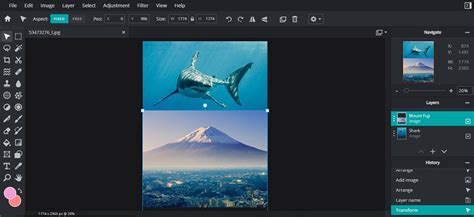
Pixlr stands out as a genuine competitor to both GIMP and arguably even Photoshop, offering a fast, free, and feature-rich experience directly in the browser. It's important to note that Pixlr is not intended as a complete Photoshop replacement for every single advanced task, but it provides a substantial range of tools that can comfortably compete for many day-to-day graphics projects. The toolbox includes essential tools found in any desktop graphics program, and Pixlr offers extensive options for working with layers, image adjustments, and filters.
Pixlr is thoughtfully divided into two main applications: Pixlr X and Pixlr E. Pixlr X is designed with beginners in mind, featuring an AI-focused and simplified interface that makes basic photo editing and content creation accessible. It offers intuitive tools for color correction, cropping, and AI-powered features like generative fill and expand. On the other hand, Pixlr E is tailored for more experienced users, providing a robust photo editor with a wide variety of editing capabilities. This includes advanced features such as blur, sharpen, noise reduction, levels, and curves adjustments, mirroring the familiar interface and functionality of Photoshop.
A significant advantage of Pixlr is its AI-powered tools, which can dramatically speed up editing workflows. Features like AI noise reduction and the ability to quickly remove backgrounds from multiple PNG images with AI save considerable manual selection work. For users who need to edit photos but don't have access to their usual desktop software, Pixlr is an excellent solution. It's perfect for making quick adjustments to images when working on a different computer or assisting someone else. The AI tools, particularly the background remover, are genuinely helpful. However, it's worth noting that the free version includes advertisements that can be distracting, and a stable internet connection is required for effective use.
The interface of Pixlr E, in particular, will feel familiar to anyone who has used Photoshop. It features a similar layout with icons along the left side, a menu across the top, and a right-side panel for editing history and layers. Pixlr does an excellent job of replicating Photoshop's layers feature, including all the same options, such as blending modes and opacity settings. Users can even right-click to access a secondary actions menu, just like in Photoshop. This makes the transition from Photoshop to Pixlr E relatively smooth for those accustomed to Adobe's ecosystem.
Pixlr's AI Capabilities and Workflow Enhancements
Pixlr's integration of AI is a key differentiator, offering features that streamline complex tasks. For instance, its generative fill and expand capabilities, powered by its Nano Banana AI, allow users to create new image content or extend existing images based on text prompts. This is particularly useful for graphic design and content creation, enabling users to generate unique elements or backgrounds quickly. The AI photo sharpening and object removal features further enhance its utility, providing professional-level results with minimal effort.
While Pixlr is primarily a web-based tool, it also offers a Windows application, providing users with flexibility in how they access its features. The AI tools are designed to be easy to use, even for beginners, ensuring that users can achieve accurate and efficient results by simply describing their desired edits through text prompts. This conversational AI approach to photo editing is a significant step forward, making advanced manipulation more accessible.
Photopea: The Closest Browser-Based Photoshop Clone
Photopea is an online photo editor that is remarkably similar to Photoshop in both its interface and functionality. It can work with a wide range of file formats, including PSD, XCF, and Sketch files (from Photoshop, GIMP, and Sketch App respectively), and it allows for conversion between PSD, XCF, JPG, PNG, and many other formats. This broad compatibility makes Photopea an incredibly versatile tool for image editing, creating illustrations, web design, and converting between different image formats.
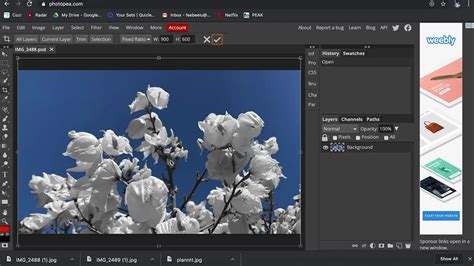
One of the most impressive aspects of Photopea is its ability to handle complex PSD files, often preserving layers and effects with remarkable accuracy. While it's not a perfect 1:1 replication of Photoshop, it comes exceptionally close, making it an invaluable tool for users who frequently work with Photoshop documents or need to migrate projects between different software. The interface is virtually identical to Photoshop's, featuring a familiar layout of toolbars, panels, and menus. This makes the learning curve for Photoshop users virtually non-existent.
Photopea is advertising-supported software, which allows it to remain free for users. Despite the ads, they are generally not overly intrusive and do not significantly detract from the user experience. The application is compatible with all modern web browsers, including Safari, Edge, Chrome, and Firefox. Crucially, while browser-based, Photopea stores all files locally on the user's device and does not upload any data to a server. This ensures user privacy and security, addressing a common concern with web-based applications.
Advanced Features and File Format Support
Photopea's compatibility with raster and vector graphics is a significant advantage. It supports Photoshop's native PSD format, as well as JPEG, PNG, DNG, GIF, SVG, PDF, and many other common image file formats. This extensive support means that users can import and work with a wide variety of files without needing to convert them beforehand. The ability to open and edit DNG files, even if it doesn't yet support all RAW formats, is a promising sign of its ongoing development. However, as of yet, while it displays JPEGs and DNGs well (and quite snappily), it doesn't appear to want to play ball with other RAW files, even though it recognises them, so they're probably going to add support for them at some point in time. For mobile needs, some form of native RAW support would be important, as converting everything to DNG first would mean using online tools on the go, thus, gobbling up bandwidth.
Looking through the menus, Photopea is impressively full-featured. Even for users who are not entirely familiar with the Photoshop workflow and might struggle a bit to find their way through, the intuitive design and extensive toolset make it relatively easy to learn and use. The application supports features such as layers, masks, blend modes, adjustment layers, filters, and vector tools, all of which are essential for professional-level image editing and graphic design.
Despite its powerful capabilities, Photopea can sometimes be resource-intensive. In some instances, the app has been reported to crash, taking all edits with it. This indicates that the application needs some serious resources to run smoothly, and while it might seem to run okay on more powerful machines, it can hang and die on less capable hardware. This is a common challenge for complex browser-based applications, and users with older or less powerful computers might experience performance issues.
Krita: A Free and Open-Source Digital Art Powerhouse
While often highlighted for its digital painting capabilities, Krita also serves as a potent free Photoshop alternative, particularly for artists and illustrators. It is a free and open-source cross-platform application that offers an end-to-end solution for creating digital art files from scratch. Krita is optimized for frequent, prolonged, and focused use, with explicitly supported fields including illustrations, concept art, matte painting, textures, comics, and animations. Developed collaboratively with users, Krita supports their actual needs and workflow and interoperates with other applications through open standards.
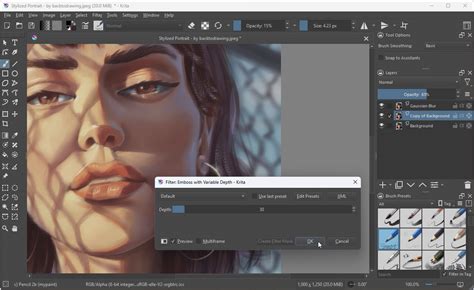
Krita boasts a beautiful array of over 100 professionally made brushes that come preloaded, offering a good range of effects to explore. For users with a less steady hand, brush stabilizers are included, providing three different ways to smooth and stabilize brush strokes. There's even a dedicated Dynamic Brush tool for adding drag and mass to brush dynamics. For comic creation, Krita includes built-in vector tools, allowing users to create comic panels easily. Vector shapes can be created from geometric primitives to complex Bézier curves, and they can be styled with strokes, fills, and gradients. Krita uses SVG to manage its vector format.
The application takes advantage of OpenGL for some of its operations, leading to increased canvas rotation and zooming speed, and a better-looking canvas when zoomed out. The Windows version also supports Direct3D 11 via the ANGLE compatibility layer. A standout feature for many is Krita's PSD support; it can open PSD files that even Photoshop might struggle with, and it allows loading and saving to PSD when transferring artwork between programs.
Krita is unique in being a dedicated painting application that allows users to open, save, edit, and author HDR and scene-referred images. With OCIO and OpenEXR support, users can manipulate views to examine HDR images and integrate them into cutting-edge workflows from the film and visual effects industries. For developers and advanced users, Krita offers a powerful Python API for creating custom widgets and extending the application's functionality. A number of plugins come pre-installed for reference.
Full color management is supported through LCMS for ICC and OpenColorIO for EXR, enabling Krita to be incorporated into existing color management pipelines. Krita comes with a wide variety of ICC working space profiles and a color space browser for visualization and exploration. While Krita is a fantastic tool for digital art, its primary focus is not photo editing in the same vein as Photoshop. However, its robust layer system, blending modes, and color correction tools make it a capable option for many photographic manipulation tasks, especially when combined with external RAW processors.
GIMP: The Long-Standing Free Photoshop Contender
The GNU Image Manipulation Program, or GIMP, is arguably the most well-known and long-standing free alternative to Photoshop. It is a powerful, open-source image editor available for GNU/Linux, macOS, Windows, and other operating systems. GIMP provides sophisticated tools for a wide range of users, including graphic designers, photographers, illustrators, and scientists. Its customizable options and support for third-party plugins further enhance productivity.
GIMP is equipped with the tools necessary for high-quality image manipulation, from retouching and restoring images to creating complex composites. Its file format support is extensive, ranging from common formats like JPEG (JFIF), GIF, and PNG to special-use formats such as multi-resolution Windows icon files. The architecture allows for extending GIMP's format capabilities through plugins.
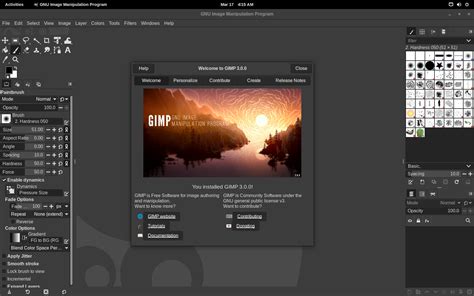
While GIMP offers a robust feature set that rivals Photoshop in many areas, it also comes with a learning curve that can be steep, particularly for users transitioning from Photoshop. Many users find the interface less intuitive than Photoshop's, and some professional features like CMYK color space support, smart objects, and native RAW processing are either missing or require external tools. GIMP's text editing capabilities are also often cited as being notoriously clunky compared to Photoshop.
Despite these challenges, GIMP has a large and active community, which means an abundance of tutorials and resources are available to help users get started and overcome specific problems. The GIMP community forums are particularly helpful for troubleshooting. For photographers who primarily need RAW processing and do not engage in extensive illustration work, GIMP, when paired with a dedicated RAW editor like Darktable or RawTherapee, can be a highly effective solution. Users can process their RAW files in Darktable first and then import them into GIMP for further editing. GIMP can also open Photoshop (PSD) files, and you can export images in over 40 file formats, making it a versatile tool for various workflows.
Paint.NET: A Windows-Centric Simplicity
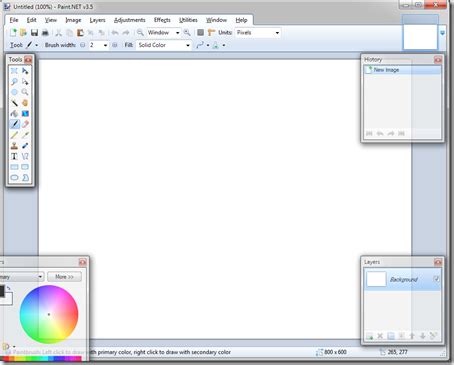
Paint.NET is an image and photo editing software specifically for PCs running Windows. It features an intuitive and innovative user interface that supports layers, unlimited undo, special effects, and a wide variety of useful and powerful tools. An active and growing online community provides friendly help, tutorials, and plugins, further enhancing its capabilities.
Extensive work has gone into making Paint.NET one of the fastest image editors available. It's designed to start up quickly and remain responsive, whether running on a low-power netbook or a high-end workstation. This performance is a significant advantage for users who value speed and efficiency.
Layers are a fundamental aspect of Paint.NET, forming the basis for rich image composition. Users can think of them as a stack of transparent slides that combine to form a single image. The software also includes many special effects for enhancing and perfecting images, such as blurring, sharpening, red-eye removal, distortion, noise, and embossing. A unique 3D Rotate/Zoom effect allows for easy addition of perspective and tilting.
Paint.NET's Unlimited History feature is a lifesaver for those who make mistakes or change their minds. Every action performed on an image is recorded in the History window and can be undone or redone. The length of the history is only limited by available disk space. While Paint.NET doesn't aim to replace Photoshop feature-for-feature, its strength lies in its focused approach and beginner-friendliness. The interface feels familiar to users of Microsoft products, and its performance is snappy even on older machines. The Clone Stamp tool is particularly impressive, offering accuracy and professional-level performance. Paint.NET handles most common Photoshop tasks, from basic adjustments to more complex compositing work. However, it's important to note that Paint.NET is exclusively for Windows users.
Other Notable Alternatives
Beyond the most prominent contenders, several other applications offer compelling features for those seeking Photoshop alternatives.
MyPaint: Distraction-Free Digital Painting
MyPaint is a fast painting program that emphasizes full-screen use, allowing artists to focus on their work with minimal distractions. The interface is brought up only when needed, creating a streamlined creative process. MyPaint supports pressure or tilt-sensitive graphic tablets and comes with an easy-to-use brush collection. Its brush engine is versatile and configurable, focusing on brush dynamics. It's a nimble, distraction-free tool for digital painters, supporting various graphics tablets.
FireAlpaca: Simplicity for Beginners and Advanced Users
FireAlpaca is a free paint tool compatible with both Mac and Windows. Its simple tools and controls make it easy to draw illustrations, making it highly recommended for beginners. It also offers advanced features for experienced users. Default settings include Pen, Pencil, AirBrush, and Watercolor brushes, with the ability to customize your own. FireAlpaca includes comic templates and 3D perspective tools for snapping to 3D objects like cubes. It's known for its light performance, running speedily even on older computers.
Seashore: macOS-Focused Image Editing
Seashore is an open-source image editor for macOS that offers gradients, textures, and anti-aliasing for both text and brush strokes. It supports multiple layers and alpha channel editing, and it's based on GIMP's technology, using the same native file format. Seashore aims to serve the basic image editing needs of most computer users rather than providing a professional-level replacement. It offers full support for the XCF file format and can read and write TIFF, PNG, JPEG, and JPEG 2000 formats, among others.
PixBuilder Studio: Professional Image Processing
PixBuilder Studio is a free image editing software program designed for digital photo editing, image processing, and resizing. It offers many professional-quality functions for creating great, professional-looking photo edits. PixBuilder Studio allows manipulation of images with color channels, and its support for layers, multi-step undo, gradients, masks, and text layers makes it a powerful graphics software program for image processing and illustration creation.
Graphite: Nondestructive Editing with a Node Graph Engine
Graphite is an in-development, free, and open-source raster and vector graphics package. It's powered by a node graph compositing engine that fuses layers with nodes, providing a fully nondestructive editing experience. Graphite is a lightweight vector graphics editor that runs in the browser. Its node-based compositor allows for applying image effects and co-creating art with generative AI. It offers a meticulously-designed UI catering towards an intuitive and efficient artistic process, with a 100% nondestructive, resolution-agnostic workflow. Planned features aim to make Graphite a first-class design tool for graphic design, image editing, digital painting, desktop publishing, VFX compositing, and motion graphics.
Key Considerations When Choosing an Alternative
When selecting a web-based Photoshop alternative, several key features should be considered:
- User-Friendly Interface: An intuitive layout that is easy to navigate is crucial for efficient editing.
- Range of Editing Tools: The availability of essential tools like layers, masks, selection tools, adjustment layers, and filters is paramount.
- Layering Capabilities: For complex compositions and non-destructive editing, robust layer support is indispensable.
- File Format Compatibility: Support for common image formats like JPEG, PNG, and TIFF, as well as specialized formats like PSD and RAW, is important.
- Cloud Storage and Collaboration: Features that allow for seamless cloud integration and team collaboration can significantly enhance workflow.
- Community and Support: A strong community and readily available tutorials can be invaluable for learning and troubleshooting.
- Performance and Stability: While browser-based tools offer convenience, their performance and stability, especially with large files, should be evaluated. Some apps, like Photopea, can sometimes crash, taking all edits with them, indicating a need for serious resources.
Are Web-Based Alternatives as Powerful as Photoshop?
While Adobe Photoshop remains the benchmark for professional-grade software with its extensive and advanced features, many web-based alternatives offer a substantial range of tools and capabilities that can meet the needs of amateur photographers, graphic designers, and digital artists. For many everyday tasks, such as color correction, cropping, retouching, and creating social media graphics, these alternatives are more than capable. However, for highly complex tasks, specialized workflows, or when absolute pixel-level control and integration with a broader Adobe ecosystem are required, Photoshop may still be the preferred choice.
RAW File Support in Web-Based Editors
Support for RAW files varies among web-based Photoshop alternatives. Some, like Photopea, display DNGs well but may not yet support all RAW formats. For comprehensive RAW editing, users often need to pair web-based editors with dedicated desktop RAW processors like Darktable or RawTherapee. Krita, for instance, does not include RAW processing, requiring users to convert files to JPEG or TIFF before importing. If RAW editing is a priority, exploring dedicated desktop RAW editors is often the most effective approach, with the processed files then being brought into a web-based editor for further manipulation.
The evolution of browser-based image editing software has democratized access to powerful creative tools. Whether you're a student on a budget, a freelancer on the go, or a professional seeking flexibility, these alternatives offer compelling solutions that can help you ditch expensive subscriptions and still achieve stunning results. From the near-identical interface of Photopea to the artistic prowess of Krita and the versatile AI tools of Pixlr, the digital canvas is now more accessible and powerful than ever before.