In the world of digital photography, managing vast libraries of images can quickly become a logistical challenge, especially when it comes to storage space and editing efficiency. Photographers often find themselves grappling with the dilemma of keeping full-resolution RAW files accessible for editing while simultaneously needing to maintain a manageable working library on their primary computer. This is where Adobe Lightroom's Smart Previews emerge as a powerful, yet often underutilized, solution. These intelligently scaled-down versions of your RAW files offer a compelling way to edit on the go, reduce storage demands, and streamline your post-processing workflow, even when your original files are offline.
The Storage Strain: When 1400 Photos Fill Your Drive
The need for efficient image management becomes acutely apparent when dealing with high-volume shoots. For instance, a day spent photographing birds with a Nikon Z50 can easily yield over 1400 images. Such a prolific output can rapidly consume the available storage on a laptop, even one with a respectable 500 GB SSD. Historically, many photographers, including those who have tested this workflow, maintained two separate Lightroom libraries: a comprehensive archive on an external RAID drive containing tens of thousands of images, and a smaller, more accessible working library on their MacBook. This working library, while curated to around 8,000 images, still occupied a significant portion of the laptop's storage, around 200 GB. The constant influx of new photos from excursions necessitated a rigorous process of deleting other files to make room, a system that, while functional, proved to be an ongoing annoyance.
Understanding Smart Previews: A Smarter Way to Edit
Adobe introduced the concept of Smart Previews in Lightroom 5 back in 2013, but their adoption has been slower than their potential suggests. Smart Previews are essentially smaller, more manageable representations of your original RAW files. They are scaled down to approximately 5 megapixels, sacrificing some resolution and fine detail to occupy significantly less disk space. Crucially, they retain the ability to be edited in RAW format. This means you can keep your Smart Previews on your MacBook, while the full-size RAW files reside on an external drive. This separation allows for on-the-go editing without the need to connect your bulky external storage. When you do need to access the extra detail for critical review or for high-resolution exporting, you can simply plug in your external drive.
The impact of this system on storage is dramatic. For example, a library of 8,000 photos that previously occupied 200 GB can be reduced to a mere 8 GB using Smart Previews. This frees up considerable space on your internal SSD, allowing for the installation of other applications or downloads without the constant need to manage and delete existing files.
Generating and Managing Previews: A Tale of Two Types
When importing photos into Lightroom, the software typically generates standard previews. These are useful for quick browsing within the Library module. However, after converting a library to utilize Smart Previews, a natural inclination is to consider deleting the standard previews to further optimize space. One user's experiment involved renaming the preview file as a test. Immediately, all previews in the Library view vanished, leaving thumbnail images blank. As the user scrolled through the library, the previews began to regenerate, creating a new preview file. This new file, while smaller than the original standard preview file, was built from the lower-resolution Smart Previews.
The critical issue here is that Smart Previews are not designed for 100% resolution viewing. This becomes a problem when trying to assess critical focus, such as checking the sharpness of a bird's eye. While plugging in the external drive would allow for full-resolution zooming, this negates some of the primary benefits of using Smart Previews for mobile editing.
The solution to this particular challenge is to generate standard previews at 100% resolution. This results in a preview file that is four times larger than the Smart Previews file, but it remains significantly smaller than the original, full-sized preview file. More importantly, it allows for the necessary detail to be viewed at 100% for critical focus checks.
The Editing Experience: Smart Previews vs. Standard Previews
While standard previews enable 100% zoom for critical focus assessment, Smart Previews present a different editing experience. If you zoom into an image to check focus and then decide to edit it, Lightroom may abruptly reset the view, limiting the zoom capability compared to what was previously available with standard previews. This behavior is understandable, as the Smart Preview is inherently lower in resolution than the standard preview used for viewing.
Furthermore, editing images can sometimes lead to syncing issues with standard previews. Occasionally, the preview may not update to accurately reflect the edited image. In other instances, even if the preview updates, it may no longer be zoomable at full resolution. This is because Lightroom needs to generate a new preview from the lower-resolution Smart Preview, unless the drive containing the full RAW files is connected. It's important to note that Lightroom does not automatically update standard previews to match full-resolution edits once the RAW file drive is reconnected; this process often needs to be initiated manually.
Exporting with Smart Previews: Considerations and Caveats
Smart Previews have a maximum dimension of 2,550 pixels on their longest side and can be exported as JPEGs within those dimensions. However, this process requires careful attention. Lightroom does not explicitly prevent users from attempting to create images larger than a Smart Preview can adequately support. It offers a generic warning about generating exports from a Smart Preview but fails to provide specific guidance on what to consider or to explicitly warn if an image size exceeding the Smart Preview's capacity is chosen.
In one instance, a user inadvertently exported images that were approximately 100 pixels larger than the Smart Preview allowed, resulting in a batch of poorly scaled-up images. After adjusting export requirements and re-attempting, a different issue arose: the appearance of odd sharpening and artifacts in the sky. Comparing an image exported from a Smart Preview with one exported from the original RAW file, even at the exact same dimensions, revealed a noticeable difference. The sky gradient in the Smart Preview-generated image appeared blocky and pixelated, and the bird was over-sharpened.
Despite these export-related challenges, Smart Previews demonstrate robustness in other editing aspects. When the exposure of an overexposed bird photo was pulled down by a few stops, the Smart Preview looked excellent, with no discernible loss of highlight detail. Similarly, increasing exposure and shadows by several stops revealed ample detail in dark areas. While gradations between similar tones, particularly in the sky, might not be as smooth as in the original RAW file, they are generally sufficient for most editing tasks. Adjustments to sharpening, clarity, color, and masking all appear to function well. From an editing perspective, Smart Previews largely deliver on their promises.

The Practical Advantages: Saving Space and Enhancing Mobility
Despite some occasional idiosyncrasies, Smart Previews effectively fulfill their core promise: enabling editing on the go while ensuring access to full RAW files when needed. The practical benefits are substantial. A working library of 8,000 photos, which previously consumed 48 GB on a MacBook Air, can be managed with the full RAW files taking up 292 GB on an external drive. This scenario highlights the significant space savings achievable on the primary device. While the preference for having full-sized RAW files directly on a Mac remains for some, Smart Previews offer a level of flexibility that was previously unattainable.
Integrating Smart Previews into Your Workflow
Importing photographs into your Lightroom catalog establishes a crucial link between the catalog and the physical location of the image file, whether it resides on an internal or external drive. Smart Previews in Lightroom Classic are specifically designed to facilitate editing images that are not currently connected to your computer.
The creation of Smart Preview files can be done in two primary ways:
During Import: When importing new images into your catalog, select the "Build Smart Previews" option within the "File Handling" section of the Import dialog. Lightroom will then generate Smart Previews for all incoming images concurrently with the import process.
On Demand: For images already in your catalog, you can build Smart Previews by selecting the desired photos in the Library module, then navigating to "Library" > "Previews" > "Build Smart Previews." Lightroom is often intelligent enough to prompt you to build previews for an entire folder if only a single image from that folder is selected.
How To Use Smart Previews In Lightroom Classic - The Lightroom Whisperer
Smart Previews and Your Catalog Location
The effectiveness of Smart Previews can also be influenced by the location of your Lightroom catalog. If your catalog is stored on an external drive alongside all your photographs, the benefits of Smart Previews may be diminished. Conversely, if both your Lightroom catalog and all your images are housed on your computer's internal hard drive, Smart Previews might be considered unnecessary and could simply consume additional space. The most advantageous scenario for utilizing Smart Previews is when your Lightroom catalog resides on your computer's internal hard drive, and your photographs are stored on a separate, high-capacity external hard drive.
The Mechanics of Editing with Smart Previews
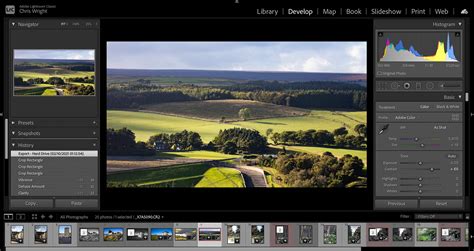
The process of editing with Smart Previews is remarkably seamless. When an image has both a Smart Preview and its original file available, Lightroom prioritizes the original file for edits. However, if the original file is disconnected (e.g., the external drive is unmounted), Lightroom automatically switches to using the Smart Preview for editing. This transition is typically so smooth that the user may not even notice a difference in their workflow.
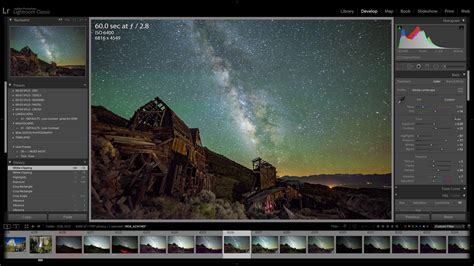
When you open an offline image in the Develop module, you will be able to edit its Smart Preview instead of the original image. Any changes made to the Smart Preview can be applied to the original file once it becomes available online again. Conversely, any modifications made to the original file while it is online are automatically synchronized and applied to its corresponding Smart Preview.
Frequently Asked Questions About Smart Previews
Can I delete Smart Previews after editing? Yes, you can delete Smart Previews after you have finished editing. However, doing so will remove your ability to re-edit those images without access to the original files. If you frequently work away from your main storage drive, it is advisable to keep them.
How do I know if I'm editing a Smart Preview? You can check the histogram in the Develop module. It will typically display "Smart Preview" under the RGB readouts, indicating that you are working with a Smart Preview.
Can I create Smart Previews for video files? No, Smart Previews are exclusively for still images, including RAW, JPEG, and DNG formats. They do not apply to video files.
Can I export full-resolution images from Smart Previews? Not unless the original file is accessible online. While you can export JPEGs from Smart Previews, their resolution is limited by the Smart Preview's dimensions (2,550 pixels on the longest side). For full-resolution exports, the original RAW file must be available.
What is the size of a Smart Preview? Smart Previews are approximately 1/15th the size of the original RAW files. For instance, 500 RAW images from a high-end DSLR camera, which might occupy 14 GB of disk space, can be represented by Smart Previews that take up significantly less space.
Smart Previews vs. Other Preview Types
Lightroom offers several types of previews, each serving a different purpose:
Minimal Previews: These are the smallest and quickest to generate, often sufficient for basic browsing. They are derived directly from the original image file.
Embedded & Sidecar Previews: Similar to Minimal previews, these are also derived directly from the original image file but are not suitable for detailed viewing or editing.
Standard Previews: These are designed for general Lightroom use. They take longer to build than Minimal or Embedded previews but offer a better viewing experience. The size of Standard previews can be adjusted in the Catalog Settings window to balance space consumption and build time.
1:1 Previews: These are full-sized, highest-quality previews that allow for 100% zoom viewing. They consume the most hard drive space. Lightroom often discards 1:1 previews after a set period to manage storage. Generating these in advance is beneficial if you frequently "pixel peep" to ensure you don't have to wait for them to build dynamically.
It's important to understand that even after generating Standard or 1:1 previews, you may still require access to the original image file to perform edits in the Develop module. Smart Previews, however, are specifically designed to enable editing even when the originals are offline. The speed at which Lightroom renders previews in the Develop module is not directly impacted by the creation of 1:1 previews in the Library module. However, using Smart Previews in the Develop module, especially when the "Use Smart Previews instead of Originals for image editing" preference is enabled, can lead to a significant speed increase.
Conclusion: A Powerful Tool for Modern Photographers
Smart Previews in Lightroom Classic represent one of the software's most powerful and underutilized features. They offer photographers the freedom to break away from constant reliance on their main storage drives, edit with enhanced speed, and travel lighter. For photographers who split their work between a desktop and a laptop, or for those experiencing lag in Lightroom due to large projects, building Smart Previews is a straightforward and highly beneficial practice. The process is designed to be unobtrusive, ensuring that you don't lose any functionality or quality in your editing workflow. By adopting Smart Previews, photographers can significantly improve their efficiency, manage their storage more effectively, and unlock a more flexible and mobile editing experience.