The digital photography landscape is constantly evolving, with new formats emerging to offer enhanced features and efficiency. One such format is HEIC (High-Efficiency Image Container), which has become the default for photos captured on Apple devices running iOS 11 and later. While HEIC boasts significant advantages, such as smaller file sizes with superior image quality compared to the long-standing JPEG, its adoption has presented a challenge for users of other platforms, particularly Android. This article delves into the intricacies of the HEIC format, exploring why it's not natively supported on Android and providing a detailed guide on how to view and convert these files, ensuring seamless sharing and accessibility across devices.
Understanding the HEIC Format: Efficiency Meets Quality
HEIC, an acronym for High-Efficiency Image Container, is a file format that stores images using the High-Efficiency Image File Format (HEIF) standard. This innovative format leverages advanced video compression technology, specifically HEVC (High Efficiency Video Coding), also known as H.265. Developed by the Moving Picture Experts Group (MPEG), the same committee behind widely adopted video compression standards like MPEG-1, MPEG-2, MPEG-4, and H.264/AVC, HEVC offers a more efficient way to compress digital images.
The primary advantage of HEIC lies in its efficiency. It allows for significantly smaller file sizes compared to JPEGs while simultaneously retaining higher image quality. This means that photographs taken with modern iPhones and iPads, which default to HEIC, can occupy less storage space on the device without compromising on resolution, detail, or color accuracy. Furthermore, HEIC supports advanced features not readily available in JPEG, such as the ability to store multiple images within a single file. This capability is particularly useful for features like Live Photos and burst mode, where several shots are captured in rapid succession. HEIC files can also retain rich metadata, including time, location, dimensions, and even transparency, which can be beneficial for editing and organization.
The full name of the HEIC format is High Efficiency Image File Format. Its filename extension is typically .heic, or .heics for sequences of images. This format is essentially a container that can hold one or more HEIF image sequences.
Key Characteristics of HEIC:
- High Efficiency Compression: Utilizes HEVC (H.265) for superior compression, resulting in smaller file sizes.
- Superior Image Quality: Achieves higher quality retention compared to JPEG at equivalent file sizes.
- Support for Multiple Images: Can store sequences of images, ideal for Live Photos and burst shots.
- Advanced Features: Supports transparency, depth maps, and extended metadata.
- Developed by MPEG: Aligns with industry-standard video compression technologies.
The Compatibility Conundrum: Why HEIC Isn't Native to Android
Despite its numerous advantages, HEIC's widespread adoption has been hampered by a significant drawback: compatibility. While Apple has embraced HEIC across its ecosystem, including macOS and iOS, many other platforms and devices, particularly older Android models, lack native support for this format.
The core reason for this incompatibility stems from the underlying technology and licensing. HEVC, the compression standard used by HEIC, is a patent-encumbered technology. This means that its use requires licensing fees, which can be a deterrent for open-source platforms like Android, where developers often prioritize widely accessible and royalty-free formats. As a result, Android's default gallery applications and operating system often lack the necessary decoders to interpret and display HEIC files. When users attempt to open an HEIC file on an unsupported Android device, they might encounter blank previews, error messages, or simply be unable to view the image at all.
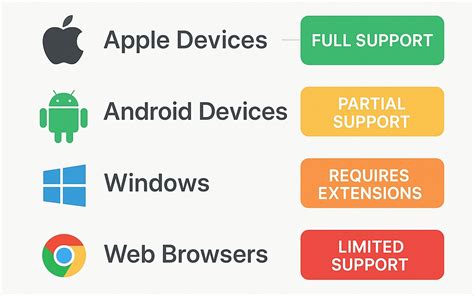
While newer Android devices, especially high-end models like those from Samsung Galaxy and Google Pixel, have begun to incorporate HEIC support in recent OS versions (such as Android Pie and later), older devices and many mid-range or budget models still do not have this native capability. This creates a barrier for users who receive HEIC files from friends or family using Apple devices, or who download images online that are natively formatted as HEIC.
Reasons for Limited Android Compatibility:
- Licensing Fees: HEVC, the compression technology behind HEIC, is subject to patent licensing.
- Lack of Native Decoders: Android's default software often doesn't include the built-in tools to process HEIC files.
- Device and OS Fragmentation: Support varies significantly across different Android device manufacturers and operating system versions.
Bridging the Gap: Viewing HEIC Files on Android
Fortunately, the lack of native support does not mean that HEIC files are inaccessible on Android devices. Several alternative methods can be employed to view these images, ranging from third-party applications to cloud storage solutions.
1. Utilizing Cloud Storage Services: Dropbox and Google Drive
Cloud storage services have emerged as a convenient way to handle HEIC files on Android. Services like Dropbox and Google Drive can often display HEIC images within their mobile applications, even if the device's native gallery cannot.
Using Dropbox:
- Step 1: Install and launch the Dropbox app on your Android device.
- Step 2: If a friend has shared HEIC files with you, they can upload them to their Dropbox. Alternatively, you can upload HEIC files from your iPhone or another source to your Dropbox account.
- Step 3: Open the Dropbox app on your Android device. The app will often display a preview of the HEIC images, allowing you to view them directly.
While Dropbox acts more as a storage service, its ability to render HEIC previews makes it a functional HEIC viewer on Android.
2. Installing Dedicated HEIC Viewer Apps
The Google Play Store offers a growing number of applications specifically designed to view and manage HEIC files on Android. These apps often include built-in decoders that enable them to render HEIC images correctly.
HEIC Image Viewer and HEIC to JPG Converter Apps:
Many apps combine the functionality of a HEIC viewer with a converter. These applications typically scan your device for HEIC files, display them in a user-friendly interface, and offer conversion options.
- Functionality: These viewers decode HEIC/HEIF images, display them in real-time, and often provide a direct pathway for conversion.
- Features: They may include features such as batch conversion, image editing tools (brightness adjustment, rotation, cropping), printing capabilities, and the ability to import HEIC files directly from device storage or SD cards.
- Examples: Apps like "HEIC Image Viewer," "HEIC to JPG Converter," and others are readily available. Users can search the Play Store for these terms.
How to use a typical HEIC Viewer app:
- Step 1: Download and install a chosen HEIC viewer app from the Google Play Store.
- Step 2: Launch the app and grant necessary permissions (e.g., storage access).
- Step 3: The app will usually scan your device for HEIC files, or you can manually import them.
- Step 4: Browse and view your HEIC images within the app.
3. Leveraging Web-Based Converters
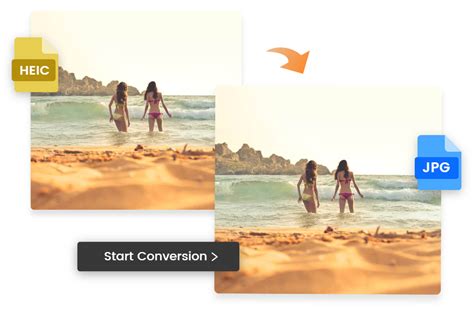
For users who prefer not to install additional applications, online HEIC converters offer a quick and accessible solution. These web services allow you to upload HEIC files directly from your browser and convert them into more widely compatible formats like JPEG or PNG.
Online HEIC Conversion Services:
- Process: Simply visit the website, upload your HEIC file(s) by selecting them or dragging and dropping them into the browser window.
- Conversion: Choose your desired output format (JPEG or PNG) and initiate the conversion.
- Download: Once converted, you can download the resulting files to your Android device.
- Privacy Considerations: Reputable online converters emphasize privacy, stating that uploaded files are deleted from their servers after a short period (e.g., one hour or 24 hours). They typically only retain file names and conversion types for internal analysis, not personal data.
Popular Online Converters:
- fCoder Solutions Sp. z o.o. online converter: This service allows for online conversion of HEIC to JPEG or PNG without compromising quality. They highlight secure processing and automatic deletion of files.
- HeicToJpg.com: Another free online service accessible via PC or mobile browsers for converting HEIC images.
- Online-Image-Converter.com: Offers a suite of online conversion tools, including HEIC to JPG.
Converting HEIC to JPEG/PNG: A Universal Solution
While viewing HEIC files directly on Android is becoming easier, converting them to more universally compatible formats like JPEG or PNG remains the most robust solution for ensuring seamless sharing and editing across different platforms and software.
1. Using Online Conversion Tools
As mentioned above, online converters are a popular choice for quick, on-the-go conversions. They require no software installation and are accessible from any device with an internet connection.
Steps for Online Conversion:
- Navigate to a trusted online HEIC converter website.
- Upload your HEIC file(s). Many services support batch conversion, allowing you to upload multiple files at once.
- Select JPEG or PNG as the output format.
- Initiate the conversion process.
- Download the converted files to your Android device.
Customization Options: Some online tools allow you to adjust parameters such as output image quality, resolution (DPI), resizing, cropping, and compression before conversion.
2. Employing Third-Party Android Applications
For more frequent HEIC conversions or for users who prefer an offline solution, dedicated mobile applications are available on the Google Play Store. These apps offer similar functionality to online converters but operate directly on your device, which can be advantageous for privacy and offline access.
Features of HEIC Converter Apps:
- Batch Conversion: Convert multiple HEIC files simultaneously.
- Format Options: Support conversion to JPEG, PNG, and sometimes other formats like BMP or WEBP.
- Metadata Preservation: Options to keep or remove EXIF metadata from the original HEIC files. Removing metadata can save storage space.
- Image Editing: Some apps include basic editing tools like cropping, rotation, and brightness adjustments.
- Direct Sharing: Easily share converted files directly from the app.
Popular HEIC Converter Apps on Android:
- HEIC Converter: A free app that allows users to select HEIC images, choose the target file format (JPG, PNG, BMP), and convert them. It also offers options to adjust resolution and remove EXIF data.
- Luma: Another free app that provides HEIC conversion with an ad-supported model.
- Total Media Converter: Offers HEIC conversion among its various media conversion capabilities.
How to Convert using an Android App:
- Download and install a HEIC converter app from the Google Play Store.
- Launch the app and grant necessary permissions.
- Select the HEIC files you wish to convert. You can often select multiple files or entire folders.
- Choose your desired output format (JPEG or PNG).
- Configure any additional settings, such as quality or metadata removal.
- Tap the "Convert" button.
- Save the converted files to your device's storage.
3. Utilizing Desktop Software and Online Services (PC/Mac)
For users who have access to a computer, converting HEIC files before transferring them to their Android device is another viable strategy. This can be particularly useful for large batches of files or when more advanced editing is required.
Windows and macOS:
- Windows 10/11: Users can install the "HEIF Image Extensions" from the Microsoft Store. For video functionality (HEVC), the "HEVC Video Extensions" might need to be purchased. Once installed, HEIC files can often be opened with the Photos app.
- macOS: macOS has excellent native support for HEIC. Files can be opened with the Preview app or imported into the Photos app.
- Adobe Photoshop: Both Windows and Mac versions of Adobe Photoshop can open and edit HEIC files, offering a professional-grade conversion option.
- Dedicated Desktop Converters: Numerous desktop applications are available for Windows and Mac that specialize in HEIC conversion, offering advanced settings and batch processing. Examples include iMazing HEIC Converter (free) and Apowersoft HEIC Converter.
Online Converters (for PC/Mac): The same online services mentioned earlier (fCoder, HeicToJpg.com) are also accessible via desktop browsers, providing a convenient way to convert files before transferring them to your Android device.
Transferring Converted Files to Android:
Once converted on a PC or Mac, you can transfer the JPEG or PNG files to your Android device via:
- USB Cable: Connect your Android device to your computer and transfer files using your file explorer.
- Cloud Storage: Upload the converted files to Google Drive, Dropbox, or a similar service and then download them to your Android device.
- Email/Messaging Apps: Send the files as attachments.
4. Using Apple's Built-in Conversion Options
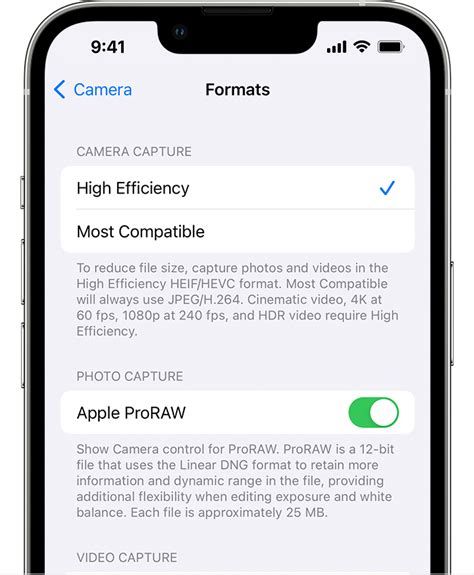
If you have an iPhone or iPad, you can change the camera settings to capture photos in JPEG format instead of HEIC, or convert HEIC files before sharing.
Switching Camera Settings on iPhone/iPad:
- Go to Settings.
- Navigate to Camera.
- Select Formats.
- Under "Photo Capture," choose Most Compatible. This will set your camera to capture photos in JPEG format.
Converting during Transfer: When transferring photos from an iPhone to a non-Apple device (like a Windows PC or Android), iOS often offers to automatically convert HEIC files to JPEG during the transfer process. This can be initiated through the Photos app on your iPhone when connecting to a computer or through sharing options.
Preserving Data: Metadata and Quality Considerations
When converting HEIC files, it's important to consider the preservation of metadata and image quality.
Metadata (EXIF Data)
Exchangeable image file format (EXIF) data is embedded within image files by cameras and smartphones. This metadata can include crucial information such as the date and time the photo was taken, camera settings (aperture, shutter speed, ISO), GPS location, and device model.
- Importance: This data is valuable for organizing photos, recalling shooting conditions, and for certain applications that utilize location data.
- Conversion Options: Many HEIC converter tools, both online and as apps, offer an option to "Keep EXIF Data" or a similar setting. It is generally recommended to preserve this data unless you have a specific reason to remove it (e.g., to save storage space or for privacy concerns).
- Lossy vs. Lossless: While HEIC itself is a highly efficient format, the conversion process to JPEG can be lossy, meaning some data might be discarded to achieve smaller file sizes. However, modern converters aim to minimize quality loss. PNG, on the other hand, is a lossless format, meaning no quality is lost during conversion, but the file sizes will typically be larger than JPEGs.
Maintaining Image Quality
The primary appeal of HEIC is its ability to store high-quality images in compact file sizes. When converting to JPEG, the quality of the output file depends on the compression settings used by the converter.
- Output Quality Settings: Many converters allow you to select an output quality level for JPEG files. Choosing a higher quality setting will result in a larger file size but better visual fidelity.
- Resolution and Dimensions: Reputable converters will preserve the original resolution (DPI) and dimensions of your HEIC images when converting them to JPEG or PNG, ensuring that the converted files are as close to the originals in terms of physical size and detail as possible.
Conclusion: Embracing HEIC's Potential on Android
The HEIC format represents a significant advancement in digital image compression, offering a compelling balance of quality and efficiency. While its initial lack of native support on Android devices presented a hurdle, the ecosystem has responded with a variety of solutions. From cloud storage services and dedicated mobile apps to robust online converters and desktop software, users now have multiple, accessible ways to view and convert HEIC files.
By understanding the nature of HEIC and utilizing the available tools, Android users can seamlessly integrate Apple's modern image format into their workflow, ensuring that no photo is left unviewed or unshareable. Whether you choose to convert files before transferring them, use a handy app on your device, or leverage the convenience of online services, unlocking the potential of HEIC on Android is more straightforward than ever before.