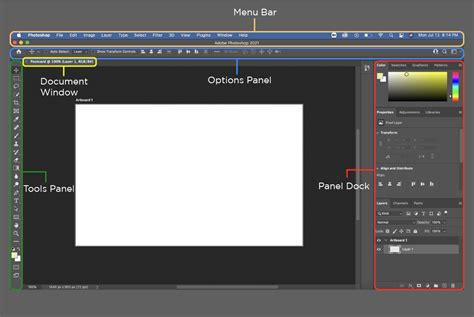
Adobe Photoshop, a stalwart in digital artistry for decades, has undergone a significant transformation with the integration of artificial intelligence, most notably through its AI generative fill capabilities. This evolution, powered by Adobe Firefly and Adobe Sensei, is not merely about automation; it's about augmenting creativity, streamlining complex tasks, and democratizing sophisticated editing techniques for a broader range of users. From generating entirely new imagery from text prompts to seamlessly removing unwanted elements or expanding existing canvases, Photoshop's AI suite offers a powerful toolkit that is reshaping the landscape of image manipulation.
Unveiling Photoshop's Generative AI Tools
At the heart of Photoshop's AI integration lies a suite of powerful generative tools designed to enhance both the creation and editing of images. These are not rudimentary AI image generators but sophisticated, customizable options that empower users to produce professional-grade work without it appearing overly artificial or hastily done.
Generating Images with Adobe Firefly
Adobe Firefly, Adobe's generative AI model, is accessible both as a standalone application and directly within Photoshop. For those already working within the Photoshop environment, accessing Firefly is straightforward. Upon opening a Photoshop project in the most recent version of the software, users will typically find a "Generate image" option integrated into the contextual taskbar. Alternatively, this feature can be accessed via the "Edit" menu, followed by clicking "Generate image," or by selecting the icon that resembles an image with an arrow and sparkle, located in the left-hand toolbar.
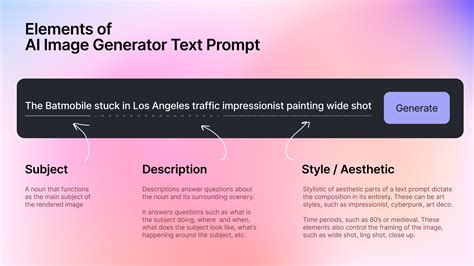
The process involves inputting a descriptive text prompt, specifying desired styles, and optionally uploading reference images. Once these parameters are set, clicking "Generate" initiates the AI’s creation process. Users can then cycle through various generated variations using the arrows provided in the taskbar below the image.
When crafting prompts, a detailed approach is often beneficial, with the most crucial elements placed at the beginning of the text. For those seeking to refine their prompt-writing skills, dedicated guides offer tips for achieving better results. If the initial generated images do not meet expectations, users can adjust the prompt and reference images by clicking the image pop-out window or the icon with four squares. Further options, including providing feedback on the generations, removing the background, or generating similar images, are accessible via the three vertical dots on the end of the pin bar. If dissatisfaction persists, starting over with a new prompt is often more productive than attempting to endlessly tweak existing generations.
Generative Fill: The Miniature AI Image Generator
Generative Fill stands out as one of Photoshop's most popular AI tools, functioning much like a miniaturized AI image generator within the existing project workflow. This feature allows users to select a specific region of their project, input a text prompt, and have the AI create a design for that precise area. Accessing Generative Fill is done by navigating to "Edit" > "Generative fill." It is crucial to utilize the selection brush tool to accurately mark the desired area where elements are to appear. After marking the area and typing in the prompt, clicking "Generate" initiates the process.
The fundamental understanding of Generative Fill is just the beginning; advanced techniques can unlock a new level of digital artistry. To effectively utilize Generative Fill, users should ensure they have the correct layer selected in the Layers panel. After making a selection, the Contextual Task Bar provides a text-entry prompt box where users describe their desired generation. For instance, typing "pink butterflies" will add these elements to the selected area. The execution is rapid, transforming the image within moments. Subsequent adjustments to the fill layer’s opacity, blend modes, or the addition of adjustment layers can further refine colors and shadows for a polished, professional look.
Generative Expand: Seamlessly Enlarging Your Canvas
Generative Expand proves invaluable when an image requires additional space. This tool enables the creation of new sections that seamlessly blend with the existing image, or users can input a text prompt to generate entirely new scenery. It is also an effective method for enlarging a project. To access Generative Expand, the crop tool is selected, and the canvas is then extended to the desired size. A prompt can be entered if new content generation is desired, followed by clicking "Generate." For example, an original image can be edited to include more sky and sand using Generative Expand, followed by adding AI seagulls with Generative Fill.
Generative Remove: The AI-Supercharged Eraser
Generative Remove operates as an AI-enhanced eraser, adept at isolating and removing specific elements from a project without disrupting the overall image. There are two primary methods for object removal. The first involves selecting the object with the Object Selection Tool, clicking "Generative Fill," and inputting the word "remove" in the prompt. Alternatively, the Remove Tool (found under the Spot Healing Tool) can be used to manually highlight the objects intended for erasure. This tool goes beyond the capabilities of the traditional Content-Aware Fill by expertly replacing portions with neighboring pixels that are indistinguishable from the original.
Photoshop Generative Fill - Your Ultimate Guide To AI
Exploring Other AI-Powered Tools in Photoshop
Beyond the core generative features, Photoshop offers a range of other AI-driven tools that cater to specific editing needs and creative explorations.
Sky Replacement: Adding Drama to Landscapes
The Sky Replacement tool is a notable AI feature that can significantly enhance landscape photography by adding dramatic skies. Users can access this by navigating to "Edit" > "Sky replacement" and choosing from a variety of presets, including sunsets, clear blue skies, and more "spectacular" options. Once a preset is selected, manual adjustments to brightness and other elements can be made to achieve a cohesive look. For instance, AI sky replacement can be used to add vibrant Carolina blue skies to an original shot.
Generate Background: Enhancing Product Photography
The Generate Background tool is particularly effective for product photography or any shot where the subject or object is the primary focal point. After uploading a shot to Photoshop, users can click "Remove Background" from the contextual taskbar and then "Generate Background." While some generated backgrounds may appear less realistic, such as city-scapes, colored or patterned backgrounds often yield excellent results.
Neural Filters: Advanced and Intelligent Editing
Neural Filters offer a more sophisticated approach to photo editing, enabling users to perform complex adjustments with AI assistance. These filters can be used for tasks ranging from portrait retouching and colorization to artistic style transfers. For example, the Skin Smoothing filter can refine skin textures, while the Colorize filter can add color to black-and-white images. The intelligence behind these filters allows for adjustments that would otherwise require extensive manual effort and expertise.
Curvature Pen Tool: Precision in Design
While not strictly a generative AI tool, the Curvature Pen Tool, when combined with AI-powered selection tools, can assist designers in creating more consistent and precise arcs, which is crucial for various design applications.
Practical Applications and Workflow Integration
The integration of AI into Photoshop is not merely about introducing new features; it's about fundamentally enhancing the workflow and expanding creative possibilities for a diverse user base.
Streamlining Complex Edits for Professionals and Beginners
For professionals who are already intimately familiar with Photoshop's vast capabilities, AI tools can serve as powerful accelerators, automating repetitive tasks and speeding up intricate edits. For beginners or those looking for guidance, these AI features provide an accessible entry point, allowing them to achieve impressive results with less of a learning curve. Tools like "Select Subject" can automatically detect and isolate primary subjects, significantly reducing the time spent on manual selections, which is particularly beneficial for complex edits requiring precise segmentation.
Enhancing Creativity and Exploring New Artistic Avenues
Generative AI tools like Generative Fill open up entirely new avenues for creative expression. Users can experiment with generating fantasy landscapes, surreal elements, or unique artistic compositions by combining AI-generated content with their existing artwork. The ability to "generate" without a specific prompt can also lead to unexpected and delightful discoveries, fostering a more experimental and fluid creative process. This is particularly relevant for artists and hobbyists who can now visualize concepts and create custom backgrounds for various projects with unprecedented ease.
Applications Across Industries
The impact of AI in Photoshop extends across numerous industries:
- Photography: Photographers can effortlessly remove unwanted objects, enhance details, and even reconstruct entire scenes, breathing new life into existing images.
- Graphic Design: Designers can rapidly create mockups, generate unique textures and patterns, and develop distinct visual assets for branding and marketing campaigns.
- Fashion: Designers can visualize new clothing patterns, experiment with different fabric textures, and create compelling imagery for collections.
- Advertising: Marketers can produce eye-catching visuals for campaigns, quickly generating diverse options to test and refine.
- Architecture and Interior Design: Professionals can render realistic landscapes or room designs with greater efficiency.
- Art and Illustration: Artists can combine traditional techniques with AI-generated elements to achieve novel artistic styles and compositions.
Understanding the Rights and Limitations of AI-Generated Content
While Photoshop's AI tools offer immense creative freedom, it's crucial to understand the associated rights and limitations. Adobe has clarified that images produced using Photoshop's generative features, powered by Firefly, can be utilized for commercial purposes. This is because the AI model has been trained on a dataset of licensed Adobe Stock images, mitigating concerns about copyright infringement.
However, certain limitations remain. AI-generated content is currently subject to a maximum image size limitation of 1024 pixels, which may impact the reproduction of fine details in large-scale projects. Additionally, achieving hyper-realism, especially with complex subjects like human faces, hands, or animals, can still present challenges, although ongoing advancements are continuously improving these capabilities. Users should acknowledge these constraints while leveraging the tools.
Learning and Mastering Photoshop's AI Features
For those eager to harness the full potential of Photoshop's AI capabilities, a variety of resources are available. Adobe offers a free trial of Photoshop, providing access to its AI-driven tools, including Generative Fill and Select Subject. Within the application itself, dedicated sections offer guidance on these features.
Adobe also provides a comprehensive library of tutorials, enabling hands-on learning and skill development. The Adobe community forums serve as invaluable platforms for users to ask questions, exchange tips, and find solutions through collective experience. Regularly consulting Adobe’s official documentation and release notes is essential for staying informed about the latest advancements and updates to these powerful AI tools.
Courses such as "Photoshop Generative AI Mastery: From Novice to Pro" offer structured learning paths. Exploring books and eBooks focused on Adobe Photoshop can also strengthen foundational knowledge. Engaging with online communities and forums can provide real-time troubleshooting, insights from experienced users, and opportunities to contribute knowledge through live sessions and webinars.
The Future of AI in Photoshop
The integration of AI into Photoshop is an ongoing evolution. Adobe is continuously developing new AI-powered editing tools, with features like 3D to image, sketch to image, text to pattern, and text to vector on the horizon. As AI technology advances, we can expect Photoshop to become even more intelligent, intuitive, and capable, further blurring the lines between human creativity and machine assistance. The ability to automate complex tasks, generate novel content, and refine images with unprecedented precision ensures that Photoshop will remain at the forefront of digital imaging for years to come.