The landscape of photo editing software is vast and ever-evolving, with new tools and updates constantly emerging. For photographers, choosing the right software is a critical decision that can significantly impact workflow and the final image quality. This article delves into a comparison of two prominent players in the digital editing arena: Photomator, a powerful mobile and desktop application, and Capture One, a long-standing professional-grade RAW editor. We will also touch upon Adobe Lightroom, a familiar benchmark in the industry, to provide a comprehensive understanding of the current offerings.
Photomator: A Mobile-First Powerhouse with Desktop Prowess
Photomator has emerged as a compelling alternative to established mobile editing solutions, particularly for users deeply embedded in the Apple ecosystem. Its strength lies in its seamless integration with iOS, iPadOS, and macOS, offering a consistent and intuitive editing experience across devices.
Seamless iOS Integration and Library Management
One of Photomator's most lauded features is its deep integration with the iOS Photo Library. Instead of maintaining its own separate library, Photomator leverages the existing system, allowing users to directly access and manage their photos. This means that edits made within Photomator are non-destructive, saving edited images as new versions, much like the native Photos app. This approach also extends to album management, with support for nested iOS albums. This organizational capability is particularly beneficial given Photomator's lack of tag support, a feature present in Lightroom Mobile. Users can create a hierarchical structure of folders and albums to meticulously categorize their work, such as a "Best of" folder containing subfolders for specific themes like "lost places" or geographical regions for landscape photography.

Non-Destructive Editing and Cloud Syncing
Photomator employs a non-destructive editing workflow, ensuring that original image data remains untouched. Edits are stored in "sidecar" files, which are then synced via iCloud. This feature allows for seamless continuity between different Apple devices, enabling edits made on an iPhone to be accessible and further refined on an iPad or Mac. While this system archives edits similarly to Lightroom Mobile, it's important to note that Photomator currently does not support multiple versions of edits for a single photo, a feature that Lightroom does offer.
User Interface and Accessibility
A significant draw for Photomator is its exceptionally clean and minimalist user interface, consistent across all supported platforms. The main menu items are readily accessible, and adjustment panels can be easily toggled on or off, minimizing screen clutter and maximizing workspace. This design philosophy makes the application approachable for beginners while still offering the depth required by more experienced editors.
Supported File Formats and RAW Capabilities
Photomator boasts broad file format support, accommodating a wide range of image types. Users can confidently import and edit older RAW files from various camera manufacturers, DNG RAW files captured with apps like ProCamera, standard JPGs, and HEIF images. Crucially, Photomator also fully supports Apple ProRAW, a format that captures extensive image data, offering greater flexibility in post-processing.
Advanced Editing Tools: Selective Masks and Adjustments
Photomator excels in its implementation of selective masking, a critical tool for targeted adjustments. The application utilizes machine learning to intelligently identify and select elements within an image, such as the sky, the main subject, or specific color ranges. Once a mask is created, users can easily switch between different masks or the entire image using a simple drop-down menu. Refining these masks is also intuitive, with options to add or subtract areas using a brush or by inverting the selection. The ability to assign custom names to masks further enhances organization and workflow efficiency when dealing with complex edits.
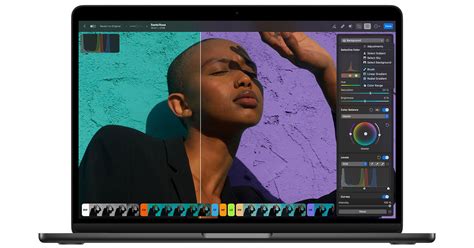
The application provides a comprehensive suite of standard image adjustments, including exposure, shadows, highlights, black and white points, clarity, structure, and color controls. These adjustments are logically grouped, and enabling a group with a simple toggle switch provides quick access. The "ML-Button" offers AI-powered suggested adjustments, streamlining the editing process. While most essential adjustments are present, the absence of a dedicated "dehaze" tool, found in Lightroom Mobile, is a minor omission that users may need to find workarounds for.
Enhancing Images: LUTs, Presets, and Super Resolution
Photomator supports both LUTs (Look-Up Tables) and Adjustment Presets. LUTs offer standardized color grading that can be applied with a single click and are transferable across different editing software. Presets, on the other hand, are Photomator's proprietary format for saving and reapplying custom adjustment combinations. For users not involved in video editing, presets serve as an efficient way to save and reuse favorite editing styles.
A standout feature in Photomator is its "Super Resolution" capability. This AI-powered tool upscales images, significantly increasing their resolution while maintaining remarkable detail. The results can be transformative, as demonstrated by the upscaling of a low-resolution DSLR photo into a high-megapixel image, showcasing the potential for breathing new life into older or lower-quality files.
Upscale Any Photo in Affinity 3 with AI Super Resolution (Beginner Tutorial)
Denoising and Perspective Correction
Denoising is a vital function, especially for low-light photography or images with significant noise in dark areas. Photomator offers a two-pronged approach to noise reduction. The "grain" adjustment can be used to subtly soften noise, while a machine-learning-based denoise function, accessible from the document menu, allows for intensity adjustments in percentages.
In terms of perspective correction, Photomator's tools are more basic compared to Lightroom Mobile. While it offers horizontal and vertical correction, it lacks the ability to correct for barrel distortion, which can be an issue with ultra-wide or fisheye lenses.
Retouching: A Comparative Weakness
Where Photomator falls noticeably behind is in its retouching capabilities, particularly when compared to the advanced AI-driven tools found in Lightroom. However, the developers acknowledge this and suggest that users might employ other applications for these more specialized tasks.
Pricing and Value Proposition
As of June 2025, Photomator is available through a yearly subscription for $34.99 USD or a one-time purchase of $119 for lifetime access. This pricing structure is notably competitive, with the lifetime purchase being more economical than a single year's subscription to Adobe Lightroom Mobile.
Capture One: The Professional's Choice for RAW Editing
Capture One has long been the industry standard for professional photographers, particularly those who prioritize RAW file processing, advanced color control, and robust tethering capabilities. While its interface and workflow may present a steeper learning curve than Photomator or Lightroom, its power and flexibility are undeniable.
Licensing and Pricing Shifts
Capture One has undergone significant changes in its licensing model. Historically, perpetual licenses offered lifetime access to a specific version of the software. However, recent shifts indicate a move towards a subscription-based model, with perpetual license holders no longer receiving new features without purchasing an updated license. This change, coupled with increased prices and the discontinuation of manufacturer-specific versions, has made the entry point for Capture One more substantial, potentially frustrating users who initially switched from Adobe due to its subscription-only approach.
Superior RAW Rendering and Color Control
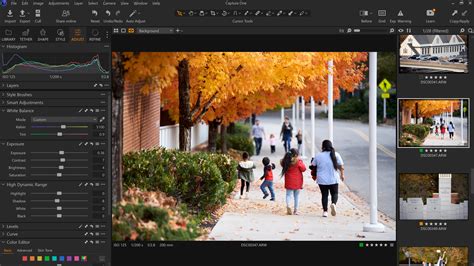
One of Capture One's enduring strengths is its exceptional RAW file rendering. For many camera models, Capture One's interpretation of RAW data results in superior detail and color fidelity straight out of the camera compared to other editors. Its Color Editor is particularly powerful, offering granular control over hue, saturation, and lightness for precise color grading. This level of fine-tuning is invaluable for portrait and studio work where subtle color nuances are critical.
Sessions vs. Catalogs: Workflow Organization
Capture One offers two primary organizational structures: Catalogs, similar to Lightroom, and Sessions. Sessions are a distinctive feature, particularly beneficial for travel photographers and those working on discrete projects. A session keeps all related filesâRAWs, edits, and outputâwithin a single, self-contained folder, making it ideal for managing short-term assignments or working remotely. Sessions can be opened directly from network drives, unlike Lightroom catalogs which typically require copying to a local drive for editing. This folder-based approach provides a clean project structure and allows for easy browsing of entire archives without importing.
Advanced Tethering Capabilities
For studio professionals, Capture One's tethering functionality remains unmatched. Its stability, reliability, and extensive options are tailored for capturing images directly into the software. Features like user-defined capture folders, automated file naming conventions, and the ability to search camera menu options directly within the software streamline tethered shooting workflows. The overlay and grid features further enhance precision during live shooting. In contrast, Lightroom's tethering option is often described as a less integrated add-on, with a floating window that can obstruct the workspace and limited configuration options.
Customizable Interface and Workspaces
Capture One's interface is highly customizable, allowing users to rearrange, add, or remove tools and tabs to create personalized workspaces. This flexibility caters to advanced users who have a clear understanding of their workflow and require immediate access to specific tools. While Lightroom's interface is praised for its aesthetic and intuitive module-based design, it offers far less customization. Capture One even provides a "Migration" workspace to help users transition from Lightroom's layout.
What Capture One Still Does Better
Despite advancements in other software, Capture One retains its edge in several key areas:
- Studio Tethering: As mentioned, its tethering capabilities are superior for professional studio work.
- RAW File Rendering: For certain camera models, Capture One's interpretation of RAW files still yields more desirable detail and color.
- Color Controls: The depth and precision of its color editing tools remain a benchmark.
- Sharpening and Noise Reduction (Standard): Its built-in sharpening and standard noise reduction algorithms are often considered subjectively superior, though this is challenged by Lightroom's new AI-based tools.
- Fuji X-Trans Support: Capture One offers excellent out-of-the-box quality for Fuji X-Trans sensor files, often negating the need for special processing techniques.
Adobe Lightroom: The Evolving Ecosystem
Adobe Lightroom, particularly Lightroom Classic, remains a dominant force in photo editing. Its ecosystem, which includes cloud storage and seamless integration with Photoshop, is a significant draw.
AI-Powered Advancements
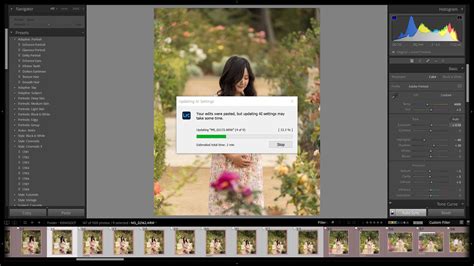
Adobe has made substantial investments in AI-driven features for Lightroom. The masking system has been completely re-architected, now incorporating AI tools for automatic subject and sky selection, significantly reducing manual masking time. These masks can be combined using Boolean operations for complex, dynamic selections. Furthermore, Lightroom's AI-powered noise reduction is highly effective, often outperforming third-party plugins and offering a seamless, integrated solution. The addition of curves and a powerful new AI denoise tool have fundamentally changed how many users approach their editing workflows.
Seamless Workflow with Photoshop
The inclusion of Photoshop in the Lightroom subscription plan (Photography Plan) is a major advantage. The ability to send RAW files to Photoshop as smart objects, maintaining editability all the way back to the original RAW, provides an unparalleled non-destructive workflow. This allows for the application of additional Photoshop plugins and advanced pixel-level editing without compromising the integrity of the original image.
Mobile Integration and Cloud Sync
Lightroom's mobile app, included in the subscription, offers a consistent editing experience across devices. Edits are synced via the cloud, ensuring that work in progress is accessible from anywhere. This cloud-centric approach simplifies workflow for users who frequently switch between desktop and mobile editing.
Lightroom vs. Capture One: A Shifting Landscape
The comparison between Lightroom and Capture One is dynamic. While Capture One historically held an advantage in RAW rendering and color control, Lightroom's recent AI-driven features, particularly in noise reduction and masking, have narrowed that gap considerably. For many, the seamless integration with Photoshop and the comprehensive ecosystem offered by Adobe now outweigh Capture One's specific advantages, especially when considering the evolving licensing models of both software.
Photomator vs. Capture One: A Direct Comparison
When directly comparing Photomator and Capture One, the differences are stark, reflecting their distinct target audiences and design philosophies.
Photomator shines as an accessible, well-integrated application for Apple users, offering a streamlined editing experience with powerful AI features and excellent value for its price. Its strength lies in its ease of use, intuitive interface, and seamless integration with the Apple ecosystem. However, it currently lacks the depth of control in certain areas, such as highlight recovery and advanced color grading, where Capture One excels.
Capture One, on the other hand, remains the professional's tool for granular control, superior RAW processing for specific cameras, and unparalleled tethering. Its session-based workflow and highly customizable interface cater to demanding professional workflows. The recent shifts in its licensing and pricing, however, have raised questions about its future accessibility and value proposition for some users.
Key Considerations for Photographers
- Ecosystem: For users heavily invested in Apple devices, Photomator offers a cohesive and integrated experience. Lightroom provides a cross-platform ecosystem that includes Photoshop and robust cloud syncing. Capture One, while having a mobile app, is primarily a desktop-focused professional tool.
- Workflow: Lightroom's catalog-based system and cloud syncing are ideal for broad organization and accessibility. Capture One's sessions offer a project-based approach suited for specific assignments and tethering. Photomator leverages the iOS Photo Library for a familiar organizational structure.
- Advanced Features: For cutting-edge AI tools like noise reduction and masking, Lightroom is currently leading. For the absolute finest control over color and RAW rendering (depending on camera), Capture One remains a strong contender. Photomator offers impressive AI features like Super Resolution and intelligent masking within a more accessible package.
- Budget: Photomator presents a compelling value, especially with its lifetime purchase option. Lightroom's subscription model offers access to Photoshop and cloud storage, which can be cost-effective for many. Capture One's pricing has become more substantial, particularly for perpetual licenses.
Ultimately, the "best" software depends on individual needs, priorities, and budget. Photomator offers a powerful and user-friendly alternative, especially for mobile and Apple-centric workflows. Capture One continues to be a professional workhorse for those requiring ultimate control and specific RAW processing advantages. Lightroom, with its rapid AI advancements and integrated ecosystem, remains a formidable and evolving option for a wide range of photographers.
tags: #capture #one #vs #photomator