In the realm of digital imagery, the ability to refine and perfect photographs is paramount. Whether you're a social media enthusiast, an e-commerce entrepreneur, or a casual photographer, the presence of unwanted elements can detract from an otherwise stunning image. Fortunately, advancements in Artificial Intelligence have democratized sophisticated editing techniques, making them accessible to everyone. Pixelcut, a powerful AI-driven platform, stands out as a leading solution for tasks like removing unwanted objects and people from photos. This tutorial will delve into the functionalities of Pixelcut's object remover, providing a step-by-step guide and exploring its capabilities in various scenarios.
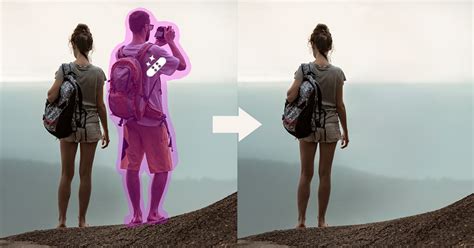
Understanding Object Removal in Photography
Removing a person or object from a photo, at its core, involves erasing the unwanted element while intelligently reconstructing the background to appear as if the object or person was never there. This process, often referred to as "inpainting," relies on complex algorithms that analyze the surrounding pixels to generate a seamless and natural-looking fill. Historically, this was a time-consuming and technically demanding task, requiring skilled professionals to meticulously clone and heal areas in software like Adobe Photoshop. However, AI tools have revolutionized this process, automating it and making it achievable in mere seconds.
The Rise of AI in Photo Editing
The advent of AI has transformed the landscape of photo editing. Tools like Canva Magic Eraser, Fotor, Cleanup.pictures, and Pixelcut now offer automated solutions for object removal. These platforms leverage machine learning to understand image context, texture, and lighting, enabling them to fill gaps with remarkable accuracy. This accessibility means that individuals without extensive photo-editing experience can now achieve professional-quality results quickly and efficiently.
Why Remove People or Objects from Photos?
There are numerous reasons why one might choose to remove an element from a photograph:
- Privacy Protection: For personal or public images, maintaining privacy might necessitate the removal of identifiable individuals.
- Aesthetic Improvement: Achieving a cleaner composition for social media, print, or personal portfolios is a common goal.
- Eliminating Distractions: Photobombers or strangers in travel photos can disrupt the intended focus of an image.
- Correcting Imperfections: Unforeseen elements, like someone stepping into a group shot unexpectedly, can be rectified.
- Creative Control: Artists and designers often remove elements to achieve a specific visual narrative or aesthetic.
- Product Photography: For e-commerce, removing distracting backgrounds or elements is crucial for showcasing products effectively.
- Personal Memory Curation: Removing an ex-partner from cherished memories or group photos is a common personal use case.
- Enhancing Landscapes: Removing litter, power lines, or other unsightly elements can preserve the natural beauty of a landscape.
- Eliminating Unwanted Reflections: Reflections in windows, sunglasses, or shiny surfaces can sometimes be undesirable.
Pixelcut: Your All-in-One AI Photo Editor
Pixelcut is a comprehensive platform designed to empower creators and businesses with AI-driven image editing. It offers a suite of tools that go beyond simple object removal, including background removal, AI photoshoots for product imagery, AI copywriting, and more. For the purpose of this tutorial, we will focus on its "Magic Eraser" tool, which excels at removing unwanted people and objects.
Key Features of Pixelcut
Pixelcut boasts a range of features designed for ease of use and professional results:
- Background Remover: Instantly removes the background from any photo, providing a perfect cutout.
- Magic Eraser: Removes unwanted objects and cleans up pictures, making it ideal for eliminating distractions. This is the core feature we will explore.
- AI Photoshoot: Generates infinite product photos using AI, simplifying e-commerce photography.
- Magic Writer: An AI copywriter powered by GPT technology for generating product descriptions, captions, and hashtags.
- Reels Maker: Facilitates the creation of business videos.
- Collages: Offers creative layouts for photo collages.
- White & Color Backgrounds: Allows users to place products on simple white backgrounds or choose from various colors and backdrops.
- Templates: Provides thousands of templates designed for shopping and social media.
- Shadows: Enables control over product shadows for realistic presentation.
- Text Styles: Adds text with beautiful font styles and overlays.
- Stand Out: Helps users create compelling social media posts to boost sales and online presence.
- Discover: A community-driven feature to search for templates created by others.
Using Pixelcut's Magic Eraser: A Step-by-Step Guide
Pixelcut's Magic Eraser tool is designed for speed and simplicity, making it accessible even for beginners.
Step 1: Access Pixelcut
You can use Pixelcut in two primary ways:
- Online Tool: Visit the Pixelcut website and navigate to their online magic eraser tool.
- Mobile App: Download the Pixelcut app, available for free on both iOS and Android devices. The mobile app is particularly convenient for quick edits on the go.
Step 2: Upload Your Image
Once you have accessed the tool, you will be prompted to upload the photo you wish to edit. You can either select an image directly from your computer or phone's gallery, or sometimes, you might have the option to use stock images provided by Pixelcut for testing purposes.
Step 3: Select the Magic Eraser Tool
Within the Pixelcut interface, locate and select the "Magic Eraser" tool. This is the primary function for removing objects and people.
Step 4: Brush Over the Unwanted Element
After selecting the Magic Eraser, a brush tool will appear. You will need to "paint" or "swipe" over the person or object you want to remove.
- Brush Size Adjustment: Pixelcut allows you to adjust the size of the brush tool. For larger objects or people, you’ll want a larger brush. For finer details or smaller elements, a smaller brush is more appropriate. This is crucial for covering the unwanted element precisely without affecting the surrounding areas more than necessary.
- Precision: While the AI is powerful, try to be as accurate as possible when brushing over the unwanted element. Covering only the person or object you wish to remove will yield the best results.
Step 5: Let the AI Work
Once you have finished brushing over the unwanted element, release your finger or mouse. Pixelcut's AI will then process the image, analyzing the context and intelligently filling the area where the person or object was. This process typically takes just a few seconds.
Step 6: Preview and Refine (If Necessary)
Pixelcut often provides a preview of the edited image. You can compare it with the original to see the results. In some cases, the AI might achieve a near-perfect result. However, for more complex backgrounds or intricate edits, some minor imperfections might occur.
- Common Issues: You might encounter issues like ghost outlines, blurred background areas, texture mismatches, or distorted shadows.
- Refinement: If the initial result isn't perfect, you can sometimes repeat the brushing process on specific areas, or use other editing tools within Pixelcut (if available) to refine the edges or correct minor flaws. For instance, if a part of the background looks unnatural, you might try brushing over that specific area again.
Step 7: Download Your Edited Photo
Once you are satisfied with the result, you can download your edited photo. Pixelcut typically offers options to save in various formats, and for premium users, higher resolution exports might be available.

Real-Life Scenarios: Mastering Object Removal with Pixelcut
Pixelcut's Magic Eraser is versatile and can handle a wide range of common editing needs.
Scenario 1: Removing a Photobomber
Photobombers can be a significant annoyance, ruining otherwise perfect shots. Whether it's a friend's intentional prank or a stranger who wandered into the frame, Pixelcut can quickly erase them. Simply upload your photo, select the Magic Eraser, and swipe over the photobomber. The AI will seamlessly blend the background, leaving your photo pristine.
Scenario 2: Erasing Tourists from Travel Photos
Popular tourist destinations are often crowded, making it challenging to capture iconic landmarks without a throng of people in the background. Pixelcut allows you to effortlessly remove these tourists, creating a clean and focused image of your travel experience. This is particularly useful for creating shareable content on the go.
Scenario 3: Removing Strangers from Your Photos
Beyond intentional photobombers, random strangers can also appear in your shots. Whether it's a person walking in the background of a beautiful landscape or someone inadvertently captured in a candid moment, Pixelcut can remove them. The tool is effective for removing people, animals, vehicles, and other unwanted objects.
Scenario 4: Removing an Ex from a Photo
Breakups can be tough, and sometimes you might want to preserve a great photo from a past relationship without the former partner in it. Pixelcut provides an easy way to remove an ex from a picture, allowing you to keep the memory of the place or event without the reminder of the person. Upload the photo, use the Magic Eraser to swipe over your ex, and save the edited image.
Scenario 5: Cleaning Up Landscape Photos
Nature photographers often strive for pristine views, but unwanted elements like litter, power lines, or even people can detract from the scene. Pixelcut's Magic Eraser can be used to remove these distractions, allowing you to present the natural beauty of a landscape without compromise. This is perfect for creating wallpapers or prints.
Scenario 6: Removing Reflections from a Photo
Sometimes, reflections in sunglasses, windows, or shiny surfaces can be distracting. Pixelcut can also be used to remove these unwanted reflections. By brushing over the reflection, the AI can reconstruct the underlying surface, creating a cleaner image.
Beyond Pixelcut: Other AI Tools and Manual Editing
While Pixelcut is a powerful and user-friendly option, it's beneficial to understand the broader ecosystem of photo editing tools and techniques.
Other AI Object Removal Tools
Several other AI-powered tools offer similar functionalities to Pixelcut's Magic Eraser:
- Fotor Remove People From Photo Tool: Uses AI to remove people from backgrounds, suitable for portraits and outdoor scenes. It's known for its ease of use.
- Cleanup.pictures: A clean and straightforward interface that removes people, text, or unwanted objects, supporting high-resolution outputs for premium users.
- Canva Magic Eraser: Integrated within Canva's design platform, it allows users to brush over unwanted elements and have them replaced by the background. Ideal for creators working within the Canva ecosystem.
- MagicEraser.org: Offers a one-step removal process where users upload, highlight, and the AI restores the background.
- Photoroom Remove Object From Photo Tool: Works quickly on both mobile and desktop, automatically detecting and erasing unwanted elements.
- VidAU: An online AI remover that focuses on simplicity and speed, allowing for one-click removal of unwanted people.
Mobile Apps for Object Removal
For quick edits on the go, numerous mobile apps are available:
- Snapseed: Offers a "Heal" tool for object removal.
- TouchRetouch: Specializes in object removal with automatic or Lasso tool selection.
- BeautyPlus: Features an object remover that works on Android and iOS.
- Google Photos: Includes a "Magic Eraser" tool for automatic or manual object removal.
- Adobe Photoshop Express: Provides "Heal" or "Remove" object tools utilizing generative AI.
- YouCam Perfect: Quickly removes people from photos with a single tap.
- Fotor App: The mobile version offers the same AI removal capabilities as its web counterpart.
- Lightroom mobile app: Features a "remove" button with generative AI capabilities.
- Picsart: Offers an AI object/people remover.
- PhotoDirector: Utilizes an AI object remover tool.
These mobile apps prioritize speed and convenience, though they might sometimes trade off pixel-perfect accuracy compared to desktop solutions.
When to Use AI vs. Manual Editing
The choice between AI-powered tools and manual editing depends on the complexity of the task and the desired outcome:
Use AI When:
- The background is relatively simple and uniform.
- Speed is a priority, especially for social media content.
- You have little to no prior photo-editing experience.
- You need to remove common distractions like photobombers or tourists.
Use Manual Tools (like Photoshop) When:
- The background has intricate patterns, complex textures, or significant shadows and reflections.
- Professional output is required for commercial or print projects.
- You need precise control over every pixel and want to avoid any potential AI artifacts.
- There are overlapping objects where AI might struggle to differentiate.
Remove Objects from Photos Using Pixelcut Magic Eraser | Easy Tutorial
Common Problems and How to Avoid Them
Even advanced AI tools can encounter challenges. Understanding these common issues can help you achieve better results.
Frequent Issues:
- Ghost Outlines or Blurred Backgrounds: The AI might not perfectly reconstruct the area, leaving faint outlines or an unnatural blur.
- Texture Mismatches: The reconstructed texture might not seamlessly match the surrounding original texture.
- Distorted Shadows or Reflections: Shadows or reflections in the original image might be incorrectly rendered or distorted after removal.
- Over-Smoothed Surfaces: Areas where objects were removed might appear unnaturally smooth compared to the rest of the image.
How to Avoid Them:
- Use High-Resolution Images: Starting with a high-resolution source provides the AI with more data to work with, leading to better reconstruction.
- Zoom In and Clean Up Manually: After the AI does its initial work, zoom in on the edited areas and use manual tools (if available in the app or in conjunction with other software) to refine edges and correct imperfections.
- Utilize Advanced Inpainting Tools: Tools like Photoshop's Content-Aware Fill or Fotor's more advanced AI features often offer better control over the reconstruction process.
- Combine Multiple Tools: If one tool's output isn't satisfactory, try using another tool or a combination of AI and manual editing to achieve the desired result. For example, you might use Pixelcut for initial removal and then refine in Photoshop.
Tips for Easier and Better Results
While Shooting:
- Take Multiple Shots: If possible, take several photos of the same scene without moving the camera. This provides backup options and can help with manual reconstruction if needed.
- Keep Backgrounds Simple: When anticipating the need for object removal, try to ensure the background is as uncomplicated as possible.
- Avoid Overlap: Minimize overlap between subjects and unwanted elements to make the AI's job easier.
During Editing:
- Work with Duplicate Layers: Always work on a duplicate layer of your original image. This preserves the original file, allowing you to revert to it if your edits go awry.
- Use Masks: Many advanced editing tools allow for non-destructive editing using masks. This means you can hide or reveal parts of an image without permanently deleting pixels, offering greater flexibility.
- Save Edited Versions in High Resolution: When saving your final edited image, ensure you export it in the highest possible resolution to maintain quality, especially if you plan to print it.
Ethical and Privacy Considerations
While AI tools offer incredible power for image manipulation, it's crucial to use them responsibly.
- Misrepresentation: Altering images, especially in journalism or for evidence, can be misleading and unethical.
- Respect Privacy: When removing identifiable people from photos, especially those who might not consent, consider the privacy implications.
- Authenticity: Be mindful of how edited images might misrepresent events or reality. For personal use, this is less of a concern, but for public dissemination, transparency is key.
Best Practices for High-Quality Results
To consistently achieve high-quality results when removing objects or people from photos:
- Use High-Resolution Sources: As mentioned, this is fundamental for detailed reconstruction.
- Combine AI and Manual Tools: Leverage the speed of AI for initial removal and the precision of manual tools for refinement.
- Check Lighting and Color Consistency: Ensure that the reconstructed areas match the original lighting and color balance of the scene.
- Save Your Original File: Never overwrite your original image. Always work on a copy or use non-destructive editing methods.
- Export in Appropriate Formats: For maximum quality, export your final images in lossless formats like PNG or TIFF, especially if further editing or high-quality printing is intended.
By understanding the capabilities of tools like Pixelcut and adhering to best practices, you can effectively remove unwanted elements from your photos, enhancing their visual appeal and achieving your desired aesthetic.