When embarking on your digital art journey with Clip Studio Paint (CSP), understanding and effectively managing canvas size is a cornerstone of a successful workflow. Far from being a rigid limitation, CSP offers remarkable flexibility, allowing artists to tailor their digital workspace to a myriad of creative needs, from swift sketches to intricate, print-ready illustrations. This guide will delve into the nuances of canvas dimensions in CSP, exploring default settings, how to modify them, and the implications for your artwork.
Defining Your Digital Space: Initial Canvas Setup
Upon launching Clip Studio Paint, you are not met with a single, predefined canvas size. Instead, the software is engineered for adaptability, empowering you to dictate your canvas dimensions from the very inception of a new project. This mirrors the tangible experience of selecting the appropriate paper size for a physical sketchbook; the freedom to choose from various dimensions is paramount.
When initiating a new illustration, the "New" dialog window presents a series of crucial settings. For those using CSP v1.10.10 and later, this interface is quite intuitive. Initially, you'll need to indicate that your intention is to draw on the screen, a selection typically made by choosing one of the "lineart-filled squares" at the top of the window, signifying a standard illustration format.
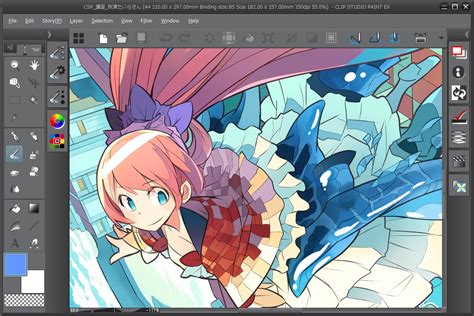
The subsequent crucial step involves selecting your preferred unit of measurement. A dropdown menu, usually located on the far right of the window, allows you to choose between centimeters (cm), millimeters (mm), inches (in), pixels (px), or points (pt). This selection directly influences how you define page sizes and dimensions. For instance, choosing "in" (inches) makes it straightforward to identify standard paper sizes like A4, A5, A6, B4, B5, and B6, when these are represented in imperial units.
The "Width" and "Height" options allow for precise dimension input. If you wish to reverse the orientation of your canvas, creating a wider page than it is tall, you can utilize the arrows situated to the left of these fields. As you adjust the numbers, a white silhouette within the dialog box will dynamically update to reflect these changes, providing a visual representation of your chosen canvas dimensions.
Aligning with Your Traditional Workflow
For many artists, the most comfortable starting point is to replicate the dimensions of their preferred physical sketchbook or drawing paper. This familiarity can significantly ease the transition into digital art. If you primarily work on standard letter-sized paper, setting your canvas to 8.5" x 11" is a logical choice. For those who spend most of their time in a smaller sketchbook, dimensions like 5.5" x 8.5" might be more appropriate.
Aspiring professional comic artists often adhere to industry standards, which frequently involve working on pages close to 11" x 17". It's worth noting that within this larger page, artists typically define an inner drawing area, often around 10" x 15", to ensure their work fits within standard comic panel layouts.
If your focus is on digital painting within Clip Studio Paint, considering real-world canvas sizes can be beneficial. This approach allows you to work with dimensions that translate well to physical art, should you ever decide to print your work. For artists who enjoy working on a smaller scale, perhaps akin to drawing on Post-it notes, dimensions such as 3" x 3" or 4" x 4" are perfectly viable.
Resolution: The DPI Factor
Beyond the physical dimensions of your canvas, resolution, measured in dots per inch (DPI), plays a critical role, particularly when preparing artwork for print. A higher DPI setting allows your image to be reproduced at larger physical sizes without a loss of quality. For instance, an image created at 600 DPI will generally hold up better when scaled up for printing compared to one created at a lower DPI. Conversely, for web use, where screen display is the primary medium, a resolution of 72 DPI is often sufficient. It's a common practice to work at a higher DPI during the creation process (e.g., 600 DPI) as it's always easier to scale down a high-resolution image than to enlarge a low-resolution one without introducing pixelation or blurriness. When preparing for web export, you can then downscale the image to the desired 72 DPI. A key consideration when working at very high resolutions or on large canvases is the potential impact on computer performance. While Clip Studio Paint is remarkably efficient and can handle substantial file sizes before performance degrades significantly, it’s a factor to keep in mind. For detailed artwork, providing yourself with ample digital "space" through a larger canvas size and a higher DPI is highly recommended.
Modifying Existing Canvases: Flexibility in Action
The creative process is rarely linear, and it's common to realize midway through a project that your canvas dimensions need adjustment. Clip Studio Paint offers robust tools to accommodate these changes without necessitating a complete restart.
Changing Image Resolution and Canvas Size
The "Edit" menu provides direct access to canvas manipulation tools. The "Change Image Resolution" option allows you to directly alter the width, height, scale, and resolution of your current canvas. This function is akin to resizing a physical canvas; you can expand it to gain more working area or shrink it, which effectively crops your existing artwork.
When you enlarge a canvas, Clip Studio Paint adds digital space, enabling you to extend your composition or add new elements without being constrained by the original boundaries. Conversely, reducing the canvas size will trim away parts of your artwork.
How To Resize Your Canvas and Change Image Resolution In Clip Studio Paint | Mini Tutorial
The "Change Image Resolution" dialog box allows for granular control. You can specify new dimensions in your chosen units (pixels, inches, cm, etc.) and set a new DPI. A dropdown menu offers a selection of pre-defined resolutions, making it easy to pick common settings.
It's important to be aware of potential consequences when altering canvas size, especially if certain elements are present:
- Crop Marks and Inner Borders: If your canvas has crop marks and an inner border set, and you change the canvas size using a selection, these elements will be deleted.
- Output Frames and Overflow Frames: If you have output frames and overflow frames defined and you resize the canvas such that these frames extend beyond the new canvas boundaries, they will be removed.
Adjusting Canvas Height with Extend and Crop
Clip Studio Paint offers specialized tools for modifying canvas height: "Extend" and "Crop," accessible through the "Edit" menu > "Change Canvas Height."
- Extend Canvas: Selecting "Extend" opens the "Extend canvas" dialog. A blue extension frame appears on your canvas, indicating the area that will be added. You can reposition this frame by dragging within it. To adjust the height, you drag the lower line of the frame up or down. This is ideal for adding space to the bottom of your artwork.
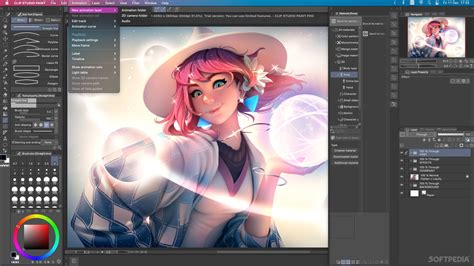
- Crop Canvas: Choosing "Crop" opens the "Crop canvas" dialog, presenting a red cropping frame. Similar to the extend function, you can drag this frame to reposition it. Adjusting the height involves dragging the lower line of the frame up or down. This tool is used to remove unwanted portions from the bottom of your canvas.
It's crucial to understand how these operations affect different layer types:
- Image Materials, Text, Balloons, Rulers, File Objects, Speed Lines, and Focus Lines: Extending or cropping the canvas will not delete these objects, even if they fall within the modified area. However, they might be repositioned vertically if the crop or extension frame overlaps with them.
- Fill Layers, Tonal Correction Layers, and 3D Layers: These layer types are unaffected by canvas extension or cropping operations.
Advanced Canvas Properties and Settings
Beyond basic dimensions, Clip Studio Paint provides a wealth of advanced settings accessible through the "Canvas Properties" dialog (Edit > Canvas Properties). This dialog allows you to modify various aspects of your canvas after its creation.
General Canvas Settings
- Unit Selection: As mentioned earlier, you can select the unit of measurement for width and height.
- Resolution: The DPI of your canvas can be adjusted here.
- Basic Expression Color: This setting determines the color mode of your canvas (e.g., Color, Grayscale, Monochrome). You can also set specific drawing colors for Gray or Monochrome modes.
- Screentone Lines: For monochrome projects, you can specify the density of screentone lines per inch. Higher values result in smaller dots, creating finer screentone effects.
- Paper Color: You can assign a base color to your paper layer, which can be changed later.
Print and Comic Specific Settings
Clip Studio Paint excels in its tools for comic and print production. The "Canvas Properties" dialog offers several options to facilitate these workflows:
- Crop Marks and Borders: You can enable the addition of crop marks, default borders (inner), cropped borders, bleed borders, and safety margins.
- Bleed Border: This adds an extra margin to compensate for potential inaccuracies during the trimming of page edges.
- Inner Border: This serves as a reference for laying out frames within your comic pages. You can define this border by its size and position or by specifying margins.
- Crop Marks: When enabled, these align with the cropped border positions, aiding in precise printing.
- Safety Margin: This indicates a print-safe area, crucial for ensuring important elements remain visible in both magazines and books with varying aspect ratios.
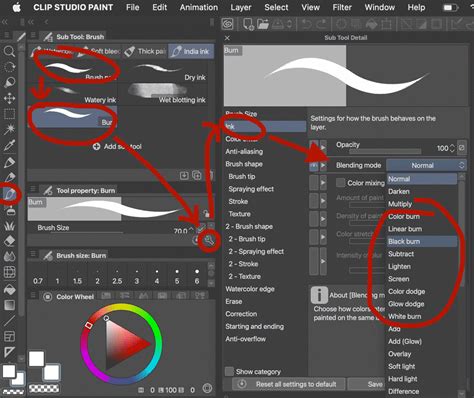
- Output Frame and Overflow Frame: These are specific to animation and comic paneling, helping to define the visible area and any overflow. You can add or remove these lines as needed.
Image Interpolation Methods
When resizing images, Clip Studio Paint employs different interpolation methods to render the new pixels. Understanding these can help you achieve the desired sharpness or smoothness:
- Bilinear Method (Smooth Outline): This method blends the colors of neighboring pixels to create smoother transitions and outlines. It's generally good for softening edges.
- Nearest Neighbor Method (Sharp Outline): This method duplicates existing pixels without blending colors. This results in sharper, more defined outlines, preserving crisp lines, especially when scaling down.
- Bicubic Method (Stronger Outline): This method offers stronger outlines than the bilinear method by averaging colors of original pixels more rigorously. It aims to preserve detail during scaling.
- Smart Scaling: This option is designed to preserve fine lines even when scaling down an image, offering a balance between detail preservation and smoothness.
Timelapse Recording
Clip Studio Paint offers a unique feature for recording your artistic process as a timelapse. When enabled, the software captures your actions, and if you save your project in the native .clip format, the timelapse data is saved alongside your artwork. This can be a valuable tool for sharing your workflow or for personal review. You can toggle this feature on or off in the "Canvas Properties." Be aware that disabling timelapse recording will delete any previously recorded data.
Managing Multi-Page Projects and Project Settings
For comic artists or those working on projects with multiple pages, Clip Studio Paint provides tools to manage these efficiently.
Changing Page Settings
You can modify the settings for multiple pages simultaneously by selecting them in the "Story" window and opening the "Change page settings" dialog. However, this batch operation is only possible if the selected pages share the same dimensions, resolution, and basic expression color. It's important to note that changes made in batch cannot be undone; you would need to re-open the settings and revert them manually.
The available settings within "Change page settings" depend on the initial project setup (Illustration, Comic, Webtoon, etc.) and will include options like default expression color, frequency, and border settings. For animation projects, this dialog also allows adjustments to frame display methods.
Changing Project Settings
The "Story" menu > "Change project settings" dialog offers a way to alter settings for all pages within a project. These settings are akin to those available when creating a new project, allowing adjustments to canvas size, resolution, color mode, and other project-wide parameters. For comic and fanzine printing projects, specific options related to trim size and fanzine printing data exportability are available.
For multi-page projects, you can adjust the total number of pages. Converting a single-page project to a multi-page project is also possible. Options for managing cover pages (front, inside front, back, inside back) are provided, allowing you to include or exclude them and define how they interact with the main body pages. It's essential to ensure an even number of pages if you intend to add cover pages, as an odd number can prevent this option from being available.
Conclusion: Embracing Canvas Flexibility
Ultimately, the "default" canvas size in Clip Studio Paint is a concept defined by the artist. The software's strength lies in its adaptability, allowing you to start with dimensions that suit your immediate needs and comfort level, and then to modify them with precision as your project evolves. Whether you're aiming for web-ready illustrations, print-quality artwork, or intricate comic pages, mastering the control over your digital canvas is a fundamental skill that empowers your creative expression. Experiment with different sizes, resolutions, and settings to discover what best fits your personal workflow and artistic goals.