In the fast-paced world of video editing, efficiency and visual appeal are paramount. As a busy video editor, you often find yourself pressed for time, constantly needing to create unique titles for new clients or search endlessly for the right templates to elevate your projects. This is precisely where the power of DaVinci Resolve's title templates and functionalities comes into play, offering a robust solution to streamline your workflow and inject professional polish into your creations. This guide will delve into the intricacies of adding, modifying, and animating titles within DaVinci Resolve, exploring a variety of pre-made title packs and offering insights into creating your own eye-catching text sequences.
The Essential Role of Titles in Video Production
Titles are far more than mere text on a screen; they are fundamental storytelling tools. Whether you are opening or closing a video, displaying credits, introducing speakers, or providing crucial on-screen information, titles serve to guide, inform, and engage your audience. They can set the tone, establish branding, and enhance the overall narrative of your video content. In essence, no matter what video project you are working on, there’s a good chance you’re going to need to add at least one DaVinci Resolve title to your project.
Getting Started: Adding Basic Titles in DaVinci Resolve
For those new to DaVinci Resolve or looking to quickly implement basic text elements, the process is straightforward. Assuming you have already created a project and have footage in your timeline, follow these steps to add and modify a title:
- Open Your Project: Launch DaVinci Resolve and open the project you are currently working on.
- Position the Playhead: Navigate to your timeline and place the playhead at the precise location where you want your title to begin. This ensures accurate placement of the text element.
- Access the Effects Library: On the top left of the DaVinci Resolve window, you will find the Effects Library. Click on this to reveal a comprehensive list of available effects and templates.
- Select Your Title: Within the Effects Library, locate the "Titles" section. Browse through the available options and click on the title you wish to use. Once selected, the clip will be highlighted, indicating it's ready to be added to your timeline.
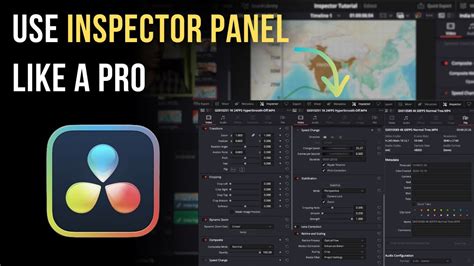
- Open the Inspector: On the top right of the DaVinci Resolve window, the Inspector panel is your primary tool for customizing elements. With your title clip selected on the timeline, the Inspector will display all editable parameters.
- Modify Text Content: Within the Inspector, you will find a section labeled "Rich Text." This is where you can input and edit the actual text for your title.
- Customize Appearance: Beyond the text content, the Inspector offers a wealth of customization options. You can adjust the size, font, position, color, alignment, angle, and a multitude of other attributes to perfectly match your project's aesthetic.
- Enhance with Effects: The Inspector also allows you to add further visual depth to your titles. You can incorporate a drop shadow, a stroke to outline your text, or even a background element directly within the Inspector panel, providing a refined touch to your titles.
Creating Smooth Transitions: Fade In and Fade Out
To give your titles a more polished and professional feel, it's essential to implement smooth transitions, such as fades. This can be achieved directly within the timeline:
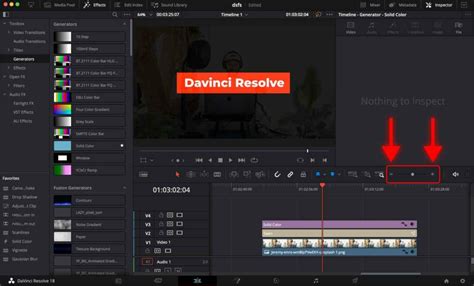
- Enable Timeline View Options: On the left side of the timeline, locate and click on the timeline view options. Select "Thumb" under Video View Options. This will display visual handles on your clips.
- Select the Title Clip: Go back to your timeline and click on the title clip you wish to animate.
- Utilize Fade Handles: You will now observe two small handles appearing at the top and bottom corners of the selected title clip.
- Create the Fade: Click and drag these handles to the right or left. This action creates a fade transition. Dragging to the right will extend the fade duration, while dragging to the left will shorten it. The numbers that appear as you drag represent the number of seconds or frames over which the transition will occur. A setting around 10 frames generally works well for a subtle yet effective fade.
- Apply to Both Ends: Repeat this process at both the beginning and the end of your title clip to create a seamless fade-in and fade-out effect.
This simple technique ensures your titles don't abruptly appear or disappear, contributing to a more professional viewing experience.
Exploring Pre-Made DaVinci Resolve Title Packs
For editors seeking to save time and access a wide array of professionally designed titles, numerous template packs are available. These packs offer diverse styles, from futuristic and abstract to corporate and vintage, catering to virtually any project requirement.
Futuristic and Glitch Effects
If you aim to add a futuristic look to your titles, templates featuring glitch and chromatic aberration effects are ideal. These can create dynamic and visually striking text animations, often incorporating elements like stacked wavy text or bold glitch titles. The "Digital Titles" pack, for instance, is perfect for creating out-of-the-box titles with smooth glitchy animations, and it often includes modern styles to spice up your YouTube videos. Similarly, some packs allow you to create unique outlined 3D text animations that glitch and distort on your screen, adding a truly modern edge.
Clean and Corporate Designs
For projects requiring a more subdued yet sophisticated aesthetic, clean and corporate title animations are essential. These templates can be used to create simple yet clean title animations, as well as logo-style titles for opening or closing sections of your clips. The "Titles Corporate V.2" pack is specifically designed for corporate presentations, maintaining an air of surprise and wonder around your title clips while fulfilling the needs of professional settings.
Abstract and Mystical Themes
When your project calls for something more abstract and mystical, specialized title packs can provide the perfect solution. These designs often infuse titles with smooth movement and color as they pop onto the screen, making them perfect for introducing sections of intros or product promos. The "Fantastic Cinematic Titles" pack is a prime example, offering designs that can add a touch of cool design and style to your videos.
Social Media and Fun Animations
Creating engaging content for social media or fun slideshows often requires titles that are sassy, sweet, and visually dynamic. Packs featuring "scribble titles and transitions" are excellent for this purpose, adding a playful and energetic element to your videos.
Romantic and Vintage Aesthetics
For projects with a romantic or nostalgic theme, specific title packs can capture the desired mood. If you want a little, easy splash of romance, packs focusing on simplicity, love, and nature are ideal. When vintage is the aesthetic you're aiming for, old-timey titles can transport viewers back to the past. Additionally, "retro titles" offer a middle ground when vintage might be too old, still providing a trip down memory lane.
Artistic and Unique Styles
Beyond common themes, many title packs offer unique artistic styles. "Brush titles," for example, provide something different for video projects, offering creative and distinct visual elements. The entertainment world often plays by different rules, and videos reflecting this can benefit from titles that match that unique energy.
Comprehensive Assortments
If you're unsure which specific style you need or prefer to browse through a variety of options, "9 title packs" or larger assortments can be incredibly useful. Every title in these packs is typically professionally animated, full screen, and easy to change, offering maximum flexibility. Packages with 21 titles, for instance, are designed for situations where sophisticated, elegant animations and text are needed most, filling the selection with value.
Advanced Text Animation and Customization
While pre-made templates offer a significant time-saving advantage, DaVinci Resolve also empowers you to create more advanced, eye-catching text sequences from scratch. For those looking to push the boundaries of text animation, resources are available online to guide you through creating custom effects, complex motion graphics, and unique text behaviors. This often involves delving into Fusion, DaVinci Resolve's powerful node-based compositing environment, where you can build intricate animations from the ground up. Understanding concepts like keyframing, easing, and procedural animation within Fusion can unlock a world of creative possibilities for your titles.
How To Master Text Animation In Davinci Resolve (Under 1 Minute)
User Experiences and Support
The effectiveness and usability of these title packs are often highlighted by user experiences. Many users report that these templates are easy to use and add a refined touch to their videos. They are praised for looking great, offering a minimalist design that can be customized easily to a project's color palette. Furthermore, the support offered by the creators of these packs is frequently commended. In instances where a slight issue arises with an overlay, prompt contact and swift resolution are often reported, with support going above and beyond to ensure everything is working correctly. This level of customer service can significantly enhance the overall value and satisfaction derived from using these professional tools. The sentiment of "BEST EXPERIENCE EVER!" is not uncommon, with users expressing strong recommendations for both the products and the dedicated support teams.
Conclusion: Elevating Your Videos with DaVinci Resolve Titles
In conclusion, DaVinci Resolve offers a comprehensive ecosystem for creating, customizing, and animating titles, whether you're a seasoned professional or just starting. From simple text overlays with smooth fades to complex, dynamic animations utilizing pre-made packs or custom Fusion compositions, the tools are readily available to enhance your video projects. By leveraging these powerful features, you can save valuable time, ensure a professional aesthetic, and ultimately deliver more engaging and impactful video content to your clients and audience. The ability to add stylish and flexible designs means these awesome templates can help you create content a little faster, empowering you to focus on the creative storytelling at the heart of your work.