For artists aiming to imbue their creations with accuracy and realism, the strategic use of reference images is not just beneficial, it's often indispensable. Whether you're tackling a complex dragon sketch or attempting a new subject, having a visual guide readily accessible can elevate your artwork significantly. Clip Studio Paint offers powerful tools to integrate these references seamlessly into your workflow, preventing your canvas from becoming cluttered and ensuring you have ample space to bring your artistic vision to life. This guide will explore the various methods for utilizing reference windows in Clip Studio Paint, from direct import onto the canvas to the more efficient Subview panel, detailing how to manage, manipulate, and leverage these visual aids for optimal results.
The Direct Import Method: A Basic Approach
One of the most straightforward ways to incorporate a reference image into your Clip Studio Paint project is through direct import. This method involves selecting an image from your files and placing it directly onto your existing canvas.
To begin, locate a suitable reference image from the web or your personal collection and save it to your computer. Once saved, navigate within Clip Studio Paint to File > Import > Image. This action will prompt you to select the image file you wish to use. Upon opening the chosen image, it will appear as a new layer on your canvas.
While this method is quick and easy, it has a notable drawback: the canvas can quickly become crowded, especially when working with multiple reference images or when your artwork itself demands significant space. This can hinder your ability to see your work clearly and can make the drawing process feel cramped.
The Subview Window: Dedicated Reference Space
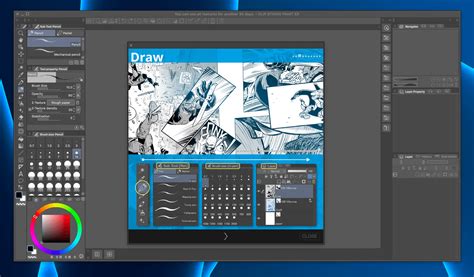
To overcome the limitations of direct import, Clip Studio Paint offers the Subview window, a dedicated panel designed to house your reference images separately from your main canvas. This approach allows you to maintain a clean and spacious working area, dedicating your primary canvas solely to your artwork.
Accessing the Subview Window
There are several ways to open the Subview window, ensuring it's accessible regardless of your preferred workspace layout.
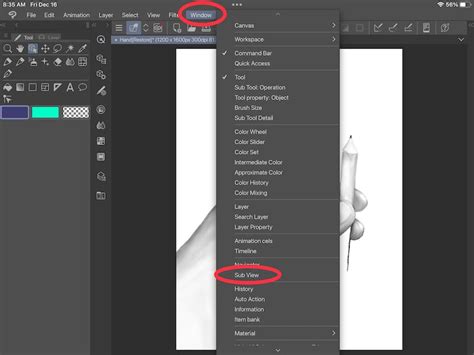
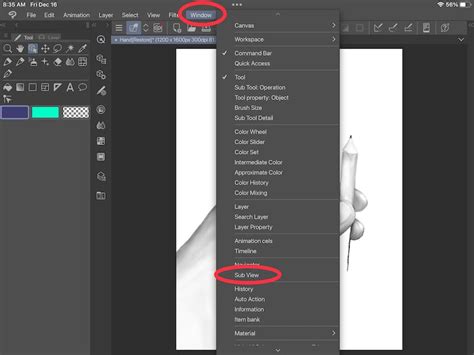
The primary method is through the menu bar: navigate to Window > Subview. This action will open a new tab, typically appearing on the right side of your screen.
Alternatively, if the Navigator window is already open by default in your workspace, you can access Subview by clicking the second tab within the Navigator window. This offers a quick shortcut if you frequently use the Navigator.
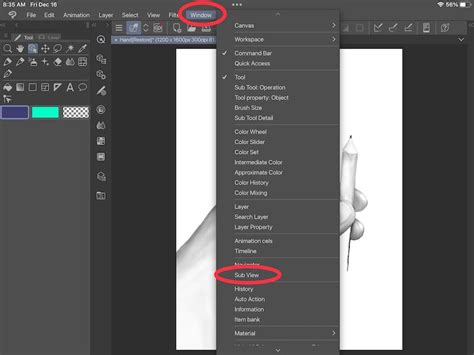
Once opened, the Subview window may appear empty. To populate it with your reference images, locate the small folder icon at the bottom of the Subview panel. Clicking this icon will open a file browser, allowing you to select the image you wish to use as a reference.
Managing and Manipulating References in Subview
The Subview window is highly versatile, offering a range of tools to customize your reference experience.
Resizing and Positioning: The Subview window is fully resizable and movable. You can adjust its dimensions by hovering your mouse over its extremities; an arrow will appear, indicating you can drag to resize. Position it anywhere on your screen that feels comfortable and unobtrusive to your main workspace. This flexibility ensures that your reference is always visible without impeding your artistic flow.
Importing Multiple References: A significant advantage of the Subview window is its capability to display multiple reference images simultaneously. By clicking the folder icon again, you can import additional images. In newer versions of Clip Studio Paint (Version 4.0 and above), the Subview palette features a command bar with checkboxes, making it even easier to manage multiple reference images, ideal for projects requiring extensive visual data.
Zooming and Panning: To get a closer look at specific details of your reference, you can zoom in and out. The arrow icons to the left of the folder icon in the Subview window control zoom functionality. You can also pan around the image to focus on particular areas.
Flipping and Rotating: The Subview window includes icons at the bottom that allow you to flip your reference image horizontally or vertically, as well as rotate it. This is particularly useful for matching perspectives or understanding how a subject appears from different angles.
Color Picking: One of the most powerful features of the Subview window is its integrated color picker. When an image is open in Subview, the color picker tool is often automatically active. Simply hover your cursor over the reference image, and click to select a color. This eliminates the cumbersome process of switching between applications or files to sample colors, streamlining your coloring process significantly. Many artists find this feature a game-changer, dramatically reducing the time spent on color selection.
Moving the Reference: If you need to reposition the reference image within the Subview window itself, you can do so by clicking the color picker icon. This action often activates a hand cursor when hovering over the image, allowing you to drag and move it freely within the Subview panel.
Leveraging References for Learning and Improvement
The importance of drawing from reference cannot be overstated, especially when venturing into new territories of subject matter. References are fundamental to learning how to draw anything accurately. By consistently using reference images, artists develop a deeper understanding of form, anatomy, light, and perspective, which in turn builds their visual library and improves their drawing skills over time.
a COMPLETE guide to shading
For instance, if you're drawing a creature like a dragon, referencing images of reptiles, birds of prey, or even mythological depictions can provide invaluable insights into scale texture, wing structure, and overall form. Similarly, for a landscape, observing real-world scenes allows for a more convincing representation of atmospheric perspective, geological formations, and the interplay of light and shadow.
Utilizing a Secondary Window for Overall Composition
Beyond the Subview panel, Clip Studio Paint also allows you to open a secondary window that displays your artwork. This is incredibly useful for maintaining an overview of your entire piece, especially when you're zoomed in to work on intricate details.
To open this secondary window, navigate to Window > New Window. This will create a duplicate of your canvas in a separate floating window. You can then drag this window to a convenient location on your screen, such as a second monitor, or position it alongside your main canvas. This allows you to constantly monitor the overall composition, balance, and flow of your artwork as you add finer elements, preventing you from getting lost in the details and losing sight of the bigger picture.
Integrating Smartphone References
For artists who prefer to capture or use references directly from their mobile devices, Clip Studio Paint offers integration with smartphones. When connected, your phone can function as a dedicated Sub View tab. This allows you to import reference images directly from your phone's camera roll, and you can even zoom, pan, and pick colors using your phone's touchscreen. This seamless connection between your mobile device and Clip Studio Paint provides an exceptionally convenient way to access and utilize your reference library.
Exploring Color Palettes from Images
The Subview window also proves invaluable for color exploration. If you encounter a color palette from an image that inspires you, whether it's for a vibrant summer landscape or a dramatic character design, you can easily extract it.
When an image is open in the Subview window, you can utilize the 'Generate' button. By repeatedly clicking this, Clip Studio Paint will analyze the image and generate a color palette based on its dominant hues. You can cycle through these generated palettes until you find one that perfectly matches your creative needs or discover new color combinations you hadn't considered. This feature is a powerful tool for color harmony and inspiration.
The Importance of Continuous Learning
As an amateur, there's always more to discover. The methods outlined here represent the primary ways to integrate references into Clip Studio Paint, but exploring the software's full capabilities often reveals new workflows and efficiencies. Artists are encouraged to experiment with all available tools and settings. If you discover alternative methods or advanced techniques for using reference windows, sharing that knowledge benefits the entire artistic community. Similarly, engaging with tutorials and seeking advice from more experienced artists can unlock new levels of understanding and skill. The journey of an artist is one of continuous learning and adaptation, and mastering tools like the Subview window is a crucial step in that process.
The commitment to using references is a testament to an artist's dedication to improvement. It's a practice that fosters accuracy, deepens understanding, and ultimately leads to more compelling and polished artwork. By effectively utilizing the reference window features within Clip Studio Paint, artists of all levels can enhance their creative process and achieve more realistic and visually engaging results.