The digital landscape of photography often presents users with a format that, while efficient, can be a significant hurdle for broader accessibility: HEIC. As the default image storage format for iPhones and Macs, HEIC files offer impressive compression and high-quality images with minimal storage space. These compact, efficient files save precious storage without compromising visual fidelity. However, this very Apple-centric nature means that non-Apple PCs, older software, and a vast array of other devices and applications simply cannot natively support this file extension. This incompatibility often leads users to search for the best software to convert HEIC to JPG, a universally recognized and supported format.
The Case for Conversion: Why HEIC to JPG Matters
Have you ever opened your photo folder only to find a file ending in a .heic extension and wondered what to do with it? You’re not alone. This common predicament arises because, while HEIC files are compact and high-quality, they aren’t natively supported by any products that aren’t Apple. This means that on a Windows PC, an Android phone, or even in many older software applications, you might be met with an unreadable file. You need special software to view HEIC files on a PC without converting them, which can get expensive and complicated.
The JPG file format, on the other hand, is a digital chameleon. JPGs are universally supported; you can open them on virtually any phone, computer, or web browser without special software. This ubiquity makes sharing and accessing your images effortless, regardless of the device or platform being used. While it's true that JPGs might lose some image quality when they’re compressed or heavily edited, they’re still a fantastic and practical alternative to Apple-exclusive HEIC files, ensuring your memories are accessible to everyone. Converting your files not only improves compatibility but also ensures you can open images across a wide range of devices and apps.
Converting HEIC to JPG on Mac: Effortless Integration
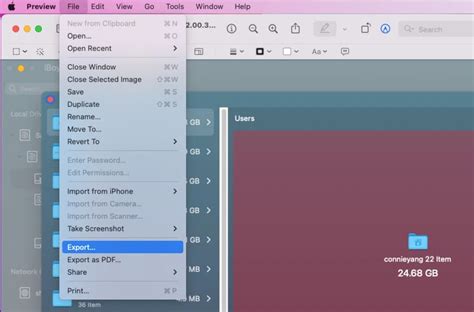
For Mac users, the transition from HEIC to JPG is remarkably straightforward, thanks to Apple's built-in tools. The fastest way to convert a HEIC file to a JPG file on a Mac is with the built-in Preview app. Simply open your HEIC image in Preview, go to the "File" menu, and select "Export." From the dropdown menu, choose "JPEG" as the format, adjust any quality settings if desired, and save.
Beyond individual file conversions, Mac users can also streamline their workflow by changing the default image format. If you always want your photos to be in JPG format, you can change the image default from HEIC to JPG within your iPhone’s camera settings. This setting ensures your iPhone saves future photos as JPGs automatically, eliminating the need for post-capture conversion.
HEIC to JPG Conversion on Windows: Bridging the Compatibility Gap
Windows users often encounter the HEIC format headache when transferring photos from their iPhones. You might be surprised that your computer doesn’t recognize HEIC files by default. In the past, this might have necessitated the download of third-party applications, some of which could be questionable in terms of privacy and security. Fortunately, Microsoft has introduced a more integrated solution.
You can also use the native Microsoft converter app, often referred to as the "HEIF Image Extensions" available through the Microsoft Store. It’s free and works on both PCs and tablets. With this app installed, your Windows system gains native support for HEIC files, allowing you to view them within the Photos app. For conversion, the built-in "Photos" app on Windows 11 can be used, though it doesn't inherently support batch conversion. For a more direct conversion experience within Windows, you can leverage specialized software.
One highly recommended approach for Windows users, particularly those dealing with a large volume of HEIC files, is to use dedicated conversion software. Many solutions offer a simple drag-and-drop interface. With these tools, all you need to do is drag and drop your HEIC file into the converter and click "Convert."
Specialized Software for Bulk Conversions and Enhanced Features
For users facing the daunting task of converting thousands of HEIC pictures, manual conversion is simply not feasible. This is where specialized software solutions shine, offering efficiency and reliability.
CopyTrans HEIC for Windows: This is a free tool for personal use that offers an incredibly convenient way to batch convert HEIC to JPEG. It integrates with the Windows Shell, allowing you to convert HEIC to JPEG with just one right-click. There is no separate interface; you can convert HEIC photos to JPEG simply by right-clicking on the photo and choosing "Convert to JPEG with CopyTrans." This method is particularly appealing for its simplicity and speed.
iMazing HEIC Converter: This free software allows you to convert HEIC photos to JPEG on your PC without any limitations. You can add multiple photos by simply dragging and dropping them into the application. iMazing HEIC Converter provides a straightforward and efficient way to manage your HEIC files.
Wondershare UniConverter: While primarily a video tool, UniConverter boasts a suite of useful features, including the ability to manage HEIC photos. It functions as a video file converter, compressor, editor, and DVD burner, making it a versatile digital toolkit. It can also manage HEIC photos, offering conversion capabilities alongside its other functions.
Apowersoft Converter: This tool has an online version but also allows you to install an app on your PC. It's known for its ease of use and a simple interface, making it accessible for users of all technical skill levels.
Pixillion Converter: This software is praised for its flexibility. A major advantage of Pixillion Converter is that it allows you to convert HEIC photos to a variety of different formats, such as JPG, PNG, BMP, and GIF, in addition to JPEG. This makes it a powerful tool for users who need to work with multiple image formats.
MobileTrans by Wondershare: This software allows you to manage various iPhone data and transfer HEIC to JPG in just a few clicks. While it's a powerful tool for iPhone data management, it's worth noting that it might not preserve EXIF data of your files during the conversion process. It is available in a free trial version and a full version. The free trial version typically allows you to convert a limited number of photos, such as up to 10.
Considerations When Choosing a HEIC to JPG Converter
When selecting a HEIC to JPG converter, several factors are crucial to ensure a smooth and satisfactory experience.
Privacy and Security: Some online HEIC to JPG converters might be sketchy regarding your privacy. It is always advisable to choose offline converters when possible or to stick to reputable online services if you need to go that route. Understanding how your files are handled by the service is paramount.
Batch Conversion Capabilities: If you have a large collection of HEIC photos, as many users do after transferring them from an iPhone, manual conversion of each file is an impractical and time-consuming endeavor. Look for software that specifically supports batch conversion, allowing you to convert hundreds or even thousands of files simultaneously. This is a critical feature for efficiency.
Speed and Performance: Conversion speed can vary significantly between different tools. For users with extensive photo libraries, a fast conversion process is essential. Testing or researching the performance of a converter can save you considerable waiting time.
Image Quality Preservation: While JPG is a lossy format, meaning some data is discarded during compression, a good converter will minimize this loss. Some free options might compress images more aggressively, leading to a noticeable reduction in quality. Prioritize converters that claim to maintain lossless or near-lossless quality where possible.
Ease of Use: The interface and user experience of a converter are vital. A tool that is intuitive and requires minimal technical knowledge will make the conversion process much more enjoyable. Drag-and-drop functionality and clear instructions are always a plus.
Cost: While many excellent free HEIC to JPG converters exist, some professional-grade software offers advanced features or superior performance at a price. Several free tools let you batch convert HEIC to JPG. However, some free options might have limitations, like watermarks, slower processing speeds, or restricted features. Evaluate whether the cost of a paid converter aligns with the benefits it offers for your specific needs.
How to Convert HEIC to JPG in Windows
Beyond Image Files: The Power of PDF for Sharing
While converting images to JPG makes them more shareable, it's worth noting that converting almost anything to PDF also enhances shareability. The PDF (Portable Document Format) is one of the most universally shareable file formats and maintains its integrity across all devices and operating systems. This means that a PDF document will look the same whether it's opened on a Windows PC, a Mac, a smartphone, or a tablet. This consistency ensures that your content is presented exactly as intended, without compatibility issues. For documents, presentations, or even collections of images that need to be shared reliably, converting to PDF can be an excellent strategy, independent of image file format conversions.
Addressing Common Concerns and Misconceptions
A frequent concern for Windows users is the prompt to download extensions when encountering HEIC files. Users often worry about safety and security. While it's wise to be cautious about downloading unknown software, Microsoft's official HEIF Image Extensions from the Microsoft Store are generally considered safe and provide native support.
Another common misconception is that Windows natively supports batch conversion of HEIC to JPG. This is not the case. While individual files might be viewable after installing extensions, true batch conversion typically requires specialized software.
Yes, JPG is a lossy format, so there may be a slight reduction in image quality during conversion, especially if you’re compressing the file. However, for most everyday uses, this reduction is imperceptible. The key is to choose a converter that balances compression with quality preservation effectively.
Ultimately, dealing with HEIC files on a Windows PC doesn’t have to be a source of frustration. By understanding the reasons behind the compatibility issues and by leveraging the right tools, you can breeze through the process of mass converting HEIC to JPG without sacrificing image quality. Pick a tool that suits your needs, start converting, and enjoy knowing your photos are ready to view, share, or use however you need them.